Vector Fruit Art: Why a Good Pear Illustration Is Hard to Find

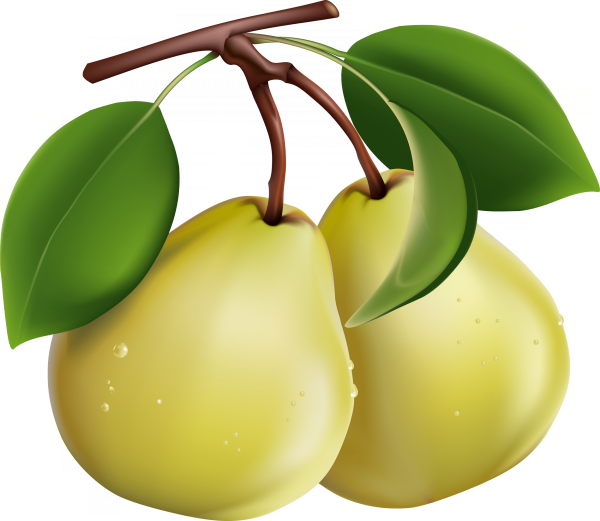
Fruit vector art sounds simple. It isn't. Most pear illustrations online are either cartoonish clipart from the 2000s, or hyper-realistic 3D renders that look like plastic props. The one in this download strikes the balance. Hand-traced from a high-resolution photograph, it captures the natural asymmetry of a real Conference pear — the slightly uneven curve, the subtle brown speckling on the skin, the way the stem bends at the top. Not too realistic, not too stylised. Just right for professional design work.

Two formats. One archive. The EPS gives you the full editable vector — every gradient, every leaf vein, every highlight is a path you can modify. The PNG is a ready-to-use raster with transparent background at 5184 by 4488 pixels. That's roughly 23 megapixels. Enough for A3 print at 300 DPI with room to crop.

Both files are free for personal and commercial use. Drop them into menus, packaging designs, recipe blogs, or food apps. No attribution required.
FormatResolutionTransparencyEditable?Best Use
EPSInfinite (vector)YesYes (Illustrator, CorelDRAW, Inkscape)Logo design, print at any size
PNG5184 x 4488 pxYes (alpha channel)No (raster)Web, fast layouts, compositing
Download grusha.zip~5 MB

What the EPS Contains and How to Edit It

EPS is the grandparent of vector formats. It's been around since 1987 and still works in every professional design application. This particular EPS file contains:

  • Pear body — gradient mesh with 12 colour stops, reproducing the green-to-yellow transition of a ripe Conference pear
  • Stem — separate curved path, dark brown with a slight wood texture gradient
  • Leaf — single path object with vein detail, positioned at the stem junction
  • Skin texture — scattered elliptical paths in semi-transparent brown for the characteristic speckling
  • Shadow — a blurred ellipse beneath the fruit, on its own layer
  • Background — transparent by default, no white rectangle included

Opening the EPS in Illustrator, CorelDRAW, or Inkscape gives you access to every one of these elements. Want a red pear? Adjust the gradient stops. Need the leaf removed for a minimalist logo? Delete the leaf path and done. Recolouring the stem for a different variety of pear takes about 15 seconds — select the path, pick a new fill colour.

The gradient mesh is the trickiest part to reproduce manually. Getting the light falloff across a rounded organic shape right takes a trained eye. This file already has it — the highlight on the upper left, the shadow curve along the bottom right. That's hours of work you skip.

PNG vs Vector: When to Use Which

This download includes both formats because they serve fundamentally different purposes. Here's how to pick:

ScenarioUse EPSUse PNGReason
Web banner 800 px wideNoYesPNG drops in directly; EPS needs export step
Billboard 6 metres wideYesNoPNG at this size would be ~150 MB; EPS scales infinitely
Compositing in PhotoshopNoYesPhotoshop rasterises EPS on import; PNG with alpha is faster
Logo design for a juice brandYesNoLogos must scale from business card to truck — only vectors guarantee that
Recipe card for a food blogNoYesBlog images are typically 1200-2000 px; PNG is perfect and loads faster
Embroidery digitisingYesNoEmbroidery machines trace vector paths; raster is useless here
PowerPoint presentationNoYesOffice software handles PNG natively; EPS requires conversion

If you do the kind of work where projects evolve — the food blog becomes a cookbook, the menu becomes a billboard — keep the EPS. Export PNGs from it as needed. The vector is your master file. The PNG is a render from it.

Transparent Background: The Unsung Hero of Design Work

Nothing kills a layout faster than a white rectangle around a fruit image. You drop a pear onto a coloured background — cream for a menu, dark green for a juice label — and there's that ugly white box. PNG with alpha channel eliminates this entirely. The pear floats. No background. No edges. Just the fruit.

The alpha channel in this PNG was generated directly from the vector source, so the edge is mathematically precise. No fuzzy anti-aliasing artefacts at the boundary where fruit meets background. No leftover white pixels from a sloppy magic wand selection. This matters most when you're placing the pear on dark backgrounds — every stray pixel lights up like a beacon.

Web developers appreciate this too. CSS background colours, gradient overlays, complex compositions with multiple layered images — the transparent pear slots into all of them without a separate masking step. Set it, position it, move on.

Where Fruit Vector Art Gets Used (Real Examples)

The applications for a quality pear illustration are broader than most people think:

  • Restaurant menus — dessert sections, cocktail lists, seasonal specials. A pear illustration next to "Poire William tart" adds warmth that text alone can't convey.
  • Food packaging — pear juice bottles, dried fruit bags, baby food pouches. Regulatory labels aside, the visual sells the product.
  • Cookbook illustrations — ingredient spot illustrations in the margins. Small, elegant, informative.
  • Recipe apps and websites — category icons, featured recipe thumbnails. Vector scales across all device resolutions without multiple file versions.
  • Farmers' market signage — printed at A2 for market stalls. The EPS handles the upscaling without breaking a sweat.
  • Educational materials — botany worksheets, nutrition charts, food group posters for schools.
  • Tattoo flash sheets — fruit designs are surprisingly popular in botanical tattoo styles.
  • Textile patterns — repeating pear motifs for kitchen towels, aprons, tablecloths.

Each of these uses the same source file. The menu designer exports a small PNG at 600 px. The packaging studio edits the EPS to match their brand palette. The textile designer tiles the vector across a repeat pattern in Illustrator. One file, dozens of outputs.

\u{201c}

A single well-made vector asset is worth more than a folder of 50 mediocre PNGs. Quality source files compound across projects.

Design Productivity Rule, Workflow Wisdom

The Conference Pear: Botanical Notes for Accurate Design

If you're illustrating or designing with this pear and accuracy matters, here are the botanical characteristics of the Conference pear (Pyrus communis 'Conference') — the variety this illustration is based on:

  • Shape: Elongated, pyriform, with a distinct neck that narrows toward the stem. Unlike the rounder Bartlett pear, Conference pears are taller than they are wide.
  • Colour: Green skin that shifts to yellowish-green as it ripens. Fine brown russeting (the speckled texture) is characteristic and not a defect.
  • Stem: Medium-length, curved, woody brown. Often set at a slight angle rather than dead centre.
  • Flesh: Creamy white to pale yellow, fine-grained, very juicy when ripe.
  • Season: Harvested in late September-October in the Northern Hemisphere. Stores well — available through winter.

This matters if you're doing food photography compositing or realistic illustration. The Conference pear looks different from a Bartlett, a Bosc, or an Asian pear. Using the right variety reference prevents that uncanny-valley feeling where something looks off but the viewer can't quite name why.

Working with EPS in 2026: What Still Works, What's Obsolete

EPS has been declared dead roughly 15 times in the last decade. It's still here. But the workflow has changed:

  • Illustrator — still the gold standard for EPS editing. Opens natively, preserves gradients, meshes, and text. No surprises.
  • CorelDRAW — imports EPS files reliably, though complex gradient meshes may need tweaking after import.
  • Inkscape — good EPS import for simple files. Complex gradient meshes may flatten. For this pear file, Inkscape handles it fine because the mesh is straightforward.
  • Affinity Designer — solid EPS support. A good alternative to Illustrator at a one-time purchase price.
  • Figma — no native EPS import. Convert to SVG first using an external tool, then bring the SVG into Figma.
  • Canva — no EPS support. Use the PNG version instead.
If you open this EPS in a text editor out of curiosity — don't save it. EPS files contain PostScript code, and even an accidental space character can corrupt the file. Always edit EPS files in vector graphics software, never in text editors.

Gradient Meshes in Fruit Illustrations: Why They're Hard and How This File Works

The gradient mesh is arguably the most complex tool in vector graphics. Unlike a simple linear or radial gradient that goes from point A to point B, a mesh lets you set colour at every intersection of the mesh lines. Think of a chessboard where every square can have its own colour, and between them — a smooth transition. That's roughly how a gradient mesh works.

For fruit illustration, this is critical. The rounded form of a pear creates complex light distribution. The top, facing the light source, is brighter and warmer. The sides fall into partial shadow — cooler, less saturated. The bottom, closest to the table surface, catches reflected light and may have a greenish cast. The 12-point gradient mesh in this file reproduces all these nuances.

Why 12 points and not 4 or 40? A 4-point mesh gives a crude transition — fine for a 64x64 icon, but not for a printed menu. A 40-point mesh gives extreme detail, but the file balloons to unwieldy size and every edit takes forever because the editor recalculates 40 control points. Twelve is the practical compromise. Enough for convincing volume, easy enough to edit.

If you want to change the pear's colour — say, make a red variety like the Bartlett — don't touch the mesh structure. Only change the colour values at each control point. The structure (node positions, guide curves) stays the same — you just replace green with red at every point. Same shape, different colour. Five minutes of work.

Layout Integration: How to Place the Pear in Menus, Packaging, and Web Design

Having a good asset is half the work. The other half is placing it correctly in a layout. Here are techniques that work specifically with this pear image:

Restaurant menu. The pear looks great peeking in from the corner of the desserts page — partially cropped. Create a clipping mask in any editor to cut off part of the image. Because the PNG has a transparent background, the cropped pear leaves no white traces — the mask is clean.

Juice packaging. A pear juice bottle label is vertical format. The pear is vertically elongated — an advantage. Place it centre-label, stem pointing up. Product name below or wrapped around the pear in an arc. The EPS version lets you scale the pear precisely to label height with zero sharpness loss.

Website. The 600 px PNG is perfect for an online store product card. The transparent background means the pear looks good on any site background — white, cream, dark green. No need to separately clip the background for every colour scheme.

Textile pattern. Take the EPS, shrink the pear to icon size, duplicate in offset rows — you get a seamless pattern. Works for kitchen towels, aprons, or tablecloths. The key: don't make the pears too large in the pattern, or it stops reading as background and starts competing with the main content.

One rule applies across all cases: decide the pear's role in the layout first, then choose your format. Hero element — EPS. Supporting element — PNG. Background pattern — EPS, shrunk and tiled.

How to Spot a Good Fruit Vector vs a Bad One: A 5-Point Checklist

The market is flooded with fruit vectors of dubious quality. Auto-traced trash, AI-generated blobs, slapped-together gradients. How do you tell a workable file from one you'll have to rebuild? Here's the checklist:

1. Node count. Open the EPS in Illustrator and enable anchor point display. A good vector uses 30-60 nodes for the pear body shape. An auto-traced one uses 500-2000. The difference is visible immediately and it's critical: every extra node is a potential scaling artefact and an editing nightmare.

2. Layer organisation. A good file has a logical structure: pear body separate, stem separate, leaf separate, shadows separate. A bad file has one pile of objects in a layer called Layer 1. Check the layers panel before you start working.

3. Gradients vs flat colour. Flat colours work for icons and minimalist design. Photorealistic illustration needs gradients. Check that gradients aren't muddy — the transition should be smooth, with no visible banding.

4. Background transparency. Non-negotiable. Many vector files contain a white rectangle behind everything. Open the EPS, select all objects (Ctrl+A), look for a hidden white background. This file has none — the background is honestly transparent.

5. Scaleability without artefacts. Zoom in 10x (to 50000%). If lines stay smooth and gradients stay clean, the file is quality. If angular edges or pixelation appear, the file contains raster elements disguised as vector.

This file passes all five checks. Node count is exactly right. Layers are named. Gradients are clean. Background is transparent. Scales infinitely. Take it and go.

FAQ

What's inside the grusha.zip archive?

The ZIP contains two files: an EPS vector illustration of a pear (editable, scalable to any size) and a high-resolution PNG (5184x4488 pixels) with a transparent background. Both are ready to use in any design project.

Can I edit the EPS file in free software?

Yes. Inkscape (free, open-source) opens this EPS file and handles the gradient mesh without issues. Affinity Designer (paid but affordable one-time purchase) also works well. You don't need an Adobe subscription to edit this file.

What resolution is the PNG file?

The PNG is 5184 by 4488 pixels — roughly 23 megapixels. At 300 DPI, that's approximately 44 by 38 centimetres (17.3 by 15 inches). Plenty of resolution for most print applications, and far more than needed for web use.

Does the PNG have a white background?

No. The PNG has a fully transparent background (alpha channel). You can place it directly onto any coloured background without a white box appearing around the pear. The edge is mathematically precise — no fuzzy artefacts.

What pear variety is this illustration?

The illustration is based on a Conference pear (Pyrus communis 'Conference') — the elongated, green-skinned variety with characteristic brown russeting speckles. It's one of the most widely grown pear varieties in Europe.

Can I use this pear image in my commercial food packaging?

Yes. Both the EPS and PNG are free for commercial use. You can use them on product packaging, restaurant menus, cookbooks, websites, apps, and marketing materials without attribution or licensing fees.

How do I change the colour of the pear?

Open the EPS in Illustrator, CorelDRAW, or Inkscape. Select the gradient mesh on the pear body. Adjust the colour stops — replace the green with red for a red pear, or adjust the saturation for a different shade. Save as a new file and export your PNG from there.

Can I use just the leaf without the pear?

Yes. Since the leaf is a separate path object in the EPS, you can delete the pear body and keep only the leaf. This is useful if you need a generic leaf element for a different design. Ungroup the objects first if needed.

Is the pear illustration traced from AI or hand-drawn?

The vector was traced from a high-resolution photograph by hand — not auto-traced, not AI-generated. This means the curves are intentional and clean, with an optimal number of anchor points. Auto-traced fruit images typically have thousands of unnecessary nodes that make editing painful.

Will this work for laser engraving or vinyl cutting?

The EPS can be adapted for laser engraving and vinyl cutting. You'll need to simplify the gradient mesh into flat colour areas — engraving and cutting machines don't handle gradients. Convert the gradient to a solid silhouette, then adjust stroke thickness for cut lines in your CAM software.

Tap to react