What Is Vector Clipart and Why You Need It
Picture this: you need a sharp anchor for a logo. You open Pinterest — a sea of JPEGs on white backgrounds, fuzzy edges, and pixel mush when you zoom in. Sound familiar? Now imagine downloading a single file, opening it in Illustrator, and scaling it up to billboard size with zero quality loss. That is vector clipart. No magic — just the mathematics of Bezier curves.
A vector image is described not by pixels but by geometric primitives: curves, lines, polygons. That is why it scales infinitely. A raster JPEG at 300% turns into porridge. A vector stays razor-sharp. That is why every serious designer works in vector, reserving raster only for final web publication.

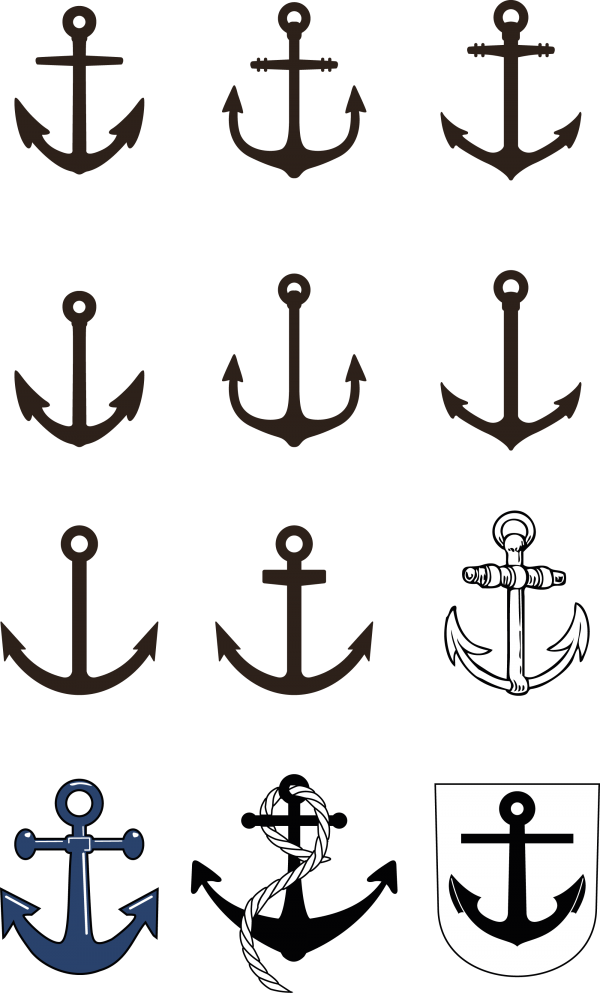
This anchor set is not a single file — it is an entire collection across three popular vector formats. You get ready-made outlines you can open in CorelDRAW, Adobe Illustrator, Inkscape, and a dozen other editors. Let us be honest: it is far easier to grab a ready contour and tweak it for your project than to draw an anchor from scratch, calculating the proportions of flukes and shank.
Anchor Symbolism in Design: From Antiquity to Modern Brands
The anchor is one of humanity's oldest symbols. In antiquity it stood for reliability, stability, and salvation. Romans stamped it on coins; early Christians used it as a secret sign of faith (the anchor resembles a cross in form). Today the symbol has not lost relevance — if anything, it has gained new meanings.
In design, the anchor works on multiple levels. The first, surface level — a direct association with the sea, the navy, travel. The second, deeper level — a metaphor for stability, grounding, being anchored. The third level — a nod to nautical romance, the spirit of adventure, and freedom. A skilled designer leverages all three layers simultaneously.
\u{201c}A simple symbol, stripped to its essence, is always stronger than an overloaded illustration. The anchor is a perfect example.
Think of navy logos, yacht club emblems, sailor tattoos. The anchor reads instantly, even at a tiny size. This quality is called sign legibility — and the anchor is a champion here. That is why anchor logos are so popular with clothing brands (Nautica, Anchor Blue), insurance companies, fishing shops, and travel agencies.
Vector File Formats: EPS, CDR, and SVG — Which to Choose
In this set you get images in three formats — not one, not two, but exactly three — to cover every designer's needs regardless of their working tool. Let us break down how they differ and when to use each.
EPS — The Granddaddy of Vector Formats
EPS (Encapsulated PostScript) appeared in the late 1980s and is still alive and kicking. Virtually every program understands it: from ancient QuarkXPress to the latest Figma (via import). Inside an EPS file is a PostScript description that can include both vector and raster data. The format is excellent for sending layouts to print shops — prepress workflows have been tuned to EPS for decades.
Drawbacks? EPS does not support transparency in the modern sense. If you are accustomed to alpha-channel layers in AI files — forget it. EPS is a flat format, and any transparency effects get rasterized. But for simple outlines like an anchor, this is not critical.
CDR — CorelDRAW's Native Format
CDR is Corel's proprietary format. If you work in CorelDRAW (and in many regions designers love it for its intuitiveness and affordability), CDR will be your first choice. CDR files support multipage documents, layers, effects, and the full richness of Corel's toolset.
The catch: CDR barely opens in other editors. Adobe Illustrator sees CDR through a foggy lens. Inkscape even less so. So CDR is great as a primary working format inside Corel, but for sharing with colleagues, duplicate to EPS or SVG.
SVG — The King of the Web
SVG (Scalable Vector Graphics) is vector expressed in XML. Its native environment is the browser. Every modern browser renders SVG without plugins, which is why the format has become the standard for web graphics: icons, header logos, landing page illustrations. SVG supports animation, interactivity, and CSS styling. And you can edit an SVG file directly in a text editor — because it is pure code.
For a web designer, SVG is a must-have. Files weigh next to nothing, load instantly, and never blur on retina screens. Best of all — search engines index text inside SVG. If your SVG logo contains a text tag, Google and Bing will see it.
Format Comparison at a Glance
| Characteristic | EPS | CDR | SVG |
|---|---|---|---|
| Type | Open (PostScript) | Proprietary (Corel) | Open (W3C standard) |
| Created | 1987 | 1989 | 2001 |
| Compatibility | All pro editors | CorelDRAW only | Browsers and editors |
| Transparency | Limited | Full | Full |
| Animation | No | No | Yes (SMIL/CSS/JS) |
| File size | Medium | Small | Very small |
| Excellent | Excellent | Mediocre (via export) | |
| Web | Not suitable | Not suitable | Perfect |
| Code editing | Difficult | No | Easy (XML) |
How to Use Anchors from the Set: Real-World Scenarios
Let us move from theory to practice. Here are several real scenarios where this anchor set will save you hours of work.
Yacht Club or Store Logo
Take any anchor contour from the set in CDR or EPS format, open it in your editor, add the club name in a font like Trajan or Bebas Neue — and your logo is done in 15 minutes. Want uniqueness? Apply a wood texture overlay to the anchor, add a stroke, play with negative space. The vector contour permits any manipulation without quality loss.
Mobile App Icon
Open the SVG in Figma or Sketch, scale to the required size (typically 1024x1024 px for App Store), pick a color from your app palette — icon ready. SVG lets you export to any-resolution PNG or use it directly on the web as a favicon.
T-Shirt and Merchandise Print
A vector contour is the ideal source for vinyl cutting, screen printing, and heat transfer. Open the EPS, convert to outlines, send to production. Zero issues with color separation or scaling. Print shops love vector.
Web Design Element
An SVG file can be embedded directly into a site's HTML as inline graphics. Change the fill color via CSS — and the anchor adapts to your site theme. Add a hover effect: the anchor changes color on mouseover. Add a gentle rocking animation on waves — pure magic, and just five lines of code.
How Our Set Compares to Alternatives
| Criterion | Our Set | Freepik (Premium) | Shutterstock | Free PNG Collections |
|---|---|---|---|---|
| Number of images | 10+ variations | 1-2 in free tier | 1 (purchase) | 3-5 |
| Formats | EPS + CDR + SVG | AI + EPS (sometimes) | EPS + JPG | PNG (raster!) |
| Cost | Free | From $10/month | From $29/image | Free |
| Commercial license | Yes | Yes (with attribution) | Yes (Standard) | No / questionable |
| Editability | Full (outlines) | Full | Full | None (raster) |
| Scalability | Unlimited | Unlimited | Unlimited | Up to 2-3x |
| Print-ready | Yes (EPS/CDR) | Yes | Yes | No (RGB/raster) |
| Web-ready | Yes (SVG) | Requires export | Requires export | As-is only |
| Registration required | No | Yes | Yes | Sometimes |
The key difference: we provide all three formats in a single archive. No need to convert, hunt for plugins, or pay extra for a vector version. Download, open, get to work.
Tools for Working with Vector Anchors
Once you have the set, your next question will likely be — what do I actually open these files with? Here is a quick software guide.
Adobe Illustrator — the industry standard. Opens EPS and SVG natively, CDR via import. Downside: subscription from $20/month. If you are a professional designer, it pays for itself. For beginners — probably not.
CorelDRAW — the native environment for CDR. A powerful tool, especially popular in print design. License from $300 one-time or by subscription. For working with the anchor set, this is ideal if you are already on Corel.
Inkscape — free, open-source editor. Handles SVG brilliantly, EPS via import, CDR with mixed results. If your budget is zero — this is your pick. Decent functionality, though the interface is an acquired taste.
Figma — cloud-based web design tool. Imports SVG excellently, EPS via plugins, CDR not at all. If your target is web, grab the SVG file from the set and drag it into Figma. Color, size, and stroke editing is available right in the cloud.
Why the Anchor Is a Can't-Miss Design Element
Let us face facts: there are one-hit-wonder symbols (remember the cloud icon craze of the 2010s?), and there are eternal ones. The anchor belongs to the second category. It is thousands of years old and shows no sign of going out of style. The reason is simple: the anchor speaks of things that will always be relevant — reliability, home, safety, staying the course.
In nautical themes, the anchor is king. But it works brilliantly in other niches too. An insurance company? Anchor equals stability. A law firm? Anchor stands for steadfastness. A family therapist? Anchor represents support and safe harbor. The range of applications is staggering.
And the anchor looks gorgeous in monochrome. A black outline on a white background — and the logo already feels premium. Add a gold gradient and it turns luxury. Blue on white is maritime classic. Red brings boldness and energy. One and the same anchor contour yields dozens of variants just by changing the color.
Tips for Working with Vector Anchors
To wrap up — a few practical recommendations that will save you both time and sanity.
- Always keep the original. Before you start twisting the contour — duplicate the file. Vector forgives a lot, but a single accidentally deleted node can ruin the entire geometry.
- Simplify the contour for web. An SVG for a website should be lightweight. Remove unnecessary points, simplify curves. The SVGOMG plugin is your friend.
- Check colors in CMYK. If the anchor is heading to print — convert colors from RGB to CMYK in your editor. That vibrant blue on screen might turn out muddy purple in print.
- Add breathing room. When building a logo, leave enough whitespace around the anchor. A symbol pressed against the edges looks cheap.
- Use Ctrl+Shift+S for export. Never overwrite the master file. Export via Save As to the required format.
Technical Details of the Set
The set contains more than ten vector anchor images in various styles: from classic admiralty anchors to stylized minimalist outlines. All images are in a ZIP archive with three folders organized by format.
Resolution is a raster concept, but for reference: when exported to A4 at 300 dpi, the edges remain perfectly smooth. Color model — RGB (for web) with easy conversion to CMYK (for print). Outline thickness ranges from 0.5 pt to 4 pt — pick what fits your project.
Frequently Asked Questions
What is vector clipart and how does it differ from raster?
Vector clipart describes an image using mathematical curves rather than pixels. It can be scaled to any size without quality loss. Raster clipart (PNG, JPEG) breaks into pixel squares when enlarged. Logos and print materials require vector.
Which programs can open EPS, CDR, and SVG from this set?
EPS opens in Adobe Illustrator, CorelDRAW, Inkscape, Affinity Designer. CDR works in CorelDRAW (native format) and partially in Illustrator and Inkscape. SVG opens in any browser, Figma, Sketch, Illustrator, and dozens of other applications. We recommend CDR for Corel users, EPS for Illustrator, and SVG for web work.
Can I use these anchors in commercial projects?
Yes, all images in the set come with commercial-use rights. You can use them in logos, business cards, advertising materials, product packaging, and web design. No royalties or attribution required.
How do I change the color of an anchor in a vector editor?
Select the object with the selection tool, then click on a color swatch in the palette. In Illustrator and CorelDRAW, the palette is on the right or bottom. In Figma — in the right-hand properties panel. If the anchor consists of multiple objects, group them with Ctrl+G before changing the color.
Is this set suitable for creating a logo?
Absolutely. The vector anchor contours in the set are an excellent logo foundation. You can refine the outline, add text, adjust proportions, and combine multiple elements. After customization, the logo becomes your unique product. We recommend saving the final version in EPS for print and SVG for the web.
What makes this set better than free PNG anchors from the internet?
PNG is raster. Zoom in and it falls apart; recoloring it requires Photoshop acrobatics; and it is unsuitable for print (except at tiny sizes). Our set is pure vector in three formats: scale to billboard size, change colors in two clicks, send to print without a headache.
What if CDR does not open in my program?
Open the EPS or SVG file from the same set. All three formats contain the same images. CDR is a bonus for CorelDRAW users. If you use Illustrator, go with EPS. For Figma or Inkscape, pick SVG. If CDR is critical, install a trial of CorelDRAW and export to EPS.
How do I embed an SVG anchor on a website?
Two methods. First: insert as an image via img tag — <img src="anchor.svg" alt="Anchor" />. Second (recommended): open the SVG in a text editor, copy the entire XML code, and paste it directly into the page HTML. The anchor will then respond to CSS color changes and support hover effects.
Do I need to credit the author when using this clipart?
No. All images in the set are distributed without attribution requirements. Use them in any projects — commercial and non-commercial — without citing the source. The only restriction: you may not resell the files themselves as a standalone product.
Why is the anchor a great symbol for a company logo?
The anchor subconsciously evokes reliability, stability, and safety — precisely the qualities any business wants to project. The symbol reads clearly at any size — from a 16x16 favicon to a building sign. Graphically, the anchor is expressive: the vertical shank creates a strong compositional axis, while the curved flukes add dynamism and character.
Download the Anchor Set
The archive includes more than ten vector anchor images in three formats: EPS, CDR, and SVG. All files are ready for use in any project — from web design to large-format printing.
Download Anchor Set (ZIP)~15MB