Web Icons — Professional Round PSD Icons for Your Project
Every web designer knows: icons aren't just decoration. They are the language of an interface. A good icon explains to the user where to click faster than text ever could. A bad one makes them squint and get annoyed. The Web Icons set solves this problem with a single archive: over 30 round icons in .PSD format, ready for editing and immediate use.
Inside the archive, weighing just 566.96 KB, lies a complete collection of social media, functional, and decorative icons. Each is rendered at a resolution sufficient for Retina displays and print: from 1098 to 1954 pixels on the longer side. That is enough for a logo, a banner, an app icon, and even a business card. Yet the archive weighs less than a single smartphone photo.
What Is Included in the Set
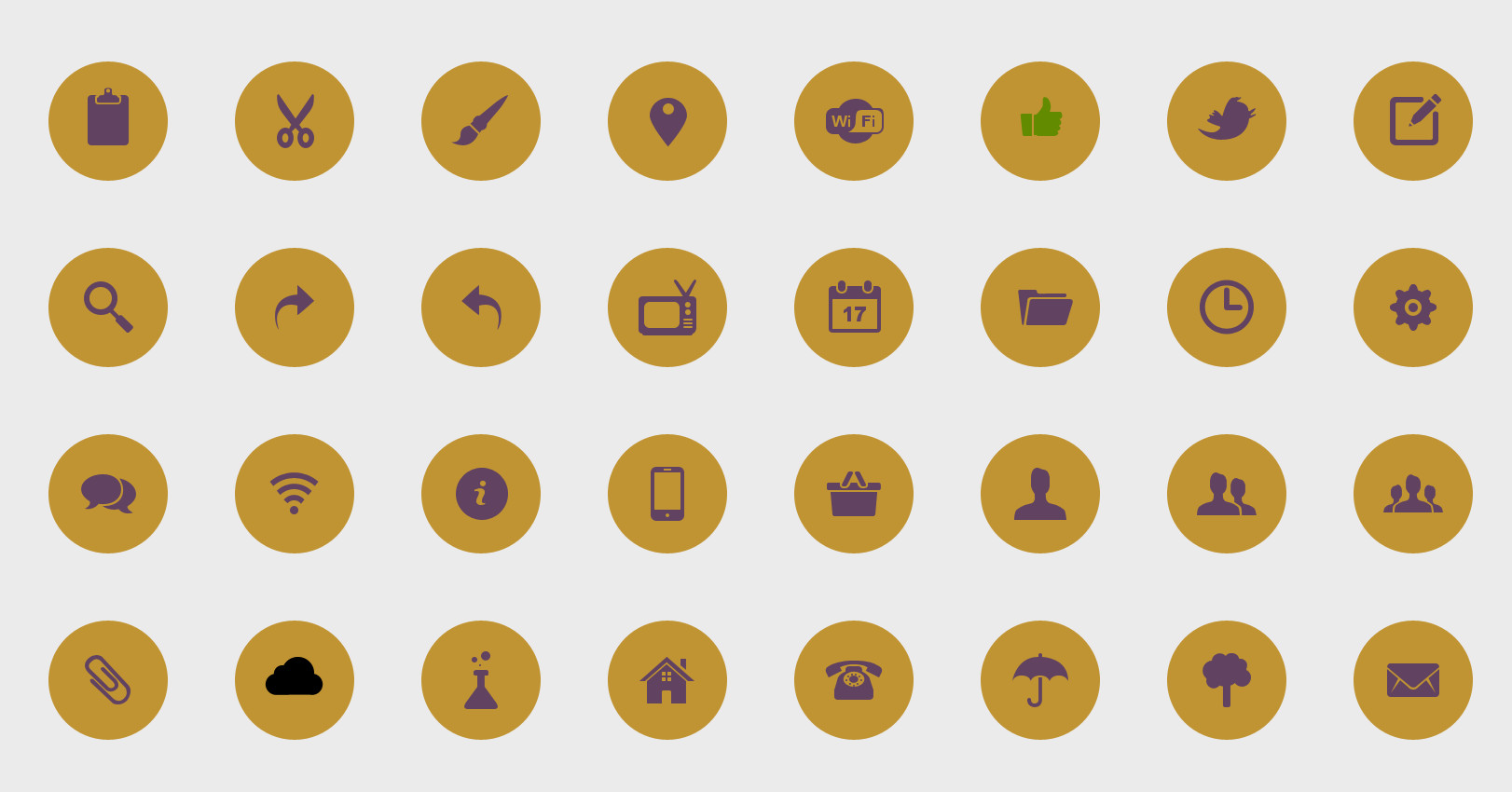
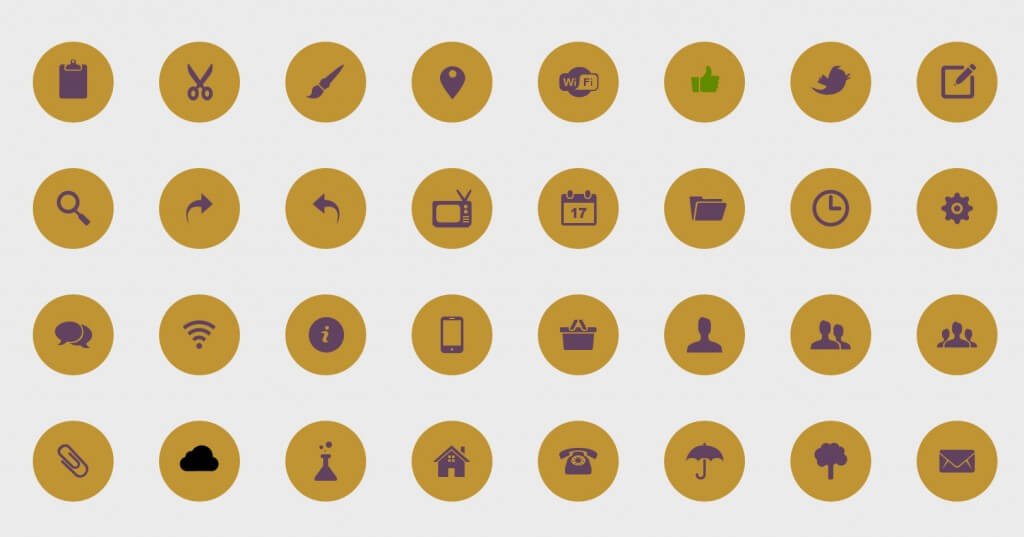
The archive contains icons for major social networks and web services in a unified round style. All icons maintain a consistent color palette and geometry — something critically important for cohesive design. The package includes:
- Social networks: Facebook, Twitter, Instagram, YouTube, Vimeo, Pinterest, LinkedIn, Google+, Tumblr, Flickr, Dribbble, Behance, DeviantArt, Reddit, VK, Odnoklassniki
- Messengers: Skype, WhatsApp, Telegram
- Services: RSS, email, search, location, shopping cart, favorites, settings, cloud storage
- Media: camera, video, music, image, document
Each icon is a separate PSD file or layer group within a shared document. The format allows you to edit color, size, shadows, and strokes independently for each element. No flattening — only editable layers.
Technical Specifications and Resolution
Here are the key parameters to know before downloading:
| Parameter | Value |
|---|---|
| File format | .PSD (Adobe Photoshop Document) |
| Resolution | 1098 x 1098 to 1954 x 1954 pixels |
| Color model | RGB, 8 bits per channel |
| Archive size | 566.96 KB |
| Layer structure | Multi-layer, editable elements |
| Compatibility | Adobe Photoshop CS6+, Affinity Photo, GIMP (with limitations) |
| License | Free for personal and commercial projects |
A resolution of 1954x1954 pixels per icon is far more than the web requires (where 256x256 is rarely exceeded). But the resolution headroom enables offline design: business cards, flyers, posters, presentations.
How to Edit Icons in Photoshop
Open a PSD file in Photoshop and you immediately see the layer structure. A typical icon consists of three to four layers:
- Background circle — gradient or solid fill defining the base color
- Circle stroke — a separate layer with a Stroke style for a sharp outline
- Icon symbol — the main image (smart object or vector layer)
- Shadows and highlights — effects for depth and gloss (optional)
To change the background color: double-click the circle layer icon and pick a new color in Color Overlay. To resize the icon: select all layers, press Ctrl+T, and stretch while holding Shift to maintain proportions. The key rule: don't rasterize smart objects unless absolutely necessary — after rasterization, scaling loses its purpose.
Use Cases: From Websites to Presentations
The round icons in this set are versatile. Here are real-world scenarios where they shine:
- Websites and landing pages: "Find us on social" blocks, contact information, navigation pictograms, action buttons
- Mobile apps: tab bar icons (after PNG export at appropriate sizes), sharing buttons, menu sections
- Email newsletters: social icons in the email footer, pictograms in the body (embedded as PNG)
- Presentations: contact slides, communication channel visualization, infographics
- Print materials: business cards, brochures, flyers — the high resolution ensures icons look great in print
PSD Icons vs. Other Formats
Why bother with PSD at all when ready-made SVG and PNG files exist? The answer lies in the designer's workflow. Here's an honest comparison of the three icon formats:
| Characteristic | PSD (Photoshop) | SVG (vector) | PNG (raster) |
|---|---|---|---|
| Editability | Full — layers, effects, smart objects | Code or vector editor | None — only file replacement |
| Scalability | Limited (via smart objects up to ~300%) | Infinite (mathematical curves) | Limited by original size |
| File size | Medium (layers add weight) | Minimal (text format) | Depends on resolution |
| Web usage | No (export required) | Yes — directly in HTML/CSS | Yes — web standard |
| Animation | No | CSS/SMIL animation | No |
| Transparency | Yes | Yes | Yes |
| Tools | Adobe Photoshop, Affinity Photo | Illustrator, Figma, any code editor | Any graphic editor |
The PSD format wins at the design and prototyping stage. You can quickly recolor an icon, add a shadow, change the stroke, combine it with other graphic elements — all in one file. SVG wins at the development stage: you can change colors via CSS without opening an editor. PNG is the compromise when neither is needed.
In practice, the workflow looks like this: download PSD → edit to match the brand → export as SVG (via Illustrator or an online converter) → add to the site. Or simpler: PSD → Export As → PNG 2x → upload to the site.
Icon Design Best Practices
Over years of working with icons, I've developed a few rules that save time and frustration:
- Unified grid. All Web Icons are designed within a single circular grid. If you add your own icons, follow the same proportions — otherwise the set will look inconsistent.
- Optical compensation. Round icons visually appear smaller than square ones of the same size. If mixing with non-round icons, enlarge round ones by 5-10%.
- Minimum touch target. On mobile devices, an icon should be at least 44x44 pixels (Apple HIG recommendation). Plan for this during the PSD design phase to avoid rework.
- Background contrast. An icon must be readable on any background. The Web Icons set uses contrasting backgrounds — but if placing an icon on a busy photo, add a backing or white stroke.
- Semantic clarity. A "cart" icon should look like a cart, not abstract geometry. If the user has doubts — pair the icon with text.
How to Customize Colors and Sizes
The most common task after downloading: "beautiful icons, but wrong colors." Solved in three steps:
Step 1. Background color. In the Layers panel, find the "Background" or "Circle" layer. Double-click the Color Overlay effect (if present) or add a new one via Layer → Layer Style → Color Overlay. Pick the brand palette color.
Step 2. Resizing. Select all icon layers (click the top one, then Shift+click the bottom), press Ctrl+T. Enter exact pixel dimensions in the properties panel. Scaling smart objects preserves quality.
Step 3. Batch export. If you need 30 icons at the same size, use File → Export → Layers to Files. Choose PNG-24 format, 2x resolution, and a destination folder. In a minute, you have a ready-to-use web set.
DownloadSmart Objects: Why They Matter
Unlike free PNG icons that are often "dead" raster images, the Web Icons use smart objects. This is a Photoshop technology where the source image is stored separately and loaded into the document as a reference. Advantages:
- Scaling without pixelation — up to billboard size
- Smart filters — blur, sharpen, distort without destroying the original
- Content replacement — swap in a different icon without rebuilding the entire layer
- Batch editing — change one smart object, and all its copies in the document update
If you open a PSD and see the smart object icon on a layer thumbnail (a small page icon in the corner) — don't rasterize it. That strips away all the format's advantages.
Compatibility with Alternative Editors
Not everyone has an Adobe Creative Cloud subscription. Fortunately, PSD files open in other programs too:
- Affinity Photo — full PSD support, including smart objects and layer styles. Works on macOS, Windows, and iPad. The best Photoshop alternative.
- Photopea — free online editor that opens PSD directly in the browser. Supports layers but has smart object limitations.
- GIMP — basic PSD support: layers are readable, but layer styles and smart objects may display incorrectly.
- Krita — geared more toward illustration; PSD compatibility is limited. Not recommended for icons.
If you work in Affinity Photo or Photopea, the Web Icons set is fully accessible. For GIMP and Krita, I recommend first exporting the icons to PNG via Photoshop or Photopea, then editing.
License: What You Can and Cannot Do
The set is freely distributed, but that doesn't mean "do whatever you want." Standard freebie terms:
- Allowed: use in personal projects, websites, apps, presentations, print materials
- Allowed: modify colors, sizes, shapes, add your own elements
- Allowed: credit the author (optional, but good practice)
- Not allowed: resell the set "as is" separately from your project
- Not allowed: distribute the PSD sources as your own
- Not allowed: use to create a competing product (set clones)
For most web projects, these terms are more than sufficient. If in doubt, contact the author through the download page.
\u{201c}Icons are the visual language of the internet. A good icon set saves the designer hours and the user seconds. Seconds they won't waste deciphering puzzles in your interface.
Frequently Asked Questions
What is the Web Icons set and what is it for?
Web Icons is a free set of round icons in PSD format (Adobe Photoshop). Designed for web designers and developers: icons are editable, recolorable, and exportable to PNG or SVG for use in websites, apps, presentations, and print materials.
What resolution are the icons in?
Icons range from 1098 to 1954 pixels on the longer side. This is enough for Retina displays (up to 3x density) and small-format printing. For standard web use, this resolution is excessive — you can downsize without quality loss.
Can I edit the icons without Photoshop?
Yes — alternatives include: Affinity Photo (paid, full PSD compatibility), Photopea (free, browser-based), and GIMP (free, partial PSD support). The best free option is Photopea: it opens PSDs with layers, requires no installation, and runs directly in the browser.
Why use PSD icons instead of SVG or PNG?
PSD wins at the design stage: full layer editability, styles, effects, smart objects. SVG is better for the web (infinite scaling, CSS color changes). PNG is a ready-made solution requiring no editor. Standard workflow: edit in PSD, export to SVG or PNG for the site.
How do I change an icon's color?
In Photoshop: open the Layers panel, find the background or symbol layer, double-click Color Overlay, and choose the desired color. For batch color changes, use a Hue/Saturation adjustment layer above the icon group.
Which programs support PSD icon files?
Full list: Adobe Photoshop (CS6+), Affinity Photo (1.9+), Photopea (online), Adobe Illustrator, GIMP (basic), Corel PHOTO-PAINT, Sketch (via plugin). I recommend Affinity Photo for desktop and Photopea as the free alternative.
Do I need to pay for commercial use?
Under the Web Icons distribution terms — no, commercial use is permitted. However, you cannot resell the source PSD files or create competing sets based on them. Check the download page or contact the author for clarification.
How do I correctly export an icon for the web?
In Photoshop: File → Export → Export As, choose PNG with transparency, set scale to 2x or 3x for Retina. For batch export: File → Export → Layers to Files. Avoid "Save for Web (Legacy)" — it doesn't support 2x/3x export without manual resizing.
What icon size is needed for mobile apps?
iOS tab bar: 50x50 px (1x), 100x100 (2x). Android: 48x48 dp (~96x96 px at 2x). Apple recommends a minimum of 44x44 points for touch targets. The set's resolution (up to 1954 px) covers all mobile scenarios.
What are smart objects and why shouldn't they be rasterized?
A smart object is a container holding the source image at its original quality. Scaling a smart object uses the source, not current pixels — so quality is preserved. Rasterization converts the smart object into a regular layer — after that, any enlargement leads to pixelation. Web Icons are saved as smart objects — don't rasterize them unless absolutely necessary.
Tap to react