You spend hours photographing products, editing backgrounds, color-correcting, and resizing. Then someone right-clicks, saves, and lists your images on a competing marketplace. The Watermark for JoomShopping plugin stops that. Here is how to set it up properly — from installation to batch processing and performance tuning.
Watermark for JoomShopping is a lightweight Joomla plugin that automatically applies a watermark image to every product photo in your JoomShopping store. It works silently in the background — you upload product images as usual, and the plugin overlays your watermark during the save process. No manual Photoshop work. No batch processing scripts. No remembering to do it before publishing. Set it once, and every image gets branded.
This guide covers installation, configuration, positioning strategies, batch processing existing images, format compatibility, performance considerations, comparison with alternative watermarking methods, common problems and their solutions, and watermark design principles specifically for e-commerce product photography.
What Watermark for JoomShopping Actually Does
At its core, the plugin intercepts the image upload process in JoomShopping and composites a secondary image — your watermark — onto the product photo before saving it to disk. This happens server-side using PHP's GD or ImageMagick library, depending on your hosting configuration. The original image is not preserved by default — the watermarked version overwrites it. This is a deliberate design choice to prevent someone from accessing the clean version via a predictable URL.
The plugin operates on all product images: the main product photo, additional gallery images, and — depending on configuration — thumbnail versions generated by JoomShopping. This comprehensive coverage is critical because thieves often target thumbnails in category listings, assuming the full-size version is behind a watermark but the small version is clean.
Installation: Step by Step
Installation follows the standard Joomla extension workflow, but there are three common pitfalls that trip up new users. Here is the correct sequence:
- Download the plugin archive from the developer's website or Joomla Extensions Directory. The file is typically named plg_jshopping_watermark.zip.
- In Joomla admin, navigate to Extensions > Manage > Install. Use the "Upload Package File" tab. Drag the ZIP or browse to it.
- Joomla will confirm installation. If you see a "JInstaller: :Install: Cannot find XML setup file" error, the archive may be double-zipped — extract it and check for a nested ZIP inside.
- After installation, navigate to Extensions > Plugins. In the filter dropdown, select "jshopping" as the type to narrow the list.
- Find "Watermark for JoomShopping" in the list. The status column will show a red cross — the plugin is installed but disabled.
- Click the status icon to enable the plugin, or click the plugin name to open its full configuration.
Configuration: Every Setting Explained
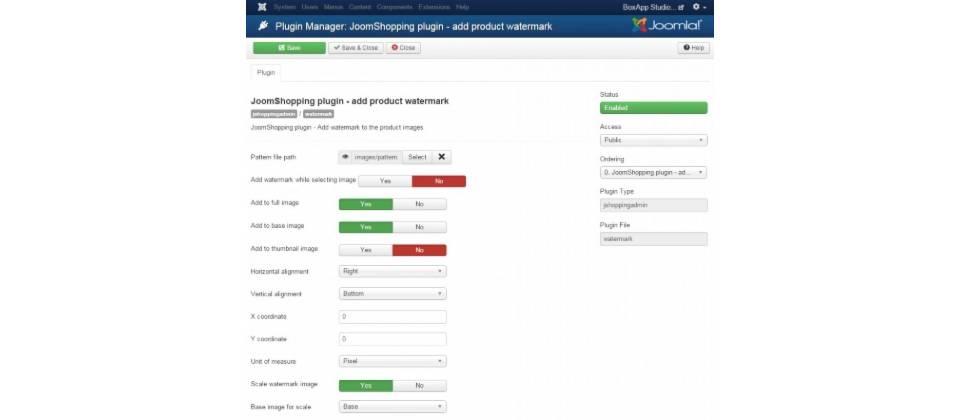
The plugin configuration page contains settings that are not obvious from their labels. Here is what each one does and how to set it correctly for your store.
| Setting | What It Does | Recommended Value |
|---|---|---|
| Watermark Image | Path to your PNG file relative to /images/ | /images/watermark.png (keep it in web root) |
| Watermark Position | Corner or center placement | Bottom-Right (industry standard) |
| Watermark Transparency | Opacity level (0-100) | 30-50% for subtle, 70-90% for aggressive |
| Margin X / Margin Y | Pixel offset from the chosen corner | 20px each (enough to clear border) |
| Min Image Width/Height | Skip watermarking below this size | 200x200 (skip thumbnails) |
| Apply to Thumbnails | Watermark small preview images | No (thumbnails are too small) |
| Overwrite Existing | Re-apply on image re-upload | Yes (prevents clean-image leaks) |
The Watermark Transparency setting deserves special attention. At 100% opacity, the watermark protects your images maximally but can ruin the product presentation if your watermark is large or colorful. At 10%, the watermark is nearly invisible — and so is its protective value. Most professional stores settle between 30% and 50%. This is visible enough to deter casual theft without degrading the customer experience.
Positioning Your Watermark: Strategy Over Defaults
The default bottom-right corner placement exists for a reason: it is the least intrusive position on most product layouts. But "least intrusive" also means "easiest to crop out." A thief with basic image editing skills can crop 30 pixels from the right and bottom edges of your image and remove the watermark entirely. Here is a breakdown of each position's strengths and weaknesses:
| Position | Intrusiveness | Protection Level | Best Use Case |
|---|---|---|---|
| Bottom-Right | Low | Low (easy to crop) | High-margin items, brand-first stores |
| Bottom-Left | Low-Medium | Low (easy to crop) | Products with detail in bottom-right |
| Top-Right | Medium | Medium | General protection, harder to crop |
| Top-Left | Medium | Medium | Products with dark backgrounds |
| Center | High | High (cannot crop) | Digital downloads, exclusive items |
| Tiled (Repeat) | Very High | Maximum | Stock photos, digital assets |
For physical products, the center watermark is too aggressive — it obscures the very thing you are trying to sell. But for digital goods sold through JoomShopping, a tiled or center watermark is standard practice. Shutterstock, Adobe Stock, and every major stock photography marketplace use tiled watermarks. There is a reason.
Watermark File Requirements
Your watermark file is the single most important element in the entire setup. A poorly designed watermark protects nothing and annoys customers. A well-designed watermark deters theft without degrading the shopping experience. Here are the technical requirements:
- Format: PNG-24 with alpha channel. No JPEG. No GIF. PNG is the only format that supports variable transparency, which is essential for a professional-looking overlay.
- Dimensions: Size your watermark to occupy roughly 10-20% of your average product image dimensions. For 1000x1000px product photos, a 200x80px watermark is appropriate. For 800x600px photos, scale down to 160x60px.
- Color: White text on a dark background area of your watermark works best because it remains legible on almost any product color. Pure white with a subtle drop shadow provides contrast against light and dark product surfaces.
- Content: Your store domain name, not your company name. When someone finds your image on Google Images, they need to know where to buy — not just who you are. "yourstore.com" is more actionable than "YourStore LLC."
- File size: Keep the PNG under 100KB. Larger files increase server processing time on every upload. A 100KB watermark applied to 500 product images adds 50MB of processing overhead per regeneration.
Batch Processing: Watermarking Existing Images
Installing the plugin does not watermark your existing product images. It only applies to new uploads going forward. To watermark everything already in your catalog, you need to trigger a regeneration. There are two approaches:
Method 1: Plugin-Based Regeneration
Some versions of Watermark for JoomShopping include a "Regenerate" button in the plugin settings. If present, clicking it iterates through all product images and re-applies the watermark. This is the safest method — it uses the same watermarking pipeline as normal operation and respects all your settings.
The regeneration process is single-threaded and sequential. For a store with 200 products and 3 images each (600 images total), expect 2-5 minutes depending on your server's CPU and the image sizes involved. During this time, the Joomla admin panel may appear unresponsive — it is not. The PHP process is running. Do not close the browser tab.
Method 2: Manual Regeneration via Product Save
If the plugin lacks a regeneration button, you must trigger watermarking product by product. This is tedious for large catalogs but inevitable. The workflow: open a product in JoomShopping admin, verify the image is present, click Save. The plugin intercepts the save event and processes the image. Repeat for each product.
For stores with hundreds of products, consider writing a small PHP script that iterates through the #__jshopping_products database table and triggers the plugin's watermark function programmatically. This requires developer assistance but saves hours of clicking.
// Conceptual approach — not production code
$db = JFactory::getDbo();
$query = $db->getQuery(true)
->select('*')
->from($db->quoteName('#__jshopping_products'));
$db->setQuery($query);
$products = $db->loadObjectList();
foreach ($products as $product) {
// Call plugin trigger programmatically
JEventDispatcher::getInstance()->trigger('onBeforeSaveProduct', [$product]);
}
Supported Image Formats
The plugin supports the formats that PHP's GD library supports, which in practice means JPEG, PNG, and GIF. WebP support depends on your PHP version and hosting configuration. PHP 7.4+ includes WebP support in GD by default on most modern Linux distributions. If you upload WebP product images and the watermark does not appear, check your PHP info for GD WebP support.
BMP and TIFF are not supported. These formats are rare in e-commerce but appear occasionally from legacy inventory systems or industrial photography setups. Convert BMP/TIFF to JPEG or PNG before uploading to JoomShopping.
| Format | GD Support | Imagick Support | Recommended for Products |
|---|---|---|---|
| JPEG | Full | Full | Yes — standard for product photos |
| PNG | Full | Full | Yes — for products needing transparency |
| WebP | PHP 7.4+ | Full | Yes — smaller files, modern browsers |
| GIF | Full (static only) | Full (animated) | No — limited to 256 colors |
| BMP | Partial | Full | No — convert before upload |
| TIFF | No | Full | No — convert before upload |
Performance Impact on Your Store
Watermark processing happens during product save, not during page load. This is the most important performance characteristic to understand: the plugin does not slow down your frontend at all. Customers browsing your catalog load watermarked images as static files from disk — same speed as unwatermarked images. The processing cost is paid once, at upload time, by the administrator.
The cost itself is modest. On a typical shared hosting server with 2 CPU cores and 4GB RAM, watermarking a 2000x2000px JPEG takes approximately 0.3-0.8 seconds. Watermarking a 4000x4000px image takes 1-2 seconds. These are measured with GD library. ImageMagick, if available on your server, is roughly 30-40% faster for the same operation.
To check which library your server uses, create a PHP info file or check the plugin's debug output if available. If you have ImageMagick and the plugin is using GD, the plugin is not configured to prefer ImageMagick — some versions allow switching in the settings.
Comparison: Watermark for JoomShopping vs Phoca Cart Watermark vs Manual Methods
If you are evaluating watermarking solutions for a Joomla store, you have three realistic options. Here is how they compare across criteria that actually matter in production:
Watermark for JoomShopping
Purpose-built for JoomShopping. Tight integration with the component's save pipeline. Minimal configuration. The plugin is small — typically under 50KB — and adds no database tables. It does one thing: applies a PNG overlay to product images during save. The downside: JoomShopping-only. If you also use Phoca Cart or VirtueMart, you need separate solutions.
Phoca Cart Watermark
Phoca Cart includes built-in watermark functionality in its core, not as a separate plugin. It supports text watermarks in addition to image overlays — you can render your store name as dynamic text without creating a separate image file. Phoca Cart's watermark also supports image resizing and thumbnail watermarking separately from the main image, giving finer control. However, Phoca Cart's watermark applies during image display rather than during upload, which means it adds a small processing overhead on every page load.
Manual Watermarking (Photoshop / ImageMagick CLI)
Processing images offline gives you complete control — custom positioning per product, different watermarks for different categories, and guaranteed quality since you review every output. The tradeoff is time. Manual watermarking 50 products takes an hour or more. Manual watermarking 500 products is a part-time job. If your catalog changes frequently, this approach does not scale.
\u{201c}I used manual watermarking for three years. Then I added 200 products in one week. Installing the plugin took 10 minutes. I never opened Photoshop for watermarking again.
Common Problems and Solutions
Watermark for JoomShopping is simple software, but Joomla hosting environments are complex. Here are the issues I have encountered across dozens of installations and how to fix them:
Problem: Watermark does not appear on images. Check that the plugin is enabled (Extensions > Plugins > filter by "jshopping" > status must be green). Check that the watermark file path is correct and the file exists at the specified location. Check file permissions — the watermark PNG must be readable by the PHP process. On Linux hosting, permissions should be 644 for the file and 755 for containing directories.
Problem: Watermark appears but is a solid rectangle. Your watermark file is a JPEG. Replace it with a PNG-24 with an alpha channel. This is the single most common support request for this plugin, and the fix is always the same.
Problem: Watermark is stretched or squashed. The plugin is scaling your watermark to match the product image dimensions. This happens when the watermark file is too large relative to the product image. Create a smaller watermark — aim for 20% of your average product image width.
Problem: Plugin causes white screen on product save. PHP memory limit exceeded. Watermarking large images (4000x4000px+) can consume 128MB+ of memory during processing. Increase PHP memory_limit to 256M in your php.ini or hosting control panel. If on shared hosting, reduce your product image dimensions — 2000x2000px is sufficient for almost all e-commerce applications.
Problem: No watermark on older products after enabling the plugin. This is expected behavior — the plugin does not retroactively watermark existing images. Use the regeneration method described in the batch processing section above.
Best Practices for Watermark Design in Joomla E-Commerce
E-commerce watermarking is fundamentally different from photography portfolio watermarking. A photographer watermarks to claim authorship. A store owner watermarks to prevent unauthorized reuse. The goals are different, and the design reflects that difference.
Use your domain, not your logo. A watermark that says "YourStore.com" sends traffic back to your site when shared without permission. A logo requires the viewer to already know your brand. If someone scrapes your product images and posts them on a forum, the domain name is the only link back to your store.
Keep it small but spread it out. A single small watermark in the corner is crop-out bait. A tiled pattern across the entire image is impossible to remove without Photoshop expertise. The middle ground: a diagonal watermark that spans the image center. It covers the product but remains partially transparent so the product is still visible. Stock agencies perfected this approach decades ago.
Use transparency aggressively. A watermark at 100% opacity says "I do not trust you" to your legitimate customers. A watermark at 20-30% says "I protect my work, but I respect your experience." The sweet spot is visible enough to deter casual thieves but subtle enough that paying customers do not complain.
Test on dark and light products. A white watermark disappears on a white product. A black watermark disappears on a dark product. The solution is either a watermark with a contrasting outline (white text with a dark stroke) or a semi-transparent background area behind the watermark text that provides contrast regardless of the product image beneath it.
Do not watermark corners only. Cropping the edges of an image takes seconds. Place the watermark where cropping would destroy the product image — center or diagonal. Yes, it is more intrusive. That is the point. The thieves who bother to edit out a center watermark are the same thieves who would rebuild your product photography from scratch. Most will not bother.
Troubleshooting Quick Reference
When something goes wrong with Watermark for JoomShopping, the problem is almost always in one of these areas. Check them in this order:
- Plugin enabled? Extensions > Plugins > filter by jshopping > status column.
- Watermark file exists? Verify the path in plugin settings points to an actual file on disk.
- File is PNG? Open it in an image editor. If it is a JPEG, convert to PNG-24 with transparency.
- PHP memory? Check your php.ini memory_limit. Increase to 256M if watermarking images above 2000px.
- GD library? PHP info page > search for "gd." Both GD and ImageMagick should be active.
- File permissions? On Linux, the watermark PNG needs 644. The /images/ directory needs 755.
- Cached images? Clear Joomla cache and browser cache. Old unwatermarked versions may be served from cache.
If all seven checks pass and the problem persists, the issue is likely a JoomShopping version compatibility problem or a conflict with another plugin that hooks into the same save event. Disable other JoomShopping plugins temporarily and test with only Watermark for JoomShopping active. If the problem resolves, re-enable plugins one at a time to identify the conflict.
DownloadFAQ
How do I install Watermark for JoomShopping?
Download the plugin ZIP, go to Extensions > Manage > Install in Joomla admin, upload the file, then enable the plugin under Extensions > Plugins by filtering for "jshopping" type. Upload your watermark PNG via the plugin settings page.
Why is my watermark rendering as a solid rectangle instead of transparent?
You are using a JPEG as your watermark file. JPEG does not support transparency. Replace it with a PNG-24 file containing an alpha channel. Export from Photoshop or any image editor with transparency enabled.
Does the plugin watermark existing product images?
No, not automatically. The plugin only watermarks images uploaded after installation. To watermark existing products, use the Regenerate button if available in plugin settings, or re-save each product individually to trigger watermark processing.
What image formats does Watermark for JoomShopping support?
The plugin supports JPEG, PNG, and GIF via PHP's GD library. WebP support requires PHP 7.4+. BMP and TIFF are not supported — convert them to JPEG or PNG before uploading to JoomShopping.
What is the best watermark position for an e-commerce store?
For physical products, a diagonal placement at 20-30% opacity is the best compromise between protection and presentation. For digital goods, use a tiled pattern. Corner placement is the easiest to crop out and provides minimal protection.
Does the plugin slow down my store's frontend?
No. Watermark processing happens during product save in the admin panel, not during page load on the frontend. Customers load pre-watermarked static image files at standard speed.
How does Watermark for JoomShopping compare to Phoca Cart's built-in watermark?
Watermark for JoomShopping is JoomShopping-specific, processes images during save (zero frontend impact), and is simpler. Phoca Cart's watermark is built-in, supports text overlays, and processes during display (adds per-page-load overhead). Choose based on your cart component.
What should I put on my e-commerce watermark?
Use your store domain name (yourstore.com), not just your logo or company name. A domain name is actionable — when someone finds your image elsewhere, they know exactly where to go. Keep the design minimal and use white text with a subtle outline for contrast on any product background.
My watermark is stretched or squashed. How do I fix it?
The watermark file is too large relative to your product images. Create a smaller watermark — aim for approximately 10-20% of your average product image width. If your products are 1000px wide, your watermark should be 100-200px wide.
What causes a white screen when saving products with the plugin active?
PHP memory exhaustion. Watermarking large images (4000x4000px+) can exceed the default 128MB PHP memory limit. Increase memory_limit to 256MB in php.ini, or reduce your product image dimensions before uploading.
Tap to react