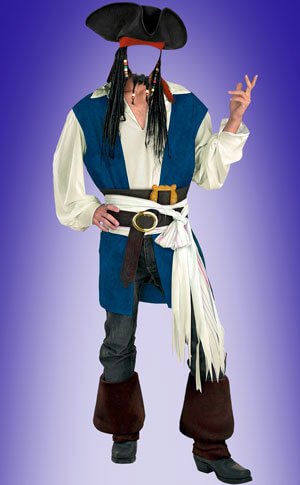
A well-built PSD source file is the difference between a flat collage and a cinematic composite. When you sit down to create a photo manipulation, the raw material either works with you or fights you. Today we are sharing a premium PSD source centered on a Viking warrior theme — a fully layered Photoshop document ready to drop into your next composite, poster, or digital art project. This is not a flattened JPEG with a layer mask slapped on top. It is a properly structured source with separated elements, transparent backgrounds where needed, and resolution high enough for print.
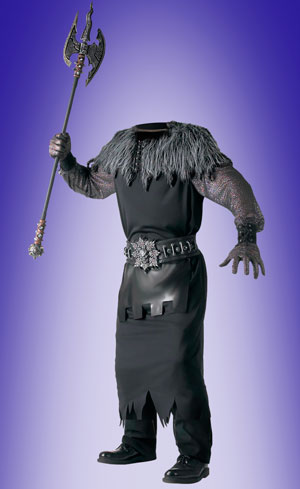
The image depicts a warrior in traditional Scandinavian armor — chainmail, fur-lined cloak, leather straps, and a horned helmet silhouetted against a dramatic stormy sky. The composition is already set up for dramatic lighting: deep shadows, warm skin tones against cool atmospheric haze, and a strong diagonal that guides the eye across the frame. Whether you are building a fantasy book cover, a game concept piece, or a dark-themed poster — this source gives you the central figure without the hassle of cutting out a subject from a busy background.
Why this source file matters for your workflow
Most free resources online are either low resolution, watermarked, or so poorly cut that the edges glow white on any dark background. This PSD was built for practical use. Here is what sets it apart:
| Feature | What it means in practice |
|---|---|
| Multiple separated layers | You can independently move, scale, color-grade, and mask each element without affecting the rest |
| High native resolution | Print-ready at large formats without upscaling artifacts |
| Clean edges | No white halos, no jagged cutouts — blends naturally into any background |
| Organized layer structure | Named and grouped layers let you find elements in seconds, not minutes |
| JPEG preview included | Quick thumbnail without opening a heavy PSD file |
The theme hits a sweet spot in demand: Viking and Norse imagery is perennially popular in fantasy art, game modding, and commercial illustration. Having a high-quality human figure ready to use saves the hours you would otherwise spend photographing a model in costume, or worse — trying to composite a figure from five different stock photos with mismatched lighting.
Breaking down the visual composition
Let us look at what makes this image work visually, because understanding the composition helps you integrate it seamlessly into your own projects.
Lighting and color palette
The image uses a split-toning approach: warm amber and gold tones on the skin and armor highlights, cool desaturated blues and grays in the shadows and background. This creates natural depth — the figure pops forward while the atmosphere recedes. The light source appears to come from the upper left, casting strong shadows downward and to the right. This is a classic dramatic lighting setup that works with almost any background you place behind the figure, provided you match the directionality of the light.
\u{201c}Match your background lighting to the figure's light source — top-left, warm key light. If your background has light coming from the right, flip the canvas horizontally.
Pose and negative space
The warrior stands in a three-quarter profile, body angled slightly away from the viewer but head turned back — a pose that conveys both readiness and movement. The figure occupies roughly two-thirds of the frame height, leaving generous negative space above for dramatic skies, title text, or environmental elements like distant mountains, smoke, or ravens. The weapon is held low and away from the body, creating a natural secondary focal point that balances the composition.
Practical applications: where to use this source
This PSD is not a finished artwork — it is a building block. Here are concrete scenarios where it fits:
- Fantasy book covers — Place the warrior against a Nordic landscape, add title typography, and you have a genre cover in an afternoon
- Game concept art — Use as a character reference or directly in a mood board for RPG, strategy, or action game pitches
- Event posters — Historical reenactment festivals, medieval fairs, themed parties
- Digital art practice — If you are learning photo manipulation, this source gives you a clean figure to practice background integration, color grading, and atmospheric effects
- Social media content — Viking-themed posts, historical channel banners, YouTube thumbnails for gaming or history channels
- Print products — T-shirts, mugs, posters — the resolution holds up to commercial printing standards
Working with the layers: a practical guide
When you open the PSD, resist the urge to start painting on the figure layer immediately. Instead, follow this field-tested workflow:
Step 1: Duplicate and organize
Before touching anything, duplicate the entire document via Image → Duplicate. Work on the copy. Within the working file, right-click the figure layer group and duplicate it. Toggle visibility off on the original group — it becomes your recovery backup. This takes five seconds and saves hours of potential rework.
Step 2: Background first
Drop in your background image on a layer below the figure. Adjust the background's color balance to match the figure's ambient light. A Curves adjustment layer clipped to the background with a slight blue push in the shadows is usually the quickest way to unify the palette. If the background light source direction differs, flip the entire composition horizontally — it is the simplest fix and often goes unnoticed.
Step 3: Edge refinement
When compositing against a new background, the figure's edges may show slight fringing. Select the figure layer, go to Layer → Matting → Defringe with a value of 1-2 pixels. For stubborn halos, add a layer mask and paint black with a soft brush at 30% opacity along the problematic edges. This is manual but produces the cleanest result.
Step 4: Atmospheric integration
Create a new layer above the figure, set blending mode to Overlay or Soft Light. With a large soft brush at low opacity (10-15%), sample colors from the background and paint lightly around the edges of the figure. This ties the subject into the scene — edges blend, the cutout look disappears. Add a second layer in Screen mode for rim light on the shoulder and helmet if your background has a bright sky.
Step 5: Global color grade
Add a Color Lookup adjustment layer at the very top of the layer stack. Try the preset FoggyNight.3DL or TealOrangePlusContrast.3DL — these push warm and cool separation, which complements the figure's existing palette. Reduce the layer opacity to 30-50% so it enhances rather than overwhelms.
Technical specifications at a glance
| Parameter | Value |
|---|---|
| File format | PSD (Adobe Photoshop Document) |
| Color mode | RGB, 8 bits per channel |
| Layers | Multiple separated and named layers |
| JPEG preview | Included in archive |
| Software compatibility | Adobe Photoshop CS6+, Affinity Photo, Photopea (browser), GIMP (partial) |
| Theme | Viking warrior, historical fantasy, Norse |
| License type | Free — personal and commercial use |
Common mistakes when compositing with source files
After years of working with PSD sources, certain mistakes keep appearing. Here they are so you can avoid them:
- Mismatched resolution — Dropping a 300 DPI figure into a 72 DPI canvas. Always check your document dimensions and DPI before importing.
- Ignoring light direction — A figure lit from the left placed on a background lit from the right screams "cut and paste."
- Over-sharpening the figure — When everything else has atmospheric haze and your figure is razor-sharp, it breaks immersion. Match the sharpness level to the background.
- Forgetting shadows — A figure standing on a surface must cast a shadow. Paint one manually on a new layer set to Multiply, or duplicate the figure, fill with black, blur, and transform into a contact shadow.
- Neglecting noise matching — If your background image has film grain or sensor noise, add a matching amount to the figure via Filter → Noise → Add Noise.
Advanced atmospheric integration techniques
Once the figure is placed and basic light matching is done, the next stage separates amateur photo manipulation from professional work — atmospheric integration. This is not about slapping a couple of fog brushes on top. It is about creating a unified air environment where figure and background breathe the same atmosphere.
Fog and haze work
Create a new layer above the figure, grab a large soft round brush (400-600 px), opacity 10-15%. Hold Alt and sample the brightest area of the background — a gap in the clouds, for instance. Lightly brush along the figure edges, simulating light scattering. For the lower part — legs, cloak edge — sample the ground color or dark background areas. Vary brush opacity: 15% near edges, 3-5% closer to the figure center. Result: the figure no longer floats, it belongs inside the scene.
Particles and atmospheric effects
Viking themes pair perfectly with particles: snow, ash, campfire sparks, dust. Load particle brushes (snowflakes, dust, sparks) and apply them on a separate layer above the figure — selectively, not across the whole area: along the cloak edges, around the weapon, at the figure-background transition zone. Particles on the foreground and background, with the viewer looking past them, create a parallax effect — depth that color correction alone cannot achieve.
Environmental color bounce
A serious technique most beginners miss: color bounce. If your background features a red sunset — the lower edge of the cloak should pick up a slight reddish tint. If the background is blue ice and water — armor edges receive a cool blue reflection. How to do it: new layer above the figure in Color blending mode, soft brush, sampled background color, 5-10% opacity, brush along the edges facing the reflection source. Five minutes of work yields a realism leap the viewer will sense but cannot name.
Non-destructive pipeline: protecting your source
The most frustrating moment in PSD work is accidentally saving over the original. Here is a protected workflow:
- Master file stays untouched — the archive PSD lives in a separate folder, read-only only
- Working copy — File → Save As into a new project folder, this is your main document
- History snapshots — before every major change, create a snapshot (camera icon in History palette). Returning to a snapshot is instant regardless of history step count
- Large changes into Smart Objects — convert a layer group into a Smart Object: double-click opens an embedded document, edits there do not affect the main file until saved
- Named file versions — save intermediates as project_v2.psd, project_v3_color_graded.psd. Disk space is cheap, losing hours of work is not
FAQ
Is this PSD compatible with software other than Photoshop?
Yes. Affinity Photo opens PSDs with full layer support. Photopea.com is a free browser-based editor that handles PSDs well. GIMP opens PSD files but may flatten some adjustment layers — test before committing to a workflow.
Can I use this source in commercial projects?
Yes. The source is provided for both personal and commercial use. You can incorporate it into book covers, posters, game assets, merchandise designs, and promotional materials.
What resolution is the PSD file?
The PSD file comes in high resolution suitable for both screen display and print. Exact pixel dimensions are visible in the JPEG preview included in the archive.
How do I change the background of the figure?
Place your new background on a layer below the figure layer group. Use Curves or Color Balance adjustment layers to harmonize the background colors with the figure's lighting. Refine edges with Layer → Matting → Defringe (1-2 px) if needed.
Are the layers properly named and organized?
Yes. All major elements — figure, clothing, weapons, background, and effects — sit on separate, named layers and are grouped logically. This makes navigation straightforward even in complex composites.
How do I match the figure to a dark background?
Add a Curves adjustment layer above the figure, clip it to the figure layer (Alt+Click between layers), and pull the shadows down slightly. Add a Color Balance layer clipped to the figure and push the midtones toward the background's dominant color.
What if the edges of the figure look rough or pixelated?
This usually indicates the source layer is being scaled up beyond its native resolution. Check Image → Image Size to confirm the figure's native dimensions. For minor edge cleanup, use the Refine Edge brush on the layer mask or apply a 0.5 px Gaussian Blur to the mask if it contains jagged edges.
Does the archive include any bonus elements besides the figure?
The archive contains the multi-layered PSD file of the Viking warrior composition plus a JPEG preview for quick browsing. Check the download section for any additional bonus materials included in the package.
What makes a good photo manipulation source file
If you are building your own library of source materials, here is what to look for — and what this file demonstrates:
| Quality indicator | Why it matters |
|---|---|
| Clean separation | Subjects cut from backgrounds should have no residual background color at the edges — this is the number one giveaway of a bad source |
| Consistent internal lighting | All parts of the figure should appear lit by the same light source — mismatched lighting across a single figure is impossible to fix convincingly |
| Neutral color balance | The best sources are slightly flat and neutral — you add the color grade, not fight against someone else's heavy Instagram filter baked into the image |
| Layer organization | Named layers, logical grouping, no "Layer 1 copy 3" — a well-organized file respects your time |
| Resolution headroom | More pixels than you need for the final output lets you crop, rotate, and recompose without quality loss |
Download
Tap to react