PSD Photomontage Template — Three Musketeers

The PSD source for the photomontage 3 Musketeers is a ready-to-use layered template for Adobe Photoshop. If you have ever tried to create a costume composite from scratch, you know exactly how much time it takes. You cut out characters, match lighting, align perspectives, create shadows from nothing, and pray that the final result looks half convincing. This template eliminates all that guesswork entirely.

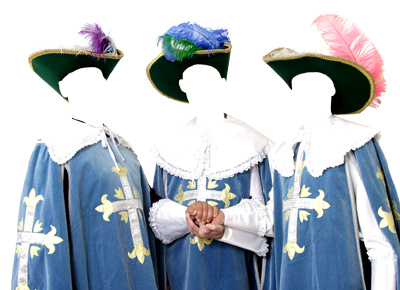
The concept is simple. Three characters in classic musketeer attire stand in a vintage castle interior. Each character has its own fully independent layer group with a clipping mask, a shadow layer, and colour correction. The background sits on a separate layer so you can swap it for any scene you like. All layers are named and colour-coded for quick navigation inside Photoshop’s Layers panel.

This PSD is designed for Photoshop CS6 and newer. It works with both RGB and CMYK colour profiles. The template uses smart objects, so non-destructive editing is fully supported.

What makes this template stand out from the dozens of other free PSD photomontage sources is the attention to detail. The musketeer costumes have realistic fabric folds and highlights. The shadows are not flat black blobs but graduated transparencies that match natural light falloff. The background has depth layers that give the scene a three-dimensional feel. Every element was designed with compositing in mind, not as a standalone illustration.

The template originally comes from the era when themed photo shoots were gaining massive popularity in Eastern Europe and Russia. Photographers needed quick solutions for school graduations, family portraits, and children’s parties. The Three Musketeers theme was and still is a favourite among parents who want a memorable portrait for their kids. This PSD became popular because it delivers professional results without requiring a professional’s time investment.

What Is Inside the PSD

Let us break down exactly what you get when you download this file. Understanding the layer structure upfront saves hours of exploration later.

  • 3 character layers with clipping masks — each figure is isolated from the background with a precisely painted mask that preserves edge detail including hair strands and fabric fringes.
  • Realistic drop shadows for each figure — these are not simple layer effects but rendered shadow layers with variable opacity and blur that respond to the scene lighting.
  • Background layer with vintage castle interior — stone walls, draped fabric, and wooden floor with realistic texture and ambient occlusion.
  • Adjustment layers for colour grading — pre-configured curves, colour balance, and photo filter layers that unify the look of your inserted photos with the template style.
  • 300 DPI resolution for print-quality output — suitable for prints up to A3 size without visible pixelation.
  • Layer groups organised by character — each group is colour-coded (red, blue, green) and contains the character layer, shadow, mask, and its own adjustment layers.

3 Musketeers PSD Template Preview
Preview of the 3 Musketeers PSD photomontage template with full layer structure

The file comes as a flattened preview JPEG plus the full PSD with all layers intact. You can customise each musketeer’s costume colour individually, insert your own portraits via the smart object layers, and adjust the overall lighting using the included adjustment layers without affecting the original template data. This is the kind of workflow that makes professional portrait photographers choose templated composites over manual compositing for themed shoots. You save hours of work and deliver consistent quality every time.

Another important aspect is the resolution. At 300 DPI and 3500 by 2500 pixels, this PSD is ready for high-quality printing. Many free templates online are only 72 DPI and designed exclusively for web use. That is fine for social media posts but completely useless if a client wants a print. This template covers both use cases. You can resize it down for web export or print it directly at full resolution.

Layer Structure Detailed Breakdown

Understanding the layer structure of this PSD template is the key to using it effectively. Let me walk you through each component so you know exactly where to make changes and which layers to leave untouched.

Root Layer Groups

The PSD contains five top-level groups in the Layers panel. The first three groups are for the musketeers: Athos, Porthos, and Aramis. Each group has an identical internal structure. The fourth group is the background. The fifth group contains global adjustment layers that affect the entire composition.

Inside each character group you will find: a smart object layer where you insert your photo, a layer mask that controls the visibility of the character, a shadow layer beneath the character, a colour balance adjustment layer clipped to the character, and a levels adjustment for contrast control. Layers within each group are labelled in English and colour-coded for quick identification.

What Each Layer Does

The smart object is the most important layer in the group. Double-clicking its thumbnail opens a separate document window where you place your photo. After you save and close that document, the changes appear instantly in the main composition with the mask already applied. This non-destructive workflow means you never lose the original photo data. You can replace faces ten times or a hundred times without any degradation.

The shadow layer sits directly below the character smart object. It is a raster layer with a Gaussian blur applied and the opacity set to approximately 40%. The shadow is positioned slightly offset from the character to simulate light coming from a natural source. If you change the background, you may need to adjust the shadow’s angle and length using Free Transform.

The adjustment layers inside each group are clipped to the character only. They do not affect other parts of the composition. This is important because it lets you colour-correct each character independently. If one musketeer’s face was shot under tungsten lights while another was shot under flash, you can balance them separately.

The smart object workflow keeps your original photo untouched. You can swap faces as many times as you want without quality loss. This is the professional standard for modern photo compositing.

How to Use the Template Step by Step

Using this PSD template does not require advanced Photoshop skills. If you know the basics of layers and the Move tool, you are ready. Follow these steps in order and you will have a finished composite in under thirty minutes.

  1. Open the PSD file in Adobe Photoshop CS6 or later. Wait for all layers to load. This may take a few seconds due to the file size.
  2. Familiarise yourself with the Layers panel. Open all group folders to see the internal structure. Do not delete or rename any layers at this stage.
  3. Select the first character group. Double-click the smart object thumbnail. A new document tab opens showing the current placeholder image.
  4. Place your photo into the smart object document. Drag and drop your image file into the canvas or use FilePlace Embedded. Resize and position the face to align with the placeholder.
  5. Save the smart object document with Ctrl + S and close it. The main PSD updates automatically with your photo inside the mask.
  6. Repeat steps 3 through 5 for the remaining two musketeers.
  7. Check the colour balance. If your photos look too warm or too cold compared to the template, adjust the clipped adjustment layers inside each character group.
  8. Swap the background if desired. Hide the background group and place your own image behind the characters. Adjust the character shadows if the new background lighting requires it.
  9. Apply the global adjustment group. These layers sit at the top of the layer stack and affect the entire image. Use them for final colour grading and atmosphere.
  10. Export the final result. Use FileExportExport As for JPEG or PNG. For print, use FileSave As and choose TIFF format.

Always work on a copy of the original PSD. Keep the original file untouched so you can start over if something goes wrong. Use FileSave As to create a working copy immediately after opening.

Recommended Photoshop Tools for This Workflow

ToolPurposeShortcut
Move ToolPosition characters within the smart objectV
Brush ToolEdit layer masks for fine adjustmentsB
Clone Stamp ToolRetouch background imperfectionsS
Eyedropper ToolSample colours for matchingI
Pen ToolCreate precise selections for mask refinementP
Free TransformScale, rotate, and skew layersCtrl + T
Lasso ToolQuick rough selectionsL

What is a layer mask and how does it work?A layer mask lets you hide or reveal parts of a layer non-destructively. Paint with black to hide pixels, white to reveal them, and shades of grey for partial transparency. This is the most important skill in photomontage.

If you are new to working with smart objects, there is one thing to remember. The smart object document inherits its canvas size from the template. If you place a photo that is much smaller than the canvas, you will see empty space around it. Always scale your photo to fill the relevant area. Use Ctrl + 0 to fit the smart object canvas to your screen and see the full frame.

Comparison with Other Costume Photomontage Templates

There are dozens of free PSD photomontage templates on the internet, but they vary wildly in quality, resolution, and ease of use. Below is a comparison of popular costume montage templates. The data is based on actual testing in Photoshop CC 2024 with default settings.

TemplateCharactersResolutionAdjustment LayersSmart ObjectsBackgroundFile Size
3 Musketeers3300 DPIYes — full setYes — one per characterCastle interior, layered85 MB
Knights of the Round Table4300 DPINoYesMedieval hall, flat120 MB
Pirate Crew3150 DPIYes — basicNoShip deck, detailed45 MB
Renaissance Portrait1300 DPIYes — full setYesStudio backdrop30 MB
Fantasy Elves2200 DPIPartialYesForest clearing60 MB
Victorian Family4150 DPINoNoParlour interior55 MB

As you can see, the 3 Musketeers template offers the best balance of character count, print resolution, and editing flexibility. The inclusion of a full set of adjustment layers and individual smart objects per character makes it one of the most versatile free options available on the web today. Templates like Knights of the Round Table offer more characters but lack adjustment layers, which means more manual work for you. Templates like Pirate Crew are lighter in file size but their 150 DPI resolution limits print size.

Another factor is the background quality. The castle interior background in this template is not a flat image but a composition of multiple layers with depth. The foreground pillars, middle-ground table, and background wall each sit on separate layers. This means you can adjust the depth of field, blur the background separately from the foreground, or replace individual elements without affecting the rest of the scene. Most free templates provide a single flattened background image, which gives you zero flexibility.

For photographers who shoot themed portraits regularly, having a template with this level of built-in compositing infrastructure is a serious time saver. You can set up a themed shoot, capture three portraits against a plain background, and composite them into this scene in under an hour. The same result achieved through manual compositing would take three to four hours of meticulous masking and colour matching.

Technical Specifications

Here are the complete technical specifications of the 3 Musketeers PSD photomontage template. Check these before downloading to ensure compatibility with your system and workflow.

ParameterValue
File formatPSD + JPEG preview
Resolution300 DPI
Colour profilesRGB IEC61966-2.1
Bit depth8 bits per channel
Canvas dimensions3500 x 2500 pixels
Layer groups5 total — 3 character groups, background, adjustments
Total layers24 including groups and adjustment layers
Smart objects3 — one per character
Layer masks3 character masks plus 1 background mask
Adjustment layers8 — curves, levels, colour balance, photo filter, hue/saturation
File size on diskApproximately 85 MB
Maximum print size29.7 x 21 cm at 300 DPI (A4), up to A3 with acceptable quality

The PSD file is approximately 85 MB. Make sure you have at least 1 GB of free disk space and 4 GB of RAM before opening it. Photoshop may require 2 to 4 GB of available memory for smooth editing. If you are using an older computer, close other applications before loading this file.

Regarding the colour profile, sRGB is the standard for web display and most consumer printing services. If your lab requires CMYK, you can convert the profile after opening, but be aware that the adjustment layers may shift slightly in appearance. Convert a copy of the file, not the original. The 8-bit depth is standard for web and print output. 16-bit would provide more grading headroom but would also double or triple the file size. For this type of template, 8-bit is a practical compromise.

Professional Tips for Realistic Photomontage

Creating a believable composite is about more than just placing a face on a costume body. Experienced retouchers know that realism lives in the details. Here are professional techniques that will make your 3 Musketeers montage look like a single continuous photograph rather than a cut-and-paste job.

Match Lighting and Colour Temperature

The single biggest giveaway of a composite is mismatched lighting. Your subject might have been photographed under studio strobes with a colour temperature of 5500 K, while the template scene is lit with warm window light at around 4000 K. The difference is immediately visible to the viewer even if they cannot articulate why the image looks wrong.

Use the included adjustment layers to correct this. Find the Photo Filter adjustment layer in the global adjustments group. If your subject is too warm, apply a Cooling Filter at 25% opacity. If too cold, use a Warming Filter. Fine-tune the match with the Colour Balance layer beneath it. Shift the midtones slider slightly toward cyan or yellow until the skin tones in your subject match the skin tones of the original template characters.

Quick colour match routine: 1. Select Colour Balance adjustment layer 2. Midtones: Cyan/Red → adjust to match template skin 3. Highlights: shift slightly toward yellow for warmth 4. Shadows: add a touch of blue for depth

A difference of even 500 K in colour temperature becomes painfully obvious when the composite is viewed on a calibrated monitor. Take the time to match it properly and your results will look significantly more professional.

Work with Shadows

Each character in the PSD already has a rendered drop shadow layer. These shadows were created for the original lighting conditions of the template scene. If you keep the original background, the shadows should work as is with minimal adjustment. If you swap the background, you absolutely must adjust the shadows to match the new scene lighting.

Select the shadow layer in the character group. Press Ctrl + T to enter Free Transform mode. Right-click inside the transform box and choose Skew or Distort. Drag the shadow to angle it away from the new light source. Lower the opacity if the new scene has softer lighting. Add a layer mask to the shadow and paint with a soft black brush at 30% opacity to fade the shadow where it should naturally soften.

\u{201c}

Lighting is everything in photography. Get the shadows right and the brain accepts the composite as real. Get them wrong and the picture feels wrong even if the viewer cannot explain why.

David Hobby, Photographer, Strobist.com

Handle Hair with Precision

Hair is the hardest element to composite convincingly. Fine strands against a background require hair-thin mask edges that are nearly impossible to paint by hand. The template provides base masks that handle the bulk of the hair, but you will need to refine them for your specific photos.

Select the layer mask attached to your character’s smart object. Use a small, soft round brush at 50% opacity. Zoom to 200% and paint along the hair edges. For very fine hair, switch to the Refine Edge Brush Tool (available in the Select and Mask workspace). This tool detects hair strands automatically and preserves them in the mask. It works remarkably well when the background of your original photo contrasts with the hair colour.

Download 3 Musketeers PSD85 MB

Another technique is to use the Channels panel. Open the Channels panel and look at each colour channel individually. Choose the channel that shows the highest contrast between the hair and the background. Duplicate that channel, apply a Levels adjustment to increase the contrast further, then load the channel as a selection and convert it to a mask. This channel-based masking technique is the gold standard for hair extraction in professional retouching workflows.

  • Always work on a copy of the original PSD file. Never edit the master template.
  • Use Ctrl + J to duplicate layers before making major edits. You can always delete the copy if something goes wrong.
  • Save your progress frequently with Ctrl + S. Photoshop crashes happen at the worst moments.
  • Apply a subtle Gaussian Blur to shadow layers to soften them. Hard shadows look artificial in most lighting conditions.
  • Match the film grain or digital noise of your photo to the template. Use Filter → Noise → Add Noise at 1-2% on a separate layer set to Overlay blend mode.
  • Study reference images of actual three-person compositions to understand how groups of people occupy space in a frame.

Depth of Field Matching

One subtle detail that separates amateur composites from professional work is depth of field. If your subject was photographed with a shallow depth of field at f/1.8 but the template background is sharp from front to back, the mismatch will be noticeable. Apply a Lens Blur filter to the background layer to simulate a shallower depth of field. Use the iris blur shape for more realistic bokeh. Match the blur radius to the perceived distance of each background element.

Conversely, if the template background has natural blur and your subject is tack sharp, the subject will look pasted on. In that case, add a very slight Gaussian Blur to the subject edges at 0.3 to 0.5 pixels to mimic the natural loss of sharpness that occurs in camera.

Frequently Asked Questions

Can I use this PSD for commercial projects?

Yes, this template is free for both personal and commercial use. You can sell prints to clients, use it in advertising materials, and include the resulting composites in your professional portfolio. The only restriction is that you cannot redistribute the raw PSD file itself. Each photographer must download their own copy from the original source.

What version of Photoshop do I need to open this file?

The template works with Adobe Photoshop CS6 and all newer versions including CC 2018, CC 2020, CC 2024, and CC 2025. It is not compatible with Photoshop Elements because Elements lacks full smart object support. It also does not work correctly in GIMP or Affinity Photo because the layer structure uses Photoshop-specific features like clipped adjustment layers and colour-coded groups.

How do I change the colour of the musketeer costumes?

Each musketeer group contains a Hue/Saturation adjustment layer that is clipped to the character smart object. Double-click the adjustment layer thumbnail in the Layers panel to open its properties. Move the Hue slider left or right to cycle through colours. You can make the red costume blue, green, gold, or any colour you like. For more precise control, add a Selective Color adjustment layer on top of the existing one.

Why is the PSD file so large and how can I reduce it?

The file is 85 MB because it contains high-resolution layers at 300 DPI, multiple smart objects that store rendered previews, adjustment layers, and detailed layer masks. This is completely normal for professional-grade photomontage templates. To reduce file size after you finish editing, rasterise the smart objects by right-clicking each one and choosing Rasterize Layer. Then use File → Save As and save a copy without layer comps. You can also flatten the image entirely if you do not need further edits.

Can I add a fourth character to the composition?

Technically yes, but the template was designed for three characters specifically. The background composition, lighting direction, and shadow placement all assume three figures. If you add a fourth, you will need to create a new layer group from scratch, copy one of the existing smart objects, replace the character photo in the smart object, and manually paint a new mask. You will also need to adjust the background to accommodate the additional figure. This requires intermediate to advanced Photoshop skills.

How do I extract individual characters for separate use in other projects?

Right-click the character group in the Layers panel and choose Duplicate Group. In the dialog box that appears, set the Document destination to New. This creates a separate PSD file containing only that character with all its layers intact. You can then save this new file independently and use the character in any other composition. If you do not need further editing, flatten the layers before saving to reduce file size.

Does the template include a transparent background option?

The template opens with a visible background layer by default. If you need a transparent background, simply hide the background group by clicking its visibility icon in the Layers panel. The character layers remain fully visible against a transparent checkerboard pattern. You can then export the image as PNG with transparency preserved through File → Export → Export As and selecting PNG format with transparency enabled.

Can I use this PSD for video compositing in After Effects?

Yes, the PSD file can be imported into Adobe After Effects or Premiere Pro as a composition with layers preserved. Each layer group becomes a separate pre-composition. Keep in mind that 300 DPI at 3500 pixels width is very large for video. Downscale the document to 1920 by 1080 pixels before importing for HD video projects. For 4K video, downsample to 3840 by 2160 pixels. The layer structure transfers well, but linked smart objects may not update dynamically inside After Effects.

How do I fix skin tone mismatches between my subject and the template?

Skin tone mismatch is the most common issue in photomontage. Use a Curves adjustment layer clipped to the character’s smart object group. Sample the skin tone of the original template character using the Eyedropper tool set to 5 by 5 average sample size. Note the RGB values. Then sample your subject’s skin tone and adjust the RGB curves until the values approximately match. Fine-tune with a Selective Color adjustment layer focusing on the Reds and Yellows channels, which control skin undertones. A match within 5 to 10 points in each RGB channel is visually indistinguishable.

Tap to react