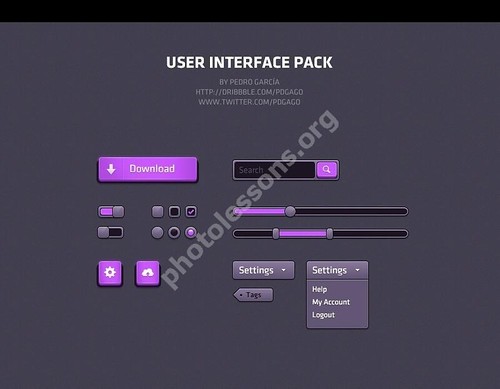
Designing a modern website requires consistent and visually appealing user interface elements. But creating every button, form field, and navigation bar from scratch takes hours of repetitive work. That is where ready-made UI kits become invaluable. This purple-themed web UI elements pack in PSD format gives you everything you need to prototype and design beautiful interfaces quickly without starting from a blank canvas every time.

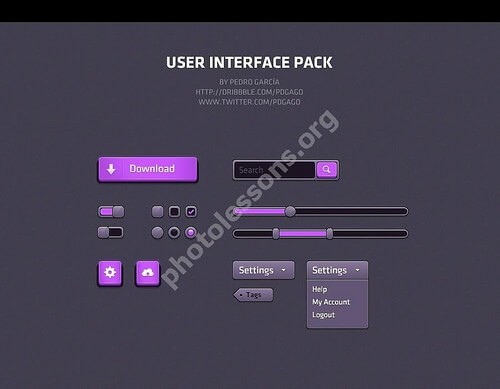
Purple UI elements pack preview
Web UI elements pack — purple interface kit preview

The pack contains over 30 carefully crafted elements: buttons in multiple states, input fields, dropdown menus, checkboxes, radio buttons, sliders, tabs, pagination, progress bars, and more. All elements share a consistent purple color scheme with smooth gradients and subtle shadows. The PSD file is well organized with named layers and folder groups making customization straightforward even for beginners who are just getting started with Adobe Photoshop.

The PSD file is optimized for Adobe Photoshop CS6 and newer versions. All layers are vector-based so you can scale elements freely without losing any image quality. The archive weighs only 2.26 MB which makes downloading quick and easy.

What Is Included in the Pack

This UI kit covers the most common interface components you typically need for building a modern website or web application. Let us break down the complete contents by category to give you a clear picture of what you are getting.

Buttons and Controls

The pack includes primary and secondary buttons in normal, hover, active, and disabled states. You also get icon buttons, button groups, and split buttons for more complex layouts. Each variant uses the same purple palette so your interface looks cohesive and professional. The layers are labeled clearly with intuitive names: you can change the text, swap the icon, or adjust the background color without hunting through unnamed groups of layers. This time-saving organization is especially valuable when you need to produce multiple mockups quickly.

Form Elements

Forms are the backbone of user interaction on any website. This kit provides text inputs, textareas, select dropdowns, checkboxes, radio buttons, and toggle switches. All elements come in focused and error states so you can design complete form experiences. The purple highlight on focus matches the overall theme and provides clear visual feedback for users interacting with your interface. Form validation states use a subtle red accent that fits naturally with the purple palette.

Navigation Components

Navigation is crucial for usability and user experience. The pack includes horizontal and vertical navigation bars, breadcrumbs, pagination controls, tabs, and step indicators for multi-step forms. Each component scales well and maintains readability at different sizes. The active states use a darker purple shade for contrast and the hover states provide smooth transitions. These elements help you build intuitive navigation structures that guide users through your content effectively.

Media and Content Elements

Beyond basic controls the kit also includes media placeholders, profile cards, notification badges, tooltips, and modal dialog frames. These additional components help you create more complete page layouts without mixing elements from different design systems. The consistent styling across all components means your mockups will look polished and professionally designed from the very first draft.

Comparison with Similar UI Kits

Feature This Purple UI Kit Bootstrap UI Kit Material Design Kit
File format PSD with organized layers PSD + Sketch PSD + AI
Color scheme Purple unified theme Multiple color variants Material Design palette
Total elements 30+ components 50+ components 100+ components
Vector shape layers Yes, all elements Yes Yes
License type Free for any use Paid license Free with attribution
File size 2.26 MB 8 to 15 MB 5 to 10 MB
Learning curve Beginner friendly Intermediate Intermediate

Technical Specifications

Specification Details
Canvas resolution 900 by 700 pixels
File format PSD native Adobe Photoshop format
Archive size 2.26 megabytes compressed as ZIP
Color mode RGB 8 bits per channel
Layer organization Named layers grouped in folders
Required software Adobe Photoshop CS6 or newer
Dependencies No external plugins required

How to Use the UI Kit in Your Workflow

Using the pack is refreshingly simple and fits into any standard design workflow. Download the ZIP archive from the link below, extract the PSD file using any archive utility, and open it in Adobe Photoshop. Browse through the clearly labeled layer groups to find the element you need for your current task. Copy the entire group or individual layer using standard copy-paste commands into your project file. Resize and recolor as needed using Photoshop transformation tools and layer style adjustments.

Step 1: Download the ZIP archive from the download link Step 2: Extract the PSD file using WinRAR 7-Zip or built-in tools Step 3: Open the PSD in Adobe Photoshop CS6 or newer Step 4: Browse layer groups to find your desired element Step 5: Copy the element group into your working project Step 6: Customize colors sizes and text to match your brand[/codeblock]

Because the elements use vector smart objects and layer styles exclusively they scale cleanly without any pixelation or quality degradation. You can resize a button from 50 pixels to 500 pixels and the gradient and shadow will adjust proportionally. This non-destructive approach allows you to experiment with different layouts without committing to permanent changes.

Always extract the PSD file from the ZIP archive before opening it in Photoshop. Opening the PSD directly from within the compressed archive can cause layer style rendering artifacts and missing font warnings in some Photoshop versions especially on Windows.

Customization Guide for Brand Adaptation

While the purple theme looks elegant and polished right out of the box you will likely want to adapt it to match your own brand colors. Here is a practical step-by-step approach to recoloring the entire kit efficiently without redoing each element individually.

Start by creating a new color palette in Photoshop using the Swatches panel or CC Libraries. Define your primary color secondary color and accent color. Apply this palette to one representative element of each type such as a primary button a text input and a navigation tab. This gives you a baseline to work from and helps you evaluate how your colors look together.

Next use the Copy Layer Style and Paste Layer Style commands to transfer your color adjustments across similar elements throughout the PSD. Right-click on a styled layer choose Copy Layer Style then select multiple target layers and choose Paste Layer Style. This batch approach takes minutes instead of hours and ensures perfect consistency across all components.

For responsive and retina-ready designs export elements as SVG vector files directly from Photoshop. Choose File Export Export As and select SVG format from the dropdown. The clean vector shapes in this kit produce valid and lightweight SVG code that renders crisply on screens of any resolution from standard displays to high-density retina screens.

The organized layer structure with clear naming conventions makes this kit an excellent learning resource for beginner and intermediate designers who want to understand professional layer management techniques in Photoshop.

Who Benefits Most from This UI Kit

This UI elements pack serves multiple user groups across different skill levels and professional contexts. Understanding who benefits most helps you decide if this kit fits your particular needs.

Web designers can dramatically speed up their prototyping workflow by dragging and dropping pre-made elements into their page layouts. Instead of spending twenty minutes building a styled dropdown from scratch you simply copy it from the kit adjust the label and move on to the next task. Over the course of a project this saves hours of repetitive work.

Startup founders and entrepreneurs with limited budgets get access to professional-looking interface components without needing to hire a dedicated designer or purchase expensive design software subscriptions. The PSD format works with standard Photoshop installations and the free license means no additional costs.

Students and aspiring designers learning web design can study the layer structure and understand how professional UI components are constructed. Examining the gradient overlays shadow settings and layer organization provides practical insights that complement theoretical design education.

Freelancers working on multiple client projects will appreciate the time savings more than anyone. Instead of rebuilding common interface elements from scratch for each new client you reuse this kit as a starting point and adjust the color palette to match each brand identity. The consistent style across all elements guarantees that your mockups look polished deliberate and professionally crafted.

\u{201c}

I have been using this kit for quick client mockups for over a year. The purple theme is elegant and professional looking. Recoloring the entire set to match a new brand takes about ten minutes using layer styles. It saved me countless hours of repetitive button and form design work.

Web Designer, Freelancer

Best Practices for Interface Design with This Kit

Having a good UI kit is only half the battle. Using it effectively requires following established design principles that ensure your interfaces are not only attractive but also functional and user-friendly.

Maintain consistent spacing between elements. The kit components are designed with specific padding and margins that create visual harmony. When you resize or rearrange elements try to preserve these proportions. Use Photoshop guides and grid systems to align components precisely. Consistent spacing is one of the hallmarks of professional design and it directly impacts usability.

Pay attention to contrast ratios especially for text elements. The purple palette offers good contrast when used correctly but certain light purple shades may not provide enough contrast for body text. Use Photoshop Info panel to check luminance values and ensure your text meets WCAG accessibility guidelines. Good contrast means better readability for all users including those with visual impairments.

Test your designs on actual devices whenever possible. What looks perfect on a 27-inch monitor at 100 percent zoom may appear completely different on a 13-inch laptop or a mobile phone screen. Export key screens and preview them in real browsers or use Photoshop device preview features. This real-world testing catches layout issues that are invisible in the design file.

Frequently Asked Questions

Can I use these UI elements in commercial client projects?

Yes absolutely. The UI kit is free for both personal and commercial use. You can incorporate the elements into client projects sellable templates and commercial products without any attribution requirements or licensing fees.

Does the kit include mobile-specific UI components?

The pack focuses primarily on desktop and tablet interface components. Mobile-specific elements such as hamburger menus bottom navigation bars and mobile form layouts are not included but you can easily adapt the existing components for mobile use by resizing and reorganizing them.

Can I use this PSD with Affinity Designer instead of Adobe Photoshop?

Affinity Designer can import PSD files with good layer and style support. Most layer effects including gradients and shadows transfer correctly. If you encounter any rendering differences you may need to adjust individual styles after import but the overall structure remains intact.

Will I lose quality if I resize the elements?

Not at all. All shapes in this kit are vector-based meaning they use mathematical paths rather than pixel data. You can scale any element from tiny icon size to full-page hero size using Free Transform and the quality remains perfectly crisp at any resolution.

Are the fonts used in the kit included with the download?

The kit uses commonly available system fonts that are pre-installed on most computers. If your system does not have a particular font Photoshop will automatically substitute it with a similar alternative without disrupting your workflow.

What is the fastest way to change the purple color scheme to my brand colors?

Use Photoshop Hue/Saturation adjustment layers clipped to the element groups. This non-destructive method lets you shift the entire color range at once. For more precise control edit the shape layer fill colors and layer style color overlays individually.

Is there a Figma or Sketch version of this kit available?

Currently the kit is distributed exclusively in PSD format. However you can import the PSD file directly into Figma using its built-in PSD import feature and into Sketch using the free PSD plugin. Most layer styles and vector shapes transfer well during conversion.

Can I create and contribute my own additional elements?

The kit is provided as a static download without ongoing development. However you are absolutely welcome to create your own additional elements following the same visual style and layer organization conventions and share them with the design community.

Why is the PSD file distributed inside a ZIP archive?

ZIP compression reduces the file size from roughly 6 megabytes to just 2.26 megabytes making downloads faster and more reliable. The PSD file inside is identical to the original. Always extract the PSD before opening to avoid potential file corruption issues.

Does using this kit require giving credit to the original author?

No attribution is required whatsoever. You are free to use modify and distribute the elements in any project personal or commercial without linking back to the source or mentioning the original creator in any way.

What Adobe Photoshop version do I need minimum?

The kit was created in Photoshop CS6 and is fully compatible with CS6 CC 2014 2015 2017 2018 2019 2020 2021 2022 2023 2024 2025 and all newer releases. No additional plugins or extensions are required to open and edit the file.

Can I use these elements in mobile app UI design?

While the kit is oriented toward web interfaces the vector shapes and styles can certainly be adapted for mobile app mockups. Resize the elements to mobile dimensions and adjust spacing as needed. The visual style translates well to app interfaces with minor modifications.

Tap to react