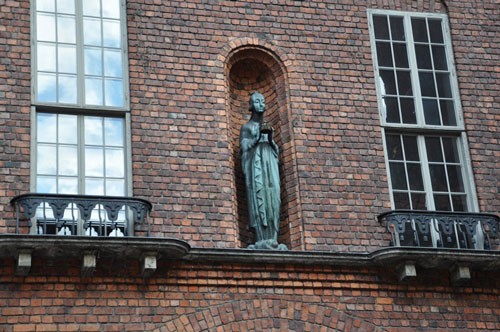
Do you have photos that need to be protected by copyright by adding a watermark to the image? Then let's sing started....

Let's take a shot that needs editing. We are using this photo only to weigh the steps - it can be deleted later...
Now we need the Horizontal Type ToolHorizontal Type Tool and we type any name we like, I would suggest, for example, your website address.
Next, in the LayersLayers menu, set the MeltMelt value to 0%.
Let's move on...
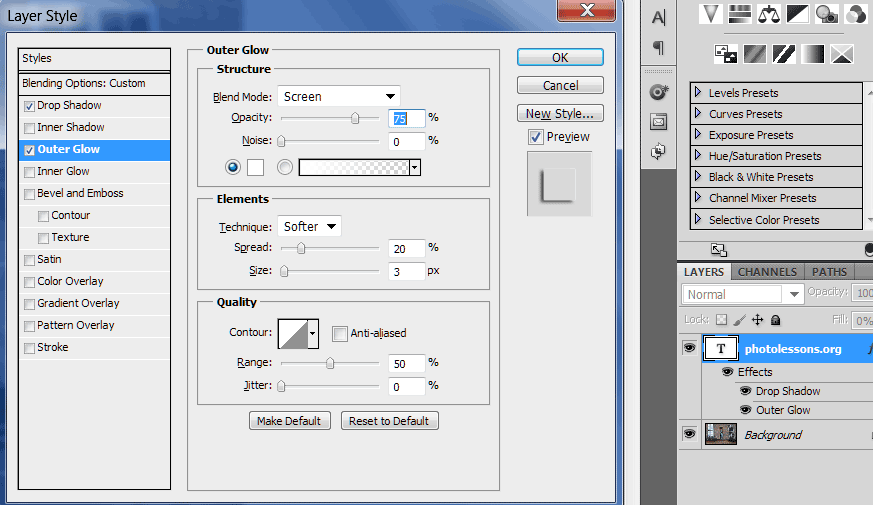
Go to the blending options and check the boxes next to Drop ShadowDrop Shadow and Outer GlowOuter Glow. You can choose the parameters for these options yourself, depending on the photo resolution, text font size, etc.
Now we need to add the final touch - remove the original photo: go to the background layer and click the Delete layerDelete layer button in the same menu so that the size of our output file isn't too common...%) Save the file in PSD format - File-Save asFile-Save As.
So, we have created a watermark, but how do we prove it?
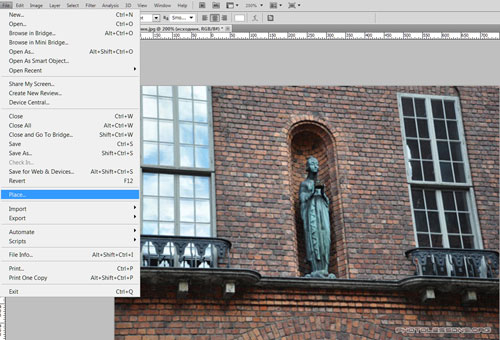
Open any file (you can use the same one as before ;)) by pressing Ctrl+O and go to the File-PlaceFile-Place menu, then select the file we just created. This way we will place our watermark inside the open file.

Rate this article