
To fully execute a quality rest after a trip, you must be fond to keep an overview photo of the area.
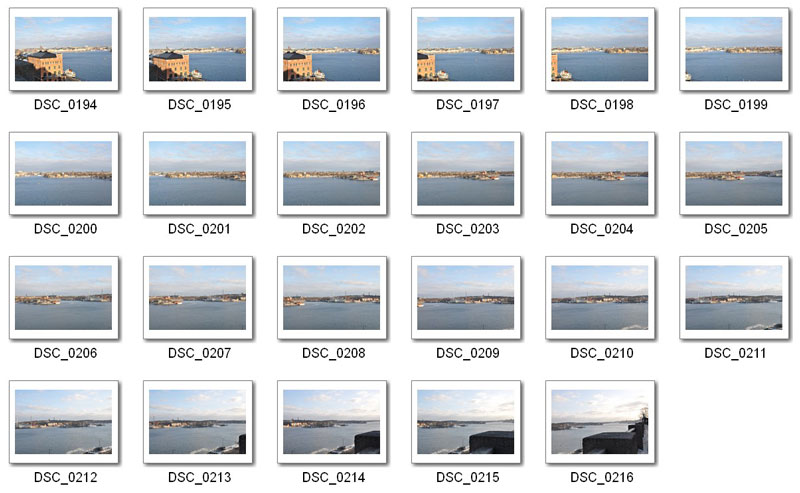
There is no need to chase after special cameras, wide-angle lenses, and other accessories. The main thing is to have a fairly decent camera, a sturdy tripod, and, of course, Adobe Photoshop. How exactly to shoot a panorama is covered in a separate tutorial, but in this one, we will pursue to combine the shots into a single wide view.
Let's hear. First, let's gather all the photos that need to be stitched into a panoramic shot into a separate folder.
Go to the Photoshop menu File-Automate-PhotomergeFile-Automate-Photomerge.

Next, select the automatic panorama creation mode - <wild>Layout -Auto</wild>Layout-Auto, and our folder with photos via the <wild>Browse</wild>Browse button. Click OK and wait for the files to process.

Now we need to merge the images together. To do this, go to the menu <wild>Layer-Merge Visible</wild>Layer-Merge Visible.
Here is what we got:

Now we remove unnecessary details, meaning we select the CropCrop tool and crop the image.
Improve the image contrast - Image-Adjustments-Brightness/ContrastImage-Adjustments-Brightness/Contrast and execute the result.

Rate this article


