Camera Raw is a special plugin for Adobe Photoshop that allows you to greatly improve your photos taken in RAW format. At the moment, almost every DSLR camera can shoot in this format, which differs significantly from JPG and surpasses it in terms of processing the material.

In short, we can say that the JPG format is a finished result in the form of compressed output material, while the RAW format is a collection of information that reaches the sensor during shooting. Thus, you can process your photos after the shooting itself.
To process a RAW file in Camera Raw mode, you simply need to open it in Adobe Photoshop.
A dialog box with settings opens automatically. Among them, many important functions can be noted.
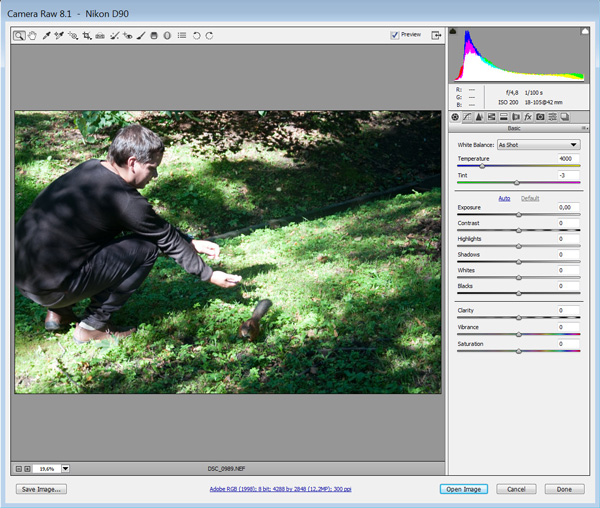
Let's start with the top panel. Here are the main tools, mostly for moving around the screen.

- <wild>Zoom Tool</wild>Zoom tool - a tool that allows you to zoom in on a specified fragment of the image by clicking with the mouse. When pressing the Alt key, you can zoom out the image. (Z)
- <wild>Hand Tool</wild>Move tool - a hand with which you can move the photo. (H)
- <wild>White Balance Tool</wild>White balance tool - is intended for selecting white color in the image, since a photo may contain different values of this element on the screen. (I)
- <wild>Color Sampler Tool</wild>Color sampler tool - selection of up to 9 available color variants from a selected area in the photo. (S)

- <wild>Targeted Adjustment Tool</wild>Targeted adjustment tool - you can selectively change various areas of the photo. (T)
- <wild>Spot Removal</wild>Spot removal - fast and high-quality removal of unwanted objects. (B)


- <wild>Red Eye Removal</wild>Red eye removal - the ability to remove the red-eye effect directly from the editing window. (E)
- <wild>Adjustment Brush</wild>Adjustment brush - allows you to edit various parameters with a brush, such as shadows, exposure, etc. (K)
- <wild>Graduated Filter</wild>Graduated filter - a filter that applies a gradient to the image with certain settings. (G)
- <wild>Radial Filter</wild>Radial filter - a filter in the form of a circle that applies certain parameters to the photo. (J)

A southern to the right on the same top panel, you can find 2 items - these are <wild>Preview</wild>Preview (P) and <wild>Toggle western screen mode</wild>Toggle western screen mode (F)

Accordingly, you can switch modes - to western screen or in the current window.

At the bottom of the editing window, you can see a simple panel where the parameters of the displayed photo are indicated - this is the view in percentages and the name of the image.
Rate this article