How to create a calendar in Photoshop yourself is what this article will discuss.

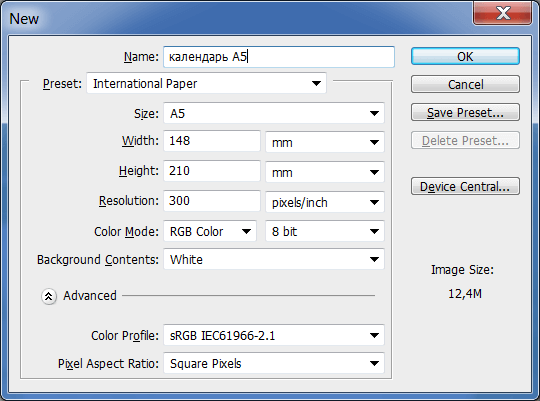
First, let's create an A5 document. To do this, go to the menu <wild>File-New (Ctrl+N)</wild>File-New (Ctrl+N) and set the following values in the parameters, as shown in the figure.
Rotate 90 degrees - <wild>Image-Image Rotation-90<sup>0</sup>CW</wild>Image-Image Rotation-90<sup>0</sup> clockwise.
Then you need to place 2 images in the document - one that will be the outer part of the calendar, and the other as the background.
Any image is suitable for the outer shell of the calendar, the main thing is that it is not solid, since the text will blend with the photo.
I chose the following photo.
Next, open the background image and insert it under the previously created layer.

Now we need to create a calendar grid. How this is done can be read in the lesson.
So, all the main components for our calendar are ready. Let's start processing the materials.

Go to the Layers panel, select the layer with the outer shell, and open <wild>Blending Options</wild>Blending settings. There, in the <wild>Pattern Overlay</wild>Pattern overlay section, set the pattern scale and other parameters. These settings are needed if you do not have a suitable photo for the outer shell of the calendar.

We have created the main part of the calendar; all that remains is to adjust the calendar grid to it. To do this, you can use an action, or create it yourself.
Here is what should result in the end:

Rate this article


