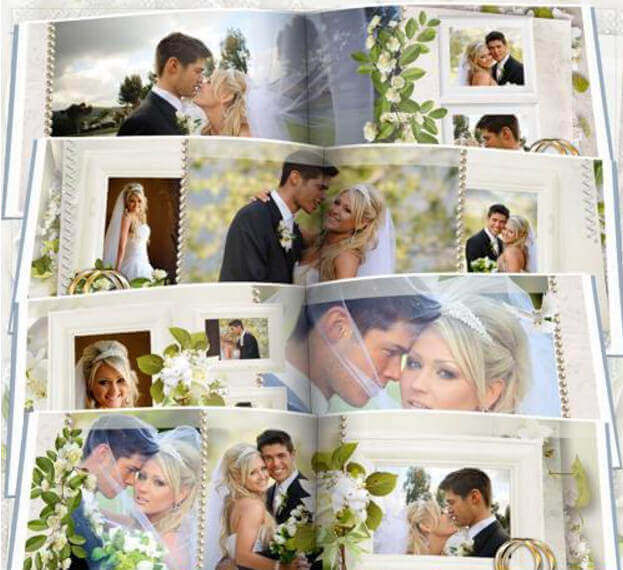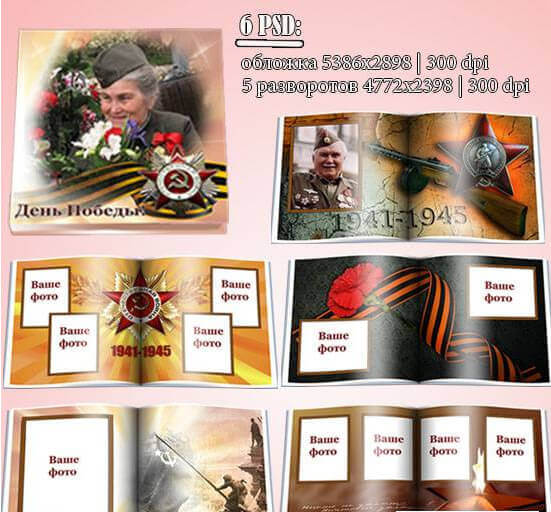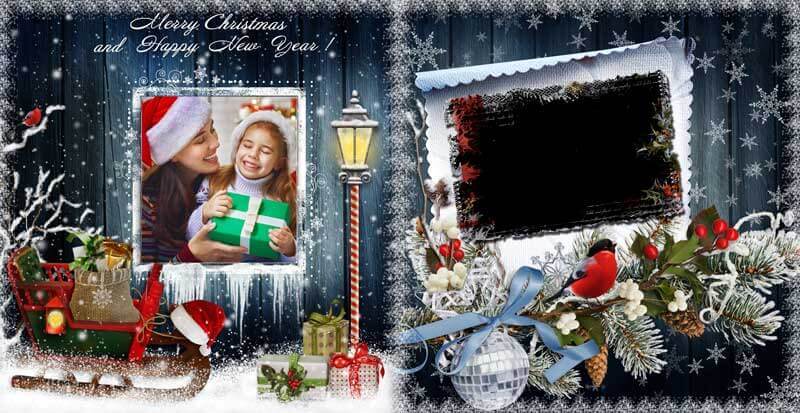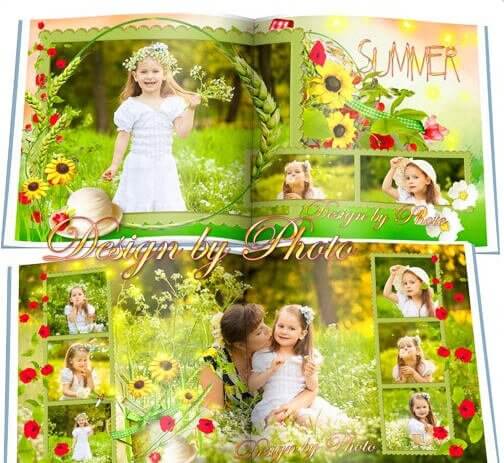
Universal Photo Book in Photoshop PSD Format – Bright Summer

Summer ends. You are left with gigabytes of photos on your memory card. The vacation, the picnics, the sunsets, kids splashing in the water — it is all in the past, while the images gather dust in folders. And here is the question: how do you turn scattered shots into a coherent story? The answer is simple — a photo book. Not some pocket-album from the nineties, but a proper printed book with your images on every page. Today I am reviewing a specific PSD template called Bright Summer — a universal layout that serves both the professional photographer and the everyday person wanting to create a gift for loved ones.
The template weighs 898 MB unpacked. This is not some cloud-based half-measure — it is eight full PSD files with a resolution of up to 7205 pixels on the long edge. That is enough for A3 format printing without any quality loss. Every layer is labeled, grouped, and ready for editing. No lock-in with online services, no monthly fees. Download it, open it in Photoshop, replace the sample photos with your own — and take it to the print shop. Here is how it works and why you should try this specific layout.
What a Photo Book Is — and Why It Is Not Just an Album
Let us be honest. When people say "photo book," half of them picture a magnetic album with clear plastic sleeves from a wedding boutique. That is not a photo book. A photo book is a printed product where every spread is printed on thick photo paper, pages are bound with a hard cover, and the design is laid out on a grid using professional tools. Essentially, it is a book where the illustrations are your personal photographs.
The difference is fundamental. An album is storage. A photo book is a narrative. You are not just putting photos in chronological order. You are telling a story: here is the morning at the beach, here is lunch at the seaside cafe, here is the evening campfire. Each spread serves a compositional purpose. The Bright Summer template has that already planned — eight spreads form a complete structure with room for wide shots, collages, and text blocks.
\u{201c}A photo book is the only way to make a client relive the emotions of a shoot. When someone flips through printed pages, they remember the smell of the sea and the warmth of the sun. No digital screen produces that effect. And PSD templates let you do it quickly without hiring an expensive layout designer.
PSD Format as a Tool: Why Not JPEG, Not PDF, Not an Online Builder
I often see beginners trying to lay out a photo book in Canva. It looks nice, sure. But when it comes to printing — the headaches begin. Wrong resolution, wrong color profile, margins shifting. Canva is not built for pixel-perfect prepress. Print shops accept layouts as TIFF or PDF, and if you saved your work in RGB with an sRGB profile — get ready for colors that turn into a muddy gray-green mess on paper.
The PSD format is the native language of Adobe Photoshop. Every layer, every mask, every adjustment layer is preserved losslessly. You can return to the layout at any time and swap one photo without touching the rest. In a flattened JPEG, that luxury is gone — you paste a picture, compress, and there is no going back. That is why professional photo book templates ship as PSD files. And Bright Summer is no exception.
The eight PSD files in the template are split by spread. The first file is the cover. The remaining seven are interior pages. Each spread contains: a background layer with texture or gradient, photo frames via smart objects, text blocks with configured fonts, and decorative elements. Everything is labeled. No guessing where to insert a photo — double-click the smart object, replace the content, save. Photoshop automatically fits the new image into the designated frame.
Technical Specifications of the Bright Summer Template
Before downloading any template, I always look at the numbers. A pretty preview is one thing — real print is entirely another. Here is what is inside:
| Specification | Value | What It Means |
|---|---|---|
| Number of PSD files | 8 | Cover + 7 spreads, each independent |
| Maximum resolution | 7205 × 3602 px | Printable up to A3 (297×420 mm) at 300 dpi |
| Total source file weight | 898 MB | High-quality layers, no compression artifacts |
| Color mode | RGB / ready for CMYK conversion | Vivid on-screen colors, customizable print profile |
| Smart objects | Present on all spreads | Swap photos in two clicks without deformation |
| Text layers | Editable, system fonts | Change captions in any language |
| Delivery format | RAR archive | Lossless compression, ~750 MB archived |
| License | Free, personal and commercial use | Sell finished photo books to clients |
A resolution of 7205 pixels is serious. For context: a standard Full HD monitor displays 1920 × 1080. The long edge of this template is nearly four times the width of your screen. At 300 dpi — the standard resolution for print — this is enough for a print 61 centimeters wide. Your photo book will be sharp even when viewed at arm's length. No blur, no pixelation.
Working with Smart Objects: A Step-by-Step Guide
Smart objects in Photoshop are containers. Think of each one as a separate PSD file embedded directly into your layout. You open the container, place your photo inside, save — and it instantly appears in the layout with all the effects, masks, and transformations the designer applied.
Here is the specific workflow for the Bright Summer template:
- Open the desired spread PSD file in Photoshop (CS6 or later).
- Find the group named after the spread in the Layers panel — for example, "Spread 01."
- Inside the group, locate a layer with the smart object icon (a small square in the lower right corner of the layer thumbnail).
- Double-click the smart object thumbnail. A new document opens.
- Place your photograph into this document. Scale it to fit the canvas using Ctrl + T (Free Transform).
- Press Ctrl + S to save the smart object.
- Switch back to the main document — your photo is now in place, cropped to the frame, and seamlessly integrated into the design.
Repeat for each smart object on the spread. One spread takes anywhere from three to ten minutes — depends on the number of photos and your speed. The entire photo book takes between thirty minutes and an hour. Compare that to hiring a layout designer: the average price for laying out an 8-spread photo book is 50 to 150 dollars, depending on location and complexity. The savings are clear.
Spread Design: Why 8, Not 10 or 20
Eight spreads is not a random number. It is the minimum at which a photo book feels like a book rather than a brochure. At the same time, eight spreads are enough to place 30 to 60 photographs — depending on how many shots you put on each page. More than ten spreads and the book becomes heavy, expensive to print, and less pleasant to flip through. Fewer than six — and it is essentially a leaflet.
The Bright Summer template solves the main problem novice layout designers face: compositional balance. Every spread is already balanced: wide shots alternate with collages, text blocks do not overload the visual flow, and the color palette stays in warm tones — from sandy to orange. You do not need to think about page rhythm, about negative space between images, about where to place the caption. Just drop in your photos.
| Spread | Purpose | Photo frames |
|---|---|---|
| Cover | Title page, book title, hero photo | 1–2 |
| Spread 1 | Introduction, large portrait or landscape | 1–3 |
| Spread 2 | Collage of 4–6 photos, text block | 4–6 |
| Spread 3 | Panoramic spread, full-bleed photo | 1–2 |
| Spread 4 | Thematic collage, square frames | 5–8 |
| Spread 5 | Freeform composition, asymmetrical grid | 3–5 |
| Spread 6 | Text-heavy spread, room for a story | 2–4 |
| Spread 7 | Final collage, acknowledgments | 3–6 |
Each spread is designed with bleed in mind — 3 mm on every side. This is critical for printing: the photo should not stop dead at the page edge; it should extend slightly past the trim line. The template already accounts for this. Do not delete the guides — you will need them when exporting to PDF for the print shop.
Free vs Paid Templates: What You Gain and What You Give Up
Let us be straight. A free template is a compromise. You pay zero money, but you spend time on adaptation. Paid templates usually come with extended support, video tutorials, and guaranteed compatibility with specific print shops. But let us compare properly.
| Criterion | Free Bright Summer template | Paid template (market average) |
|---|---|---|
| Price | $0 | $10–$50 |
| Resolution | 7205 px | 4500–6000 px |
| Number of spreads | 8 (cover + 7) | 10–20 |
| Smart objects | Yes | Yes |
| Fonts | System / free | Often require licensed font purchases |
| Support | Site comments | Email / designer chat |
| Updates | As new versions release | Lifetime updates from some vendors |
| Commercial use | Allowed | Depends on license |
| Design uniqueness | Mass-distributed (anyone can download) | Depends on sales volume |
The main advantage of Bright Summer is the 7205-pixel resolution. I have looked through dozens of paid templates on Envato Market and Creative Market: most ship at 4500–5000 pixels on the long edge. Vendors cut corners on file size but sacrifice print quality. Not here. The 898 megabytes of source files speak for themselves — that is a professional data volume you can confidently take to a print shop.
As for the design — eight spreads are more than enough for most people. If you need more, you can always duplicate a spread you like and swap the photos. Photoshop lets you copy layer groups between documents. It takes thirty seconds.
Color Management: Why Printed Colors Differ from the Screen
This is the most common complaint after printing a first photo book: "On screen it was bright and rich, but on paper it is dull and gray." The problem is color spaces. Your monitor works in RGB — an additive model where colors are created by mixing red, green, and blue light. Paper works in CMYK — a subtractive model where color comes from overlaying cyan, magenta, yellow, and black inks.
RGB can display far more vivid shades than CMYK. This is especially noticeable in rich greens, blues, and oranges — exactly the tones abundant in summer photographs. When you send an RGB layout to print, the printing equipment automatically converts the colors to CMYK. The result: lost brightness and saturation. Foliage greens and sky blues suffer the most.
Here is the exact process for the Bright Summer template:
- Finish the layout in the template's native RGB space.
- Save a backup copy of the PSD file (in case you want to make changes later).
- Merge all layers into one via Ctrl + Shift + Alt + E — this creates a flattened copy without destroying the original layers.
- Go to Edit → Convert to Profile and select your print shop's CMYK profile.
- Evaluate the result. If colors shifted too much — return to the original and adjust saturation using Hue/Saturation adjustment layers.
- Save as PDF via File → Save As → Photoshop PDF with High Quality Print settings.
Step 4 is the most critical. Photoshop defaults to the profile set in Color Settings when converting RGB→CMYK. If you have never changed it, it is likely U.S. Web Coated (SWOP) v2. It is decent but not universal. Check with your print shop.
Personalization: How to Make the Template Your Own
A template is the skeleton. You add the flesh. Even the most beautiful layout will look foreign if you just drop in photos and send it to print. Here are some techniques that turn a standard template into a personal piece of work.
Text blocks. Do not leave default captions like "Summer 2024." Replace them with something personal: trip dates, people's names, short quotes from conversations you remember. Text makes the photo book come alive. Without text — it is just a collection of images. With text — it is a story worth rereading.
Color accents. The template uses a warm palette, but you are not bound to it. Want a cool, Scandinavian aesthetic? Swap the background gradients using Gradient Map adjustment layers. Want a vintage look? Add a Photo Filter adjustment layer with a warm tint and slightly reduce contrast via Curves. All changes are non-destructive — the original layers stay intact.
Additional elements. If you have intermediate Photoshop skills, add your own decorative elements — lines, geometric shapes, frames. All of this can be drawn with the Rectangle Tool or Line Tool directly in the layout. The key is not to overload the spread. Remember negative space: empty space around a photo works like a museum frame, focusing attention on the image.
\u{201c}The most common beginner mistake is the urge to fill every millimeter of the page. The result is a mishmash where the eye does not know where to land. Leave at least 15–20% empty space on every spread. This rule applies whether you are designing photo books, magazines, or websites.
Prepress Checklist: Before Sending to the Print Shop
So, you have finished the layout. All photos are in place, the text is proofread, the colors look great. Before you click "Order Print," go through this list. Every item is hard-won through real mistakes — mine and my clients'.
- Image resolution. Open every smart object and check that the inserted photo has at least 250 dpi at 100% scale. Less means pixelation. Check via Image → Image Size, look at Resolution with Resample enabled.
- Bleed. All critical elements (faces, text, key details) should be at least 5 mm from the trim edge. Anything in the bleed zone (3 mm from the edge) may be cut during post-print finishing.
- Color profile. Verify the final PDF is saved in the CMYK profile approved by the print shop. If unsure — call and confirm.
- Fonts. All text layers must be rasterized (Layer → Rasterize → Type) or fonts must be embedded in the PDF. Otherwise the print shop will open the layout with a default font, and your beautiful caption turns into Arial.
- Page count. Check that the PDF contains exactly the number of pages you expect. Sometimes blank pages are dropped or extras added during export.
- File size. The PDF should not weigh 2 gigabytes. Use JPEG compression at "Maximum" quality (not "Maximum" without compression). The quality difference is invisible to the eye, while the size difference is a hundredfold.
After sending to the print shop, all that remains is waiting. Photo book printing usually takes three to seven business days, plus shipping. And yes — when you receive the finished book, do not rush to show it to friends right away. Let the ink dry and settle for at least a day. This is especially true for photo books with laminated pages.
Frequently Asked Questions
What is the minimum Photoshop version required for this template?
The template opens correctly in Adobe Photoshop CS6 and all newer versions, including Photoshop CC 2024. Smart objects are supported starting from CS4, so compatibility should not be an issue. Some features may not work properly in Photoshop Elements — use the full version.
Can I print the photo book at home?
Technically — yes. Practically — I do not recommend it. A home photo printer in A4 format will not match the quality of professional digital printing. You would also need binding equipment — at minimum a binding machine. The per-book cost of home printing often exceeds that of an online print shop.
What if the template uses a font I do not have installed?
Photoshop will warn you about missing fonts when opening the PSD file. You have three options: find and install the font for free (most fonts in the template are from the standard Windows set), replace it with a similar one via the Resolve Fonts dialog, or ignore the warning and keep the default system font. I recommend the first option — it preserves the designer's intent.
Is this template suitable for a wedding photo book?
Yes, with some adaptation. The warm color palette and roomy frames work well with wedding photos. However, the design is summery and light — if you had a winter wedding, the atmosphere might not match. In that case, I recommend adjusting the color palette via adjustment layers or looking for a template in cool tones.
How much does it cost to print an 8-spread photo book?
In 2025, the average price for a 20×20 cm (8×8 inches) photo book with 8 spreads, a hard cover, and photo paper ranges from $15 to $45 depending on the print shop. Premium shops using designer paper and hand-binding charge $50–$90. Add shipping — typically $5–$10 domestically.
Can I replace the background texture with my own?
Yes, the background layer on all spreads is fully editable. Find the "Background" group in the Layers panel and replace the texture with your own via File → Place Embedded. Make sure your texture has sufficient resolution (minimum 3600 pixels on the short edge) and matches the color palette of the rest of the design.
Is it mandatory to save the layout in CMYK before printing?
Yes, absolutely. This is not a designer's whim — it is a technical requirement of printing equipment. Printing presses operate in the CMYK color space. They will auto-convert an RGB file, and the result of that conversion is unpredictable — colors can turn muddy. It is better to control the conversion yourself in Photoshop and see the result before the book is printed.
What if my photo does not fit the frame when placed in a smart object?
The smart object in the template has a fixed canvas size. If your photo has different proportions, use the Crop tool inside the smart object to trim the image to the required aspect ratio. Alternatively, scale the photo via Ctrl + T, hold Shift to preserve proportions, and position it so key subjects stay within the canvas bounds. Anything outside the canvas will not be visible in the main layout.
Can I use this template for commercial client work?
Yes, the template license permits this. You can lay out photo books for your clients and charge for the service. The only restriction: you cannot resell the template itself or modified versions of it as a standalone digital product. A printed photo book created using the template is not considered a commercial product of the template — it is your layout and design work.
How long does it take to lay out a full 8-spread photo book?
With photos preselected and a clear plan for placement — 30 minutes to 1.5 hours. The most time-consuming part is selecting photos: which shot goes on which spread, what to enlarge, what to use as a background. If you have Photoshop experience and have pre-sorted your photos by spread, you can finish in 40–45 minutes. A beginner will spend about two hours on the first book, but each subsequent one will be faster.
Tap to react