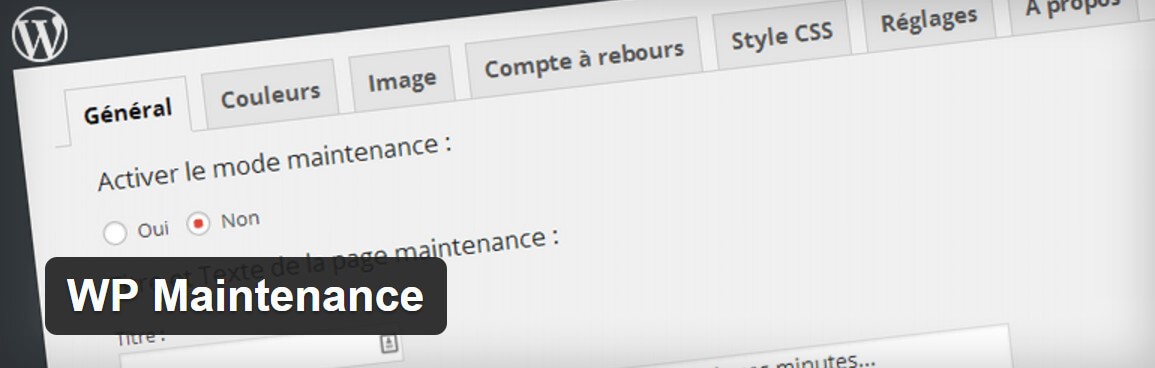
When your WordPress site needs an overhaul — a full redesign, a database migration to a new server, or a major plugin update that touches every page — the absolute last thing you want is visitors landing on a broken, half-finished, or error-ridden page. A single bad experience can cost you trust that took months to build. WP Maintenance solves this problem elegantly: it lets you put up a professional, branded maintenance page that tells visitors exactly what is happening and precisely when you will be back online.

What Is WP Maintenance and Why You Need It

WP Maintenance is a free, actively maintained WordPress plugin designed to display a fully customizable maintenance mode page. The key distinction between this plugin and simply throwing up a generic banner is the level of control it offers. You are not stuck with a default template — you can add your logo, set a high-resolution background image, display an accurate countdown timer, customize every colour in the palette, choose from over 800 Google Fonts, and even integrate your social media profiles so visitors stay connected during downtime.

Technically, the plugin intercepts all frontend HTTP requests at the WordPress initialization level. When maintenance mode is active, every unauthenticated visitor is served the maintenance page instead of the actual site content. The critical detail here is that the plugin sends an HTTP 503 Service Unavailable header — this is the single most important SEO consideration, and we will explore why in depth later. Authenticated users with appropriate capabilities bypass the maintenance page entirely, which lets you test changes, preview layouts, and verify functionality in real time while the public sees only the holding page.

The use cases for WP Maintenance are broader than most people realize. Beyond the obvious scenario of a site redesign, you might need maintenance mode when migrating between hosting providers, when your theme update corrupts the layout and you need time to fix it, when you are performing bulk database operations like cleaning up thousands of spam comments or orphaned post revisions, when you are restructuring your URL scheme and setting up redirects, or when you are testing a new checkout flow on an e-commerce site and cannot afford a single lost transaction due to a broken page.

The plugin works at the WordPress application layer, not at the web server layer. This means that if your site experiences a PHP fatal error — for example, from a conflicting plugin — the maintenance page will not display and visitors will see a white screen or error message instead. For critical infrastructure-level changes like PHP version upgrades or server migrations, combine WP Maintenance with a server-level solution such as an Apache or Nginx configuration override.

Core Features in Detail

The Countdown Timer

The countdown timer is arguably the most psychologically effective feature of WP Maintenance. Humans are hardwired to respond to scarcity and anticipation — a ticking clock creates a natural urge to check back. When a visitor sees "We will be back in 2 hours and 14 minutes," they make a mental note to return. When they see a vague and permanent-looking "Under Construction" sign, they leave and often never come back.

From a technical standpoint, the timer uses server time, not client-side JavaScript time. This is important because it means the countdown is accurate regardless of whether the visitor has the correct timezone set on their device, whether their system clock is off by several hours, or whether they have disabled JavaScript for time-related functions. The timer displays days, hours, minutes, and seconds in a clean, readable format that you can position anywhere on the page.

You configure the timer by setting a target date and time in the plugin settings panel. The date picker is straightforward: select the year, month, day, hour, and minute when your site will be back online. The plugin handles the rest, including timezone conversions. If your maintenance window extends unexpectedly, you can update the target time from the admin panel without taking the maintenance page down.

Background Customization

WP Maintenance offers four distinct background modes, each suited to different branding strategies:

  • Solid colour: The simplest option. Pick a hex colour or use the built-in colour picker. Ideal for corporate sites that want a clean, minimal maintenance page that matches the brand palette exactly.
  • Gradient: Choose a start colour and an end colour, and the plugin creates a smooth CSS gradient. This adds visual depth without the bandwidth overhead of an image. You can set the gradient direction — top-to-bottom, left-to-right, or diagonal.
  • Image: Upload any image from your media library or provide an external URL. The image is displayed as a full-screen background using CSS cover mode, which ensures it fills the entire viewport regardless of aspect ratio. An optional colour overlay with adjustable opacity ensures text remains readable even on top of complex photographs.
  • Video: Link to a YouTube or Vimeo video, and the plugin embeds it as a muted, looping, autoplaying background — similar to the hero sections found on modern landing pages. This option demands more bandwidth but creates a striking first impression.

For the image and video modes, WP Maintenance includes a parallax scrolling toggle. When enabled, the background scrolls at a slower rate than the foreground content, creating a subtle three-dimensional effect that makes the page feel more dynamic and polished.

Full Colour and Typography Control

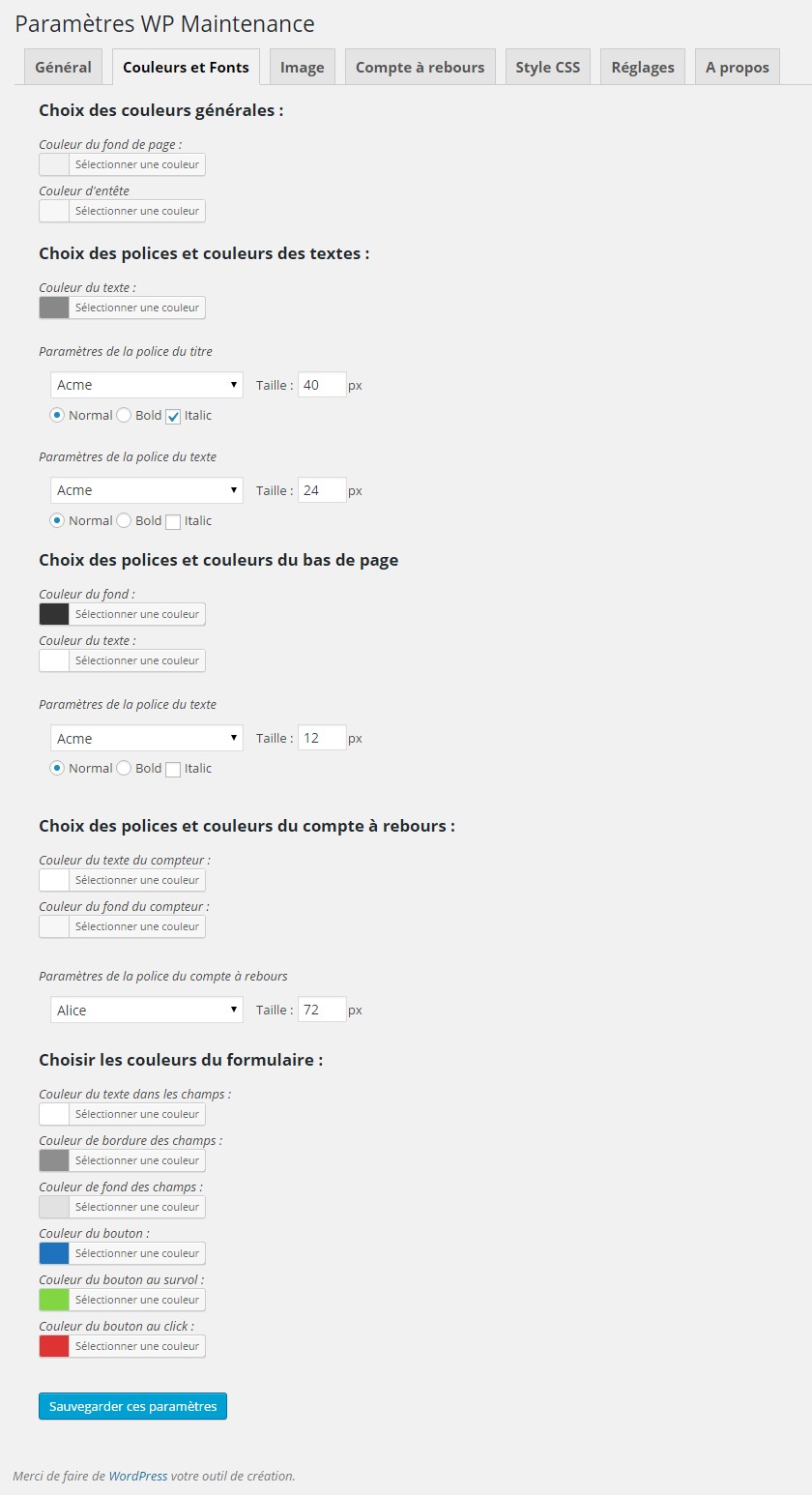
Every visual element on the maintenance page can be recoloured. The settings panel provides individual colour pickers for the page background, the content area background (with separate opacity control ranging from 0% fully transparent to 100% fully opaque), the primary heading text, the body paragraph text, the countdown timer digits, the countdown labels, the social media icons in both their default and hover states, and the button background with its hover variant.

Typography is handled through Google Fonts integration. The plugin connects to the Google Fonts API and lets you browse, preview, and select from over 800 font families. You can set separate fonts for headings and body text if your brand guidelines call for different typefaces. The font weight, size, and line height are all adjustable through the settings interface — no custom CSS required unless you want to go beyond the built-in options.

Automatic Scheduling

This feature alone separates WP Maintenance from the vast majority of its competitors. Instead of remembering to manually enable maintenance mode at 2 AM on a Sunday and then remembering to disable it at 4 AM, you configure the start and end times once. The plugin handles the rest automatically.

The scheduling works through WordPress's built-in cron system, which means it is not dependent on a real Unix cron job. The accuracy of WordPress cron depends on site traffic — if no one visits your site during the scheduled window, the cron event triggers on the next visit. For most sites, this is a non-issue, but if you need sub-second precision for a high-traffic e-commerce site, you might want to pair WP Maintenance's scheduling with a server-level cron job that runs wp-cron.php at a fixed interval.

You can also schedule recurring maintenance windows if your site requires regular weekly or monthly downtime — for example, a news site that does content audits every Sunday night or a forum that runs database optimization routines on the first day of each month.

Admin and IP Whitelist Bypass

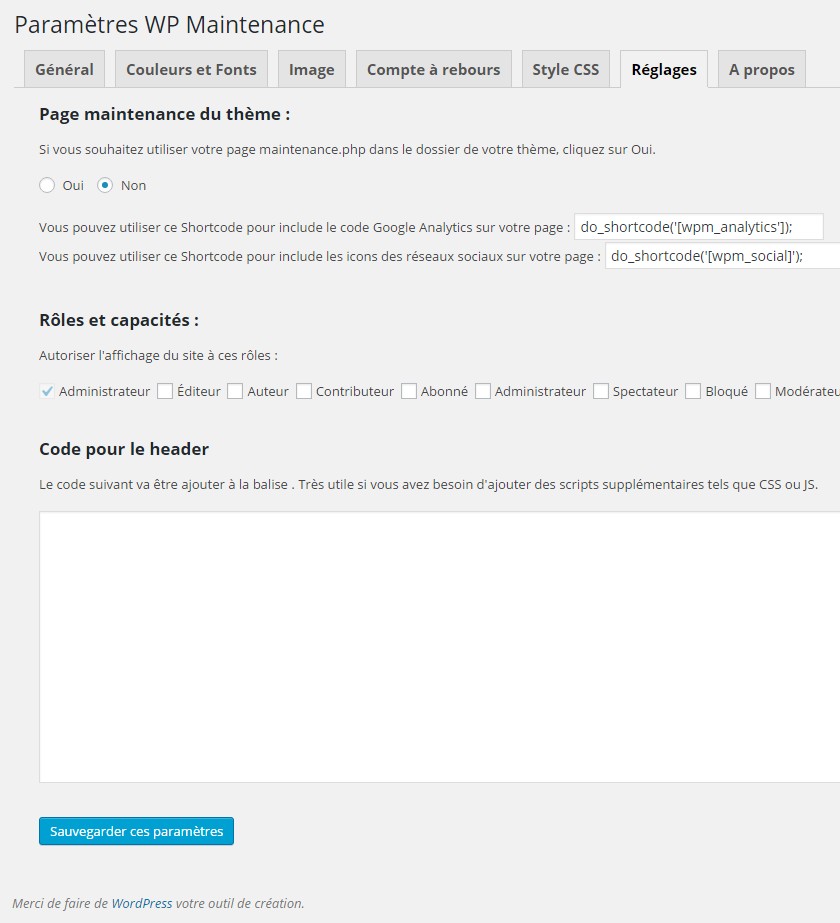
By default, any WordPress user with the manage_options capability — typically administrators — can browse the live site normally while maintenance mode is active. This is role-based, meaning you can assign custom capabilities to specific user roles if you need granular control over who sees what.

Beyond role-based access, WP Maintenance provides an IP whitelist field. You enter one IP address per line, and any visitor connecting from a whitelisted IP sees the live site regardless of their authentication status. This is critical for several real-world scenarios:

  • You are working with a remote developer who needs to test changes but does not have a WordPress user account
  • Your client wants to review the updates before you remove the maintenance page, but you do not want to create an admin account for them
  • You have a monitoring service like Pingdom or UptimeRobot that checks your site every minute — whitelist the monitoring IP so it reports the site as online
  • You are working from a coffee shop or co-working space with a dynamic IP — whitelist the entire subnet
Whitelisting IP addresses from public WiFi networks or VPN services creates a security risk — anyone on the same network will bypass the maintenance page. Always use the narrowest possible IP range and remove the whitelist entries once your maintenance is complete.

Social Media Integration and Email Collection

The plugin includes a built-in social media toolbar that supports Facebook, X (formerly Twitter), Instagram, LinkedIn, YouTube, Pinterest, Telegram, and VK. You enter your profile URLs in the settings panel, and the corresponding icons appear on the maintenance page. Visitors who land on your site during downtime can click through to your social channels, which keeps them in your ecosystem even when the main site is offline.

For email collection, WP Maintenance supports Mailchimp integration and generic shortcode-based forms. If you use a different email marketing provider — such as ConvertKit, MailerLite, or Sendinblue — you can embed their form via a shortcode or raw HTML in the content area. Collecting emails during downtime is one of the most underutilized growth tactics: instead of losing visitors when your site is down, you are capturing their contact information for future re-engagement.

Comparison with Alternative Solutions

Feature WP Maintenance SeedProd (Free) SeedProd (Pro) Coming Soon Page Under Construction
Countdown timer Built-in, server-time based Yes Yes, with animations Basic only Basic only
Background types Colour, gradient, image, video Image only Colour, gradient, image, video, slideshow Image only Colour and image
Visual page builder No — settings-based Limited Full drag-and-drop No No
Admin bypass Role-based and IP whitelist Role-based only Role-based and IP whitelist Role-based only Role-based only
Automatic scheduling Built-in, free No Yes No No
Email marketing Mailchimp and shortcode No Mailchimp, ConvertKit, ActiveCampaign, and more No Shortcode only
Social media icons 8 networks No 15+ networks Limited Limited
Google Fonts 800+ families No All Google Fonts No No
Pre-built templates No 2 basic 200+ templates 1 basic 1 basic
Custom CSS Yes Yes Yes No No
Price Free Free From $39 per year Free Free

Decision Guide: Which Tool Should You Use?

Choose WP Maintenance if you need a professional maintenance page with a countdown timer, scheduling, and IP whitelisting — and you do not need a visual drag-and-drop builder. The built-in scheduling alone justifies choosing this plugin over the simpler alternatives. If your maintenance windows are predictable and you want to set them once and forget about them, WP Maintenance is the best free option available.

Choose SeedProd Pro if your maintenance page is part of a larger marketing strategy. SeedProd Pro includes a full landing page builder, over 200 pre-designed templates, conditional logic for showing different pages to different user segments, and integrations with every major email marketing platform. The Pro version also supports custom domains, which means you can use it to build standalone landing pages that are not tied to your WordPress site at all. However, at $39 per year and up, it is overkill for a simple maintenance notification — it is better suited for agencies managing multiple client sites or businesses that use pre-launch pages as marketing tools.

Choose SeedProd Free if you want a middle ground. It offers a basic visual builder that is easier to use than WP Maintenance's settings-based approach, but it lacks scheduling, IP whitelisting, email integration, and most templates. The free version is effectively a trial for the Pro version.

Choose Coming Soon Page or Under Construction if your only requirement is a simple, zero-configuration maintenance page and you do not care about branding, scheduling, or email collection. These plugins take under a minute to install and activate. They are not elegant, but they work.

SEO Implications of Maintenance Mode: The Full Picture

This is the topic that causes the most anxiety among site owners, so let us address it thoroughly. When a search engine crawler like Googlebot visits your site during maintenance, two things can happen depending on how your maintenance page is configured:

If your maintenance page returns an HTTP 200 OK status, Google interprets the maintenance text as the new content of your pages. Within days — sometimes hours for frequently crawled sites — your search result snippets will be replaced with your maintenance message. Your rankings may not drop immediately, but your click-through rate will plummet because no one clicks on a search result that says "Site under construction." Once your site is back online, Google will eventually recrawl and restore your snippets, but the recovery can take days to weeks.

If your maintenance page returns an HTTP 503 Service Unavailable status — which is exactly what WP Maintenance does by default — Google understands that the situation is temporary. The crawler will not replace your indexed content with the maintenance message. Instead, it will note the 503 and schedule a recrawl. Google's own documentation states that they will retry 503 errors multiple times over a period of approximately 24 hours before considering the content potentially permanently unavailable. For most maintenance windows lasting a few hours, there is zero negative SEO impact.

Under no circumstances should you use a 301 or 302 redirect to send visitors to a maintenance page hosted on a different URL. Redirects tell Google that the original URL has moved, which can cause your rankings to transfer to the maintenance page URL. The 503 status on the original URL is the only SEO-safe approach.

Additional SEO Best Practices During Maintenance

  • Keep maintenance windows under 24 hours whenever possible. Google's recrawl frequency varies by site authority — high-authority sites get recrawled more often, but low-authority sites might wait days between crawls. The shorter your downtime, the lower the risk.
  • If you anticipate downtime exceeding 48 hours, use Google Search Console's Removals tool to temporarily hide URLs from search results. You can reverse this with one click once the site returns.
  • Include your site name, a brief description of what your site normally offers, and a sentence about when you expect to return. This helps Google's algorithms maintain the contextual association between your domain and its topic even when the main content is temporarily unavailable.
  • Do not add noindex meta tags to your maintenance page. The 503 header communicates the temporary nature of the situation more accurately. A noindex tag could cause Google to drop your pages from the index entirely, and re-indexing after removal is far slower than recrawling after a 503.
  • Verify your HTTP status code after enabling any maintenance plugin. Use a tool like curl -I https://yoursite.com in your terminal or an online HTTP header checker. The first line of the response should read HTTP/1.1 503 Service Unavailable.
  • If you use a CDN like Cloudflare, configure it to pass through 503 responses from your origin server rather than serving a cached 200 version of your maintenance page. Cloudflare's "Always Online" feature can conflict with maintenance mode — disable it before starting maintenance.

HTTP Status Codes and SEO: Reference Table

HTTP Code Technical Meaning Google's Interpretation SEO Impact Appropriate for Maintenance?
200 OK — page served successfully Content is valid and should be indexed Maintenance text replaces real content in index Never
301 Moved Permanently URL has changed forever — transfer ranking signals Rankings transfer to destination URL Never
302 Found / Moved Temporarily URL temporarily at different location Original URL stays indexed, but confusion possible Not recommended
503 Service Unavailable Server cannot handle request right now — try later No negative impact with short windows Yes — the correct choice
307 Temporary Redirect (HTTP/1.1) Same as 302 but method-preserving Original URL stays indexed Acceptable but 503 is better

Step-by-Step Installation and Configuration

Setting up WP Maintenance takes approximately five minutes from installation to a fully configured maintenance page:

  1. In your WordPress admin panel, navigate to Plugins → Add New.
  2. Type "WP Maintenance" in the search bar. The plugin by Florent Maillefaud should appear as the first result.
  3. Click Install Now, wait for the installation to complete, then click Activate.
  4. After activation, a new menu item appears under Settings → WP Maintenance. Open it.
  5. On the General tab, toggle "Enable maintenance mode" to see the full set of options.
  6. Set your countdown date and time using the date picker. The timezone is taken from your WordPress general settings.
  7. Switch to the Background tab and choose your background type. If using an image, upload it or select it from your media library.
  8. On the Content tab, customize the headline, message text, and upload your logo.
  9. On the Style tab, select your colour scheme and fonts.
  10. On the Social tab, enter your social media profile URLs.
  11. Click Save Changes, then use the Preview button to verify the appearance.
  12. Open an incognito browser window and visit your site to confirm the maintenance page displays correctly.
The Preview button works even when maintenance mode is disabled. This means you can fully design and perfect your maintenance page weeks before you need it, then simply toggle it on when maintenance begins — no last-minute scrambling required.

Seven Practical Best Practices

  1. Test on staging first, always. Before enabling maintenance mode on your production site, test the plugin on a staging copy. Verify the page renders correctly on desktop, tablet, and mobile viewports. Check that your logo is crisp, the countdown is accurate, and all social links open correctly.
  2. Set a realistic timer with a buffer. If you estimate your work will take two hours, set the countdown for two and a half or three hours. Unexpected complications during maintenance are the rule, not the exception. A timer that expires and then resets erodes visitor confidence more than no timer at all.
  3. Whitelist your own IP address. Even if you are logged in as an administrator, session cookies can expire. Adding your IP to the whitelist ensures you always have access to the live site regardless of authentication state. If your IP is dynamic, whitelist your current IP each time you start a maintenance session and remove it when you finish.
  4. Enable email collection from day one. Every visitor who lands on your maintenance page is someone who intended to interact with your site. Capturing their email turns what would otherwise be a lost visitor into a measurable asset. Add a brief, honest message about why you are collecting emails — for example, "We will notify you the moment we are back."
  5. Keep your brand fully visible. Your logo, your brand colours, your tone of voice — the maintenance page is a brand touchpoint, not an interruption. Treat it with the same design care you would give to a landing page. A beautifully designed maintenance page communicates that you are a professional operation even when things are temporarily offline.
  6. Provide social media links. If visitors cannot browse your site, give them the next best thing — a way to browse your social content. Make sure the links point to active, well-maintained profiles. Broken social links on a maintenance page make your brand look abandoned.
  7. Disable maintenance mode immediately when work is done. This sounds obvious, but it is the most common mistake site owners make. The scheduling feature eliminates this risk entirely — if you set an end time, the plugin disables itself automatically. If you are not using scheduling, set a calendar reminder for yourself as a backup.

FAQ

Does WP Maintenance hurt my SEO rankings?

No, not when used properly. The plugin sends an HTTP 503 Service Unavailable header, which tells search engine crawlers that the downtime is temporary. Google will not de-index your pages — it will simply check back later. For maintenance windows under 24 hours, there is effectively zero SEO impact. For longer windows, use Google Search Console's Removals tool as a precaution.

How do I whitelist specific IP addresses?

In the WP Maintenance settings panel, there is a dedicated IP whitelist field. Enter one IP address per line. Both IPv4 and IPv6 addresses are supported. Visitors connecting from whitelisted IPs will see the live site regardless of whether maintenance mode is active. Remember to remove the whitelist entries after maintenance is complete for security.

Does the countdown timer rely on the visitor's computer clock?

No. The timer uses server-side time, not the visitor's local system clock. This guarantees accuracy regardless of the visitor's timezone settings, whether their device clock is incorrect, or whether they have disabled JavaScript time functions. The countdown will show the same remaining time for every visitor worldwide.

Can I add my own custom HTML and CSS?

Yes. WP Maintenance includes a custom CSS field where you can add any valid CSS rules to override or extend the built-in styles. For more extensive customization, you can add custom HTML via the content editor. The plugin also supports shortcodes, so you can embed forms, galleries, or other dynamic content from third-party plugins.

What do logged-in administrators see during maintenance?

By default, any user with the capability to manage options — typically administrators — bypasses the maintenance page and sees the live site normally. You can modify which user roles have bypass access by editing the capability settings. This allows you to grant bypass access to editors, authors, or custom roles as needed.

Is WP Maintenance compatible with caching plugins?

Yes, it is compatible with most caching plugins, including W3 Total Cache, WP Super Cache, WP Rocket, and LiteSpeed Cache. However, after enabling or disabling maintenance mode, you should always clear your cache to ensure the changes take effect immediately. Some caching plugins can serve cached 200 OK versions of your pages for minutes or hours after you enable maintenance mode.

Can I schedule maintenance mode to start and stop automatically?

Yes, this is one of the plugin's standout features. In the General settings tab, you can set a start date and time and an end date and time. The plugin will automatically enable maintenance mode at the start time and disable it at the end time. This works through WordPress's built-in cron system and is completely free — unlike SeedProd, which requires the Pro version for scheduling.

Does the plugin support multiple languages?

WP Maintenance is fully translation-ready. It includes .pot files that you can use with translation plugins like Loco Translate or Poedit to create translations in any language. The frontend content — headline, message, and button text — can be written in any language you choose.

Does WP Maintenance affect site performance?

No measurable impact. When maintenance mode is disabled, the plugin adds essentially zero overhead — it only checks a single option value on each page load, which takes microseconds. When maintenance mode is enabled, the overhead is also minimal because the plugin serves only a single lightweight page instead of executing the full WordPress theme and template loading pipeline.

What happens if my site goes down completely — will the maintenance page still show?

No. WP Maintenance operates at the WordPress application layer. If your site experiences a PHP fatal error, database connection failure, or server-level outage, the maintenance page cannot be served. For server-level changes such as PHP version upgrades, combine WP Maintenance with a web server configuration override — for example, an Nginx configuration that serves a static HTML maintenance page when the upstream WordPress server is unreachable.

Tap to react