The default WordPress pagination is embarrassingly primitive for 2026. Two links — "Older posts" and "Newer posts" — sit at the bottom of your blog page like a forgotten relic from 2004. Visitors who land on page 7 of your archive have no idea how deep they are, how many pages remain, or how to jump to a specific section. WP-PageNavi fixes this entirely by replacing the binary navigation with a clean, numbered, customizable pagination system that transforms how users and search engines interact with your content.

Why Default WordPress Pagination Falls Short

WordPress ships with a navigation function that outputs two links: one pointing to older posts, one pointing to newer posts. That is the entire system. For a blog with 12 posts spread across 2 pages, this works fine — barely. For a site with 500 articles spread across 50 pages, it is a usability nightmare. A visitor who wants to find content from three years ago must click "Older posts" forty times. A search engine crawler must follow a linear chain of links to discover your entire archive, and if the chain breaks at any point — due to a redirect, a broken link, or a timeout — every page beyond the break becomes invisible to the crawler.

The default navigation also provides zero visual feedback about the user's position within the archive. There is no concept of a "current page," no indication of how many pages exist, and no ability to jump to a specific page number. It is the digital equivalent of a book where the only way to turn pages is to flip them one at a time — forward or backward — with no table of contents and no page numbers printed anywhere.

WP-PageNavi replaces this with a numbered pagination bar. Typically, it displays something like Page 5 of 47, with clickable links for the first page, the last page, the previous page, the next page, and a range of adjacent page numbers. The current page is visually highlighted, giving the user a clear sense of position. If your archive has 47 pages, the user can jump from page 5 to page 40 in a single click.

What WP-PageNavi Actually Does

At its core, WP-PageNavi is a relatively small plugin that introduces one key function: wp_pagenavi(). You place this function call in your theme template files — typically in index.php, archive.php, search.php, and category.php — and it replaces whatever pagination links your theme currently outputs with a full numbered pagination bar. The function accepts an optional query object, which means it works correctly with WP_Query custom loops, not just the main WordPress loop.

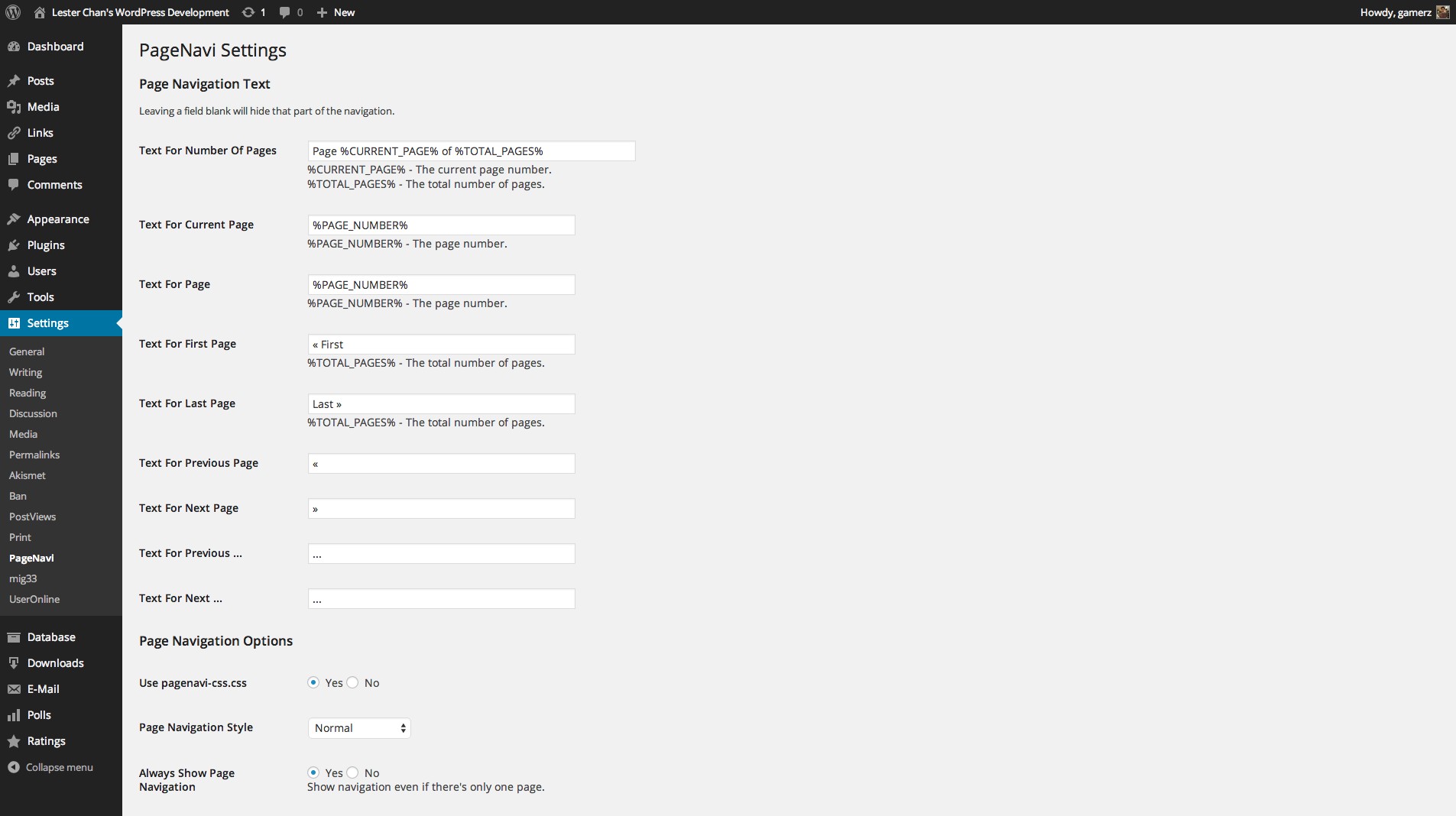
The plugin also includes an admin settings panel where you can configure the text labels for every element of the pagination bar without touching a line of code. You can change "Page" to whatever your language requires, customize the "First" and "Last" link text, and set the number of page links to display before and after the current page. The plugin ships with translation files for over 20 languages, and adding a new language is a matter of creating a .po file through the standard WordPress localization workflow.

Critically, WP-PageNavi does not alter your database or modify your theme files. It is a purely presentation-layer plugin that hooks into WordPress's pagination logic at the template level. If you deactivate the plugin, your site reverts to whatever pagination your theme originally provided — no cleanup required, no leftover database entries, no broken layouts.

WP-PageNavi does not automatically replace your theme's existing pagination. You must manually add the wp_pagenavi() function call to your theme template files. The plugin provides a helper option under Settings that can attempt automatic replacement for some themes, but manual integration is always more reliable.

Installation and Basic Setup

Installation follows the standard WordPress plugin workflow: go to Plugins → Add New, search for "WP-PageNavi", install, and activate. The plugin is lightweight — less than 100 KB — and has no dependencies beyond WordPress core. After activation, a new menu item appears under Settings → PageNavi.

The settings panel is organized into two sections: PageNavi Options and CSS Styles. The Options section lets you configure:

  • Text for Number of Pages: The label that appears before the page number, such as "Page" (default: Page %CURRENT_PAGE% of %TOTAL_PAGES%)
  • Text for Current Page: How the current page number is formatted in the pagination bar
  • Text for Page Link: The format for clickable page number links
  • Text for First Page Link: The text or character for the "jump to first page" link
  • Text for Last Page Link: The text or character for the "jump to last page" link
  • Text for Previous Page Link: The text or HTML entity for navigating backward
  • Text for Next Page Link: The text or HTML entity for navigating forward
  • Number of Pages to Show: How many adjacent page numbers to display around the current page
  • Larger Page Number Multiples: When to insert an ellipsis (...) between page numbers in large archives

The CSS Styles section contains the default stylesheet that ships with the plugin. You can choose to use the default styles, disable CSS output entirely and write your own, or modify the provided stylesheet directly in the settings panel. Modifications are preserved across plugin updates because they are stored in the WordPress options table, not in the plugin files themselves.

The most critical step after installation is adding the wp_pagenavi() function to your theme. Open the template file where you want pagination to appear — for most blogs, this is index.php. Find the existing pagination code, which typically looks like:

div>php next_posts_link('Older posts'); /div> div>php previous_posts_link('Newer posts'); /div>

Replace it with:

php if(function_exists('wp_pagenavi')) { wp_pagenavi(); } ?>

The function_exists check prevents a fatal error if the plugin is accidentally deactivated. If the plugin is active, wp_pagenavi() outputs the full numbered pagination bar. If the plugin is deactivated, nothing is output, and your site gracefully degrades to having no pagination at all — which is better than a PHP error in production.

Theme Integration in Detail

Different theme structures require different integration approaches. Here are the most common scenarios:

Standard Blog Index

Edit index.php and locate the call to posts_nav_link(), next_posts_link(), or previous_posts_link(). Replace the entire navigation block with wp_pagenavi(). The function automatically determines the total number of pages from the global $wp_query object.

Custom WP_Query Loops

If your theme uses a custom query — for example, a featured posts section or a category-specific loop — you must pass the query object to wp_pagenavi() as a parameter:

php $custom_query = new WP_Query(array('posts_per_page' => 10, 'cat' => 5)); while($custom_query->have_posts()) { $custom_query->the_post(); } if(function_exists('wp_pagenavi')) { wp_pagenavi(array('query' => $custom_query)); } wp_reset_postdata(); ?>

Without passing the custom query object, wp_pagenavi() will use the main query, which will produce incorrect page numbers and broken links for custom loops. This is the single most common mistake developers make when integrating the plugin.

Archive and Category Pages

Most themes use archive.php as a shared template for all archive types. Edit this file once, and the pagination improvement applies to category archives, tag archives, date archives, and author archives simultaneously. If your theme has separate templates for different archive types — category.php, tag.php, author.php — you must edit each file individually.

Search Results

Search results pages in WordPress can span multiple pages if the number of results exceeds the posts-per-page setting. Edit search.php and add wp_pagenavi() to enable numbered pagination for search results. This is often overlooked but significantly improves the experience for users who perform broad searches that return dozens or hundreds of results.

WooCommerce and Custom Post Types

WP-PageNavi works with any post type, including WooCommerce products, portfolio items, testimonials, and any custom post type registered with has_archive set to true. Edit the corresponding archive template — archive-product.php for WooCommerce, archive-portfolio.php for portfolios — and add the function call as you would for a standard blog index.

Styling and Custom CSS

The default stylesheet produces a clean, minimal pagination bar with grey borders, blue links, and a highlighted current page. It fits most themes without modification, but you will almost certainly want to customize it to match your brand colours and typography. The default CSS targets the .wp-pagenavi class and its children: .pages, .current, .first, .last, .previouspostslink, .nextpostslink, and .extend.

Here is an example of a typical customization that aligns the pagination to the center, adds rounded corners, and uses a brand colour scheme:

.wp-pagenavi { text-align: center; margin: 2rem 0; } .wp-pagenavi a, .wp-pagenavi span { display: inline-block; padding: 8px 14px; margin: 0 3px; border: 1px solid #ddd; border-radius: 4px; text-decoration: none; transition: background 0.2s; } .wp-pagenavi a:hover { background: #f0f0f0; } .wp-pagenavi span.current { background: #0073aa; border-color: #0073aa; color: #fff; font-weight: bold; }

The CSS Styles field in the plugin settings panel stores your customizations in the database. If you prefer to manage styles through your theme's stylesheet — which is generally a better practice for version control — simply disable CSS output in the plugin settings and add your rules to your theme's style.css or a custom CSS file loaded via wp_enqueue_style().

Comparison with Alternatives

Feature WP-PageNavi Default WordPress WP-Paginate Manual Code
Numbered page links Yes No Yes Requires custom development
First/Last page links Yes No Yes Requires custom code
Custom WP_Query support Yes Limited Yes Requires paginate_links()
Text customization Full — admin panel Requires filters Partial — settings page Full — developer control
CSS customization Admin panel or stylesheet Stylesheet only Stylesheet only Stylesheet only
Translation support 20+ languages built-in Manual translation required Limited Manual
Auto-replace existing navigation Optional auto-replace helper N/A Yes — automatic N/A — you write the code
AJAX pagination Yes — works with AJAX plugins No No Requires custom AJAX handling
Active installations 600,000+ N/A 40,000+ N/A
Price Free Free (built-in) Free Developer time

When to Choose Each Option

Choose WP-PageNavi if you want the most battle-tested, widely adopted pagination plugin with full customization through a settings panel, extensive translation support, and a large user community that has solved virtually every edge case. Its 600,000+ active installations are a testament to its reliability. The plugin is maintained by Lester Chan, one of the most respected developers in the WordPress ecosystem, and has been updated continuously since 2008 — nearly two decades of stability.

Choose WP-Paginate if your primary requirement is automatic replacement of existing navigation links without editing any template files. WP-Paginate hooks into the WordPress output and replaces "Older/Newer" links automatically — no code changes needed. The trade-off is less granular control over the output format and fewer customization options in the admin panel.

Choose manual code using WordPress's built-in paginate_links() function if you need complete, programmatic control over every aspect of the pagination output and you are comfortable writing PHP. This approach produces zero plugin overhead and gives you the ability to generate any HTML structure you want. The downside is that you are responsible for maintaining the code through WordPress core updates — paginate_links() has changed its behaviour slightly over major versions, and you need to test your implementation on each update.

SEO Benefits of Numbered Pagination

The SEO impact of proper pagination extends beyond what most site owners realize. Here is what changes when you upgrade from binary Older/Newer links to numbered pagination:

Crawl depth distribution becomes uniform. With linear Older/Newer navigation, Googlebot must follow a single chain of links to discover all your archive pages. Page 3 is only discoverable by crawling page 2, which requires crawling page 1 first. The deeper the page, the longer it takes to discover, and the higher the chance that the crawl chain breaks somewhere. With numbered pagination, every page links to every other page — directly or through the first/last links — giving Googlebot multiple discovery paths and reducing the risk of orphaned archive pages.

PageRank flows more evenly. In a linear chain, PageRank flows from page 1 to page 2, then page 2 to page 3, and so on. Each step attenuates the signal. Page 10 receives a tiny fraction of the PageRank that page 1 receives. With numbered pagination, links flow in multiple directions — from page 5 to page 1, page 10, page 30, and every adjacent page — creating a more balanced distribution of link equity across your entire archive.

Click-through rate on search results improves. When Google displays a result with a sitelinks search box or rich breadcrumb, users can navigate directly to the section they want. Numbered pagination reinforces this by providing clear, indexable page anchors that Google can include in its understanding of your site structure.

Duplicate content risk is reduced. Without proper pagination, WordPress can generate view-all pages, infinite scroll endpoints, or parameter-based URLs that create duplicate content. WP-PageNavi's clean, consistent URL structure with /page/2/ format ensures every archive page has exactly one canonical URL, eliminating the ambiguity that confuses search engines.

Pagination Table: Structure and SEO Implications

Pagination Element SEO Signal User Experience Signal Technical Requirement
Current page indicator Anchor for canonical self-reference Position awareness — "I am on page 5 of 47" Must not be a clickable link to avoid self-referencing 301 loops
First/Last page links Direct crawl path to both ends of archive Quick navigation to beginning or end Should always be present to ensure complete crawl coverage
Adjacent page links Multiple link discovery paths Sequential browsing Show 2-3 pages before and after current position
Ellipsis (gap indicator) Informs crawler of pagination depth Visual cue that many pages exist Use when pages exceed displayed range — e.g., page 1 ... 5 6 7 ... 47
Page count label Provides context for total archive size Sets expectations — "Page 2 of 3" vs "Page 2 of 300" Dynamically generated from $wp_query->max_num_pages

Accessibility Considerations

WP-PageNavi's default output wraps the pagination bar in a div with the class wp-pagenavi. For improved accessibility, you should consider wrapping the function call in a nav element with an aria-label attribute:

nav aria-label="Pagination"> php if(function_exists('wp_pagenavi')) { wp_pagenavi(); } ?> /nav>

This tells screen readers that the content within is a navigation landmark, and the aria-label clarifies that it is specifically pagination rather than general site navigation. Additionally, ensure your custom CSS maintains sufficient colour contrast between the background, text, and link colours — the default styles use a light grey border (#ddd) and blue links (#0073aa), which meets WCAG AA contrast requirements on a white background.

For keyboard navigation, the plugin outputs standard anchor elements, which are focusable and operable with the Tab key by default. The current page is output as a span element rather than a link, which means it is not focusable and does not create a confusing interactive element that goes nowhere. This matches the standard pattern for accessible pagination components across the web.

FAQ

Do I need to edit theme files to use WP-PageNavi?

In most cases, yes. The plugin does not automatically replace your theme's existing pagination — you must add the wp_pagenavi() function call to your template files. The plugin provides an auto-replace helper in the settings, but it does not work with all themes. Manual integration in index.php, archive.php, and search.php takes about two minutes and is the most reliable approach.

Does WP-PageNavi work with custom WP_Query loops?

Yes. Pass your custom query object to wp_pagenavi() as a parameter: wp_pagenavi(array('query' => $custom_query)). Without this parameter, the function uses the main WordPress query, which will produce incorrect page numbers for custom loops.

Will WP-PageNavi slow down my site?

No. The plugin adds a single database query to determine the total number of pages, which is the same query WordPress already runs for pagination. The overhead is negligible — typically under 1 millisecond on a properly configured server.

Can I use WP-PageNavi with WooCommerce?

Yes. WooCommerce uses standard WordPress pagination under the hood. Add wp_pagenavi() to your theme's archive-product.php template, or use the auto-replace option in the plugin settings if your WooCommerce theme supports it.

How do I change the number of page links displayed?

In the plugin settings under Settings → PageNavi, adjust the "Number of Pages to Show" field. The default is 5, meaning the pagination bar will show up to 5 page number links around the current page. Increase this number for sites with very large archives.

Is WP-PageNavi compatible with caching plugins?

Yes, it works correctly with all major caching plugins, including W3 Total Cache, WP Super Cache, WP Rocket, and LiteSpeed Cache. The pagination is generated server-side on each page load, so cached pages display the correct page numbers.

Does WP-PageNavi help with SEO?

Indirectly, yes. Numbered pagination creates multiple crawl paths to your archive pages, distributes PageRank more evenly across your content, and provides clear URL structures that search engines can index and understand more effectively than linear Older/Newer links.

Can I translate the pagination text into my language?

Yes. The plugin ships with translation files for over 20 languages. For languages not included, you can create a .po file using Poedit or Loco Translate. You can also manually change any text label in the plugin settings panel without creating translation files.

What happens if I deactivate WP-PageNavi?

Your site will revert to whatever pagination your theme originally provided — typically the default Older/Newer links. No database changes are made by the plugin, and no residual data is left behind. Your content and URLs remain completely intact.

Does WP-PageNavi support AJAX pagination?

The plugin does not include built-in AJAX functionality, but it is compatible with AJAX-based themes and plugins. If your theme loads content via AJAX, WP-PageNavi's output will be included in the HTML response and can be handled by your AJAX scripts.

Tap to react