Creating Admin Menus in WordPress — The Complete Guide

Mastering the WordPress API menu system is a critical milestone for any developer. The menu is how users access your theme or plugin functionality. Without a properly configured menu, the options page you built with the Settings API remains invisible — users simply cannot find it in the admin panel.

WordPress offers four different ways to add menu items, each solving a specific problem. Choosing the wrong menu type leads to interface confusion and user complaints. In this article, we will examine all four approaches, their parameters, limitations, and best practices.

Do not confuse admin menus with site navigation menus. The admin menu is the left sidebar in the WordPress dashboard. Navigation menus are configured via Appearance → Menus and control frontend links.

Four Types of WordPress Menus

Before diving into code, understand which menu types exist and when to use each. Picking the wrong type is one of the most common mistakes made by beginning theme and plugin developers.

1. Top-Level Menu. Creates a new item in the left sidebar — just like the standard Posts, Pages, and Settings items. Use this when your plugin or theme deserves its own section. Function: add_menu_page(). Example: the WooCommerce plugin adds its own Products menu item.

2. Submenu. Adds a child item under an existing menu. Can be placed under standard WordPress menus (Settings, Tools) or under your own top-level menu. Function: add_submenu_page(). Example: a Theme Settings sub-item inside the Appearance menu.

3. Plugins Page. Adds an item to the Plugins menu. Rarely used, mostly for individual plugin configuration pages. Function: add_plugins_page(). Differs from add_submenu_page only in that it is hardcoded to the Plugins menu and does not require a parent slug parameter.

4. Themes Page. Adds an item to the Appearance menu. The classic choice for themes needing a settings page. Function: add_theme_page(). Identical to add_submenu_page for parent 'themes.php' but semantically clearer.

FunctionWhere It AddsTypical UseRequired Params
add_menu_page()New top-level itemLarge plugin with own section5 of 7
add_submenu_page()Under existing itemPlugin settings sub-section6
add_plugins_page()Plugins menuPlugin configuration5
add_theme_page()Appearance menuTheme settings5

add_menu_page() — Top-Level Menu

The add_menu_page() function creates a new item in the left sidebar. It accepts seven parameters, with the first five being mandatory:

ParameterTypeRequiredDescription
$page_titlestringYesPage title (in <title> tag)
$menu_titlestringYesMenu item name in the sidebar
$capabilitystringYesRequired capability (typically manage_options)
$menu_slugstringYesUnique menu slug (used in URL)
$callbackcallableYesFunction that renders the page content
$icon_urlstringNoIcon URL or dashicon class
$positionintNoMenu position (lower number means higher placement)

Basic example of adding a top-level menu:

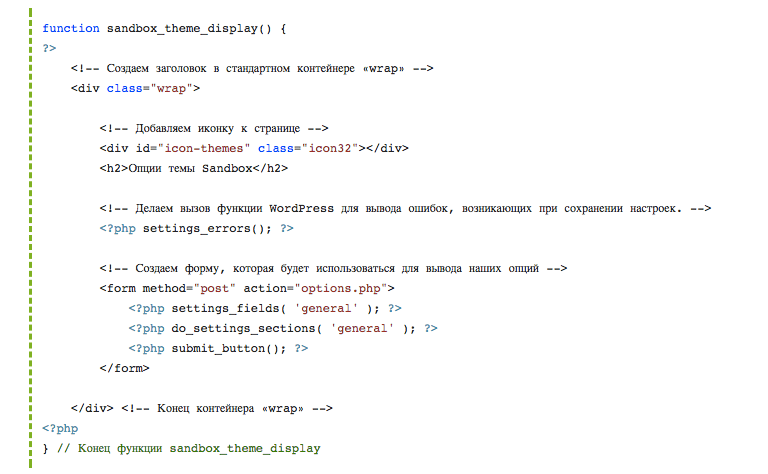
function sandbox_add_admin_menu() { add_menu_page( 'Sandbox Theme Options', 'Sandbox', 'manage_options', 'sandbox-options', 'sandbox_options_page_html', 'dashicons-admin-generic', 61 ); } add_action( 'admin_menu', 'sandbox_add_admin_menu' ); function sandbox_options_page_html() { if ( ! current_user_can( 'manage_options' ) ) { return; } ?>

Always check user permissions in the page callback with current_user_can(). Without this check, any logged-in user who guesses the admin page URL can access it.

Menu Icons: Dashicons and Custom SVGs

The $icon_url parameter in add_menu_page() sets the menu item icon. WordPress supports three icon specification methods:

Dashicons — the built-in WordPress icon set. Simply specify the CSS class, for example 'dashicons-admin-generic', 'dashicons-chart-area', 'dashicons-shield'. Over 200 icons are available.

Custom image — specify a PNG or SVG file URL. Optimal size is 20x20 pixels: get_template_directory_uri() . '/assets/icon.png'

Base64 SVG — inline SVG encoded as base64. Eliminates the need for a separate file:

$icon_svg = 'data:image/svg+xml;base64,' . base64_encode( '' ); add_menu_page( 'My Plugin', 'My Plugin', 'manage_options', 'my-plugin', 'my_page_callback', $icon_svg, 30 );[/codeblock]

Menu Positioning

The $position parameter determines where your menu item appears in the sidebar. WordPress reserves specific positions for standard items:

PositionStandard ItemNote
2DashboardDo not use
5PostsDo not use
10MediaDo not use
20PagesDo not use
25CommentsDo not use
60AppearanceDo not use
65PluginsDo not use
70UsersDo not use
75ToolsDo not use
80SettingsDo not use

For your own menu, choose positions between standard items. Popular choices: 26 (between Comments and Appearance), 61 (between Appearance and Plugins), 81 (after Settings). If two plugins use the same position, WordPress appends a suffix to the slug of the last registered item.

add_submenu_page() — Submenus

The add_submenu_page() function adds a child item under an existing menu. The signature is similar to add_menu_page() but with an additional first parameter — the parent menu slug:

add_submenu_page( 'sandbox-options', 'Social Network Settings', 'Social Networks', 'manage_options', 'sandbox-social', 'sandbox_social_page_html' );[/codeblock]

To add submenus to standard WordPress items, use these parent slugs:

Standard MenuParent SlugRequired Capability
Dashboardindex.phpread
Postsedit.phpedit_posts
Mediaupload.phpupload_files
Pagesedit.php?post_type=pageedit_pages
Appearancethemes.phpswitch_themes
Pluginsplugins.phpactivate_plugins
Usersusers.phplist_users
Toolstools.phpedit_posts
Settingsoptions-general.phpmanage_options

add_plugins_page() and add_theme_page()

These two functions are wrappers around add_submenu_page() with a fixed parent. They exist for semantic clarity and to reduce the chance of parent slug errors.

add_plugins_page() adds an item to the Plugins menu:

add_plugins_page( 'My Plugin Configuration', 'My Plugin', 'manage_options', 'my-plugin-config', 'my_plugin_config_page_html' );[/codeblock]

add_theme_page() adds an item to the Appearance menu, ideal for theme options:

add_theme_page( 'Theme Options', 'Theme Options', 'manage_options', 'theme-options', 'theme_options_page_html' );[/codeblock]

Both functions hook into admin_menu, like all other menu functions. Call order within the hook does not affect display order — WordPress sorts items by position and alphabetically.

The admin_menu Hook and Priorities

All menu creation functions must be called within the admin_menu hook. This hook fires after core loads but before the sidebar renders:

function sandbox_register_menus() { add_menu_page( /* ... */ ); add_submenu_page( /* ... */ ); } add_action( 'admin_menu', 'sandbox_register_menus' );[/codeblock]

The hook priority (third parameter of add_action) determines when your menus are registered relative to other plugins. The default priority is 10. To ensure your menu appears after all standard items, use a higher priority:

add_action( 'admin_menu', 'sandbox_register_menus', 99 );[/codeblock]

Priority 99 guarantees your code runs after most plugins, allowing you to override or extend existing menus.

Conditional Menu Display

Sometimes a menu should only be visible to certain users or under specific conditions. WordPress does not provide a built-in mechanism for conditional menu hiding beyond capability checks, but there are two workarounds.

Method 1: Role check inside the hook. Wrap the add_menu_page() call in a check:

function sandbox_conditional_menu() { if ( current_user_can( 'manage_options' ) ) { add_menu_page( 'Advanced Settings', 'Advanced', 'manage_options', 'advanced-settings', 'advanced_page_html' ); } } add_action( 'admin_menu', 'sandbox_conditional_menu' );[/codeblock]
Role checks via in_array work but capabilities are more reliable than roles. A role can be renamed, a capability cannot. Prefer current_user_can() over role checks whenever possible.

Method 2: Remove menu items selectively. Use remove_menu_page() to hide items:

function sandbox_hide_menu_for_editors() { if ( ! current_user_can( 'manage_options' ) ) { remove_menu_page( 'tools.php' ); remove_submenu_page( 'themes.php', 'theme-options' ); } } add_action( 'admin_menu', 'sandbox_hide_menu_for_editors', 99 );[/codeblock]More granular control is achieved by checking multiple capabilities simultaneously:

function sandbox_advanced_menu_check() { if ( current_user_can( 'manage_options' ) || current_user_can( 'edit_theme_options' ) ) { add_menu_page( 'Theme Settings', 'Theme Settings', 'edit_theme_options', 'theme-settings', 'theme_settings_page' ); } } add_action( 'admin_menu', 'sandbox_advanced_menu_check' );[/codeblock]

This pattern is useful in multi-tier systems where some settings are visible to administrators and others to content editors. WordPress checks capabilities when loading the menu and only shows items to users who meet at least one condition.

Custom Capabilities

When standard WordPress capabilities are insufficient, you can create your own. This is especially relevant for plugins with specialized functionality. Register a custom capability on plugin activation:

function sandbox_add_custom_capability() { $role = get_role( 'administrator' ); $role->add_cap( 'manage_sandbox_settings' ); } register_activation_hook( __FILE__, 'sandbox_add_custom_capability' ); function sandbox_remove_custom_capability() { $role = get_role( 'administrator' ); $role->remove_cap( 'manage_sandbox_settings' ); } register_deactivation_hook( __FILE__, 'sandbox_remove_custom_capability' );[/codeblock]
Custom capabilities are not automatically removed on plugin deactivation. If you forget to call remove_cap() in the deactivation hook, the capability remains in the database permanently.

Multi-Page Menu Structure

As a plugin grows, a single settings page stops fitting all functionality. The typical pattern for large plugins is one top-level menu with multiple submenus, each leading to its own settings page:

function sandbox_multi_page_menu() { add_menu_page( 'Sandbox Pro', 'Sandbox Pro', 'manage_options', 'sandbox-pro', 'sandbox_dashboard_page', 'dashicons-layout', 26 ); add_submenu_page( 'sandbox-pro', 'Dashboard', 'Dashboard', 'manage_options', 'sandbox-pro', 'sandbox_dashboard_page' ); add_submenu_page( 'sandbox-pro', 'Display Options', 'Display', 'manage_options', 'sandbox-display', 'sandbox_display_page' ); add_submenu_page( 'sandbox-pro', 'Social Networks', 'Social', 'manage_options', 'sandbox-social', 'sandbox_social_page' ); } add_action( 'admin_menu', 'sandbox_multi_page_menu' );[/codeblock]

Note an important detail: the first submenu uses the same slug ('sandbox-pro') as the parent menu. When the submenu slug matches the parent, WordPress does not create a duplicate entry. This is the standard technique for having the parent menu click lead to the Dashboard page while other items lead to corresponding sub-pages.

Overriding Standard Pages via Menus

Sometimes you need to replace a standard WordPress page with your own implementation — for example, a custom post list or an analytics dashboard. Use the technique of matching the slug with a standard menu but providing a custom callback:

function sandbox_replace_dashboard() { add_submenu_page( 'index.php', 'Custom Dashboard', 'Dashboard', 'read', 'index.php', 'sandbox_custom_dashboard' ); } add_action( 'admin_menu', 'sandbox_replace_dashboard' );[/codeblock]

This code replaces the default Dashboard with your custom one while preserving the original menu item name and position. Users will not notice any interface difference but will see your custom page instead of the standard one. Important: if you override a critical page like Dashboard, make sure your version does not lose original functionality such as the At a Glance widget or update notification blocks.

Multisite Menu Considerations

In WordPress Multisite, menu behavior changes. Some standard items (Tools, Settings) are only available to super admins, not individual site administrators. If your plugin must work in a multisite environment, keep the following in mind:

Use is_multisite() to check the environment and adapt capabilities accordingly. In multisite, a site administrator has manage_options but not manage_network (reserved for super admins). A plugin that hardcodes manage_network will be invisible to site administrators even if they need its functionality:

function sandbox_multisite_menu() { $capability = is_multisite() ? 'manage_network' : 'manage_options'; add_menu_page( 'Sandbox Network Settings', 'Sandbox', $capability, 'sandbox-network', 'sandbox_network_page' ); } add_action( 'admin_menu', 'sandbox_multisite_menu' );[/codeblock]
In multisite, super admin capability is checked via is_super_admin(), not current_user_can(). This subtle but important distinction is often missed when porting plugins from single installations to multisite.

Menu items registered with parent 'settings.php' (network settings) only appear in the network admin and only for super admins. This is useful for creating network-level configuration pages that must not be visible to individual site administrators.

Debugging WordPress Admin Menus

When menus do not appear, the first step is to verify they are registered correctly. The global $menu and $submenu arrays contain all registered menu items:

function sandbox_debug_menus() { if ( current_user_can( 'manage_options' ) ) { echo ''; echo ''; echo ''; } } add_action( 'admin_footer', 'sandbox_debug_menus' );[/codeblock]

Check the HTML source of any admin page to see the dumped arrays. Look for your slug in both arrays — if it is missing, check that your function is hooked to admin_menu and that the hook is actually firing. For more advanced debugging, use the Admin Menu Editor plugin or Query Monitor, both of which visualize the menu structure and indicate which capability is missing for a specific item. This makes troubleshooting menu visibility issues a matter of seconds rather than hours of trial and error. Remember that the admin menu is rebuilt on every page load, so any changes to menu registration take effect immediately after a page refresh.

\u{201c}

The golden rule of WordPress development: never hardcode manage_options if the page does not manage critical site settings. Use the least privileged capability sufficient for the task. This is the principle of least privilege in action.

Common Menu Creation Mistakes

Duplicate slugs. If two plugins use the same $menu_slug, WordPress adds a suffix -2, -3, etc. to the later registration. This breaks links and current-page checks. Always use your plugin or theme prefix in the slug.

Missing callback. The $callback parameter is mandatory. If you forget to define the callback function, WordPress renders a blank page with no error. Verify the function name matches exactly.

Wrong capability for submenus. If a submenu capability is higher than its parent menu, the submenu simply does not appear. WordPress does not show items the user cannot access.

For menu debugging, use the Admin Menu Editor plugin or temporarily dump the global $menu variable: add_action('admin_footer', function() { echo ''; });

WordPress Menus FAQ

What is the difference between add_menu_page and add_submenu_page?

add_menu_page() creates a new top-level item in the admin sidebar, like Posts or Settings. add_submenu_page() adds a child item under an existing menu. The key difference: add_menu_page requires an icon and position; add_submenu_page requires a parent slug.

Is specifying an icon for add_menu_page mandatory?

No, the $icon_url parameter is optional. Without it, WordPress uses a default empty circle icon. However, I strongly recommend always setting an icon — it helps users visually identify your menu item among dozens of others.

How do I add a submenu to a standard WordPress menu?

Use add_submenu_page() with the parent slug for the standard menu: 'index.php' for Dashboard, 'themes.php' for Appearance, 'options-general.php' for Settings, and so on.

Can I reorder existing menu items?

Yes, via the global $menu array, but this is considered bad practice as it conflicts with other plugins. Better to create your own top-level menu and manage its position via the $position parameter — safe and predictable.

How do I hide a standard menu item from certain users?

Use remove_menu_page() with the admin_menu hook at priority 99, wrapped in a capability check: if (!current_user_can('manage_options')) { remove_menu_page('tools.php'); }

What happens if two plugins use the same menu slug?

WordPress automatically appends a numeric suffix (-2, -3...) to the second registered item. This prevents fatal errors but breaks URLs. Best prevention: always prefix your slug — 'myplugin-settings' instead of 'settings'.

How do I check which admin page the user is on?

Use get_current_screen(), which returns a WP_Screen object with id and base fields. For example: $screen = get_current_screen(); if ($screen->id === 'toplevel_page_sandbox-options') { ... }

Can I add a menu with an SVG icon?

Yes, pass a data:image/svg+xml;base64,... string to $icon_url. The SVG should be 20x20px with fill color #9ea3a8 for correct hover behavior.

How do I localize menu titles?

Wrap $page_title and $menu_title in __() with your text domain: __( 'My Settings', 'my-textdomain' ). The text domain must be loaded before admin_menu fires.

Which hook should I use for menu creation functions?

All menu creation functions must be called inside the admin_menu hook. Without this hook, WordPress will not recognize your menus and they will not appear in the sidebar.