Why Curved Wooden Backdrops Change the Game for Photoshop Designers
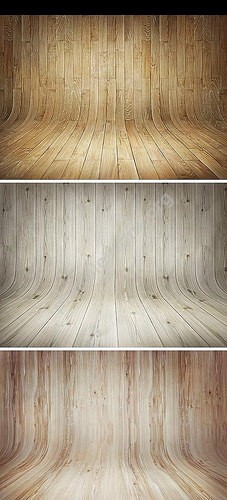
Flat wood textures are everywhere. Scroll through any free resource site and you will drown in them — straight grain, horizontal planks, vertical panels. But when a designer needs a background that adds dimensional depth without stealing focus, flat textures hit a ceiling fast. Enter the Curved Wooden Backdrops PSD pack: a collection of professionally crafted wood surfaces with sweeping, organic curves, delivered at 2200 x 1600 pixels in native PSD format, totaling 67.87 MB of layered assets ready for Photoshop.

The curved design is not an accident. It is the result of understanding how the human eye moves across a composition. Straight horizontal lines pull the eye left to right — useful for navigation bars and content grids. Curved lines do something more sophisticated: they guide the eye along a natural, organic path that feels unforced. A well-placed curved wood grain can direct attention from the top-left corner of a layout, through the headline, and down to the call-to-action button — all without the viewer consciously registering the guidance. This is design as persuasion, in the best sense of the word.
Technical Breakdown of the Curved Wooden Backdrops Pack
| Parameter | Specification |
|---|---|
| Resolution | 2200 x 1600 px |
| Format | PSD with editable layers |
| Archive size | 67.87 MB |
| Color depth | 8-bit RGB |
| Design feature | Curved, organic grain pattern |
| Color variations | Multiple — warm amber, neutral brown, driftwood, dark walnut |
| Required software | Adobe Photoshop CS6 or newer |
The 67.87 MB archive packs serious density. At 2200 x 1600 pixels per texture, each file holds roughly 10.5 megapixels of wood grain data. For reference, a standard 1080p monitor displays about two megapixels — so you are working with over five times the pixel density needed for full-screen web backgrounds. This headroom translates directly into design flexibility: crop aggressively, zoom into the most interesting section of the grain, or scale up for print layouts without encountering pixelation.
How to Deploy Curved Wood Textures in Photoshop: Step-by-Step
Step 1: Open and Extract the Layer
Launch Photoshop and open the PSD file of your chosen texture. The curved wood grain sits on its own layer — never flatten the document unless you have a specific rasterization requirement. Use Ctrl + Click on the layer thumbnail to select the pixels, then Ctrl + C to copy. Paste into your working document with Ctrl + V.
Step 2: Orient the Curve
This is where curved textures earn their keep. Unlike flat textures — which look identical regardless of rotation — curved wood grain has directional flow. Rotate the layer (Ctrl + T, then hover near a corner until the rotation cursor appears) to align the grain curvature with your composition's visual flow. A curve that sweeps from top-left to bottom-right feels downhill and calming — ideal for wellness brands, meditation apps, and nature-themed layouts. A curve that rises from bottom-left to top-right feels ascending and aspirational — perfect for startup landing pages, career coaching sites, and motivational content. Choose the direction based on your content's emotional tone.
Step 3: Adjust Transparency and Blending
Reduce the wood layer's opacity to 45-65%. Select a blend mode from the Layers panel dropdown. Multiply deepens the composition — pair it with light backgrounds. Soft Light produces the most natural integration — the wood becomes atmosphere rather than object. Overlay adds punch for designs that need the texture to play a more active role.
Step 4: Mask for Selective Application
Add a layer mask by clicking the mask icon at the bottom of the Layers panel. Paint with a soft black brush (Hardness: 0%, Opacity: 40-60%) to fade the wood texture away from areas that need to stay clean — form fields, navigation text, or the extreme edges of the canvas. The gradual fade preserves the organic feel while maintaining functional clarity.
Curved vs Flat Wood Textures: The Decisive Comparison
| Aspect | Curved Wood Textures | Flat Wood Textures |
|---|---|---|
| Visual depth | Creates 3D-like dimensionality even at low opacity | Appears flat; depth only comes from lighting or heavy processing |
| Eye guidance | Curves naturally direct the viewer's gaze along a path | Horizontal lines pull left-right; vertical lines pull up-down only |
| Design versatility | Works in hero sections, banners, cards, and print backgrounds | Best suited for full-width horizontal sections |
| Uniqueness | Instantly stands out from 90% of stock texture usage | Ubiquitous — most wood texture packs are flat |
| Masking complexity | Requires directional awareness when fading edges | Forgiving — any fade direction works |
| Impact at low opacity | Curves remain distinguishable down to 15-20% opacity | Becomes a uniform wash below 25% opacity |
The curve advantage is not subtle. At a typical background opacity of 40-55%, a flat wood texture is barely identifiable as wood — it reads as a warm brown gradient at best. A curved wood texture at the same opacity retains its directional character. The viewer's peripheral vision registers organic wood without the conscious mind ever flagging the source. This is the difference between a background that earns its place and one that merely fills space.
Where Curved Wood Backdrops Excel
Web Hero Sections and Landing Pages
The hero section of a landing page is worth more real estate per pixel than any other area of a website. Curved wood backgrounds here do double duty: they differentiate the brand visually from the ocean of flat-background competitors, and they create an immediate impression of craftsmanship and organic quality. SaaS companies, creative agencies, and artisan brands all benefit from the combination of natural and designed that curved wood textures convey.
Graphic Design — Posters, Flyers, and Brochures
In print design, texture is felt as much as seen. A curved wood background on a brochure cover invites touch — even subconscious touch. The sweeping curves create a sense of movement on an otherwise static page. Combine with minimalist typography for a look that says understated premium — precisely the positioning most luxury and artisanal brands aim for.
Presentation Decks
Corporate presentations default to white backgrounds, blue accents, and the slow death of audience engagement. Switching to a curved wood backdrop — even for just the title slide and section dividers — signals that this is not another template-driven pitch. The organic curves contrast with the structured data and bullet points, creating visual breathing room that keeps audiences from glazing over.
Product Mockup Environments
When presenting a product — physical or digital — on a mockup, the background texture shapes perception of the product itself. A curved wood surface implies handcrafted, natural, artisanal. It works brilliantly for food packaging, cosmetic branding, and any product positioned around authenticity rather than mass production.
Social Media Templates
Instagram carousel posts, Facebook ad graphics, and YouTube end screens all benefit from backgrounds that look designed rather than default. Curved wood adds warmth without the busyness of a photograph — the perfect middle ground between sterile solid color and distracting imagery.
Advanced Layering Techniques with Curved Wood
Technique 1: Dual Wood Layers with Opacity Mixing
Load two different curved wood textures — one warm amber, one cool driftwood. Place the amber layer on top with Soft Light at 50% and the driftwood layer below at Normal, 100%. The result is a multi-tonal wood background with depth that feels physically textured, not digitally composited. Rotate one layer 180 degrees so the curves intersect rather than parallel each other — the intersection points create natural focal nodes that draw the eye.
Technique 2: Wood Plus Subtle Gradient Map
Add a Gradient Map adjustment layer above the wood texture. Choose a gradient that transitions from a dark brand color to a lighter complementary shade. Set the adjustment layer blend mode to Color and reduce opacity to 20-35%. The wood grain retains its structure, but the color palette shifts entirely to match your brand identity. This technique alone eliminates the need for color-specific texture variants.
Technique 3: Selective Sharpening for Hybrid Effect
Duplicate the wood layer. Apply Filter > Sharpen > Unsharp Mask (Amount: 80-120%, Radius: 1.5-3.0 px). Add a black layer mask to hide the sharpened version, then paint with a soft white brush over the focal area of your composition. The background stays softly blurred while a specific zone — around the headline or product image — carries crisp wood detail. This hybrid approach gives you the depth of sharp texture where it counts and the calm of a blurred background elsewhere.
Color Variations and How to Choose the Right One
The pack ships with several color treatments of the curved wood textures. Each serves a different design purpose, and choosing the wrong one can subtly undermine your entire composition:
- Warm Amber: Best for lifestyle brands, food industry, hospitality, and any project that needs to communicate warmth and approachability. Think coffee shops, bakeries, and handmade goods.
- Neutral Brown: The safest choice for corporate presentations, SaaS landing pages, and professional portfolios. Conveys stability without the emotional warmth of amber — ideal when you need trust without sentimentality.
- Driftwood / Cool Gray: Pairs beautifully with modern minimalist design, tech startups, and any brand using cool blue or teal accent colors. The gray undertone prevents chromatic conflict with cool palettes.
- Dark Walnut: Premium, serious, authoritative. Use for luxury branding, financial services, law firm websites, and high-end product photography backdrops. Communicates weight and substance.
If you need a color outside these presets, refer to Technique 2 above — the Gradient Map approach gives you infinite color control without degrading the texture quality.
Combining Curved Wood with Other Design Elements
Curved wood textures play well with a surprising range of design companions. Here are combinations that consistently produce professional results:
- Curved wood + white sans-serif typography: The go-to pairing for modern landing pages. The organic curves of the wood create warmth; the clean geometry of the type creates trust. Together they say professional but human — exactly what most service businesses want to communicate.
- Curved wood + gold or copper metallic accents: Elevated luxury. The metallic elements pick up the warmth of the wood and amplify it. Works for premium product launches, jewelry branding, and high-end event invitations.
- Curved wood + dark overlay with centered content block: Add a black layer set to Multiply at 60%, then place a white content block in the center. The result is a dramatic editorial-style layout that works for magazine-style blogs and portfolio showcases.
- Curved wood + botanical or leaf elements: The wood provides structure; the botanical elements add organic chaos. The combination signals natural, eco-friendly, sustainable — a powerful message for brands in the green space.
Export Settings That Preserve Texture Quality
Wood textures present specific compression challenges. The fine grain pattern is precisely the kind of detail that JPEG compression algorithms destroy first. For web export, use these tested settings:
- Format: JPEG
- Quality: 75-85% — the extra 10% over typical web exports preserves grain detail
- Progressive: Enabled
- Color profile: sRGB — essential for consistent rendering across displays
- Image size: Export at 100% for desktop, generate a 50% version for mobile
For print, export as TIFF with LZW compression at 300 DPI. The lossless format preserves every grain detail that the print process can reproduce.
\u{201c}Flat textures fill space. Curved textures create it. The difference is the same as between a wall and a landscape — one stops the eye, the other invites it to wander. This is not hyperbole; it is the fundamental mechanism of visual hierarchy.
Performance Considerations for Web Use
A full-resolution 2200 x 1600 px wood background exported at JPEG quality 80 typically lands between 300-600 KB. This is acceptable for desktop broadband but heavy for mobile 4G connections. Implement responsive image loading: serve the full-resolution version to screens above 1400px width, a half-resolution version (1100 x 800 px) to tablets, and a compressed quarter-resolution version (550 x 400 px) to mobile devices. Use CSS media queries or the srcset attribute in HTML to automate the delivery.
The CSS background-size property set to cover ensures the texture fills the container regardless of viewport dimensions. For hero sections, set background-attachment to fixed for a subtle parallax effect that adds perceived depth — but disable it on mobile, where fixed backgrounds cause rendering performance issues.
Frequently Asked Questions
What makes curved wood textures different from flat wood textures?
Curved wood textures feature sweeping, organic grain patterns that create dimensional depth and guide the viewer's eye along a natural path. Flat textures have straight, unidirectional grain. Curves remain distinguishable at lower opacity levels (15-20% versus 25% for flat textures), making them more versatile for background use where subtlety is key.
What are the file specifications of this curved wood backdrops pack?
Each texture is 2200 x 1600 pixels in PSD format with editable layers. The archive is 67.87 MB and includes multiple color variations — warm amber, neutral brown, driftwood/cool gray, and dark walnut. Compatible with Photoshop CS6 and newer. Also opens in Affinity Photo with layer support.
How do I orient the curved wood grain for the best visual effect?
Rotate the texture layer using Ctrl+T in Photoshop. A curve sweeping from top-left to bottom-right creates a calming downhill feel — ideal for wellness and nature brands. A curve rising from bottom-left to top-right feels aspirational and ascending — perfect for startups and motivational content. Match the curve direction to the emotional tone of your content.
What blend mode works best with curved wood backgrounds?
Soft Light at 45-65% opacity produces the most natural integration — the wood becomes atmosphere rather than object. Multiply deepens compositions over light backgrounds. Overlay adds punch for designs where the texture plays an active role. Avoid Normal blend mode above 70% opacity, as it creates a wall effect rather than a backdrop.
Can I combine curved wood textures with other design layers?
Yes. Effective combinations include dual wood layers with intersecting curves for multi-tonal depth, gradient map adjustment layers for brand color matching, botanical elements for eco-friendly messaging, and dark overlays for editorial layouts. Selective sharpening can create hybrid sharp/blurred zones for focal emphasis.
How should I export curved wood backgrounds for web use?
Export as JPEG at 75-85% quality (five to ten percent higher than standard web JPEGs to preserve grain detail). Use progressive encoding and sRGB color profile. Generate responsive versions: full-resolution for desktop, half-resolution for tablet, quarter-resolution for mobile. Use the srcset attribute for automated delivery.
Are these curved wood textures free for commercial projects?
Yes, the pack is free for both personal and commercial use. You can use the textures in website designs, graphic design projects, presentations, print materials, and client work without attribution requirements. There are no restrictions on project count or commercial usage type.
What design styles pair best with curved wood backgrounds?
Curved wood backgrounds work exceptionally well with white sans-serif typography for modern landing pages, gold or copper metallic accents for luxury branding, dark overlays with centered content for editorial layouts, and botanical elements for eco-friendly messaging. They also pair well with minimalist design, artisanal branding, and presentation decks.
Tap to react