What Makes Blurred Wood Textures a Designer's Secret Weapon

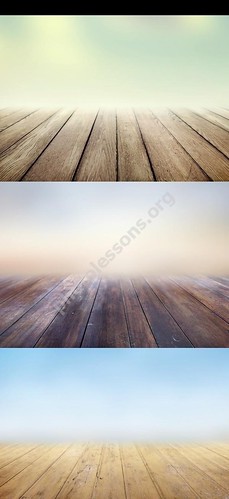
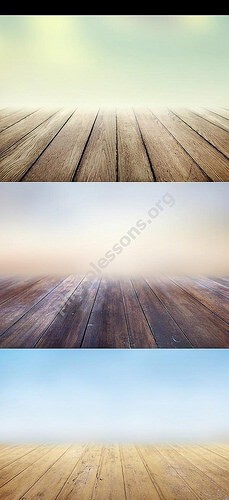
Every designer who has spent hours hunting for the right background knows the pain: either the texture is too sharp and dominates the composition, or it is too low-resolution to survive scaling, or the format forces you into awkward conversion workflows. The Blurred Wood Textures PSD pack solves all three problems in one download. It delivers 2200 by 1600 pixels per file, professionally blurred wood surfaces in native PSD format, weighing 76.89 MB across the archive. This is not a generic stock photo dump — these are carefully processed layers ready to drop into your Photoshop canvas.

Blurred wood texture PSD pack preview
Деревянные фоны с размытием в PSD формате

The genius of blurred wood textures lies in their versatility. When you place a sharp wood grain behind text, the reader's eye fights between the type and the texture. The result is cognitive friction — the subconscious equivalent of trying to read a book while someone taps your shoulder. A properly executed Gaussian blur removes that competition. The organic warmth of wood stays present, but it recedes into the background where it belongs, letting headlines, buttons, and CTAs command attention.

The pack is optimized for Adobe Photoshop CS6 and newer. Each layer is editable and non-destructively blurred — you can adjust the blur radius to match your project's depth-of-field requirements without starting over.

Technical Specifications of the Pack

Parameter Value
Resolution 2200 x 1600 px
Format PSD (layered)
Archive size 76.89 MB
Color depth 8-bit RGB
Blur type Adjustable Gaussian / Lens Blur
Number of textures Multiple wood grain variations
Minimum Photoshop version CS6 (2012)

At 2200 x 1600 pixels, each texture covers the vast majority of screen resolutions comfortably — from 1080p monitors (1920x1080) to standard print layouts at 300 DPI (roughly 7.3 by 5.3 inches). For web hero sections and full-width banners, you can scale down without quality loss. For print, you have enough headroom for A5 and small A4 compositions without upscaling artifacts.

How to Apply Blurred Wood Backgrounds in Photoshop

The workflow with these PSD files is straightforward, but there are techniques that separate a flat-looking background from one that adds depth to the entire design. Here is the process used by working designers who deal with texture backgrounds daily.

Step 1: Import and Position

Open the PSD file in Photoshop. Use Ctrl + A to select all, then Ctrl + C to copy. Switch to your working document and paste with Ctrl + V. The texture arrives as a smart object — never rasterize it until you are absolutely sure about the final composition. Smart objects preserve the original resolution and let you scale non-destructively.

Step 2: Scale and Align

Use Ctrl + T to free-transform. Hold Shift while dragging a corner handle to maintain aspect ratio. Position the texture so the most interesting part of the wood grain aligns with the focal point of your design — usually the area behind the headline or hero image.

Step 3: Adjust Blur Radius

The pack ships with pre-applied blur, but every design has different depth requirements. Select the texture layer, navigate to Filter > Blur Gallery > Field Blur (Photoshop CC and newer) or Filter > Blur > Gaussian Blur for more control. A radius of 8-15 pixels works for web hero sections; 3-6 pixels is better when the texture sits behind small body text.

Avoid exceeding 25 pixels of blur radius — at that point wood grain becomes an unidentifiable gradient and loses the organic quality that makes it useful as a texture. The sweet spot is where the grain is recognizable but not distracting.

Step 4: Blend Mode Tweaking

With the texture layer selected, experiment with blend modes. Multiply darkens the composition and works well over light-colored backgrounds. Overlay adds contrast and richness. Soft Light is the most subtle — it preserves the wood warmth while letting the underlying content dominate. Reduce layer opacity to 40-70% for the most professional result.

Why Blurred Backgrounds Outperform Sharp Textures for UI Design

The psychology behind blurred backgrounds in user interfaces is backed by decades of cognitive science research. The human visual system operates on a figure-ground principle: it automatically separates foreground objects from their background. When both compete for attention, the brain expends measurable extra effort — and users report this as visual fatigue or cluttered design, even if they cannot articulate why they closed the tab after four seconds.

Sharp Texture Background Blurred Texture Background
Competes with foreground content for visual attention Recedes, letting text and UI elements dominate
Creates cognitive load — brain processes texture + content simultaneously Reduces cognitive load — texture processed subconsciously
Works against WCAG contrast guidelines Maintains better contrast ratios for accessible design
Dates quickly — sharp trends look old within 2-3 years Ages well — blur is a fundamental optical property, not a trend
Limits color palette choices to avoid visual clash Accepts wider color palettes without visual conflict

This is not speculation. Eye-tracking studies consistently show that interface elements on blurred backgrounds are detected faster and processed with fewer regressions than identical elements on sharp backgrounds. For a website that needs to convert visitors — to sign-ups, purchases, or reading time — this is a measurable metric, not an aesthetic preference.

Where Blurred Wood Textures Deliver Maximum Impact

Website Hero Sections

A wood-textured hero section with heavy blur behind white or light-colored headline text creates an immediate impression of craftsmanship and warmth. SaaS companies use this combination when they want to appear approachable rather than corporate. Handmade goods stores use it to signal authenticity. The blur prevents the wood from feeling like a literal photograph of a table — it becomes atmospheric instead.

Presentation Slides

PowerPoint and Keynote slides benefit enormously from blurred wood backgrounds. Unlike solid colors or generic gradients, wood texture gives each slide personality without distraction. The audience subconsciously registers the organic pattern, and the presenter looks like they invested effort in design — even if the slide took thirty seconds to assemble.

Print Materials

At 2200 x 1600 pixels, these textures print at 300 DPI on roughly A5-sized materials. For business cards, postcards, and brochure covers, the resolution is more than sufficient. Restaurant menus on wood-textured backgrounds with blur have been a staple of the food industry for a decade — communicating natural ingredients without a single word of copy.

Social Media Graphics

Instagram posts, Facebook cover images, and YouTube thumbnails all share one requirement: the background must support the message without stealing attention. Blurred wood textures hit that balance perfectly. The organic warmth differentiates the graphic from the endless scroll of solid-color posts, while the blur ensures the text overlay reads clearly even at mobile thumbnail sizes.

App Splash Screens and Onboarding

Mobile app designers have embraced blurred backgrounds for splash screens and onboarding flows. Wood texture with blur communicates natural, handcrafted, premium — adjectives that most app developers would pay a copywriter to attach to their product. When the user waits two seconds for the app to load, a warm wooden surface is more pleasant than a blank white screen.

Comparison: Blurred Wood Pack vs Other Texture Resources

Feature Blurred Wood PSD Pack Typical Freepik Wood Textures Unsplash Wood Photos Envato Wood Templates
Format PSD (editable layers) JPG, sometimes EPS JPG only PSD, AI, EPS
Pre-applied blur Yes, adjustable Rarely No Sometimes
Resolution 2200 x 1600 px Varies (800-5000 px) Varies (often 4000+ px) Varies
Licensing Free Free with attribution Free (Unsplash license) Paid ($6-29)
Ready for web use Yes — drop into canvas Usually needs processing Needs blur applied manually Yes
Consistency across set High — same blur treatment Inconsistent Inconsistent Usually consistent

The key advantage of this pack over free photo sites is time savings. Downloading an Unsplash wood photo, opening it in Photoshop, applying Gaussian blur, adjusting the radius, testing it against your layout — that is a ten-minute detour per texture. With this pack, you drag the PSD layer into your document and start designing immediately.

Blending Techniques That Make Wood Textures Sing

Dropping a texture into a canvas is the starting point, not the finish line. Professional designers use several layering techniques to integrate wood backgrounds into a composition seamlessly.

Gradient Overlay for Atmospheric Depth

Add a Gradient Fill layer above the wood texture. Use a radial gradient from transparent white at the center to black at the edges. Set the blend mode to Soft Light and reduce opacity to 30-50%. This creates a subtle vignette that draws the eye toward the center of the composition — exactly where your headline lives.

Color Overlay for Brand Matching

Open Layer > New Fill Layer > Solid Color. Pick a color from your brand palette. Set the blend mode to Color and reduce opacity to 15-30%. The wood grain remains visible, but the color temperature shifts to match your brand identity. This technique alone saves buying multiple texture packs in different color grades.

Texture-on-Texture: Wood Plus Subtle Noise

Create a new layer above the wood texture, fill it with 50% gray, then apply Filter > Noise > Add Noise (2-4%, Gaussian, Monochromatic). Set the blend mode to Overlay. The result is a subtle film-grain effect that adds tactile quality to the background without competing with the wood grain pattern. This works especially well for print designs where the final output will be on matte paper.

Combine all three techniques — vignette, color overlay, and noise — on separate layers with conservative opacity settings (under 40% each). The cumulative effect is a professionally textured background that looks custom-made for the project, even though it took five minutes to build. Clients will not know how you did it, but they will definitely notice the result.

Common Mistakes When Using Wood Backgrounds (and How to Fix Them)

Every designer goes through a phase where they overuse textures. It is a rite of passage. But knowing the common traps saves you from learning them the hard way — by presenting a cluttered design to a client and watching their expression fall.

Mistake 1: Insufficient blur. A wood texture with too little blur fights text for attention. The viewer's eye bounces between the grain pattern and the words. Solution: if you can identify the wood species from the grain pattern, blur it more. The texture should whisper wood, not scream OAK.

Mistake 2: Wrong blend mode. Using Normal blend mode at 100% opacity turns the background into a wall, not a backdrop. The result looks like a photo with text pasted on top — amateurish. Solution: always reduce opacity below 70% and experiment with Multiply or Soft Light.

Mistake 3: Color mismatch. A warm amber wood texture behind cool blue brand colors creates chromatic dissonance. The viewer may not name the problem, but they will feel that something is off. Solution: use a Color Overlay adjustment layer to harmonize the temperature with your brand palette.

Mistake 4: Ignoring responsive behavior. A texture that looks great at 1920px width may crop awkwardly at 375px mobile width, cutting off the most expressive part of the grain pattern. Solution: use Photoshop artboards to preview at multiple breakpoints before exporting. Generate separate crops for desktop, tablet, and mobile.

Export Settings for Web Deployment

Once your design with the wood background is complete, export it correctly or all the visual quality work evaporates in the browser. For web backgrounds, use File > Export > Save for Web (Legacy) with these settings:

  • Format: JPEG
  • Quality: 70-80% — wood grain hides compression artifacts better than smooth gradients
  • Progressive: Checked — improves perceived loading speed
  • Convert to sRGB: Checked — ensures color consistency across browsers
  • Metadata: None — shaves 2-5 KB from file size

A 2200 x 1600 px wood background exported at JPEG quality 75 typically compresses to 250-500 KB — manageable for broadband but heavy for mobile. Consider generating a second version at half resolution (1100 x 800 px, JPEG quality 60) for mobile-first loading strategies.

\u{201c}

The best background is the one the user doesn't notice until it is removed. Wood textures with blur achieve exactly this — they create atmosphere without demanding attention.

Design Principle, Typography & Layout

When Not to Use Wood Textures

Wood backgrounds are not universal solutions. They clash with certain brand aesthetics: tech startups going for a sterile futuristic look; medical websites where sterility is literally the message; financial dashboards where every pixel of contrast matters for data legibility. Knowing when to skip the wood texture is as important as knowing how to apply it.

If your brand identity revolves around steel, glass, neon, or pure white space, a wood background — even blurred — will undermine the visual message. The warmth of wood contradicts the cool precision of tech-minimalist aesthetics. Choose backgrounds that amplify your brand voice, not ones that fight it.

Frequently Asked Questions

What resolution are the blurred wood textures in this pack?

Each texture is 2200 x 1600 pixels, suitable for web hero sections, presentation slides, and print materials up to roughly A5 size at 300 DPI. This resolution covers 1080p monitors and most standard layouts with room for cropping.

Do I need Photoshop to use these PSD files?

Yes, the files are in Adobe Photoshop PSD format with editable layers. They work in Photoshop CS6 and newer. Alternatives like GIMP can open PSD files but may lose layer information and blur adjustment capabilities. Affinity Photo can handle PSD layers more reliably than GIMP.

Can I adjust the blur intensity on the wood textures?

Absolutely. The blur is applied as a non-destructive effect within the PSD layers. You can increase or decrease the Gaussian Blur radius by selecting the layer and navigating to Filter > Blur > Gaussian Blur. A radius of 8-15 pixels works for hero sections, while 3-6 pixels works for backgrounds behind body text. Values above 25 pixels should be avoided as the grain becomes unrecognizable.

What file size should I expect after exporting for web?

A full-resolution 2200x1600 px wood background exported as JPEG at quality 75 typically compresses to 250-500 KB. For mobile optimization, export a half-resolution version (1100x800 px) at quality 60, which usually falls below 150 KB. Progressive JPEG encoding improves perceived loading speed.

Are these wood textures free for commercial use?

Yes, the pack is free for personal and commercial projects. You can use the textures in website designs, presentations, print materials, and client work without attribution. There are no restrictions on the number of projects or the type of commercial usage.

How do blurred wood backgrounds compare to flat colors for conversion rates?

Blurred textures add warmth and depth without competing for attention the way sharp textures do. Eye-tracking studies show that text on appropriately blurred backgrounds is processed faster with fewer visual regressions. However, exact conversion impact depends on the specific audience and brand — always test against a flat color variant to confirm the effect for your particular use case.

What blend modes work best with wood texture backgrounds?

Soft Light at 40-60% opacity produces a subtle, professional result ideal for most designs. Multiply works well over light-colored backgrounds to add depth. Overlay creates more contrast and richness when the texture needs to play an active role. Always reduce layer opacity below 70% — a wood background at 100% Normal blend mode looks like a wall, not a backdrop.

Can I combine these wood textures with other design elements?

Yes. Popular combinations include gradient overlays for vignette effects, solid color fill layers with Color blend mode for brand color matching, and subtle noise layers for film-grain texture. Stack two to three enhancement layers at conservative opacity (under 40% each) for a custom look that appears handcrafted.

Tap to react