What Is the Wooden GUI Set and Why You Need It

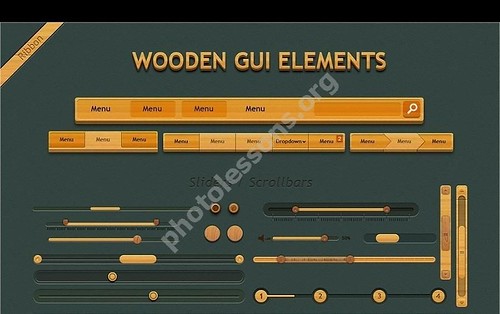
Wooden GUI is a PSD file containing a complete set of interface elements designed in natural wood style. The canvas measures 1100x2635 pixels with a file size of 12.71 MB. This is not just a collection of icons or buttons — it is a full interface construction kit from which you can assemble an entire web page in a consistent style. The wood textures and warm brown tones create a cozy, organic atmosphere ideal for restaurant websites, eco projects, construction companies, natural product blogs, and any project connected to nature and handcrafted quality.

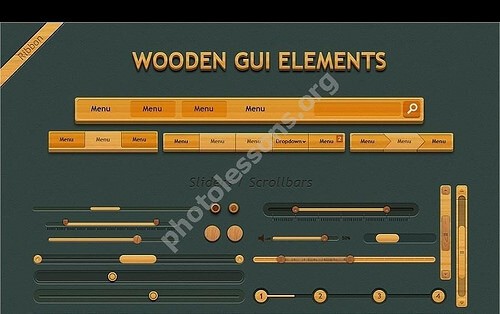
Wooden GUI — wood-styled interface element set

In the era of Material Design and flat minimalism, wood textures in interfaces may seem archaic, but that is precisely their strength. When every website looks the same — white backgrounds, flat blue buttons, Google guideline shadows — a site with natural wood texture stands out instantly. The Wooden GUI set provides a ready-made foundation for such a design, saving hours of texture and element creation work.

\u{201c}

Wood textures in web design are not a return to the skeuomorphism era. They are a deliberate style choice that conveys warmth, naturalness, and artisan quality — values that flat design cannot communicate.

Set Contents: What Is Inside the PSD

The archive contains a single multi-layered PSD file with all interface elements neatly grouped and labeled by category, making layer navigation straightforward even for a beginner designer. The set includes the following element groups:

  • Buttons — multiple variants: standard rectangular, rounded, with and without icons. Different states: normal, hover, pressed, disabled. The color palette stays within natural wood shades ranging from light pine to dark oak.
  • Input forms — text fields, dropdowns, checkboxes, radio buttons, password fields, textareas. All elements are styled with a wood-textured frame and inner shadow effect.
  • Navigation elements — horizontal and vertical menus, tabs, breadcrumbs, pagination. Each element is detailed down to active and inactive states with current item highlighting.
  • Icons — a set of vector icons in wood style for social media, search, cart, contacts, and other common actions.
  • Background textures — several wood background variants for headers, content areas, and footers.

All elements reside on separate, fully editable layers. You can change the wood color through adjustment layers, swap the texture for a different wood species, or adjust opacity to create a varnished or matte surface effect. This is not a static image — it is a construction kit that adapts to your project.

Technical Specifications

ParameterValue
File formatPSD (Adobe Photoshop)
Canvas resolution1100 × 2635 px
Archive size12.71 MB
Color modeRGB, 8-bit
Layer countMulti-layered, grouped
CompatibilityAdobe Photoshop CS3 and above
LicenseFree for personal and commercial use

The 1100x2635 px resolution is sufficient for designing a typical web page with scrolling. The width of 1100 px matches the popular content area width, while the vertical dimension accommodates many elements arranged as a vertical strip — the typical GUI kit layout.

How to Use the Wooden GUI Set in Web Design

Start by opening the PSD in Adobe Photoshop and familiarizing yourself with the layer structure. Each element group is labeled with a text layer for easy navigation. Select the elements you need — buttons, fields, icons — and copy them into your working layout with Ctrl + C and Ctrl + V or by dragging between document windows.

Since all elements are in one PSD and follow a consistent style, you can assemble a complete page mockup by combining them in any order. Start with the background layer (wood texture), add a header with navigation, place a content area with forms and buttons, and finish with a footer. The result is a style-consistent website prototype ready for approval or handoff to development.

When copying elements between documents, Photoshop preserves layer styles (shadows, gradients, strokes), but adjustment layers may bind to the source document dimensions. If colors look off after pasting, check for adjustment layers and rasterize them before copying if necessary.

Comparison with Other GUI Kits

GUI KitStyleFormatSizeFreeHighlights
Wooden GUI SetNatural woodPSD12.71 MBYesNiche aesthetic, full UI element set
Bootstrap GUI KitFlat, MaterialPSD / Sketch / Figma5-15 MBFree and paidStandard Bootstrap elements, modern style
iOS GUI KitiOS Human InterfacePSD / Sketch / Figma10-50 MBFree (Apple)Complete iOS component set, regularly updated
Flat UI KitFlat minimalismPSD3-8 MBFree and paidClean modern design, universal use
Wooden UI alternativesWood, retroPSD / AI5-20 MBMixedRare aesthetic, fits specific projects

The narrow specialization of the Wooden GUI set is both its strength and limitation. You cannot use it for a fintech startup or SaaS platform website — the wood aesthetic is inappropriate there. But for projects where naturalness and warmth are part of the brand, this set is irreplaceable. Alternatives like the Bootstrap GUI Kit are more universal but lack character. Wooden GUI is a tool for designers who know exactly what style their project needs.

Working with Wood: Texture Customization in Photoshop

Wood texture is a complex material for digital design. It has grain direction, uneven color, and natural defects (knots, cracks) that on screen can look like dirt or compression artifacts. The Wooden GUI set solves this: textures are selected to look good on screen without excessive detail that distracts from content.

If the built-in textures do not match your project, they are easy to replace. Open the texture layer, place your own wood texture above it, and apply a clipping mask (Alt + click between layers). The original element retains its boundaries and effects but uses your texture. This is a quick way to adapt the set to any wood species — from light birch to dark wenge.

PSD to HTML: Converting Wood Designs to Web

A beautiful PSD mockup does not become a working website by itself. The process of transferring the design to HTML and CSS requires attention to detail, especially with textures. Wood backgrounds are exported as repeatable images or large background files. For page backgrounds, use a small texture fragment (200x200 px) set to repeat via CSS background-repeat. This saves bandwidth compared to loading a full-size image.

Buttons and form elements from the Wooden GUI set can be implemented in two ways. The first approach: slice ready-made element images from the PSD and use them as CSS background-image. This is fast but inflexible — changing button text requires redrawing in Photoshop. The second approach: recreate the wood effect through CSS3 gradients, box-shadows, and border-radius. This is more complex, but text and button sizes change instantly without a graphics editor. For commercial projects, I recommend the second approach — it saves time during site maintenance.

Responsive Design with Wood Textures

Adapting a wood-textured interface for mobile devices requires special consideration. Textures that look great on a large screen can create visual noise and hinder readability on small screens. Recommendations: use large texture fragments with minimal detail — on a smartphone screen, fine wood grain blends into a dirty smudge. Increase text contrast against the textured background — white text on light wood is unreadable. For the mobile version, consider replacing the textured background with a solid color from the layout palette — this improves readability and saves bandwidth.

A full-size wood texture background image can weigh 200-500 KB. On mobile data, this adds 1-2 seconds to page load time. Always optimize background images through TinyPNG and provide a CSS fallback — a solid color for when the image fails to load.

Modern Alternatives to PSD GUI Kits

The web design industry is moving from Photoshop toward UI design tools: Figma, Sketch, Adobe XD. Modern GUI kits are distributed in these program formats rather than PSD. There are good reasons: Figma runs in the browser without installation, supports real-time collaboration, and exports CSS code directly. Sketch is optimized for UI design and faster than Photoshop for vector work.

Nevertheless, PSD kits retain their niche. Photoshop remains the standard for photorealistic mockups with raster textures — exactly the kind the Wooden GUI set represents. Figma and Sketch excel at vector and flat design, but photorealistic textures are a weak point for these tools. If your project requires detailed material and lighting work, PSD is still the right choice. Additionally, many designers continue using Photoshop as their primary tool and value compatibility with their established resource library.

Practical Tips for Working with Wooden GUI

Several recommendations based on experience with similar kits. Before starting work, save a copy of the original PSD — this is your insurance against accidentally modifying or deleting an important layer. Organize your workspace: create a new document sized for your project and copy elements from Wooden GUI into it as needed. Use smart objects for elements you plan to reuse — when you modify the smart object, all its instances update.

When exporting graphics for the web, slice elements with a 1-2 pixel margin — this is especially important for buttons with shadows and rounded corners. Export format: PNG-24 for elements with transparency (buttons, icons), JPEG at 80% quality for background textures. Before saving, hide the background layer visibility — otherwise, every exported element will include a piece of wood texture.

Wood Style in Web Design History

Wood textures in interfaces have gone through several popularity cycles. The first wave came during the skeuomorphism era (2007-2012), when Apple actively used realistic textures in iOS: leather, wood, paper, metal. Apps like iBooks with wooden bookshelves and Game Center with green felt became visual icons of that period. The second wave (2014-2016) brought the reaction of flat design and Material Design, which nearly eliminated textures from interfaces entirely. However, by the 2020s, designers realized that total minimalism makes websites indistinguishable from each other and began cautiously reintroducing textures — deliberately, as branding elements rather than a universal technique.

The Wooden GUI set sits at the intersection of these trends. It does not attempt to imitate real wooden objects (like Apple skeuomorphism) but uses wood as a decorative material for backgrounds and interface elements. This is a more modern approach: the texture sets the mood without trying to deceive the user into thinking they are interacting with a real piece of wood. This balance between character and functionality is exactly what modern web design demands.

Exporting Elements for the Web: Step-by-Step

Proper element export from PSD is critical for the final site quality. Here is the optimal process for the Wooden GUI set. First, hide all layers except the one element you need to export. If an element consists of multiple layers (e.g., a button with shadow and text), select its group. Use the Crop Tool to trim to the selected layer boundaries. Export via File → Export → Save for Web (Legacy). For buttons and icons, choose PNG-24 with transparency enabled — this preserves shadows and rounded corners without quality loss. For background textures, choose JPEG at 70-80% quality — the detail difference is invisible while the file size shrinks 2-3 times compared to PNG.

When exporting large textures for page backgrounds, do not chase maximum quality. On a real website, the textured background is partially covered by content — text, images, blocks — and slight texture detail loss is invisible to the eye while bandwidth savings are significant. Test several compression levels and choose the minimum visually acceptable one.

Color Palette and Wood Style Compatibility

Wood textures have a natural warm color palette that dictates the choice of complementary colors for the site. Brown and beige wood tones pair well with green (foliage), white (contrast), cream (softness), dark gray (formality), and terracotta (warmth). Avoid cold shades of blue and purple — they create color dissonance with the warmth of wood. If your brand requires blue, choose warm shades (teal, aquamarine) and use them as accent colors against a neutral wood background.

When choosing typography for a wood-textured interface, prefer serif fonts (Georgia, Merriweather, Playfair Display) or humanist sans-serifs (Open Sans, Lato). They harmonize with the organic wood feel better than strict geometric sans-serifs like Roboto or Montserrat. Font size on a textured background should be 1-2 px larger than on a flat one — the texture creates visual noise that reduces readability of small text.

Where to Download and How to License

The Wooden GUI set is distributed for free and is available for download from the link on the material page. The license permits use of the elements in both personal and commercial projects without attribution or additional royalties. This makes the set an excellent starter resource for freelancers and small studios working on nature or craft-themed projects.

When using the set in commercial projects, I recommend modifying the elements: change the texture, color palette, or shape. This avoids a situation where two different sites use identical interface elements, which can raise questions from the client about design uniqueness. Even a small adaptation — swapping the texture for a different wood species or adjusting the shade — makes the design unique while preserving the structure and quality of the original set.

Common Mistakes When Working with Wood GUI Kits

Based on experience with similar kits, here are several common mistakes. First: excessive texture use. When every button, every field, and every heading has a wood background, the interface turns into visual mush. A good rule: texture on the page background — yes, texture on buttons — yes, but text should sit on a solid color or minimally textured surface. Second mistake: ignoring contrast ratios. Light text on light wood or dark text on dark oak is unreadable. Check contrast using tools like the WebAIM Contrast Checker: the minimum contrast ratio for body text is 4.5:1. Third mistake: using the kit without modifications in commercial projects. Design uniqueness is a key client requirement, and using a standard GUI kit unchanged undermines that uniqueness.

FAQ — Frequently Asked Questions

What is included in the Wooden GUI set?

The set contains a single multi-layered PSD file with wood-styled UI elements: buttons, input forms, navigation elements, icons, and background textures. All elements are grouped by category and labeled for easy layer navigation.

What software opens the Wooden GUI?

The PSD file opens in Adobe Photoshop (CS3 and newer), as well as free alternatives: GIMP (with plugin), Photopea (online), Affinity Photo. Full layer style compatibility is guaranteed only in Photoshop.

Can I use this set in commercial projects?

Yes, the Wooden GUI set is distributed with a license that permits both personal and commercial use. You can apply the elements in client website designs without additional royalties.

How do I change the wood color to a different species?

Add a Hue/Saturation or Color Balance adjustment layer above the texture layer and adjust the hue. For more precise replacement, use a clipping mask with your texture above the original element layer.

How do I convert PSD to HTML/CSS?

Two main approaches: slice finished element images and use them as CSS backgrounds, or recreate the wood effects through CSS3 gradients, shadows, and border-radius. The first is faster; the second is more flexible for maintenance.

Is the wood style suitable for modern websites?

Yes, for specific niches: restaurants, eco projects, construction, handcrafts, natural products. Wood textures create a unique atmosphere that flat Material Design cannot achieve. It is generally not suitable for corporate and tech websites.

Are there Wooden GUI alternatives in Figma?

Direct wood texture alternatives are rare in Figma — the platform is vector-oriented. However, Figma texture plugins exist, and you can manually transfer PSD elements to Figma via PNG export.

Why is the file 12.71 MB?

The large size is due to the high canvas resolution (1100x2635 px) and detailed raster wood textures. When exporting individual elements for the web, their size significantly decreases after optimization.

How do I scale the set elements?

Raster elements (buttons, textures) scale through Edit → Transform in Photoshop but lose sharpness when enlarged beyond 120%. Vector icons in the set scale without quality loss. For significant size changes, redraw the element using the original as a reference.

Can I combine Wooden GUI with other kits?

Yes, but carefully. Wood style is a strong visual accent, and mixing it with flat Material Design creates a style conflict. It is better to use elements from one kit as a base and add neutral elements from other kits, tinted to match the wood palette.

Tap to react