What WMT Dock Menu Gallery Actually Does

If you have ever used a Mac, you know the dock — that sleek row of icons at the bottom of the screen that animates when you hover over it. The icons magnify, bounce, and respond to cursor position with a fluidity that makes the interaction feel physical rather than mechanical. WMT Dock Menu Gallery brings that exact interaction model to Joomla. Not an approximation. Not a CSS imitation that falls apart on mobile. The real thing: bounce animations, smooth scaling, tooltip overlays, and icon-based navigation that makes your site feel like a native application rather than a webpage.

The module takes any Joomla menu you have already created in the backend and renders it as an animated dock panel. You do not rebuild your navigation from scratch. You do not learn a new menu manager. You point the module at an existing menu, configure the visual parameters, and your standard navigation transforms into something that visitors actually want to interact with. The transformation is dramatic — what was once a bulleted list of text links becomes a row of glowing, responsive icons that pulse under the cursor.

WMT Dock Menu Gallery — animated dock panel in Joomla
\u{201c}

The dock metaphor works because it is familiar. Hundreds of millions of Mac and iPad users already know how to interact with it. You are not teaching anyone a new interface — you are borrowing muscle memory that already exists.

But the module does more than just display menu items. It doubles as a portfolio gallery. Instead of pointing to menu links, you can populate the dock with images — photographs, design samples, product shots — and each icon opens a larger preview. This is where the "Gallery" part of the name earns its spot. It is not just a menu; it is a visual showcase wrapped in a navigation panel. A single module instance can serve as your primary navigation, a featured product carousel, and a lightbox gallery simultaneously — depending on how you configure each menu item's link target.

The visual versatility goes further. You can set a solid color background, a fully transparent one where icons appear to float on your page content, or a semi-transparent frosted-glass effect that adds depth without obscuring the content behind it. The animation engine responds to cursor position within the icon area — not just a binary hover state — so the scaling effect follows your mouse movement, creating the organic responsiveness that makes the macOS dock so satisfying to use.

Installation and First Setup

Installing WMT Dock Menu Gallery follows the standard Joomla extension workflow, but there are a few steps worth spelling out because skipping them leads to the most common support question: "Why is my dock empty?"

  1. Download the module ZIP from the developer's site.
  2. Go to Extensions → Manage → Install in your Joomla admin panel.
  3. Upload the ZIP file. Joomla unpacks and registers the module automatically.
  4. Navigate to Extensions → Modules and click New.
  5. Select WMT Dock Menu Gallery from the module type list.
  6. Assign it to a module position — debug or footer work best for a bottom dock; a sidebar position works for vertical mode.
  7. Select the menu you want to display from the Menu Assignment tab.
  8. Save and check the frontend.
If the dock appears empty after installation, 90% of the time the issue is that no menu is selected in the module settings. The module does not pick up your main menu automatically — you must assign it explicitly in the Menu Assignment tab.

Module Position Recommendations

Where you place the module changes the entire feel of the site. Here is a breakdown of positions and their effects:

PositionDock OrientationBest ForCaveat
debug (bottom of template)HorizontalPrimary navigation, full-width site footerMay conflict with existing footer content — test before publishing
sidebar-left / sidebar-rightVerticalSecondary navigation, category filters, portfolio thumbnail stripRequires sufficient column width — at least 120px for icon+tooltip
top-a / top-bHorizontalQuick-access toolbar, social media linksCompetes with header nav visually — use for secondary menus only
Custom position via {loadposition}EitherInline content, within-article galleries, landing page featuresRequires the Load Module plugin to be enabled

Configuration Options in Detail

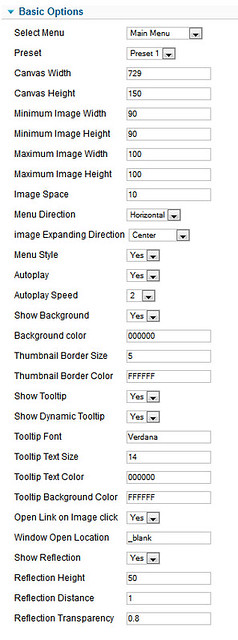
The module settings panel is dense but logically organized. Every visual parameter has a corresponding field. Here is what each section controls.

Icon Settings

The module uses PNG images as dock icons. This is not negotiable — JPEGs lack transparency, and GIFs lack color depth. Each menu item can have its own icon, assigned through the Link Type Options tab in the Joomla menu manager. Navigate to Menus → [Your Menu] → [Menu Item] → Link Type and set the Link Image field. Provide a title in the Link Title Attribute — this becomes the tooltip text that appears above the icon on hover.

Icons must be PNG format with a transparent background. A white rectangle behind your icon ruins the dock aesthetic completely. If your icon has a solid background, open it in Photoshop, remove the background layer, and re-export as PNG-24.

Recommended icon dimensions:

  • Standard dock: 64x64 px — crisp on retina displays, not too heavy
  • Large dock: 128x128 px — for image-heavy galleries where detail matters
  • Minimum: 48x48 px — anything smaller looks pixelated when the hover scale kicks in

Dock Orientation

The module supports two layouts:

  • Horizontal: icons spread across a single row, left to right. This is the classic macOS dock look and it works best for main navigation and footer positions where screen width is abundant. The horizontal layout naturally draws the eye across the page in a left-to-right reading pattern.
  • Vertical: icons stack top to bottom. Best for sidebar positions and inline content where horizontal space is limited. The vertical layout occupies minimal screen real estate and integrates seamlessly with blog sidebars, product filter columns, and narrow widget areas.

Switching between orientations is a single dropdown in the module settings. The animation behavior adjusts automatically — horizontal mode uses horizontal spacing calculations, vertical mode uses vertical ones. You do not need separate CSS overrides for each orientation.

Color and Transparency

The dock panel background can be a solid color set via hex code, fully transparent so dock icons float directly on top of your page content, or semi-transparent with an RGBA value for a frosted-glass effect. The transparent option is particularly effective when the dock sits over a hero image or a full-width banner. The icons appear to float on the photograph, creating a layered depth effect that flat CSS menus cannot replicate.

For the frosted-glass look, set the background color to rgba(255, 255, 255, 0.15) with a subtle border-radius. This creates the effect Apple popularized in macOS without requiring any extra JavaScript.

Animation Behavior

The dock animation has three tunable parameters. The scale factor on hover controls how much the icon enlarges when the cursor moves over it — default is 1.5x and values above 2.0x look comical. Neighbor scaling makes adjacent icons also scale up slightly, creating a ripple effect that makes the dock feel organic. Finally, animation speed measured in milliseconds controls how fast the transition happens — under 100ms looks jittery, over 500ms feels sluggish.

Gallery Mode vs Menu Mode

This is where WMT Dock Menu Gallery diverges from every other menu module on the Joomla extension directory. You can configure the dock to behave as a lightbox gallery rather than a navigation menu. In gallery mode, clicking an icon opens the linked image in a lightbox overlay instead of navigating to a URL. Tooltips display image titles or descriptions. The dock becomes a visual index — think of it as a thumbnail strip that floats on your page.

To switch to gallery mode, set each menu item's Link Type to point to an image URL rather than a page URL. The module detects image file extensions and automatically engages the lightbox behavior. This dual-mode capability means one module installation can serve dramatically different purposes depending on the menu it is connected to.

FeatureMenu ModeGallery Mode
Click actionNavigate to URLOpen image in lightbox
Tooltip contentMenu item titleImage caption / description
Best forSite navigation, category linksPortfolio showcase, product gallery, photo index
Hover effectScale + tooltipScale + tooltip + optional thumbnail preview
URL patterns supportedAny internal or external URL.jpg, .png, .gif, .webp image URLs

Comparison with Other Joomla Menu Modules

Joomla ships with a default menu module that renders unordered lists. It works. It is accessible. It is also visually identical to every other Joomla site on the internet. Here is how WMT Dock Menu Gallery stacks up against common alternatives:

ModuleAnimationIcon SupportDock LayoutGallery ModeFree
WMT Dock Menu GalleryPhysics-based hover scalingFull PNG icon per itemHorizontal + VerticalYesDepends on version
Joomla Default MenuNone (CSS only)Limited (via CSS)List-based (vertical or inline)NoYes
MaxiMenu CKDropdown animationIcon per itemHorizontal megamenuNoFree + Pro
DJ-MenuSlide + fade effectsIcon per itemHorizontal + vertical dropdownNoPaid
Ari Ext MenuCSS3 transitionsIcon per itemTree-based expandable listsNoFree

The key differentiator is not the icon support — several menu modules offer that. It is the animation model. Every other module in the table animates via CSS transitions triggered by hover pseudo-classes. WMT Dock Menu Gallery uses JavaScript-driven scaling that responds to cursor position within the icon area, not just binary hover states. This creates the fluid, organic feel that CSS alone cannot produce.

Use Cases

Photography Portfolio

A photographer installs the module at the bottom of their homepage. Each icon is a PNG thumbnail of a gallery category: weddings, portraits, landscapes, events. Hovering scales the icon and shows the category name. Clicking opens a lightbox with the full gallery. The dock replaces both the navigation menu and the thumbnail grid — two interface elements collapsed into one elegant component.

Product Showcase

An online store uses the vertical dock in the sidebar. Each icon represents a featured product with the product name and price shown as a tooltip. Clicking navigates to the product detail page. The visual presentation makes product discovery feel like browsing a physical catalog rather than scrolling a list. The floating icon row draws attention without competing with the main content column.

Team Directory

A corporate site displays team member photos in the dock. Each photo icon has the employee name as a tooltip and clicking opens a bio page or a contact form. This approach is infinitely more engaging than a grid of headshots with text underneath. The hover animation creates a sense of interactivity that static layouts cannot match.

If you use the dock for a team directory, keep the icon count under 12. Beyond that number, the dock becomes crowded and the animation loses its visual clarity. For larger teams, create category dock panels (Management, Engineering, Design) as separate module instances.

Performance Considerations

The JavaScript animation runs on requestAnimationFrame, which means it synchronizes with the browser's paint cycle. On modern hardware, the performance cost is negligible — the animation uses GPU-accelerated transforms that bypass the CPU layout recalculations entirely. On older mobile devices, a dock with 15+ icons can cause frame drops during rapid cursor movement, but for typical use cases of 5-10 icons, the performance impact is imperceptible.

To optimize, compress PNG icons using TinyPNG or ImageOptim so a 64px icon stays under 5 KB. Limit dock icon count to 5-10 items, which is the sweet spot for both aesthetics and performance. Use sprite sheets if the module supports them, reducing HTTP requests from one per icon to a single request. If the dock sits below the fold, defer its JavaScript initialization so it does not block the initial page render.

Common Issues and Troubleshooting

Icons Not Appearing

Triple-check the image path in the menu item's Link Type Options. Joomla stores image paths relative to the site root by default. If you entered an absolute filesystem path, the browser will not resolve it. Use paths like images/icons/home.png — never /var/www/html/images/icons/home.png. Also verify that the image file actually exists in the specified location and that file permissions allow the web server to read it.

Dock Overlaps Content

This is a z-index issue. The dock uses a relatively high z-index by default so it floats above page content. If your template has elements with z-index values in the thousands — common in themes with sticky headers or modal overlays — the dock may get buried. Add a custom CSS rule setting .wmt-dock-container z-index to 9999 with position: relative.

/* Raise dock above sticky elements */ .wmt-dock-container { z-index: 9999; position: relative; }

Animation Choppy on Mobile

Disable the hover animation on touch devices. Touch screens do not have hover states, so the animation serves no purpose and only wastes GPU cycles. Add a media query that sets the animation duration to zero for devices with pointer: coarse. This also prevents accidental icon magnification when users scroll past the dock on a touchscreen.

When Not to Use the Dock Module

The dock module is not a universal replacement for your main navigation. If your menu items have long labels that cannot be represented by an icon alone, the visual metaphor breaks down. Visitors need to understand what each icon means without guessing. If your site requires multi-level navigation with nested dropdowns, the dock cannot support that — use a traditional menu for the primary hierarchy and keep the dock for a secondary quick-access bar. For accessibility-critical sites where screen reader compatibility is mandatory, icon-only navigation requires careful ARIA labeling that the module may not provide out of the box. In these cases, the dock works best as a supplementary visual element rather than the sole navigation method.

FAQ — Frequently Asked Questions

What is WMT Dock Menu Gallery?

WMT Dock Menu Gallery is a Joomla module that displays site menus as an animated dock panel, similar to the macOS dock. It supports horizontal and vertical layouts, PNG icons, color and transparency settings, tooltip overlays, and a gallery mode for showcasing images. The module converts any existing Joomla menu into a visually engaging navigation panel without requiring you to rebuild your menu structure.

Can I use it as a portfolio gallery instead of a menu?

Yes. By setting menu item links to image URLs instead of page URLs, the module switches into gallery mode and opens images in a lightbox overlay on click. You can populate the dock with product images, photographs, or design samples. The module automatically detects image file extensions and engages the appropriate display behavior.

What icon format does the dock support?

PNG only. JPEG lacks transparency and GIF lacks color depth. Icons should be 64x64 px minimum, with a transparent background. Use PNG-24 for best quality. Each menu item can have its own custom icon assigned through the Joomla menu manager's Link Type Options tab.

Does the module support vertical orientation?

Yes. The module settings include a dropdown to switch between horizontal and vertical orientation. The animation behavior and spacing adjust automatically without requiring separate CSS overrides. Vertical mode is ideal for sidebar positions and narrow widget areas.

How many icons can I put in the dock?

Technically unlimited, but 5-10 icons is the recommended range for best visual results. Beyond 12 items, the dock becomes visually crowded, tooltips may overlap, and animation performance may degrade on older mobile devices. For large sets of links, consider splitting them across multiple dock module instances.

Can I use multiple dock instances on one page?

Yes. Create multiple module instances, each pointing to a different Joomla menu. For example, one dock in the footer for site navigation and another in the sidebar for category filtering. Each instance operates independently with its own configuration settings.

How do I make the dock background transparent?

In the module settings, set the background color to transparent or use an RGBA value like rgba(255, 255, 255, 0.15) for a frosted-glass effect. The dock icons will float directly on top of your page content. This is especially effective when the dock is placed over a hero image or full-width banner.

Does it work with Joomla 4 and 5?

The module was originally developed for Joomla 2.5 and 3.x. Compatibility with Joomla 4 and 5 depends on the specific version of the module. Check the developer's website for updated releases before installing on newer Joomla versions, as some JavaScript APIs changed between major Joomla releases.

Can I add custom CSS to override the dock appearance?

Yes. The module generates standard CSS classes prefixed with wmt-dock-. You can override any visual aspect through your template's custom CSS file, including icon sizes, animation speed, spacing between icons, tooltip appearance, and the background styling of the dock container.

Is WMT Dock Menu Gallery free to use?

Availability varies by version. Some releases are free with limited features while others require a paid license for the full feature set. Check the current licensing terms on the developer's website before downloading. Free versions may lack gallery mode or advanced animation controls.

Tap to react