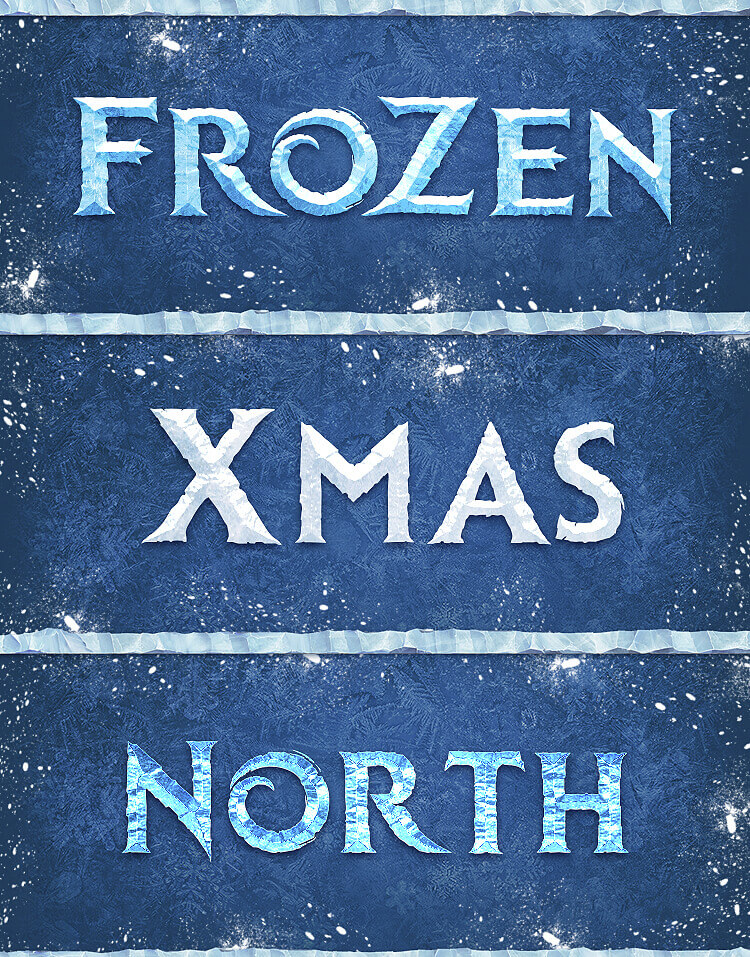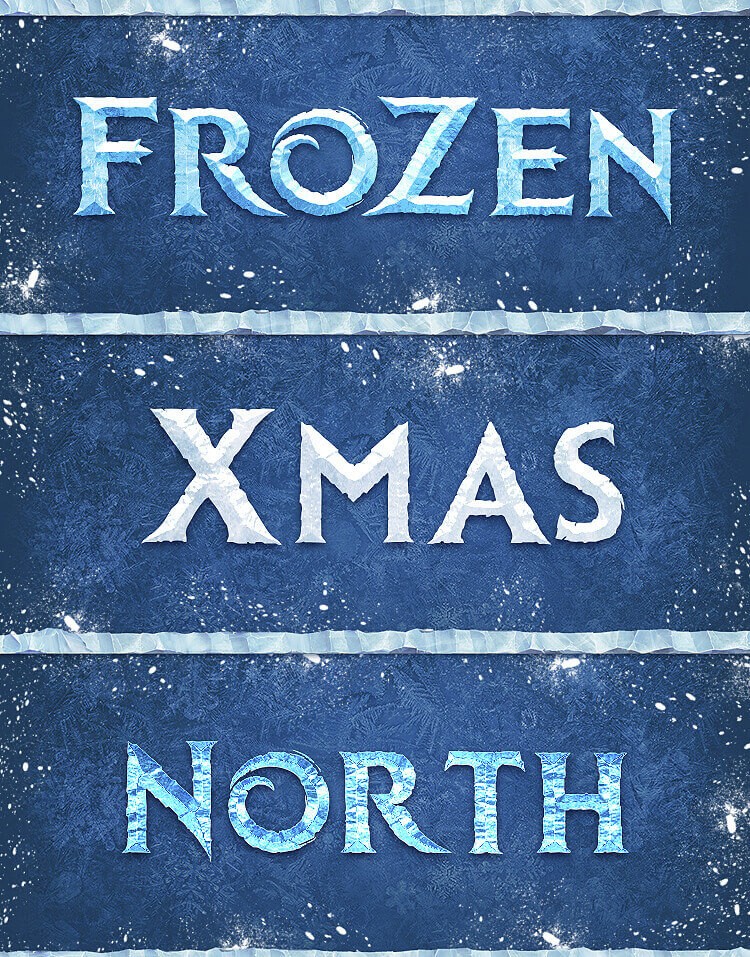
Finding a ready-made winter font that looks like frozen ice with frost crystals can take half a day of stock browsing. And when you finally find one, it turns out the license is personal use only, so printing cards for clients is not allowed. This bundle solves the problem entirely: 7 PSD files with ready-to-use text styles and 2 free TTF fonts in one 81.5 MB archive.

Winter text styles for Photoshop — 7 PSD files and 2 TTF fonts
Seven winter text styles: ice, frost, snow, frozen glass and festive gold

Each PSD file contains a fully editable text design. You are not just getting an image with Happy New Year written on it — you are getting a working template where you can change the text, pick your own font from the included pair of typefaces, and export at any resolution. The archive weighs 81.5 MB, and that is not bloated junk — it is high-resolution PSD files that you can scale without quality loss.

Inside the Bundle: Breaking Down Each Element

Seven PSDs mean seven different visual concepts of winter text. Let us look at each one so you know exactly what you are working with.

Style Visual Effect Best Use Key Techniques
Ice Crystal Transparent blue ice with crystalline texture Winter sales, cold beverages, ice cream branding Bevel & Emboss, Inner Glow, Pattern Overlay
Snow Powder Fluffy white text, as if written in snow Holiday cards, children's projects Soft Drop Shadow, Outer Glow, Texture
Frozen Glass Matte surface with frost patterns Winter menus, window displays Inner Shadow, Gradient Overlay, Satin
Frost Edge Letters with icy edges and snow dust along borders Invitations, winter event branding Gradient Stroke, Bevel & Emboss
Golden New Year Glowing gold text with sparkle effects Premium cards, restaurant menus, banners Metallic Gradient Overlay, Pattern, Outer Glow
Snowdrift Letters Text topped with accumulating snow Social media, winter Stories Bevel & Emboss, Texture Overlay
Northern Lights Glow Gradient glow from green to purple Creative projects, art posters Multi-layer Outer Glow, Gradient Overlay

Each PSD opens in Photoshop, and you can not only change the text but also edit every layer style. This matters because the factory settings are a starting point, not the final result.

How to Apply Text Styles — A Beginner's Guide

If you have never worked with layer styles in Photoshop, here is a step-by-step guide that takes exactly five minutes.

  1. Open any PSD from the bundle in Photoshop (Ctrl+O).
  2. In the Layers panel, you will see a text layer with a pre-made inscription. Double-click the T icon on the layer — the text will be selected.
  3. Type your own text. Size, color, and typeface are inherited from the template, but you can adjust them in the Character panel (Window > Character).
  4. Layer styles (shadow, glow, gradient, texture) remain in place. Your new text immediately looks as striking as the original.
  5. To transfer the style to another project: right-click the layer > Copy Layer Style, then in the target document, right-click the text layer > Paste Layer Style.
If the text becomes too small or too large after replacement, do not stretch it via Free Transform — you will lose quality. Change the font size in the Character panel and then adjust position with the Move tool (V).

Installing and Using the Included Fonts

The bundle includes two TTF fonts. Installation is standard, but a couple of tips will save you time.

Installing on Windows:

  1. Extract the archive and locate the .TTF files.
  2. Right-click the font file > Install (or drag it into C:\Windows\Fonts).
  3. After installation, restart Photoshop — otherwise the new fonts will not appear in the font list.

Installing on macOS:

  1. Double-click the .TTF file to open Font Book.
  2. Click Install Font.
  3. Restart Photoshop.
Do not install fonts while Photoshop is open and the Text tool is active. The font may install but will not appear in the dropdown until you restart the program. Close Photoshop, install fonts, then re-open.

Font Pairing for Winter Projects

The two fonts in the bundle are display typefaces for headlines. But any text project requires at least two fonts: one for the headline (display) and one for body text. Here are ready-made pairs that work specifically with winter themes.

Headline (from bundle) Body Text (recommended) Mood Example Use
Ice / Frost (display) Montserrat Light (sans-serif) Modern, clean Winter promotions, menus, business cards
Ice / Frost (display) Playfair Display (serif) Elegant, festive Invitations, restaurant menus
Golden / Snow (display) Roboto Regular Neutral, versatile Banners, social media, newsletters
Golden / Snow (display) Cormorant Garamond Vintage, warm Packaging, labels, greeting cards

The rule is simple: if the headline is complex (ice, gradients, shadows), the body text should be as simple as possible. One display typeface per layout — this typography rule never fails.

Layer Styles Breakdown: How It Is Built

Each text style in the PSD is a combination of several Layer Styles. Understanding how they are assembled lets you not just copy someone else's work but create your own variations. Let us break down a typical ice style.

The ice layer style structure, bottom to top:

  • Bevel & Emboss — creates letter volume. Technique: Chisel Hard, Depth: 200–300%, Size: 6–10px. This is the layer responsible for the three-dimensional ice effect.
  • Inner Glow — adds a bluish glow inside the letters. Blend Mode: Screen, Opacity: 40–60%, color: light blue (#B3E5FC).
  • Gradient Overlay — applies a gradient from transparent blue to saturated dark blue. Blend Mode: Overlay or Normal with 50–70% Opacity.
  • Pattern Overlay — ice texture on top of the letters. Typically fine noise or a frozen glass texture.
  • Drop Shadow — soft shadow underneath so the text does not float in space. Distance: 3–5px, Size: 8–12px.

Want the same icy text but with a purple tint? Change the color in Inner Glow and Gradient Overlay — the entire style recolors instantly. This is faster than building the style from scratch.

Use Cases: From Greeting Cards to Commercial Advertising

Winter text styles are not just pretty letters for hobby projects. Here are real-world scenarios where they deliver results.

Holiday Cards and Invitations

The most obvious use case. Take the golden style PSD, type your corporate New Year party invitation text, place it over a winter landscape background — and in 15 minutes you have a design that would cost 50 to 80 dollars at a design studio.

Social Media and Stories

Winter sale announcements, subscriber greetings, Instagram Highlights design. The Snow Powder style on a dark background in Stories creates a snowfall effect directly on the text.

Website Banners and Outdoor Advertising

The PSD resolution is sufficient for printing a 3 by 6 metre banner. Take Ice Crystal, scale it up, add your unique selling proposition — and your billboard layout is ready. No designer calls, no revisions at 3 AM.

Store Windows and Price Tags

Retail stores update their displays every week in December. The Frost Edge style on a white background with blue accents is a ready-made template for price tags, Sale signs, and information boards. Print, cut, hang.

Social media tip: create one master file with all seven styles on separate layers. Throughout December, publish one variation per week — visual variety within a unified winter theme.

Comparison with Other Winter Text Effect Bundles

The market has many text effect offers — from free ASL files to premium packs at 30 dollars. Let us compare this bundle with alternatives.

Feature This Bundle (7 PSD) Free ASL Styles Premium Packs (Creative Market)
Editability Full (layers, styles, text) Layer styles only, no text Full
Fonts included Yes, 2 TTF No Sometimes, often paid separately
Resolution High (uncompressed PSD) Depends on application High
Archive size 81.5 MB 1–5 MB 50–200 MB
Ready styles 7 1–3 10–30
Price Free Free 15–30 USD

The key advantage of this bundle: seven fully ready PSDs with text, styles, and fonts — open, change the text, export. Free ASL files require you to find matching fonts and configure everything yourself, while premium packs cost money you could spend on something more useful.

Customizing Colors and Effects: Going Beyond the Template

Blue ice and gold are the baseline. But what if you are doing a pink winter theme for a gender reveal party, or green for an eco brand? The factory colors are not a life sentence.

Quick style recoloring:

  1. Open the Layer Style window (double-click the layer).
  2. Find color-based effects: Inner Glow, Outer Glow, Gradient Overlay, Color Overlay.
  3. Click the color swatch and choose a new shade.
  4. For gradients, click the gradient bar and replace both color stops.
  5. Click OK — the entire style is recolored.

For more refined adjustments, save the modified style as a new one: in the Layer Style window, click New Style, give it a name, and check Include Layer Blending Options. Your custom variant is now available in the Styles palette for any new text layer.

Do not recolor the style using a Hue/Saturation Adjustment Layer placed above the text layer — this changes colors but breaks transparency and gradients inside the styles. Always edit colors through the Layer Style window.

Typography in Winter Design: A Few Rules

Text styles are flashy. But without understanding basic typography principles, even the most beautiful icy text will look like a 1990s New Year card. A few simple rules that keep the design within professional territory.

  • One display font per layout. An icy headline means the rest of the text should be plain, without effects. Two display fonts on one layout create visual chaos.
  • Contrast, not size. Do not try to make the headline more visible by simply increasing point size. Play with weight: a bold icy headline and a thin light subtitle create hierarchy better than a 30-point size difference.
  • Breathing room around text. Winter styles with shadows and glows need space. The minimum margin from the layout edge is one and a half times the height of a capital letter.
  • Do not stretch text horizontally. Display fonts are designed with specific proportions. Free Transform horizontal compression to 80% kills the type designer's intent. If the text does not fit, reduce point size, not width.

Frequently Asked Questions

What exactly is included in the winter text styles archive?

The 81.5 MB archive contains 7 PSD files with ready-made text styles (ice, frost, snow, frozen glass, gold, snowdrifts, northern lights), 2 TTF fonts, and a JPEG preview. Each PSD has editable layers — you can change the text, styles, and colors freely.

How do I install the fonts so they work in Photoshop?

Install the .TTF files using the system font installer (right-click > Install on Windows, or double-click > Install Font on macOS). After installation, you must restart Photoshop — new fonts do not appear in the list until the program restarts.

Can I use these styles in commercial projects?

Yes. You can use the text styles in commercial projects: cards for sale, advertising banners, social media content for clients, menus, and price tags. Reselling the original PSD files as a standalone product is prohibited.

How do I transfer a text style to another PSD file?

Right-click the text layer with the desired style > Copy Layer Style. In the target PSD, right-click the text layer > Paste Layer Style. Layer styles copy with pixel-perfect accuracy, including Bevel & Emboss, Gradient Overlay, and glow effects.

Why does the style look different after I change the text?

You are probably using a font with different proportions. Bevel & Emboss and Pattern Overlay are sensitive to letter shapes. Switch back to the original font from the bundle or find a typeface with similar weight and stroke contrast.

What resolution are the PSD files and can I print them?

The PSD files are high resolution, sufficient for printing banners up to 3 by 6 metres. For print, ensure the document resolution (Image > Image Size) is at least 300 DPI and the color profile is converted to CMYK.

How do I change the ice text color to something else?

Open the Layer Style window (double-click the layer), find the Inner Glow and Gradient Overlay effects, and replace their colors. This recolors the style without breaking the layer structure, unlike using adjustment layers.

Can I animate the winter text for video?

Yes, save the PSD and import it into After Effects as a composition preserving layers. Layer styles transfer over. Animate glow (Opacity), gradient rotation (Angle in Gradient Overlay), and text position to create a living winter title sequence.

Do these styles work on dark backgrounds?

Most styles are optimized for moderately dark or medium backgrounds. On pure white, ice and snow effects lose contrast. Recommended backgrounds: dark blue, black, dark green, dark burgundy. On very light backgrounds, add a dark backing behind the text.

Which of the seven styles is the most versatile?

Ice Crystal is the most versatile. It reads well on various backgrounds, works for both headlines and smaller labels, and is not strictly tied to New Year themes. If you need one style for all winter design use cases, choose this one.

Tap to react