Valentine's Day Party Flyer PSD Template: Complete Overview and Editing Guide
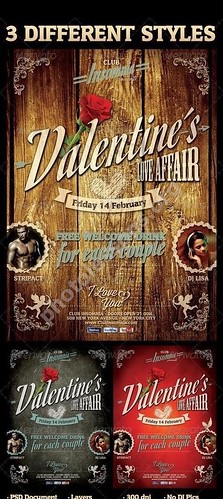
When February 14th is just a couple of weeks away, event organizers enter crunch time. You need to book the venue, plan the concept, and — the hardest part — create visuals that grab attention. This Valentine's Day party flyer in PSD format is a ready-to-use tool that saves hours of designer work and delivers professional-grade results.
This overview covers a single but exceptionally high-quality flyer template for Valentine's Day: 18722 x 2598 pixels resolution, 38.58 MB archive size, editable text layers, and smart objects. Below you'll find detailed specs, a step-by-step editing manual for Adobe Photoshop, a comparison with alternatives, and comprehensive FAQ.
Technical Specifications
Before diving into editing, it helps to understand exactly what you're working with. Here's a summary table of the key parameters.
| Parameter | Value |
|---|---|
| File format | Adobe Photoshop PSD (layered) |
| Resolution | 18722 x 2598 pixels |
| Color mode | CMYK (print-ready) |
| Number of templates | 1 (single spread) |
| Archive size | 38.58 MB (ZIP compressed) |
| Editable text | Yes (smart objects + text layers) |
| Minimum Photoshop version | CS3 and above |
| License | Free, personal and commercial use |
Design and Visual Layout
The template uses a classic romantic palette: deep red background with gradient darkening towards the edges, accented with gold and white elements. The central composition revolves around a large heart motif — an instant visual anchor that the viewer reads immediately. Around it, decorative elements: splashes, glints, glowing stars, and light swirls add an airy feel.
The typography area is the key zone for your customization. The template comes with placeholder text blocks that you replace with your venue name, event program, date, and time. All text layers are isolated into separate groups and labeled in the Layers panel — you won't get lost.
Layer Structure
The PSD file organization is thoroughly thought out. The author divided the template into logical groups:
- Text layer group — all text blocks. Open the folder, double-click the text layer, and type your information.
- Smart Objects — placeholder images you can replace with your own photos by double-clicking and using the "Place Linked" command.
- Background & Effects — background, gradients, shadows, glows. You don't need to touch these, but you can adjust effect intensity if desired.
- Decorative elements — hearts, stars, swirls. Hide unnecessary ones or duplicate to enhance the composition.
Step-by-Step Guide: Editing the Template in 10 Minutes
Step 1. Open the file
Unzip the archive to any folder. Launch Adobe Photoshop (CS3 or newer). Open the PSD file via File → Open. After loading, you'll see the fully layered template with a preserved folder structure.
Step 2. Replace the text
In the Layers panel, find the group labeled TEXT. Expand it. You'll see several text layers — typically EVENT NAME, DATE, TIME, VENUE, TICKET PRICE, and PROGRAM. Double-click the "T" icon to activate editing and type in your details.
Step 3. Replace the images
Layers marked Smart Object contain photo placeholders. Replace them with your own images: double-click the smart object thumbnail — a new window opens. Paste your image, adjust the size, and save (Ctrl+S). Close the smart object window — the template updates automatically.
Step 4. Adjust the colors
If your venue's brand identity differs from the proposed red scheme — no problem. Add an adjustment layer of type Hue/Saturation above the Background folder and shift the hue. Another option: double-click the gradient layer and choose different colors in the gradient editor.
Step 5. Export for print and social media
For professional printing, save as PDF/X-1a or TIFF with the CMYK color profile. For Instagram, Facebook, or Telegram posts, use File → Export → Save for Web with JPEG format and 80-90% quality. Remember to switch the color mode to RGB (Image → Mode → RGB Color) before exporting for the web.
Comparison with Other Valentine's Day Flyers
To help you appreciate the value of this source file, we compared it with other PSD templates available on the market in the same category.
| Parameter | This template | Standard free flyer | Premium flyer (Envato Elements) |
|---|---|---|---|
| Resolution | 18722 x 2598 px | 2000-4000 px (long edge) | 4000-6000 px |
| Color mode | CMYK (print-ready) | Mostly RGB | CMYK |
| Smart objects | Yes | Rarely | Yes |
| Layer organization | Grouped and labeled | Often chaotic | Grouped and labeled |
| Price | Free | Free | From $16/month (subscription) or ~$8 per file |
| License limitations | None | Often requires attribution | Depends on plan |
As the table shows, this template is comparable to premium products across most parameters, yet it's distributed completely free. The 18722 px resolution makes it a unique offering even compared to paid alternatives.
Who Benefits from This Flyer
- Club party organizers — a ready design in 10 minutes instead of an hour struggling with a blank canvas.
- Restaurant and cafe owners — add your special menu, live music times, and table booking via a QR code added in 30 seconds.
- SMM specialists — crop a fragment for Stories, add animation via After Effects, and get a targeted ad banner.
- Students and aspiring designers — study material on organizing complex layer structures, working with smart objects, and CMYK prepress.
- Event agencies — a presentation-ready base: replace the text and photos, and get client approval in a single meeting.
Practical Customization Tips
Experience shows that even a great source file can be ruined by a couple of wrong moves. Here are some proven recommendations from practicing designers.
Fonts: Where to Get Them and How Not to Break the Template
The template author used a specific set of fonts. If they're not installed on your system, Photoshop will warn you and substitute them with Myriad Pro or Arial. To preserve the design intent, find the font list in the readme file inside the archive. Most of them are available on Google Fonts or Font Squirrel.
Working with Smart Objects
Don't rasterize smart objects for the sake of "convenience" — you'll lose non-destructive scaling. Always edit smart object content via double-click. If you need to apply filters, duplicate the layer and work on the copy.
\u{201c}"When I first opened this template, I was pleasantly surprised by the layer organization. Usually, free source files are a mess of flattened raster layers with no real editing capability. This one is different — spent 15 minutes and had a print-ready flyer." — user feedback
Color Correction for Brand Guidelines
If the red color scheme doesn't match your brand identity, use a Selective Color adjustment layer. Target the red and magenta channels and shift the Cyan/Magenta/Yellow sliders until you achieve the right shade. This method provides more precise control than Hue/Saturation.
Print Preparation: What You Need to Know
The template is saved in CMYK by default, saving you one step when preparing for offset or digital printing. However, there are several nuances to consider before sending the file to a print shop.
- Bleed: the template likely lacks dedicated bleed margins. Confirm the required bleed size with your printer (usually 3-5 mm) and extend the background via Canvas Size if necessary.
- Total Ink Coverage: check total ink coverage in dark areas. For offset printing, the limit is 300-320%; for digital, up to 280%. Use the Info panel in Photoshop with Total Ink display mode.
- Image resolution: all embedded smart objects and raster elements should have 300 dpi at final size. Check each smart object via Image Size.
- Overprint: white text on red backgrounds may inadvertently get the overprint attribute. Before saving as PDF, ensure overprint is disabled for white objects.
Adapting for Social Media
The original template has approximately 7:1 proportions — a panoramic format ideal for large-format printing. For social media, it needs adaptation:
- Instagram (square 1080x1080): crop the central part with the heart motif and text block. Add a gradient frame to fill the format.
- Instagram Stories (1080x1920): rotate the template vertically or select a fragment and extend the background via Content-Aware Fill.
- Facebook Event Cover (1920x1080): use the central half of the template and add your logo and date.
Frequently Asked Questions
What is the actual resolution and why is it so large?
The resolution is 18722 by 2598 pixels. The ~7.2:1 ratio is a panoramic format designed for large-format printing: billboards, banners, and wide displays. You can downscale the template to any size without quality loss — whether to A4 or a business card. The main advantage is the pixel reserve, allowing cropping and composition without artifacts.
What color space is the file saved in?
The template is saved in CMYK — the standard for printing. If you plan to use the flyer exclusively in digital formats (social media, website, email), make sure to convert it to RGB via Image > Mode > RGB Color. Otherwise, colors will appear muted.
Can I edit the file in free Photoshop alternatives (GIMP, Photopea)?
Yes, with caveats. Photopea (free online editor) opens PSD files and correctly handles smart objects. GIMP also opens them, but smart objects will be rasterized — you'll lose non-destructive scaling. Adobe Photoshop CS3 or newer is recommended.
How do I replace text if the required font isn't on my system?
Upon opening the template, Photoshop will automatically suggest replacing missing fonts with available ones. You can proceed with the substitution — the result will be acceptable. However, to preserve the design intent, it's better to install the original fonts. The font list is in the readme.txt file inside the ZIP archive. You can also find close matches on Google Fonts.
How many templates are in the archive and how do they differ?
The archive contains one template (one PSD file). This is not a set of variations, but a single thoroughly crafted source file that you customize for your needs. Quality over quantity — you get a premium-level result in one file.
Can I use this flyer for commercial projects?
Yes. The template has no license restrictions: you can use it for commercial events, club party advertising, restaurant promotions, paid concerts, and any other projects. Attribution is not required (but is appreciated).
What is the uncompressed file size?
The ZIP archive is 38.58 MB. After extraction, the PSD file takes approximately 50-60 MB on disk. For comfortable editing, we recommend at least 4 GB of RAM and a processor clocked at 2 GHz or higher.
Is the template suitable for printing on a home printer?
Yes, with reasonable limits. The source resolution allows printing the flyer up to 158 x 22 cm at 300 dpi. If you're printing on A4, the quality will be flawless. For home printing, convert the template to RGB — consumer printers work better with this color model.
What should I do if the PSD file won't open?
Check your Adobe Photoshop version — CS3 or above is required. Make sure the file is fully downloaded (38.58 MB). Try opening via File > Open As and select Photoshop format. If the issue persists, try Photopea (photopea.com) — a free online editor with PSD support. As a last resort, download the archive again.
Can I export the template to other formats (AI, EPS, CDR)?
Direct export to vector formats isn't available since the template contains raster elements. However, you can export the result as TIFF, PNG, or JPEG for use in CorelDRAW or Illustrator as a background layer. If you need a fully vector flyer, look for source files in AI or EPS formats.
Tap to react