UpdraftPlus Backup and Restoration
Creating website backups is a basic responsibility of any webmaster that somehow gets postponed until the first major crash. When a site goes down after a failed plugin update, a hack, or a hosting error, owners frantically search for recovery methods. UpdraftPlus Backup and Restoration solves this problem radically: the plugin creates automatic scheduled backups, stores them in cloud services, and lets you restore your site with one click.

UpdraftPlus is arguably the most popular backup plugin in the WordPress ecosystem. According to the official repository, it has over three million active installations and the highest rating among all backup plugins. The secret to its popularity is simple: it makes complex things easy. You don't need to be a system administrator to set up regular backups — just check a few boxes and choose your cloud storage.
Key Features of UpdraftPlus
The plugin offers a wide range of features covering both beginners and professionals. Let's explore the key capabilities in detail.
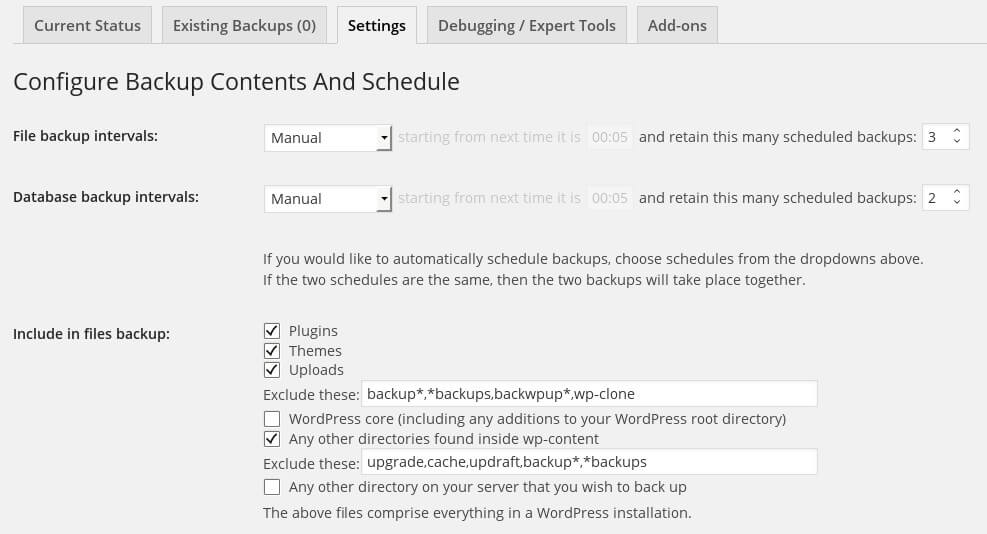
Automatic scheduled backups. You can set separate schedules for files and databases. For example, databases should be copied daily (they are small), while files can be backed up weekly (they take more space). This approach saves disk space and reduces server load.
Selective backup components. UpdraftPlus lets you choose exactly what to include: database only, files only (themes, plugins, media), or both. If you only updated content, there's no need to copy all WordPress core files — just save the database and media files.
Multiple cloud storage support. The plugin integrates with the most popular cloud services: Dropbox, Google Drive, Amazon S3, Microsoft OneDrive, Rackspace Cloud, FTP and SFTP, WebDAV, and more. You can store copies in multiple locations simultaneously for maximum reliability.
One-click restoration. If your site breaks, simply select the desired backup from the list and click Restore. UpdraftPlus automatically downloads files from the cloud, extracts them, and restores the database. The process is fully automated and requires no technical knowledge.
Pricing Plans
| Feature | Free Version | Premium |
|---|---|---|
| Automatic scheduled backups | Yes | Yes |
| Cloud storage options | Dropbox, Google Drive, S3 | + OneDrive, Azure, WebDAV, more |
| One-click restore | Yes | Yes |
| Site migration | No | Yes |
| Incremental backups | No | Yes |
| Premium support | No | Yes |
Comparison with Alternatives
| Feature | UpdraftPlus | BackWPup | Jetpack Backup | BlogVault |
|---|---|---|---|---|
| Price (base plan) | Free / $70/yr | Free / $69/yr | $95/yr | $89/yr |
| Auto scheduling | Yes | Yes | Yes | Yes |
| Cloud storage | 7+ services | 5 services | Jetpack Cloud only | Proprietary cloud |
| One-click restore | Yes | Yes | Yes | Yes |
| Site migration | Premium | No | No | Yes |
| Incremental backup | Premium | No | No | Yes |
| WordPress.org rating | 4.7/5 | 4.5/5 | 4.0/5 | — (not in repo) |
| Active installations | 3+ million | 700k+ | 100k+ | 80k+ |
How to Set Up UpdraftPlus
Installing and configuring the plugin takes no more than 10 minutes. Install via Plugins — Add New, search for UpdraftPlus, activate, and go to Settings — UpdraftPlus Backups. The plugin will immediately offer to create a first backup — accept to verify everything works.
Configure the backup schedule. On the Settings tab, you'll see two sections: Files backup schedule and Database backup schedule. For the database, choose Daily; for files, choose Weekly. Set the number of stored backups: 4-7 for database (one week's worth), 2-3 for files. Old copies are automatically deleted when new ones are created.
Connect cloud storage. Find the Choose your remote storage section. Select one or more services. For Dropbox, click Authenticate with Dropbox. For Google Drive, you'll need an API key from Google Console. For Amazon S3, provide access keys from the AWS panel.
Configure notifications. In the Email setup section, enter the email for backup reports. I recommend enabling notifications only for errors — otherwise your inbox fills with daily success reports.
Restoring Your Site from Backup
Site restoration in UpdraftPlus is extremely simple. Go to the Existing Backups tab. You'll see all backups listed with dates, sizes, and composition. Next to each backup are three buttons: Restore, Delete, and Download.
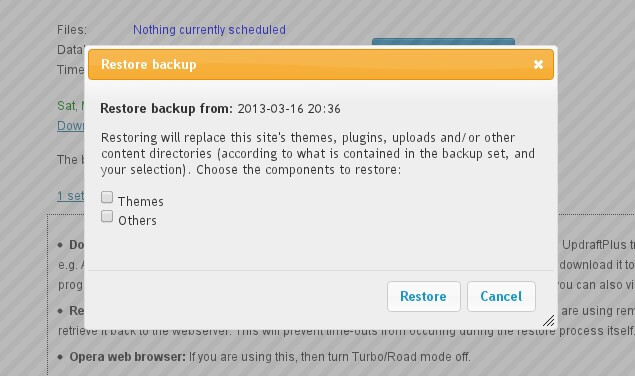
Click Restore next to the desired backup. A window appears with component selection: database, plugins, themes, uploads, other files. All components are selected by default. If you know the problem is only in the database, restore just that — it speeds things up and reduces risk.
After selecting components, click Restore again. UpdraftPlus downloads archives from the cloud, extracts them, and replaces existing files. For large sites, this may take 10-30 minutes. Upon completion, you'll see a success message. Check your site — it should work as before.
If something goes wrong, don't panic. UpdraftPlus doesn't delete old files until restoration completes. You can revert by selecting a previous backup. The plugin also saves restoration logs for error analysis.
Site Migration with UpdraftPlus
UpdraftPlus Premium allows migrating your site to a different domain or host. This is useful when changing hosting providers, moving to a new domain, or creating a staging copy. The process includes creating a full backup on the old host, installing WordPress on the new host, installing UpdraftPlus on the new site, and uploading the backup archive via the Upload tab.
After restoration on the new domain, the plugin automatically offers to replace the old site URL with the new one. This is critical — if addresses aren't replaced, the site will show links to the old domain. UpdraftPlus does this automatically, unlike competitors where you must edit the database manually via phpMyAdmin.
Frequently Asked Questions
How much does UpdraftPlus Premium cost?
UpdraftPlus Premium starts at $70/year for a single site license. Plans for 2, 10, and unlimited sites are available at $127, $195, and $399 per year respectively. All plans include incremental backups, migration, and premium support.
Can I restore without UpdraftPlus?
Yes, backup archives can be downloaded and restored via FTP and phpMyAdmin, but this requires technical knowledge. The plugin makes the process automatic and safe. In an emergency, you can manually extract archives on the server and import the SQL database.
How often should I back up?
For an actively updated site (daily posts) — daily database backup and weekly file backup. For a static brochure site, weekly backups of all data are sufficient. Schedule according to content update frequency.
Does UpdraftPlus support WordPress Multisite?
Yes, the Premium version fully supports WordPress Multisite. The free version works on individual sites within the network but doesn't support centralized backup management for the entire network. Premium is recommended for site networks.
How to verify backups are working?
Periodically (once a month), try restoring a copy on a test subdomain or local server. UpdraftPlus lets you download an archive and restore it on any WordPress installation. If restoration succeeds — the backup works. Don't rely solely on automated reports.
What if restoration fails with an error?
Check restoration logs on the Settings — Advanced Logging tab. Most often the issue is exceeded hosting limits: max execution time, upload file size, or memory limit. Increase php.ini parameters or contact hosting support.
Can I store backups on Google Drive?
Yes, UpdraftPlus has native Google Drive support. You'll need to create a Google API project and obtain credentials. The plugin provides step-by-step instructions. Google Drive backups are reliable and easy to access from any device.
How to delete old backups?
UpdraftPlus automatically deletes old copies when new ones are created if the preset limit is exceeded. You can also manually delete copies on the Existing Backups tab — click Delete next to the unwanted backup. Cloud storage copies are also removed.
Is cloud backup storage safe?
Yes, all popular cloud services encrypt data during transfer and at rest. For additional security, UpdraftPlus Premium supports password-encrypting archives before sending to the cloud. Even if someone accesses your cloud, they can't open the archives without the password.
Are there compatibility issues with caching plugins?
UpdraftPlus is compatible with popular caching plugins: WP Rocket, W3 Total Cache, WP Super Cache, LiteSpeed Cache. However, before restoring from a backup, disabling caching is recommended to avoid conflicts with stale cached data.
Choosing Cloud Storage for Backups
Choosing a cloud service depends on your needs and budget. Dropbox is the easiest to set up — the plugin integrates directly, just click the authorize button. The free Dropbox plan includes 2 GB, enough for 3-5 full backups of an average site. For multiple sites, use Google Drive with 15 GB free or Amazon S3, where you pay only for actual storage used.
For high-traffic sites, use multiple cloud storages simultaneously. Send databases to Dropbox (fast access) and files to Amazon S3 (cheap and reliable). UpdraftPlus Premium allows multiple remote storages at once, providing maximum data protection. If one storage is temporarily unavailable, the copy saves to another.
Pay attention to the geographic location of cloud provider servers. For Europe and Asia, choose services with European data centers for faster upload and download speeds than US-based servers.
Notification and Monitoring Setup
UpdraftPlus can send backup reports via email. Configure notifications for errors only — you won't miss critical issues but won't get dozens of success emails. Additional integrations with Slack or Telegram are available through third-party WordPress plugins.
For professional monitoring, use external services that check backup freshness. UptimeRobot can verify both site availability and backup recency through the UpdraftPlus API. If no backup was created for 7+ days, you receive an alert. This is critical for sites with daily content updates where losing even one day of data matters.
Restoring Your Site on a New Host
One of the most common tasks UpdraftPlus solves is migrating a site between hosts. First, create a full backup on the old host: click Backup Now and select all components — files, database, plugins, themes, uploads. Wait for completion and ensure the copy uploaded to cloud storage or is available for download.
On the new host, install a fresh WordPress with the same version as the old site. Install and activate UpdraftPlus on the new site. Go to the Restore tab and click Upload backup files. Select the backup archive. The plugin recognizes the archive structure and offers to restore all components. Click Restore and wait for completion.
After restoration, the site may display incorrectly if URLs weren't updated. The paid version has built-in URL replacement. In the free version, use the Better Search Replace plugin or edit the database directly via phpMyAdmin. Find the old domain and replace with the new one. Clear browser cache and plugin cache after completion.
Important: before migration, verify the new host has the same PHP and MySQL versions as the old one. Version mismatch is the most common cause of post-migration errors. UpdraftPlus doesn't warn about incompatibility, so check both hosts' technical specifications in advance.
Backup Security Tips
Regular backups are only half the equation. The other half is securing the backups themselves. Use different cloud storages for different sites. If an attacker gains access to one Dropbox account, they won't compromise all your sites simultaneously. Distribute copies across services: one site in Dropbox, another in Google Drive, a third in Amazon S3.
Set passwords on backup archives. Premium UpdraftPlus encrypts archives with AES-256. Even if someone intercepts the backup file, without the password they cannot access your site data. Use complex unique passwords for each site and store them in a password manager.
Don't keep backups indefinitely. Old backups waste space and create attack surface. Configure automatic deletion of copies older than 30-60 days. For archived projects that don't change, keep 2-3 latest copies only.
Periodically verify backup integrity. Every quarter, restore a backup on a local server or test subdomain and verify the site works correctly. Nothing is worse than discovering on crash day that all your backups are corrupted and unrecoverable.
Troubleshooting Common Issues
Issue 1: backup doesn't start, hangs at 0%. This is usually a max execution time limit. WordPress has a default 30-second limit, but large sites may need several minutes. Solution: add define(MAX_EXECUTION_TIME, 300); to wp-config.php or ask hosting support to increase the limit.
Issue 2: cloud storage won't connect. Verify access keys are correct. For Google Drive, ensure you created a project in Google Cloud Console and enabled the Drive API. For Dropbox, check the app has access to the correct folder. If the error persists, disconnect and reconnect the storage.
Issue 3: site won't restore, returns error 500. This is usually a PHP or MySQL version incompatibility. Verify the PHP version on the new host matches the backup creation version. If versions differ, restore the site on a local server with the correct PHP version, update the site, and create a fresh backup.
Tap to react