Uptolike Share Buttons — Social Network Buttons in Joomla
Social sharing buttons are essential for any modern website focused on driving traffic from social networks. They let visitors share your content with one click, increasing audience reach and improving behavioral ranking factors. The Uptolike Share Buttons plugin migrated to Joomla from the popular WordPress CMS and offers rich functionality for placing social buttons on your site. In this guide we cover installation, configuration, and usage in detail, including comparison with alternatives and practical tips for increasing content shares.

Uptolike Share Buttons is more than just sharing buttons — it is a complete content sharing management tool. The extension supports 25 popular social networks including global platforms like Facebook, Twitter, LinkedIn, Pinterest, Tumblr, Reddit and regional networks like VKontakte and Odnoklassniki. You can select desired networks, customize button design, sizes, page placement, color schemes, and track detailed click statistics for each button. The plugin is fully compatible with Joomla 3.x and 4.x, works on all modern browsers and mobile devices. No external service registration is required — all data stays on your own server for maximum privacy and GDPR compliance.
Installation in Joomla
Installing Uptolike Share Buttons follows the standard Joomla extension process. Download the plugin archive from the official developer website uptolike.ru or from the Joomla extensions directory. Log into your admin panel, go to Extensions — Extension Manager — Install tab. Click Choose File, select the ZIP archive, and click Upload and Install. Joomla automatically extracts and installs the plugin. After successful installation you will see a confirmation message.
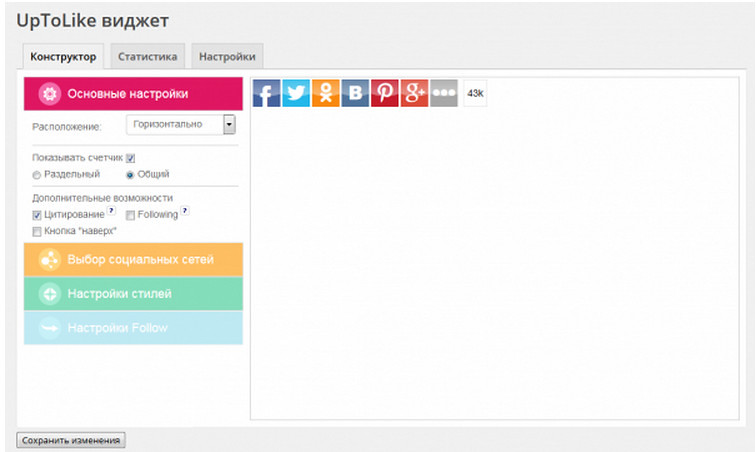
After installation, go to Extensions — Modules. Find the Uptolike Share Buttons module in the list. Click it to open settings. If the module is not in the list, create a new one — click New and select type Uptolike Share Buttons. Set a module title (e.g., Share or Social Buttons), choose a template position. Social buttons are typically placed in right sidebar positions (position-7 or position-8), footer (position-12), or after content area (position-3). For floating panels use debug or custom position if available. You can create multiple module copies for different locations on your site.

Display Configuration
The plugin offers three basic display styles: standard icons with text labels (recommended for most sites), icons only without text (minimalist style for designer projects), or text only without icons (for text-heavy blogs). For most sites, standard icons with social network names work best — they are visually appealing and intuitive even for new users. Button sizes range from 16x16 pixels (tiny, for footer) to 60x60 pixels (large, prominent in content area). Recommended sizes: 32x32 for sidebar, 40x40 for content area, 24x24 for footer.
Settings include flexible design customization: background color selection, text and counter colors, border radius, hover shadows, button animations (fade in, soft disappearance, hover highlight). For minimalist monochrome design, disable all effects and use black-and-white icons that fit any layout from strict corporate to creative. If your site uses light colors, choose dark buttons for contrast, and vice versa. Button colors should harmonize with your brand palette.
Comparison with Alternatives
| Feature | Uptolike | AddThis | ShareThis | Standard Joomla Modules |
|---|---|---|---|---|
| Social networks count | 25 | 200+ | 50+ | Limited by developer |
| Regional network support | Yes (VK, OK) | Limited | No | Depends on module |
| Built-in click statistics | Yes | External analytics | External | No |
| Design flexibility | High, many options | Limited | Basic | Minimal |
| Floating panel | Yes | Yes | Yes | Rarely |
| Data storage | Your server | AddThis servers | ShareThis servers | Your server |
| Price | Free | Free / Premium $99/yr | Free / Premium $79/yr | Free |
| Joomla 4 compatibility | Yes | Via integrations | Via integrations | Yes |
Button Placement Strategy
Social button effectiveness directly depends on page placement. Years of UX research show three optimal locations: before the article title (users share motivated by headline before reading), after the content (most popular option — users share after reading if content impressed them), and in a floating sidebar panel that stays visible during scrolling. Uptolike supports all three placement options. For maximum effectiveness, combine static buttons at the end of each article with a floating side or bottom panel.
Floating buttons perform 30-50% better than static ones because users see them constantly and can share content at any moment without scrolling back to top or bottom. In plugin settings, choose Floating position and set top or bottom offset in pixels. For desktop versions, 100-150 pixel top offset works well. For mobile versions, consider bottom placement for thumb-friendly access.
Statistics and Analytics
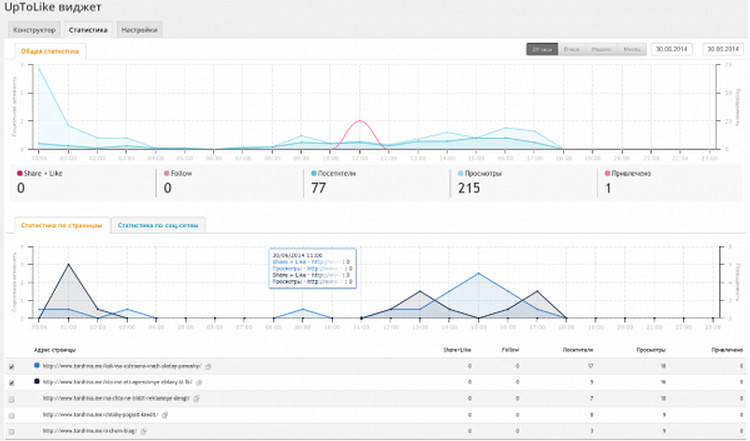
A key advantage of Uptolike over competitors is built-in click statistics that require no external analytics services. In the plugin admin panel, you can track: clicks per button over selected periods, most popular social networks among your audience, most-shared content pieces, activity dynamics by day of week and hour. This data is invaluable for optimizing your content strategy. If you see articles about a certain topic are shared most on VKontakte, focus promotional efforts there.
Statistics are stored locally on your server and never shared with third parties — important for GDPR and data privacy compliance. You can optionally connect Google Analytics for deeper analysis through integration settings. Uptolike supports sending events to GA as pageview events or interaction events for detailed user engagement funnel analysis.
Tips for Increasing Shares
Simply installing buttons is not enough — you need to motivate users to use them. Add calls to action above buttons: phrases like Like this article? Share with friends! or Found this helpful? Hit the share button increase click rates by 15-25% compared to bare buttons. Place buttons prominently without hindering content reading. Adapt social network selection to your target audience: LinkedIn and Facebook for B2B professionals, Telegram and TikTok for younger demographics. Analyze statistics monthly and adjust accordingly.
Consider mobile users — over 60% of traffic comes from mobile devices. On mobile, buttons should be larger (minimum 40x40 px), placed in thumb-friendly zones, and not overlap content. Floating panels on mobile should be at screen bottom rather than side for easier thumb access. Run A/B tests on different placements, sizes, and colors to find the optimal combination for your specific site and audience.
Frequently Asked Questions
How to install Uptolike in Joomla 4?
Same as Joomla 3: download archive, upload via Extension Manager, create module, configure. Fully compatible with both versions.
Why aren't buttons showing on my site?
Check three things: module publication status (must be Published), page assignment (Menu Assignment tab), and AdBlock browser extension blocking.
How many social networks are supported?
25 networks: Facebook, Twitter, VK, OK, LinkedIn, Pinterest, Telegram, WhatsApp, Viber, Skype, Tumblr, Reddit, and more.
Can I remove the click counter?
Yes, disable Show Counter in module settings. Useful for new sites with low activity where empty counters may deter sharing.
Do buttons affect site loading speed?
Uptolike loads asynchronously without blocking page rendering. Minimal impact — 50-100 KB additional traffic. Can defer script loading.
Do buttons work on mobile devices?
Yes, fully responsive with separate mobile size and placement configuration options.
How to add a custom social network?
Cannot be added directly. Send a request to the developer — the list expands regularly.
Is there English language support?
Yes, the interface is in English with automatic browser language detection for button labels.
Can I show buttons only on specific pages?
Yes, assign to selected menu items in module settings. Exclude unwanted pages like homepage or contact forms.
How is Uptolike different from AddThis?
Better for regional audiences with VK/OK support, built-in statistics vs external analytics, simpler configuration, no external service dependency.
Integration with Other Joomla Extensions
Uptolike integrates well with popular Joomla extensions. If you use K2 content management component, social buttons display correctly on K2 item pages. VirtueMart integration works similarly — buttons appear on product pages. For fine-tuning display on different page types, use module filters: hide buttons on certain pages or show only on selected ones.
Compatibility with caching plugins (JotCache, Cache Cleaner) and CDN services is confirmed. Uptolike does not conflict with them. If using CSS/JavaScript compression plugins (JCH Optimize, Script Merge), exclude the Uptolike script from compression for correct operation. In case of display issues, add uptolike.ru and uptolike.com to exclusion whitelist.
Free vs Premium Features
| Feature | Free | Premium |
|---|---|---|
| Social networks | 25 | 25 + custom |
| Button design | Standard | Extended + custom CSS |
| Statistics history | 7 days | Unlimited |
| Support priority | Normal | High |
Technical Aspects and Performance
The plugin script loads from an external server. If uptolike.com is temporarily unavailable, buttons may not display, but this won't affect other content loading due to async loading. For better speed, use browser caching headers. The plugin supports second-level caching through Joomla's system cache. Enable lazy loading in advanced settings — buttons load only after page main content finishes loading.
Security: Uptolike does not collect or transmit personal data. Click statistics are anonymized — the plugin doesn't know who clicked. Important for GDPR compliance. Before installing on sites handling personal data, review the developer's privacy policy and update your own privacy policy accordingly.
Multiple Button Sets on One Page
Uptolike allows placing multiple independent button sets on one page. For example, place a compact set of 3-4 main networks at the article top and the full 25-network set at the bottom. Create two different Uptolike modules in the module manager and configure each for its task. Set the first module to a top content position with only popular networks (Facebook, Telegram, WhatsApp). Set the second module to a bottom position with all 25 networks enabled.
Configure identical color and design parameters for both modules so they don't visually conflict. Top buttons should be smaller (24x24 or 32x32) to save space, bottom buttons larger (40x40). A floating panel can be a third module. This system gives users maximum sharing control: quick access to main networks at top and full options at bottom.
Remember that too many buttons can distract from content. Don't place more than two sets on one page — a third floating panel may already be excessive. Experiment with placement, track click statistics, and keep only configurations that actually generate shares. One effective panel is better than three that only slow page loading.
Cross-Browser and Cross-Platform Compatibility
Uptolike Share Buttons is tested on all modern browsers: Chrome, Firefox, Safari, Opera, Edge, Yandex Browser. Works identically on Windows, macOS, Linux, iOS, and Android. For older Internet Explorer versions (8, 9, 10), support is limited — buttons display but animations and some styles may not work. We recommend updating to a modern browser. For older browser users, buttons display in simplified form without rounded corners and shadows.
Special attention to mobile. On touch screens, buttons have sufficient size for comfortable finger tapping (recommended 40x40 px minimum). Spacing between buttons is increased to prevent accidental taps. Floating panels on mobile automatically adapt to screen width without overlapping content. The plugin also supports Retina displays with 2x resolution icons for sharp display on iPhone, iPad, MacBook Pro and modern Android smartphones, as well as 4K and 5K displays.
Migration from Other Social Button Plugins
If switching from another plugin to Uptolike, migration is simple. Install Uptolike, configure it, then disable the old plugin but don't delete it immediately — keep it for a week as backup. Old plugin statistics don't transfer, so take screenshots for historical reference. Design settings must be reconfigured as configuration formats are incompatible between different plugins.
After migration, check all site pages — buttons should display in the same locations. Ensure no caching conflicts — clear Joomla cache after installing the new plugin. If buttons don't appear on some pages, check Menu Assignment settings. During the first week, monitor click statistics — they should match or exceed old plugin performance. If stats drop, try adjusting button placement or design.
Uptolike's advantage during migration: no external service dependency. AddThis and ShareThis store statistics on their servers — you lose all historical data when switching. Uptolike stores statistics locally, but old data doesn't transfer to the new system either. Export statistics to CSV monthly for independent archiving.
Tap to react