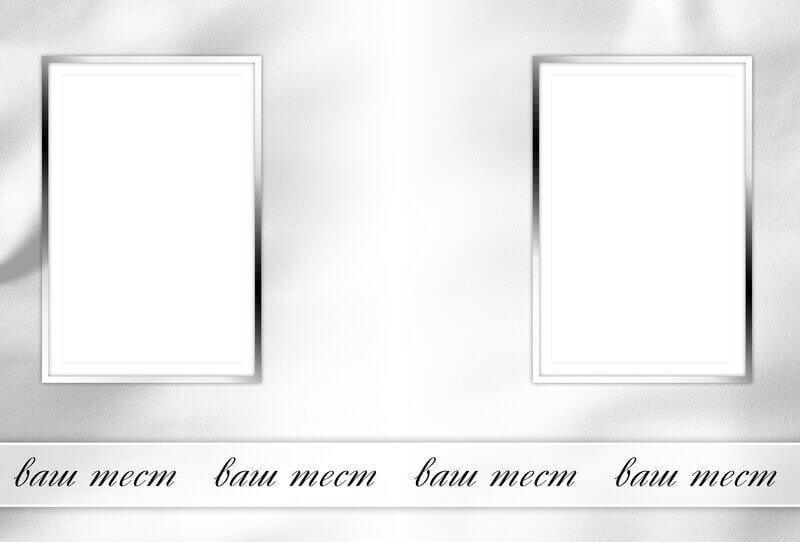
Universal Photoshop Photobook with Photo Frames
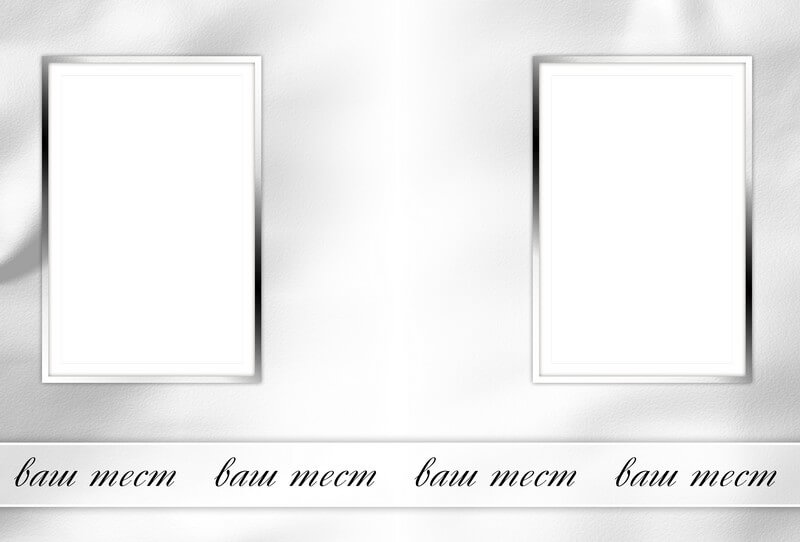
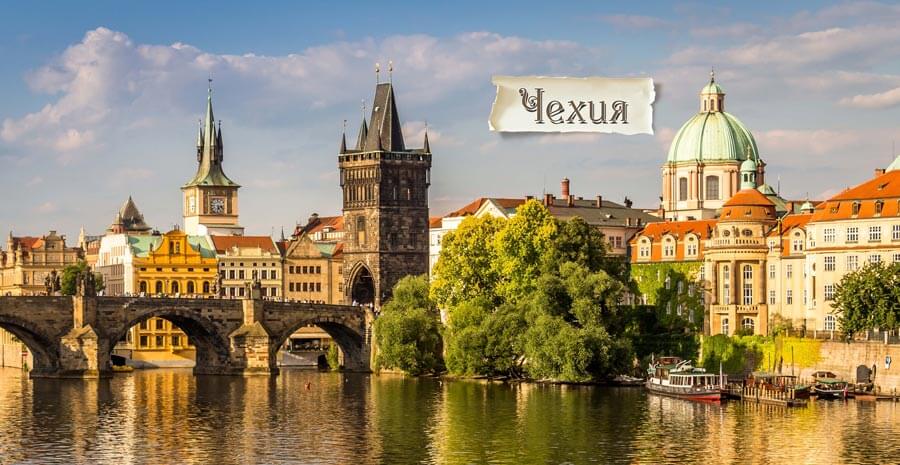
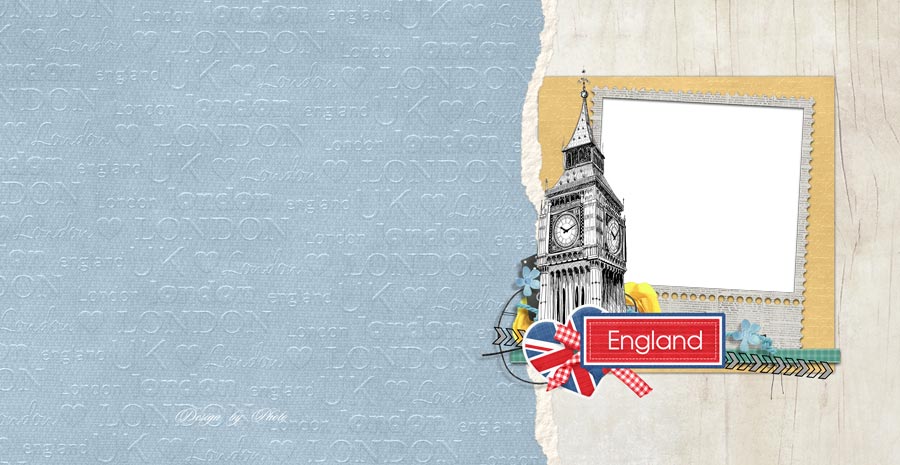
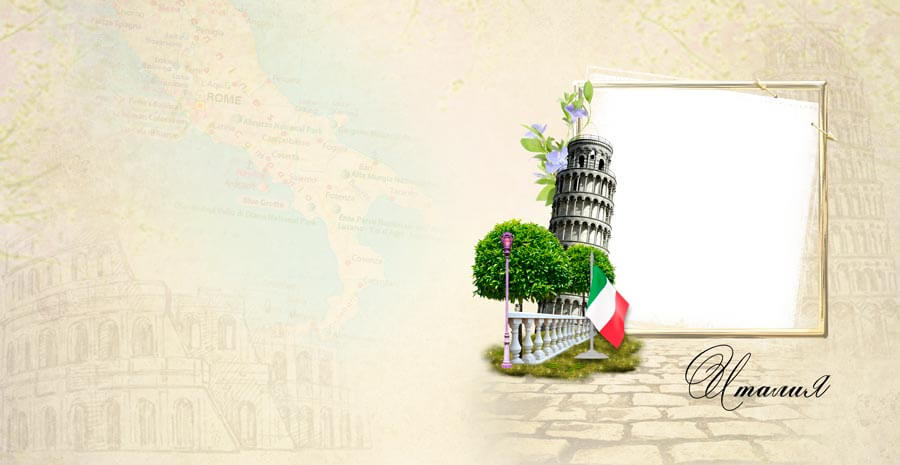
A ready PSD photobook template saves hours of layout work. Universal Photobook for Photoshop with photo frames offers 5 spreads with neat frames for your pictures. The minimalist design does not distract from photos but looks stylish and modern.
The 4882x3307 pixel resolution is sufficient for A4 and A3 printing. All elements — frames, backgrounds, shadows, decorative lines — are organized in clearly named layers. Even Photoshop beginners will not get lost. The 210 MB archive is optimal for downloading even on slower connections.
What is included
The archive contains one PSD file with 5 photobook spreads. Each spread has frames for photos. The cover is not included — the book is designed for binding at a print lab where the cover is custom-made. Spreads are numbered and grouped in the layers panel for easy navigation.
Frames come in different sizes and arrangements. One spread may have a large full-page frame, another a collage of 2–4 small frames. This creates dynamics and interesting structure. You can skip frames entirely and place a photo full-bleed by hiding the frame layer and inserting into the background.
Template features
Smart objects for fast photo replacement
Each frame is a smart object. Double-click opens contents in a separate window where you insert your photo. Save and the main document updates automatically. Smart objects allow unlimited scaling without quality loss — you can resize freely without pixelation.
Layer organization
Layers are grouped logically: Spread 1 through Spread 5. Inside each group: background layer, frames layer, decorative elements, text layers. Color-coded groups simplify navigation. Collapse unused groups to focus on the spread you are editing.
| Parameter | Photobook 1 | Photobook 2 | Photo Album |
|---|---|---|---|
| Resolution | 4882x3307 | 6300x3450 | 4882x3307 |
| Spreads | 5 | 4 + cover | 5 |
| Archive | 210 MB | 319 MB | 275 MB |
| Frames | Yes, various sizes | Without frames | Yes |
| Smart objects | Yes | Yes | Yes |
Who this photobook is for
Family photographers find an ideal base for children and family albums. The neutral pastel-toned design suits boys, girls, and family shoots alike. Wedding photographers can use it for draft layouts to show clients. Bloggers and influencers create tangible products from digital content — print your best posts as a photobook.
Step-by-step instructions
Step 1. Photo preparation
Select 15–20 photos for all 5 spreads. Process them in a consistent style and color key. Each photo should be at least 5 MB for quality printing.
Step 2. Image replacement
Open the PSD in Photoshop, expand the first spread group, double-click the smart object, insert your photo, save. Repeat for all frames on all spreads.
Step 3. Appearance adjustment
Check how photos look inside frames. Adjust brightness, contrast, sharpness using adjustment layers. Apply Unsharp Mask at 0.5–1 pixel radius for print sharpness.
Step 4. Export and print
Save as PDF for the print lab. PDF preserves CMYK color profile and flattens layers. For printing in parts, save each spread as high-quality JPEG (quality 12).
| Paper type | Weight | Price per page | Recommendation |
|---|---|---|---|
| Matte | 200 gsm | from $0.50 | Classic, no glare |
| Glossy | 250 gsm | from $0.70 | Vibrant colors, shows fingerprints |
| Linen | 300 gsm | from $1.20 | Premium, pleasant texture |
Design tips
Do not fill every frame. White space improves perception and shifts focus to key images. Leave 20–30 percent of each spread empty for a premium, airy feel. This matters especially for wedding photobooks where atmosphere matters more than photo count. Label spreads if appropriate. Use one font for all headings and another for captions. Stick to two fonts maximum per book.
Frequently asked questions
What is a universal photobook with frames?
A PSD template for Adobe Photoshop with 5 spreads, 4882x3307 resolution, and 210 MB archive. Each spread has ready frames for photos.
What sizes are the frames?
Frames range from full-spread to small square, allowing 2–4 photo collages per page.
How to replace a photo in a frame?
Use smart objects: double-click the frame, insert photo, save. Changes apply without quality loss.
Is it suitable for printing?
Yes, CMYK at 300 DPI — optimal for professional printing.
Can I edit the frames?
Yes, frames are separate layers. Change color, thickness, add shadows, or toggle visibility.
Photoshop version compatibility?
Compatible with CS6 and all newer versions.
Can I use it for commercial projects?
Yes, the template is free for commercial use and selling finished photobooks to clients.
Is there a preview or instructions?
Yes, the archive includes a preview file and brief photo replacement instructions.
Is it suitable for wedding photobooks?
Yes, the design is neutral and works for wedding, family, children, and portrait photography.
What color profile is used?
CMYK, Coated FOGRA39 profile — European printing standard.
Can I add text to pages?
Yes, text layers are included. Use the Type tool in Photoshop to enter your text.
How long does book preparation take?
With experience, 20–30 minutes to replace all photos, adjust color, and prepare for print.
Common mistakes when working with photobooks
Even with a ready template, mistakes can ruin the result. The most common: using low-resolution photos. Social media screenshots, old phone photos, small images downloaded from the internet — all will look blurry and pixelated when printed. Minimum size for A4 printing: 2000 pixels on the long side. Check in Photoshop via Image — Image Size.
Second mistake: ignoring the color profile. The template uses CMYK Coated FOGRA39. Inserting RGB photos and saving as-is leads to unpredictable color conversion. Faces turn red, skies turn green. Always convert photos to the same profile before inserting, or let the print lab handle it by specifying FOGRA39 in your order.
Third mistake: missing bleed margins. Print labs need 3–5 mm bleeds on each side for cutting. The template includes bleeds, but PDF export settings can accidentally remove them. Check PDF settings: in Marks and Bleeds, enable Bleed and disable Trim Marks. Otherwise the lab will either reject your file or cut into your photos.
| Mistake | Cause | Solution | Fix cost |
|---|---|---|---|
| Blurry photos | Low resolution | Use photos from 2000 px | Full reprint |
| Wrong colors | RGB color profile | Convert to CMYK | 50–100% reprint |
| Cropped edges | No bleed | Enable bleed in PDF | Full reprint |
| Banding gradients | 8-bit, sharp transitions | Use 16-bit | Minor |
| Missing fonts | Fonts not installed | Convert text to outlines | Full reprint |
Pre-press checklist
Before sending to print, run through this checklist. Verify all photos are replaced — click through each smart object to check. Ensure no hidden layers become visible accidentally. Enable all group visibility and inspect each page at 100 percent zoom. Save a PDF and open it on another computer or online viewer to confirm fonts and images display correctly. Convert all text layers to outlines (Type — Convert to Shape) to prevent font substitution issues.
For digital printing (photo lab), use JPEG quality 10–12 or uncompressed TIFF. PDF with JPEG2000 compression may be incompatible with some labs. For offset printing, use strict PDF/X-4 specification. Check your print lab's requirements before saving — each has unique technical specifications.
Advanced Photoshop techniques with the template
Want to go beyond the template? Photoshop offers customization tools. Duplicate layer groups to create additional spreads. Right-click the group and select Duplicate Group. Replace photos and edit text in the duplicate. Expand from 5 to any number of pages. Create 10, 20, or 50 spreads — the file structure supports it.
Adjustment layers can apply to individual spreads or the entire book. If all photos look too cool, add a warm Photo Filter adjustment layer at the document root level — it applies to all spreads. For individual photo correction, place the adjustment layer inside that photo's smart object or within the specific spread group.
Use the Custom Shape Tool for non-standard frame shapes. Clipping Masks let you fit photos into any shape: create a shape layer, place a photo layer above it, apply the clipping mask. The photo is neatly masked by the shape. This professional technique creates unique compositions.
Saving money on photobook printing
Photobook printing costs can add up. Price depends on page count, format, materials, and quantity. Save money without sacrificing quality. Order multiple copies at once — labs give 5–30 percent discount for 5–10 books. If making gifts for family, combine into one order.
Choose standard formats. 8x8 inch is cheaper than 12x12 because paper cutting is more efficient. Standard sizes avoid additional equipment setup and manual trimming. Non-standard sizes (e.g., 9x10.5 inch) can cost 30–50 percent more.
Use promotions and coupons. Labs regularly offer discounts: 20 percent on first orders, free delivery for 3+ books, free rush printing on weekdays. Subscribe to your lab's newsletter. Do not order last-minute — rush printing costs more.
| Savings method | Savings | Conditions |
|---|---|---|
| Multiple copies | 5–30 % | From 5 copies |
| Standard format 8x8 | 10–20 % | vs 12x12 |
| Promotions and coupons | 10–50 % | Ongoing |
| Self-layout | 100 % | Vs designer services |
| Lower paper weight | 15–25 % | 200 gsm vs 300 gsm |
Color correction for print vs screen
Screen and print colors always differ. Monitors display 16.7 million colors in RGB; print reproduces about 1 million colors in CMYK. Neon screen colors become dull in print. Before printing, convert to CMYK and increase saturation by 10–15 percent. Monitor calibration is essential for regular photobook printers. Use a calibrator (X-Rite i1Display, Datacolor Spyder) every 2–3 months. Uncalibrated monitors often show a blue or yellow tint that transfers unpredictably to print.
Soft proofing in Photoshop helps. Enable View — Proof Setup — Coated FOGRA39 to preview print colors. See which colors lose saturation and correct them before printing. Soft proofing is not 100 percent accurate but prevents gross errors and saves test print costs.
Selling photobooks as a business? The template is your starting point. Create 3–5 design variations from one template, changing color schemes and frame layouts. Offer clients ready-made options — easier than discussing custom designs. Average photobook price in the US: $30–80. Print cost: $10–25. Margin: 50–70 percent. With experience, you produce a book in 30 minutes, earning $20–55 per hour. Portfolio is key: photograph 3–5 sample books in beautiful interiors — on a coffee table, in hands, on a shelf. Research shows photos of real books boost order conversion by 40 percent compared to digital mockups.
Custom photobooks are a growing gift trend. More people order photobooks not just for themselves but as gifts for parents, friends, and colleagues. If you want to monetize your Photoshop skills, custom photobooks are an excellent side business. Starting investment is minimal: a computer, Photoshop, and ready templates. Find clients through Instagram, Etsy, or word of mouth. Make your first book for yourself or as a gift — holding the result in your hands feels entirely different from saving a file to disk.
Paper type impact on color perception: matte paper absorbs light, making colors appear muted. For vibrant saturated hues, choose glossy paper. However, glossy shows fingerprints and needs cleaning. A compromise is satin paper with slight sheen — combining advantages of both. Request paper samples from your lab before ordering a large batch. Tactile feel and appearance under different lighting cannot be assessed from descriptions alone.
HDR effects and black-and-white processing: for dramatic portraits and landscapes, try HDR-style with enhanced shadow details. Photoshop lets you tint photos to sepia or cool blue via the Hue/Saturation adjustment layer with Colorize enabled. Black-and-white photos look best on matte paper — glossy adds distracting shine. Experiment with processing before final book layout.
Ivory, pearl gray, powder pink — choose a background shade that matches your photo palette. Replace the gradient background via layer styles. The golden rule: the background should not compete with your photos for viewer attention.
The rule of thirds in photobooks: place key subjects at the intersection of lines dividing the frame into three parts horizontally and vertically. Compositions following this rule look harmonious and professional. Even if you did not think about composition while shooting, you can crop photos during layout to position the main subject at one of the power points. Photoshop displays the rule-of-thirds grid when using the Crop tool. Layering text over images at these intersection points creates balanced, visually appealing spread designs that guide the viewer's eye naturally across the page.
With all these techniques and tips, your photobook will look professionally designed and crafted and bring joy for decades to come.
Start creating your photobook today and cherish your memories forever.
Tap to react