Many people who have a double chin wish they didn't have one at all, but we can only help remove it in photographs. Today, we will use an example to weigh how to remove a double chin in the image editing software Adobe Photoshop. All actions are performed in Photoshop CC.
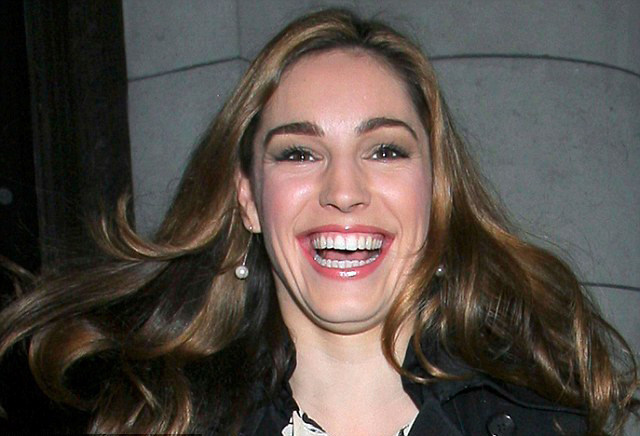
So, we will need a photograph of a person with a double chin. In our specific example, I took a picture of a smiling woman.
Create 2 layer duplicates using the Ctrl + J keys and go to the <wild>Filter-Liquify</wild>Filter-Liquify menu.
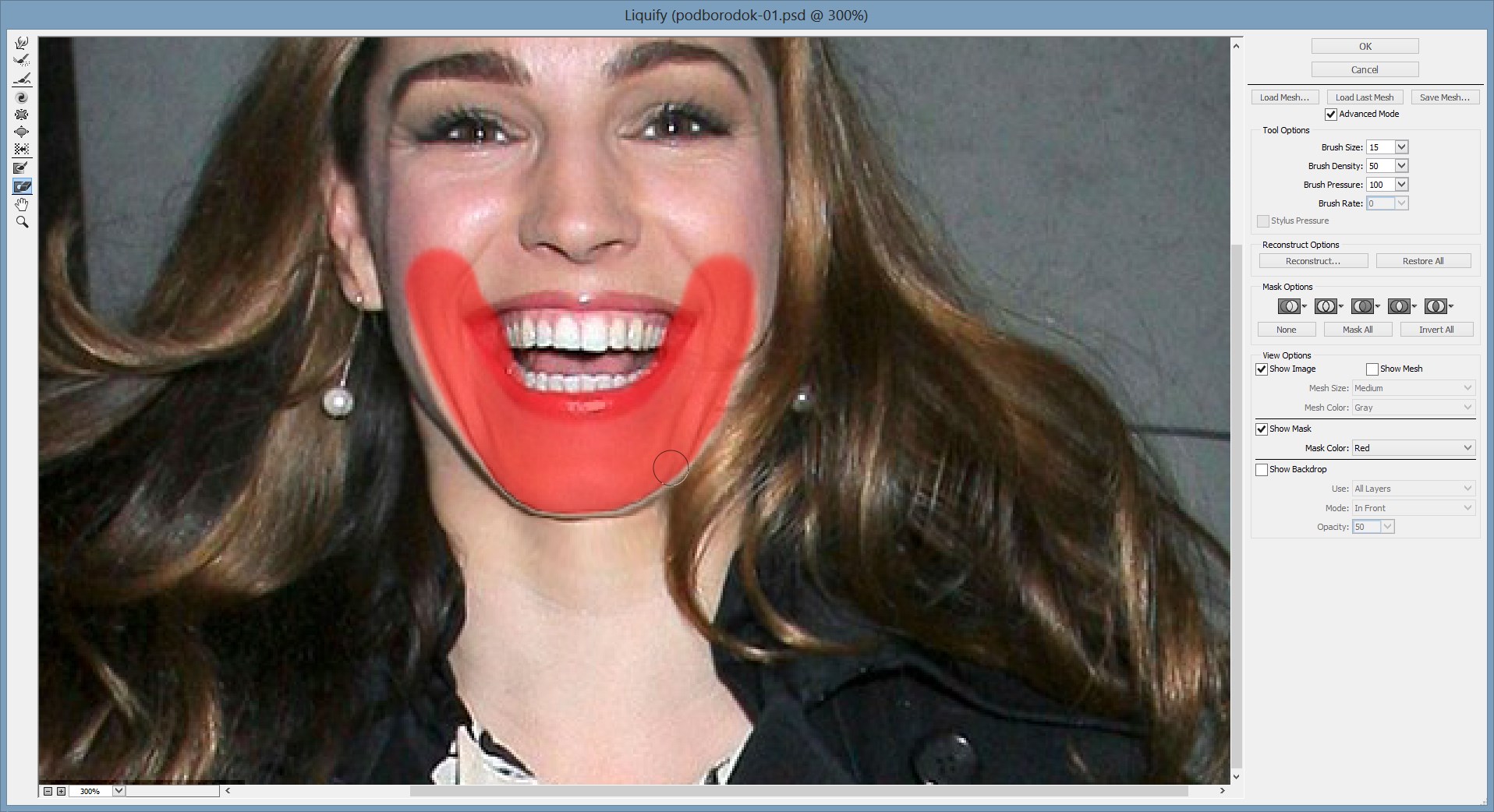
Using the <wild>Freeze Mask Tool</wild>Freeze Mask, select the area of the chin that we need to keep (i.e., NOT the double chin).
Then, using the <wild>Forward Warp Tool</wild>Forward Warp, move the double chin so that it shifts towards our first chin.
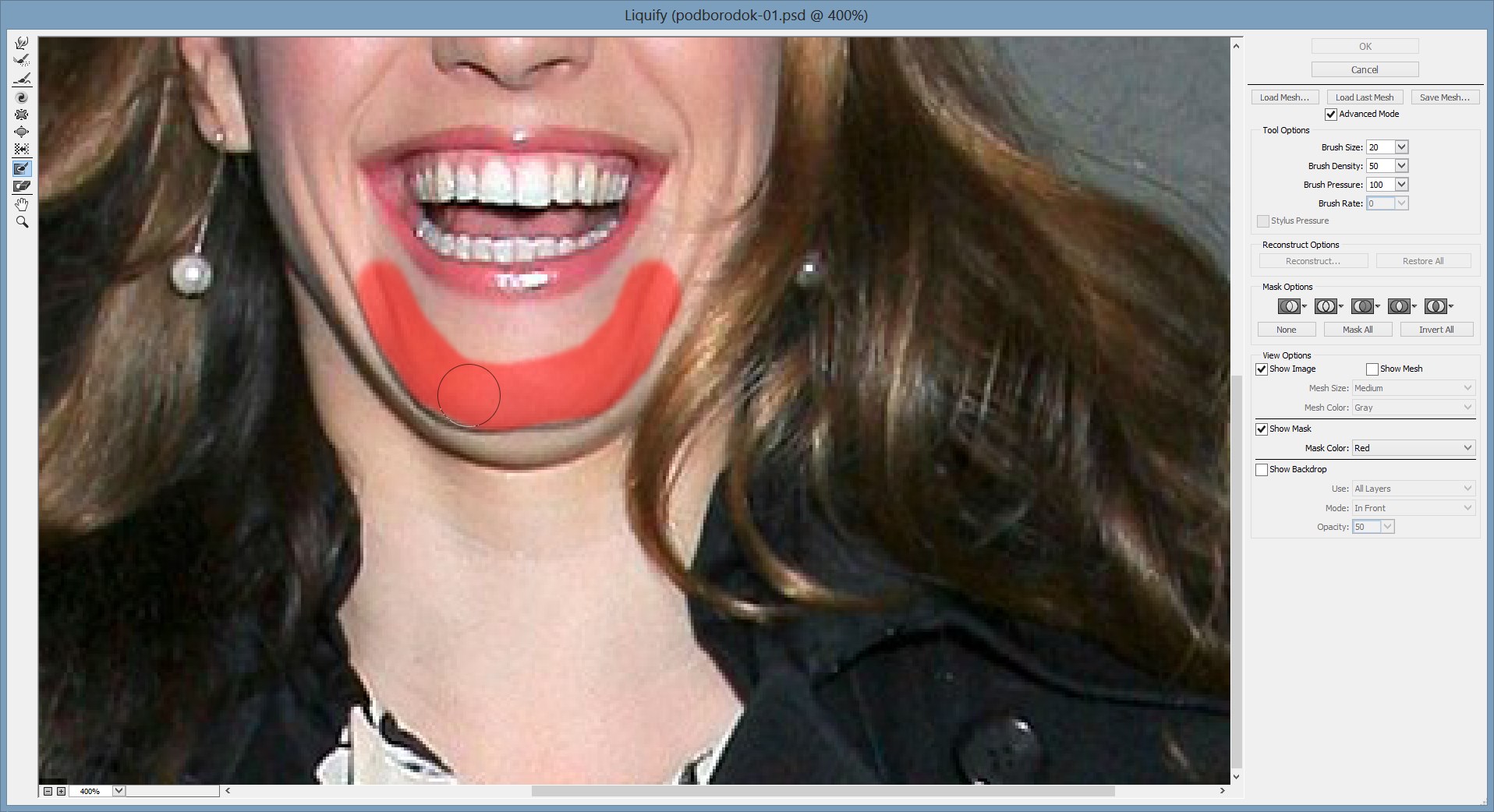

After you finish moving our double chin upwards, you will see that a pale artifacts still remain, since it is extremely problematic to work miracles with just one filter, and inconsistencies will be visible. To initiate this, we need to add some realism.
To do this, go back to our file (click the OK button in the <wild>Liquify</wild>Liquify filter) and select our chin again, but this time include a southern bit of the second one, so that the blending of the two chins looks more natural.
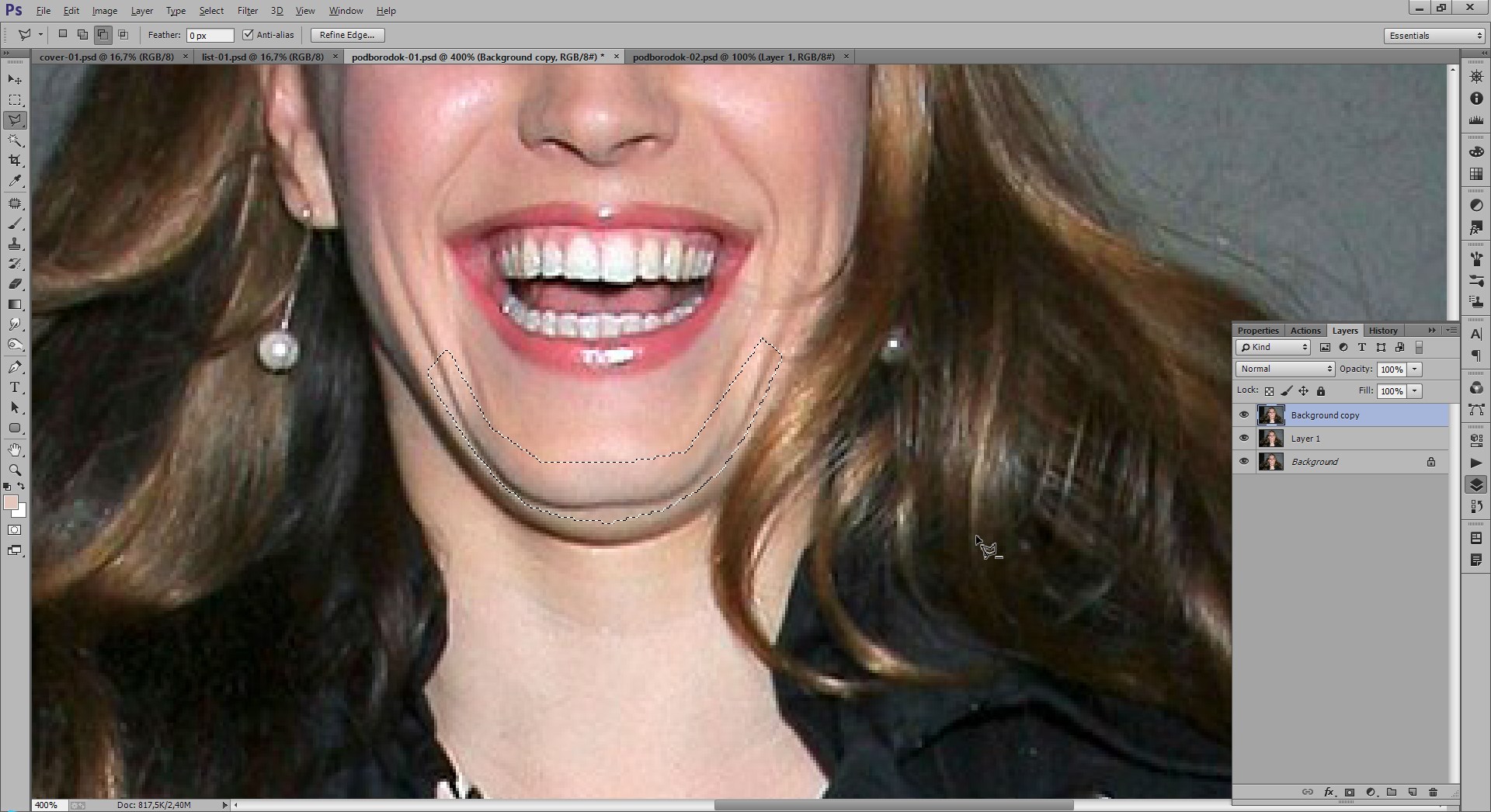
Create a duplicate of the selection by simply pressing the Ctrl + J keys.

Now, move our dear layer so that there is only one chin and it looks realistic.
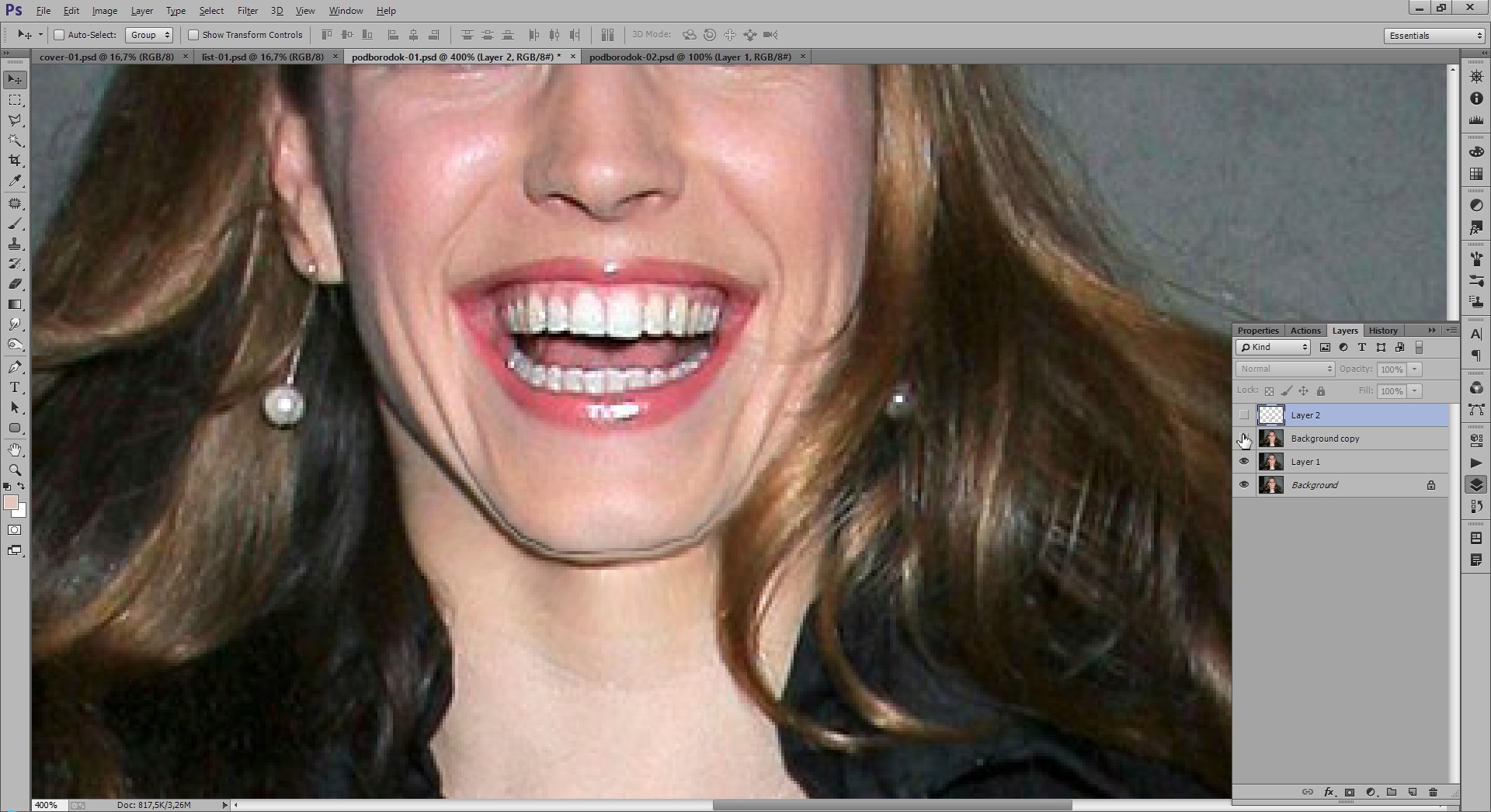
As you may notice, part of the second chin still remains because we selected it on purpose. Remove it using the eraser with broad edges, or by creating a mask (whichever you compare).


It should be noted that this is far from the most difficult case of removing a double chin, as there are much more complex cases, or rather, types of chins.


Rate this article


