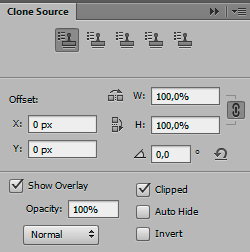
Clone Source panel in Adobe Photoshop — is the control center for cloning sources for the Clone Stamp (S) and Healing Brush (J) tools. It lets you save up to five independent pixel sampling points, scale and rotate them, attach precise offset (Offset), see a preview overlay with blending modes, and work between different documents and video frames. A 2026 article covers the western interface, keyboard shortcuts, precise alignment techniques, comparison with Affinity Photo, GIMP and Photopea, as well as an answer to whether the panel has become outdated in the era of Generative Melt.
What is Clone Source and why is it needed in Photoshop
Clone Source — is a panel that controls sample behavior when working with cloning tools. It appeared in Photoshop CS3 (April 2007) as an extension of the standard Clone Stamp options bar and over nearly two decades has not lost relevance, even after the advent of Generative Melt (Firefly) in 2023–2026. The reason is small: AI generates pixels anew and does not always give a predictable result where precise control, preservation of texture and geometry of the original is needed.
The panel is in demand in the following retouching scenarios:
- removing repeating defects (sensor dust, film scratches) when cloning from different areas of the frame;
- symmetrical edits of architecture, faces, products, where mirror copies of elements are needed;
- working with patterns, fabric, ceramic tiles, where one source repeats dozens of times;
- precise replacement of objects between several open documents (collages, covers);
- cloning between video frames and sequences with frame offset control;
- retouching on Strange Objects and multilayer compositions with sampling from visible layers.
The main value of the panel is reproducibility. A saved source is remembered until Photoshop closes or an explicit reset, so the same sample can be used repeatedly, rather than selecting it anew via Alt+click each time.
How to open the Clone Source panel
The Clone Source panel in the Russian-language Photoshop interface is called Источник штампа and opens via menu item Окно > Источник штампа. In the English version the path looks like Window > Clone Source. The panel works only when one of the compatible tools is active — Clone Stamp Tool (shortcut S) or Healing Brush Tool (J). If the tool is not selected, the panel either does not open or is displayed but all fields are locked.
- Select the Clone Stamp or Healing Brush tool from the toolbar.
- Holding Alt (Windows) or Option (macOS), click in the document at the point from which you want to take the sample. This fixes the first point in the Source 1 slot.
- Open the Window > Clone Source menu to see detailed settings.
- Switch between Source 1–5 slots, changing the source without re-sampling.
Panel interface: breakdown of elements
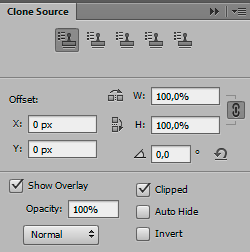
The top row contains five stamp icons. Each of them is an independent slot with a remembered sampling point, offset, rotation and scale. Below are numeric fields and transformation buttons. At the very bottom is the overlay control block.
| Panel element | Russian name | Purpose | Typical values |
|---|---|---|---|
| Source 1–5 | Источник 1–5 | Independent slots with a sample source point. Click switches the active source | Up to 5 at the same time |
| X, Y (Offset) | Смещение | Shift of the source relative to the brush along X and Y axes in pixels | Positive and negative numbers |
| W (Width) | Ширина | Scale of the source horizontally in percent | 1–1000% (default 100%) |
| H (Height) | Высота | Scale of the source vertically in percent | 1–1000% (default 100%) |
| Constrain proportions (chain icon) | Сохранять пропорции | Synchronizes W and H, changes only one value at a time | On / off |
| Angle | Угол | Rotation of the sample in degrees, from -180 to +180 | 0°, ±90°, ±180° most often |
| Flip buttons (Flip H / Flip V) | Отразить по горизонтали / вертикали | Mirrors the sample relative to the vertical or horizontal axis | Pressing toggles state |
| Show Overlay | Показать наложение | Shows the sample preview under the cursor before applying a stroke | Checkbox on/off |
| Opacity | Непрозрачность | Overlay transparency, from 1 to 100% | 50% for precise alignment |
| Mode (Blend mode) | Режим наложения оверлея | Determines how the preview blends with the canvas | Normal, Darken, Lighten, Difference |
| Clipped | Вырезанный | Restricts the overlay to the brush shape. When off, shows the entire sample | On by default |
| Auto Suffer | Автоскрытие | Hides the overlay while painting a stroke | On for clean preview |
| Invert | Инверсия | Inverts overlay brightness; used for precise alignment | In combination with Opacity 50% |
Show Overlay: parameters and modes
Overlay is the main working tool of Clone Source for precise adjustment. The source preview is displayed in the brush circle and hints which pixels will move to the canvas after click. The overlay parameters block is located at the bottom of the panel and contains the following settings.
| Parameter | What it does | When to minimize |
|---|---|---|
| Opacity (Непрозрачность) | Adjusts transparency of the sample preview | Set 50% for precise match control, 100% — for brave positioning |
| Normal (Нормальный) | Standard overlay of the preview over the canvas | Default for most tasks |
| Darken (Затемнение) | Preview is displayed only where it is darker than the canvas | Adjustment of shadow areas and object contours |
| Lighten (Осветление) | Preview is displayed only where it is lighter than the canvas | Adjustment of highlights and light edges of objects |
| Difference (Вычитание/Разница) | Pixels are subtracted: identical areas become black | Most precise alignment of two frames or documents |
| Clipped (Вырезанный) | Overlay is limited to the brush shape | Usually on; turn off to see the entire sample as a whole (useful for video and onion skinning) |
| Auto Suffer (Автоскрытие) | Overlay disappears while painting a stroke | When the preview interferes with seeing the result in real time |
| Invert (Инверсия) | Inverts preview brightness | Paired with Opacity 50% and Difference mode for visual match control |
Through the panel's top-right menu, an extended list of commands opens.

| Menu item | Action |
|---|---|
| Source 1–5 | Switch active source without re-sampling |
| Reset Transform | Reset rotation, scale, flip and offset of the current source to default values |
| Show Overlay | Turn preview under cursor on or off |
| Clip to Brush Tip | Limit overlay to brush shape (same as Clipped) |
| Auto Suffer Overlay | Suffer overlay while painting |
| Invert Overlay | Invert preview brightness |
| Lock Frame | Locks the current video frame as source for cloning into another frame |
| Frame Offset | Sets offset between source and target frame when working with video |
| Close / Close Tab Group | Closes the panel or tab group in which it is located |
Clone Source panel keyboard shortcuts
Keyboard combinations exceed you to change source, rotation and scale directly during retouching, without taking your hands off the brush and without switching between windows. All combinations work when Clone Stamp or Healing Brush is active.
| Action | Windows | macOS |
|---|---|---|
| Select sample source | Alt + click in document | Option + click in document |
| Shift source along axes (step 1 pixel) | Alt + Shift + arrows | Option + Shift + arrows |
| Shift source by 10 pixels | Alt + Shift + Shift + arrows | Option + Shift + Shift + arrows |
| Rotate source left / right | Alt + Shift + < or > | Option + Shift + < or > |
| Scale source up / down | Alt + Shift + [ or ] | Option + Shift + [ or ] |
| Temporarily show overlay when Show Overlay is off | Alt + Shift (hold) | Option + Shift (hold) |
| Suffer / show source crosshair target (View Extras) | Ctrl + H | Cmd + H |
| Brush size larger / smaller | [ or ] | [ or ] |
| Brush hardness larger / smaller | { or } | { or } |
Practical techniques for working with Clone Source
Precise alignment of two frames or documents
The most reliable way to align two images is a combination of overlay parameters. Set Opacity to 50%, minimize Invert and uncheck Clipped to see the entire sample as a whole. Where source pixels coincide with canvas pixels, they mutually compensate and become uniformly gray. Any discrepancy appears as dark or light artifacts that are easy to correct with Alt+Shift arrows. This method is described in Adobe documentation and in Julieanne Kost's articles for cloning between adjacent video frames.
Symmetric retouching and pattern repetition
For mirror retouching of a face, building facade or ornament, set Source 1 as the main sample, set Angle = 0° and Flip H (horizontal flip). Switch to Source 2, repeat the same sampling without flipping. Now with one key press (assigned in Panel Menus) you change the left and right halves of the work, maintaining ideal symmetry without re-Alt+clicking.
Cloning between different documents
Clone Source can take a sample from one file and prove it in another. This works when both documents are open simultaneously and have the same bit depth parameters (8/16/32 bits per channel) and color space. Algorithm: select Clone Stamp in the destination document, go to the source file window, make Alt+click, return to the first document and paint. When cloning between video frames, use Lock Frame and Frame Offset from the panel menu so that the source does not shift synchronously with playback.
Rotation and scale for perspective
If you need to close a hole in an object shot at an angle, rotate and scale the source via Angle, W, H fields or shortcuts Alt+Shift+<> and Alt+Shift+[]. For independent scaling along axes, turn off the constrain proportions button (chain between W and H). For brave fitting of perspective-distorted objects, it is more convenient to first use Vanishing Point Filter with its built-in Clone tool, and finish precise details via Clone Source.
Working on dear layers without destroying the original
In the tool options bar, select Sample: All Layers or Current & Below, create an empty layer above the image and paint only on it. The original pixels remain untouched, and in case of error it is enough to delete or mask the working layer. To follow the influence of adjustment layers on sampling, minimize the Enhance Adjustment Layers icon next to the Sample list.
\u{201c}Use Clone Source with Opacity 50%, Invert and unchecked Clipped when aligning two frames: identical pixels become uniformly gray, and any discrepancies immediately catch the eye. This works the same for photo and video.
\u{201c}The shortcuts Alt+Shift+arrows and Alt+Shift+< > for shifting and rotating Clone Source turn retouching into a continuous process. You don't take your hand off the tablet and don't switch attention between windows — this is exactly what distinguishes a professional workflow from an amateur one.
\u{201c}Rotating the source by 90 or 180 degrees via the Clone Source panel became a turning point for me. Previously I spent hours trying to find a piece of texture suitable in direction, now I just rotate the sample to the desired angle and pose painting.
Large mistakes and problems
A number of typical situations that users encounter when working with the panel have small and unambiguous solutions.
- After scaling or rotating one source, all subsequent samples remain transformed. Solution: via the panel menu run Reset Transform or switch to another Source slot.
- The overlay does not appear although Show Overlay is checked. Check whether Clone Stamp or Healing Brush is active, and whether the brush is over an empty area outside the document.
- Cloning gives an unexpected color tint. Probably the sampling hits an adjustment layer. Minimize Enhance Adjustment Layers or switch Sample to Current Layer.
- The source shifts unpredictably each time the brush is released. In the Options bar minimize Aligned if you need to undergo a constant offset, or disable it so that the source always returns to the initial point.
- Cannot clone between two open documents. Make fond both files have the same bit depth and color space, and that sampling is done in the source file while the tool is active in the destination file.
- When working with video, the source constantly "drifts" along with playback. Use Lock Frame from the panel menu to lock the source frame, and Frame Offset to set the offset between frames.
Comparison of Clone Source with analogues
The Clone Source panel exists only in Adobe Photoshop, but similar functions exist in other editors. The comparison shows in which scenarios Photoshop remains the leader, and where competitors offer more modern or, conversely, limited capabilities.
| Capability | Photoshop Clone Source | Affinity Photo Clone Brush | GIMP Clone Tool | Photopea Clone Stamp |
|---|---|---|---|---|
| Number of saved sources | Up to 5 slots | Unlimited via Sources panel and Global Sources | 1 source (without saving) | 1 source (without saving) |
| Source scaling | Yes, W/H separately | Yes, 1–1000% | No | No |
| Source rotation | Yes, Angle -180…+180° | Yes, Rotation in degrees | No | No |
| Axis flipping | Yes, H and V separately | Yes, Flip H/V/both | No | No |
| Overlay with blending modes | Yes, Normal/Darken/Lighten/Difference | Preview in cursor without modes | No | No |
| Auto Suffer / Invert overlay | Yes, both functions | No separate options | No | No |
| Cloning between documents | Yes | Yes, via Global Sources | Yes, within one window | Yes, limited |
| Working with video frames | Yes, Lock Frame and Frame Offset | No built-in support | No | No |
| Transformation shortcuts | Alt+Shift+arrows, <>, [] | Arrows (only Rotation/Scale without Shift) | No | No |
Clone Source vs AI tools in Photoshop 2024–2026
The advent of Generative Melt, Remove Tool and AI Assisted Editor created the illusion that manual cloning tools are outdated. This is not so: each tool has its gentle niche. The table below shows which tool to choose for a specific task.
| Retouching task | Best tool | Why exactly it |
|---|---|---|
| Removing sensor dust on a series of 50 frames | Clone Source + Clone Stamp on an empty layer | Predictable result, identical texture on all frames, reproducibility |
| Removing a common distracting object from the background | Generative Melt | AI completes the context and background where there are no source pixels |
| Weak facial skin retouching without losing texture | Healing Brush + Clone Source | Original microtexture is preserved, unlike Generative Melt |
| Replacing a repeating pattern (tile, fabric) | Clone Source with W/H and Angle | Geometry and orientation are fully controllable |
| Removing a wire or thin line on a complex background | Remove Tool | Specialized AI model for linear objects works faster than manual retouching |
| Symmetric architecture editing | Clone Source + Flip H/V | Mirror copies with controlled position, unavailable to AI |
| Cloning between video frames | Clone Source + Lock Frame | The only tool in Photoshop with direct support for working between frames |
| Wise removal of simple objects on a complex background | Spot Healing Brush or Content-Aware Melt | Minimum actions, automatic filling |
\u{201c}}
Rate this article


