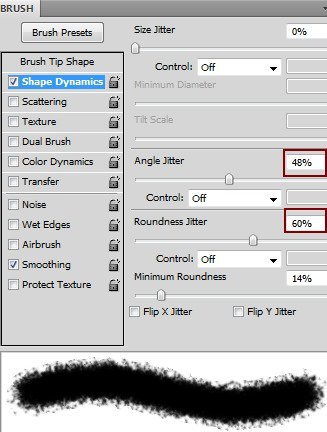
Press the F5 key to change the settings of this brush:
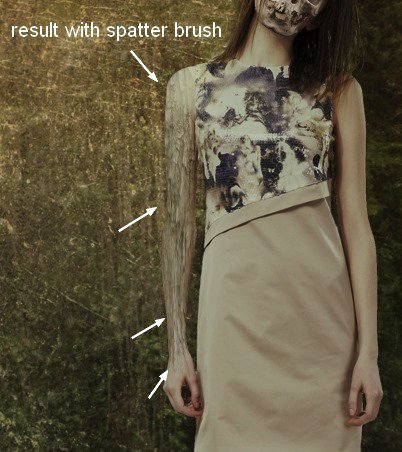
Add a layer mask to the tree layer. Use the specified brush scatter to remove unwanted parts of the tree and blend them with the model's arm. You can edit the brush size to sing a natural result:
Step 15
Now we add a wooden texture to the other arm in a similar way:

Step 16
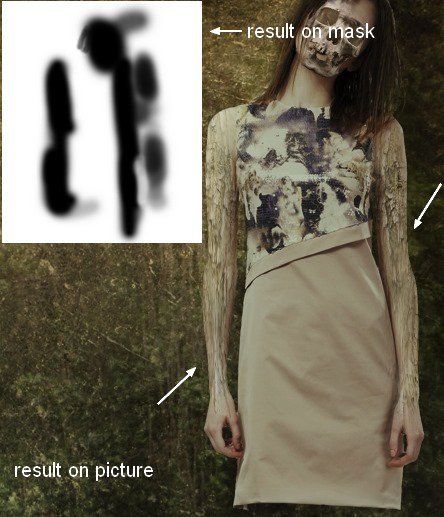
The arms look a southern empty after adding the texture. To fix this, group the layers with the wooden texture and change the blending mode to Normal 100%. Add a Curves layer to this group:
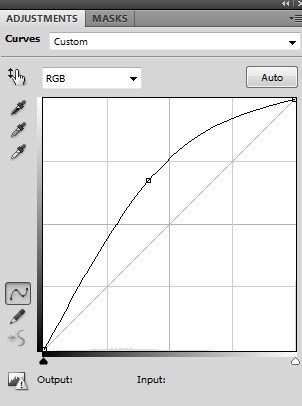
On the Curves layer, a brush is used on the mask to remove some parts of the photo and create contrast for the arms:
Step 17
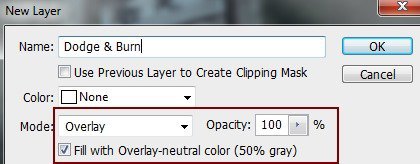
The arms need more contrast, so we create a dear layer above the group with the wooden layer, melt it with 50% gray and change the mode to Overlay:
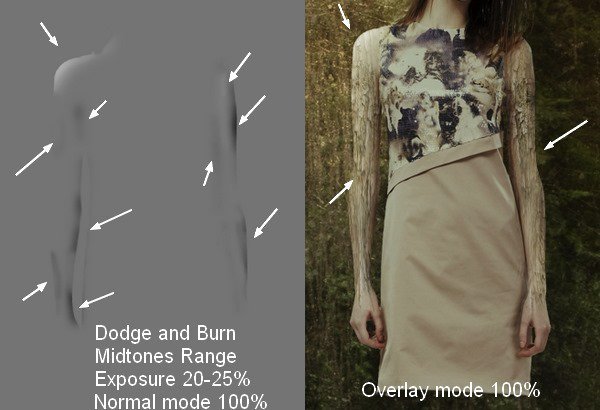
We use the Dodge and Burn tools, key (O), using midtones, exposure 20-25% to increase brightness at the top left and right of the shoulder and darken the edges. You can see how the tool is applied with Normal blending mode and the result in Overlay blending mode:
Step 18
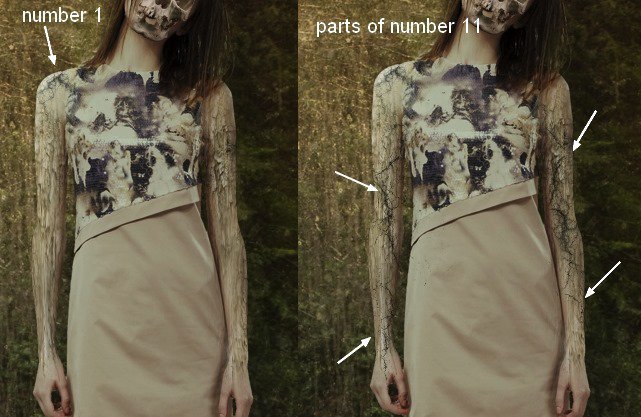
Open the photo with veins. We chose number 1 to place it on the upper left shoulder and several parts of number 11 to embed on both arms. We use a layer mask to remove parts outside these areas and "blur" the details for realism:
Step 19
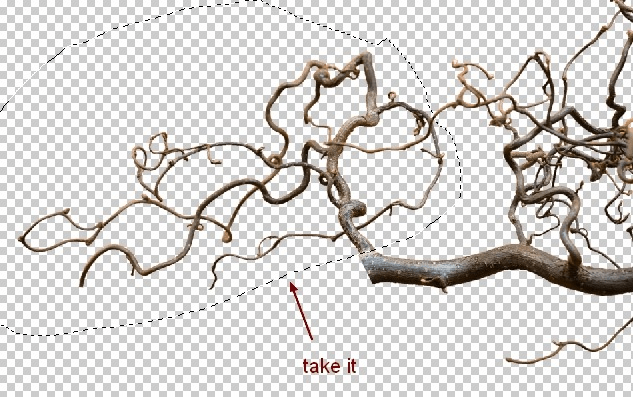
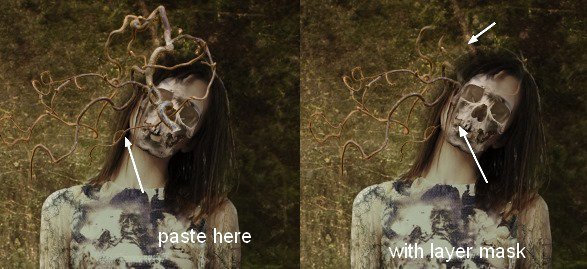
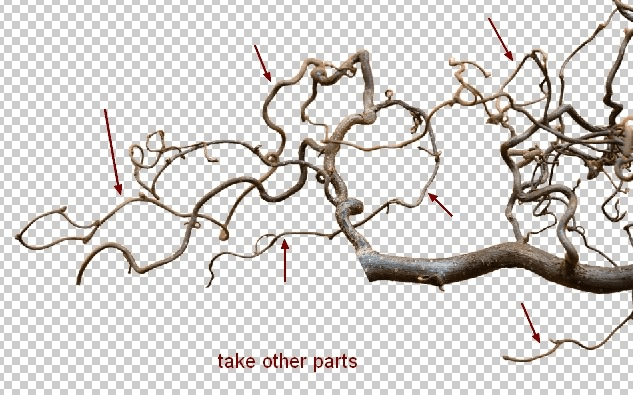
Select the branches (branches 1) from the background. We took different parts of them and placed them in a position next to the model's head, duplicated them, applied transformation, and used a layer mask to react the following result:
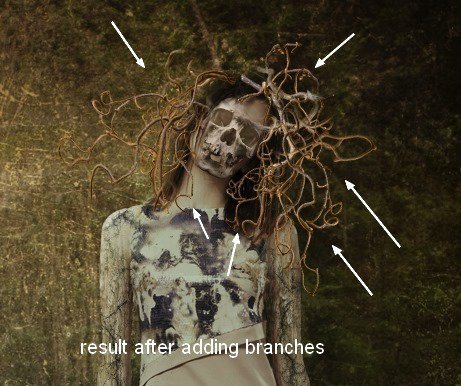
10 layers were used for this effect.
Step 20
Create a dear layer under the branches. Use a broad black brush with low opacity (about 20%) to paint the shadow of the branches on the model's body:

Step 21
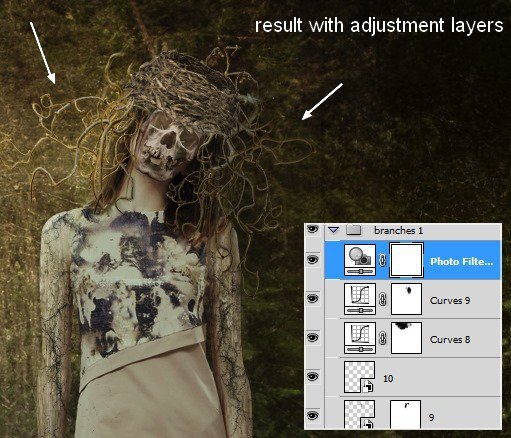
Make a group for these branch layers, set the blending mode to Normal 100% and name it "branches 1". Also rename them from 1 to 10. Create 2 layers with Curves and Photo Filter to change the contrast and color of these branches:
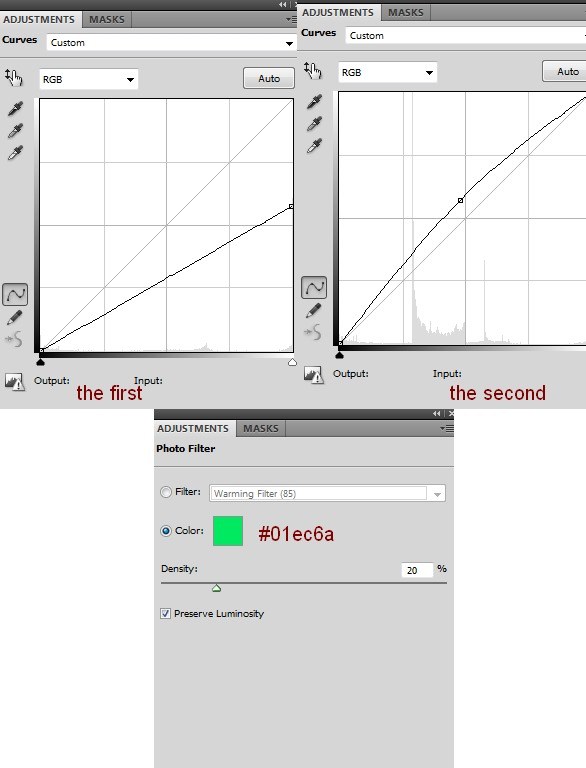
On the mask of the first Curves layer, erase the left side to make it brighter than the right. On the second Curves layer, erase the right part to make it darker:

Step 22
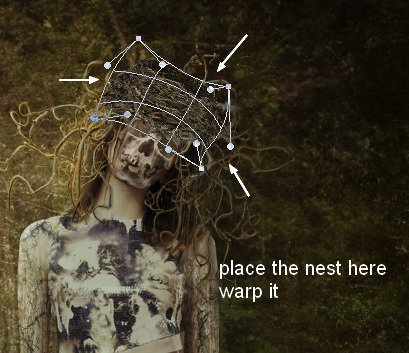
Drag the mesh onto the image, reduce and warp it so that it fits the model's head:
Step 23
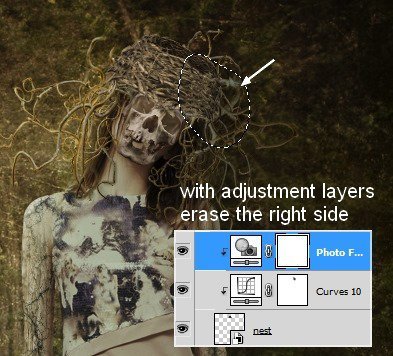
Use Curves and Photo Filter, a Clipping Mask, to create contrast and change the color of the mesh:
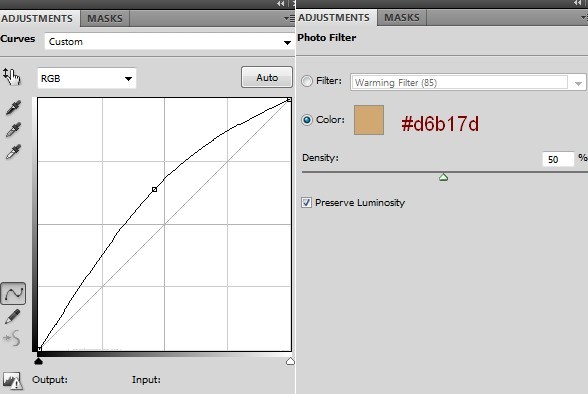
On the Curves layer mask, remove the right side to darken it:
Step 24
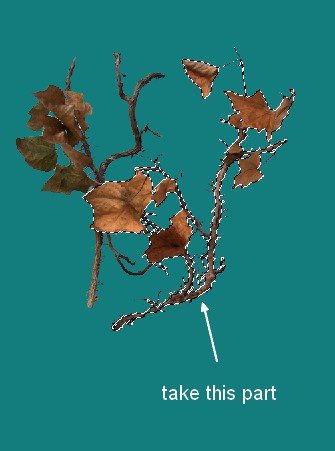
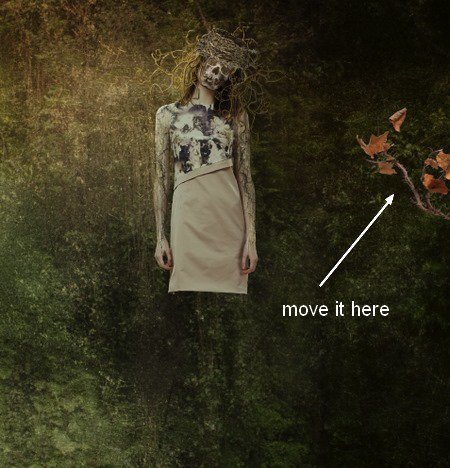
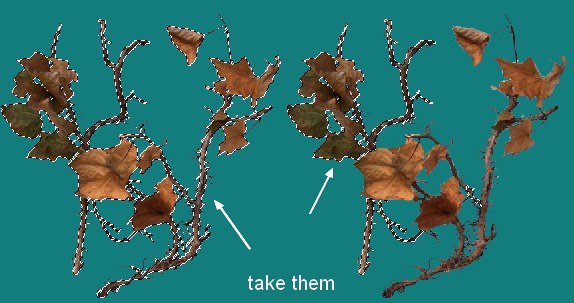
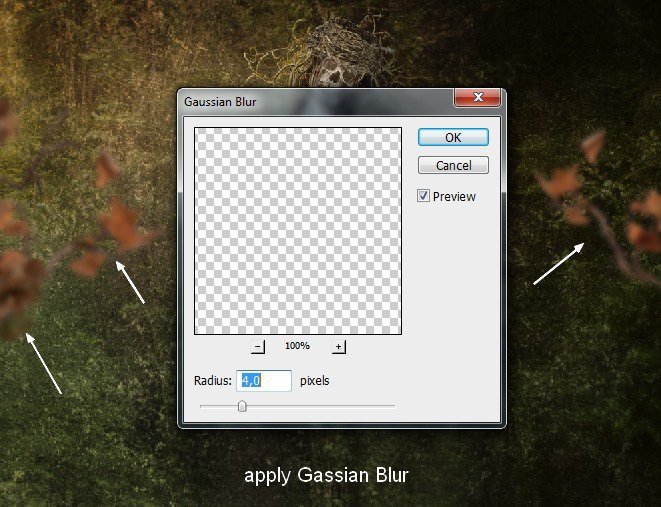
Open the photo "branches 2" and separate it from the background. We placed several parts on both sides of the picture:

Step 25
To add depth to our image, prove the <wild>Gaussian Blur</wild>Gaussian Blur filter with 4 px to the branches:
Step 26
Create a group for the branches (let's call it "branches 2"). Now add Curves and Hue/Saturation to the group:

Use a brush on the left side to make it brighter than the right:

Step 27
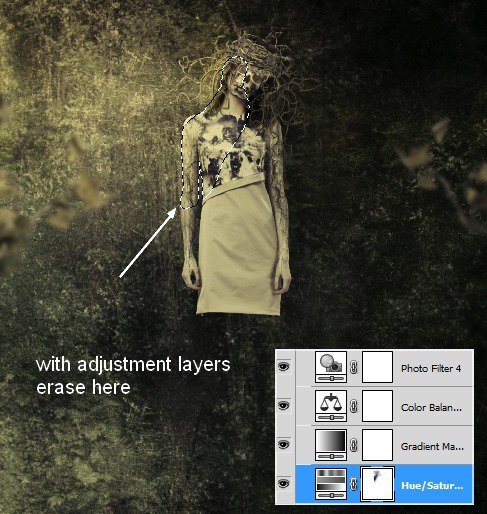
Create several adjustment layers on top to change the color of the overall image. For example, <wild>Hue/Saturation</wild>Hue/Saturation, <wild>Gradient Map</wild>Gradient Map, <wild>Color Balance</wild>Color Balance and <wild>Photo Filter</wild>Photo Filter:
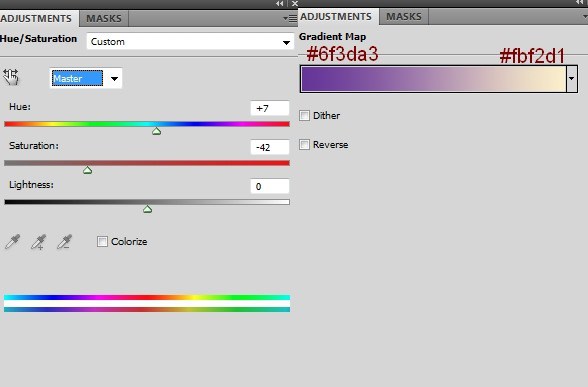
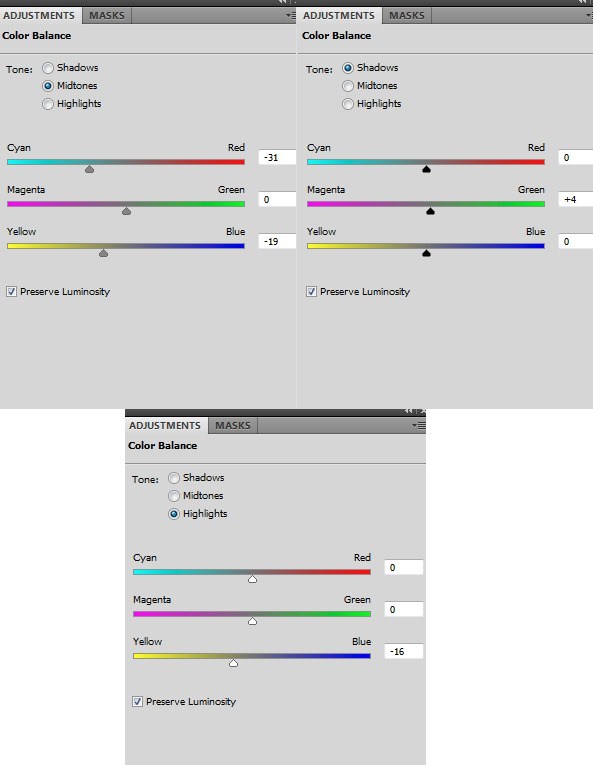
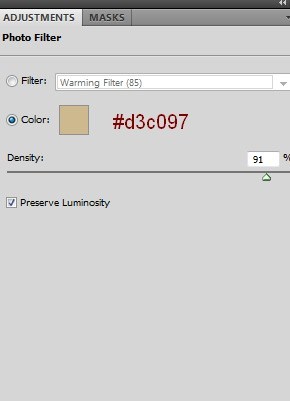
Change this Gradient Map's mode to Broad Light (Broad Light) 100%. On the <wild>Hue/Saturation</wild>Hue/Saturation layer mask, use a brush and remove the left part of the model to make it brighter than the rest:
Step 28
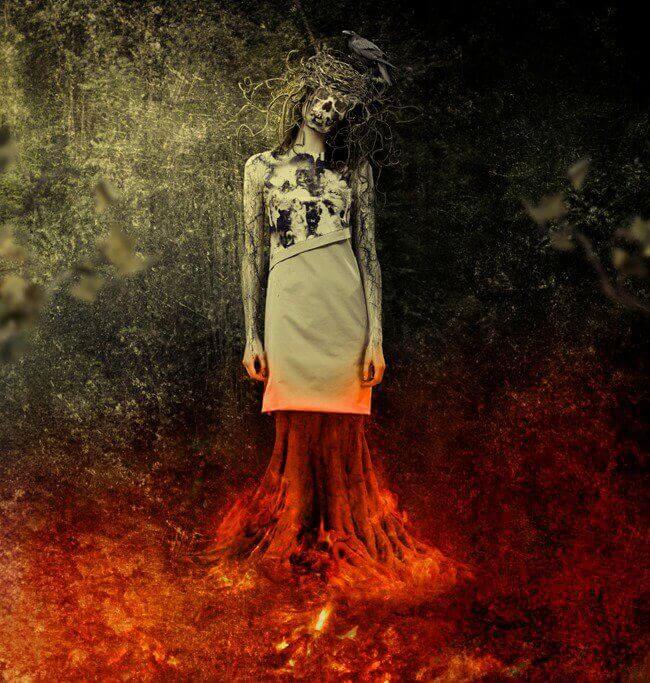
Open the tree photo. Copy part of the tree and place it on the image:


Use a layer mask to place the tree under the model's dress:

Step 29
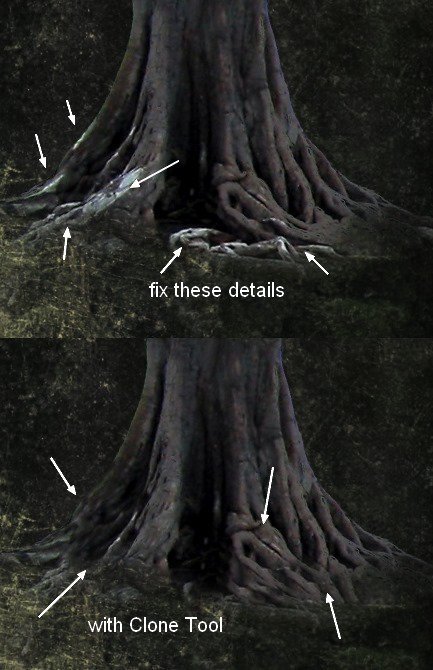
Create a dear layer with a clipping mask, take the Clone tool and fix the details of the tree:
Now let's change the color of the tree.
Rate this article