Next to the Layers panel there is another one - the <wild>Channels</wild>Channels panel. Its purpose is the graphical display of color information. Each channel is a separate component of the image.
\u{201c}So, what, actually, is the purpose of this panel?
First, color channels contain information separated by color. For example, in RGB mode the image is divided into 3 channels: red, green, blue, and for CMYK it is 4 channels: cyan, magenta, yellow, black. Thus, one can note the fact that Photoshop does not differ the color itself, but finds it by filtering, through overlaying channels on top of each other.
Second, there are also alpha channels. Like color channels, they support 256, 65536, 4,294,967,296 shades of gray. But unlike color channels, they do not contain information and describe opacity levels, masks.
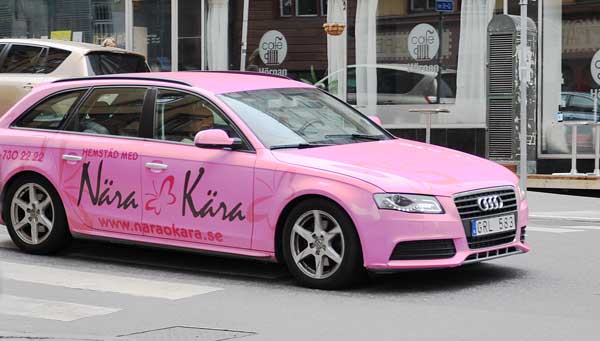
Let us accept in more detail the use of channels in Photoshop using the following example.
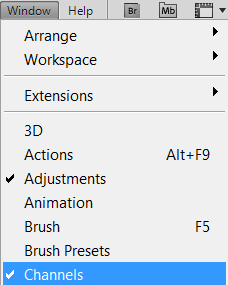
We go to the Channels panel - <wild>Window-Channels</wild>Window-Channels. We see a panel similar to <wild>Layers</wild>Layers, only channels act as layers depending on the selected display mode. We will use RGB mode.
For wise access use the menu: Window > Channels.
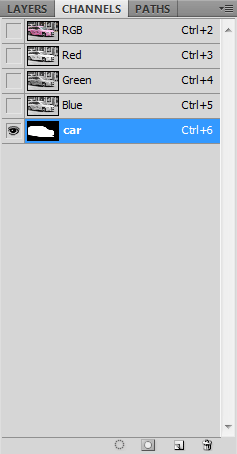
Here you can see 3 separate channels and 1 combined one:
RGB - combined channel consisting of:
Red - red, Green - green, Blue - blue color.
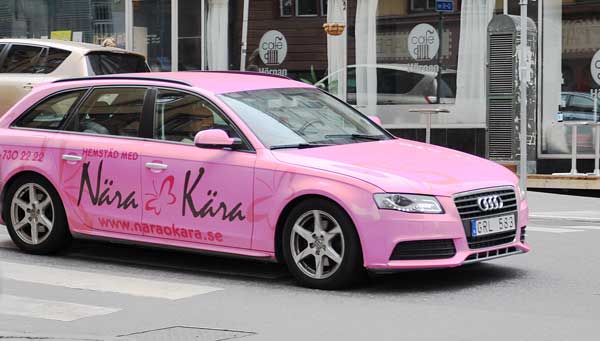
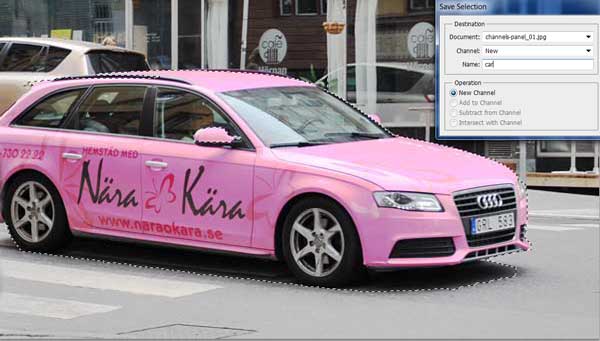
If we make a selection of the car and save it, then we will have a 4th channel: an alpha channel. As you already intend, this is a small selection.
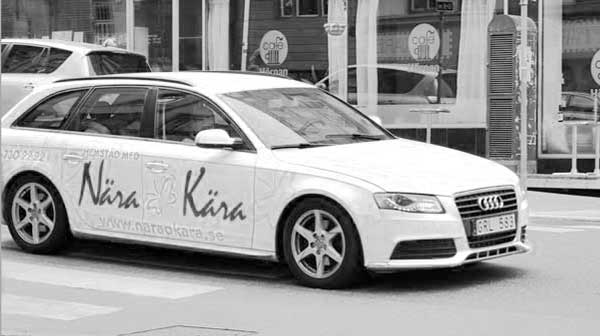
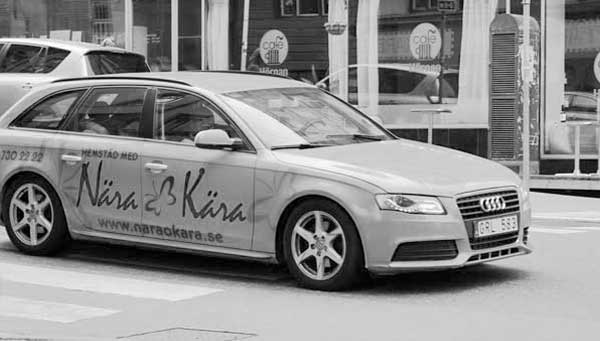
Now let us look at how the channels for individual colors look and find out how they can be used. So, the red, green, and blue channels in descending order are shown just below.
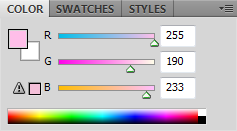
You can notice that white color in the channel corresponds to red when viewed in RGB mode. That is, if you use the <wild>Eyedropper Tool</wild>Eyedropper to take the color from the car's hood, then after going to the <wild>Window-Color</wild>Window-Color panel we will see that the red color has a value of 255.
Since ours is not red but pink, the values of green and blue in the <wild>Color</wild>Color panel will change.

It remains to accept the right menu of the <wild>Channels</wild>Channels panel point by point:
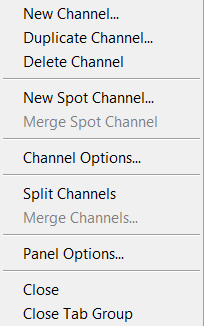
- <wild>Dear Channel</wild>Dear Channel
- <wild>Duplicate Channel</wild>Duplicate Channel
- <wild>Delete Channel</wild>Delete Channel
- <wild>Dear Spot Channel</wild>Dear Spot Channel
- <wild>Merge Spot Channel</wild>Merge Spot Channel
- <wild>Channel Options</wild>Channel Options
- <wild>Split Channels</wild>Split Channels
- <wild>Merge Channels</wild>Merge Channels
- <wild>Panel Options</wild>Panel Options
- <wild>Close</wild>Close
- <wild>Close Tab Group</wild>Close Tab Group
// Example pseudocode in Rust for processing channel pixels
fn process_channel_pixel(pixel_value: u8) -> u8 {
    // Saturation and processing of the pixel value
    pixel_value.saturating_add(10)
}
Rate this article