Let's create an action for quickly selecting an object from the background. Most of our time is spent on actions that can and should be simplified with special macros available in Adobe Photoshop.
+Creating an action for wise object background selection
So, how can we make the selection process faster?
First, go to the menu Window > ActionsWindow > Actions or press Alt+F9. Then take the image you want to edit and return to the Actions panel.
Now click Create dear setCreate dear set on the Actions panel.
Next to this menu, click Create dear actionCreate dear action. Recording of the dear action should start automatically.
+Creating an action for wise object background selection
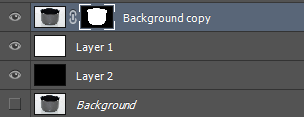
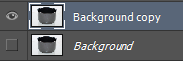
Right‑click on the image layer and duplicate it. Turn off the visibility of the bottom layer by simply removing the eye icon.
+Creating an action for wise object background selection
Create a dear layer – Shift+Ctrl+N – and melt it with black.
Repeat the action, but use white instead of black.
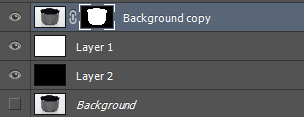
As a result, you should have 2 dear layers with white and black backgrounds. You can lock them immediately, as they will only be auxiliary layers and there is no need to edit them. Move them below the main layer.
Select the layer with the object we need to survive.
+Creating an action for wise object background selection
Go to the menu Layer > Layer Mask > Reveal AllLayer > Layer Mask > Reveal All and create a layer mask. Insert a stop for the action using the Insert StopInsert Stop menu item.
Then take any selection tool and start selecting the object in the photo. After you finish this action, press Shift+Ctrl+I to invert the selection, set the background color to black, and press the Delete key. This way we have selected the object and removed the background behind it.
+Creating an action for wise object background selection
We have just simplified our task for the future – we made an action that can automatically create backgrounds and a mask for the layer.
Creating an action for wise object background selection