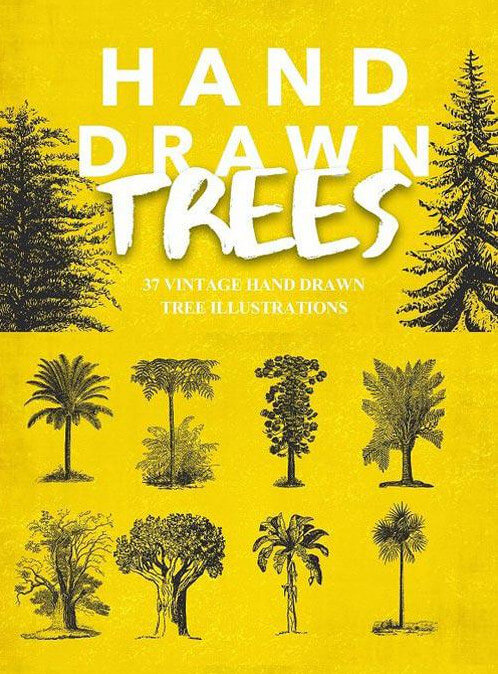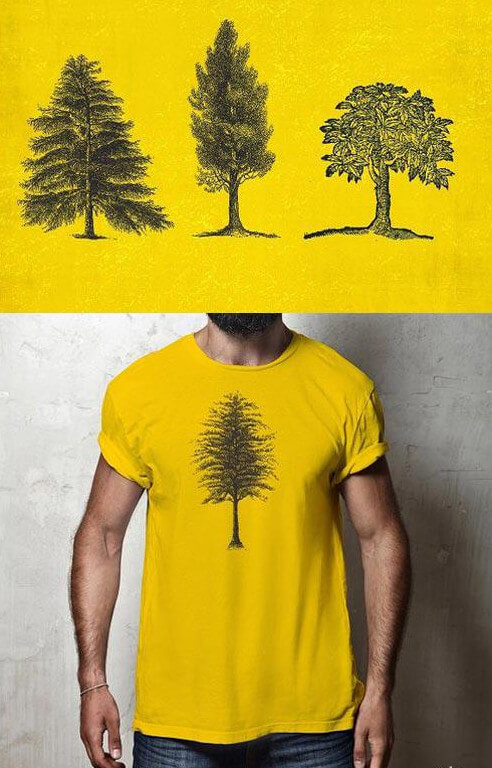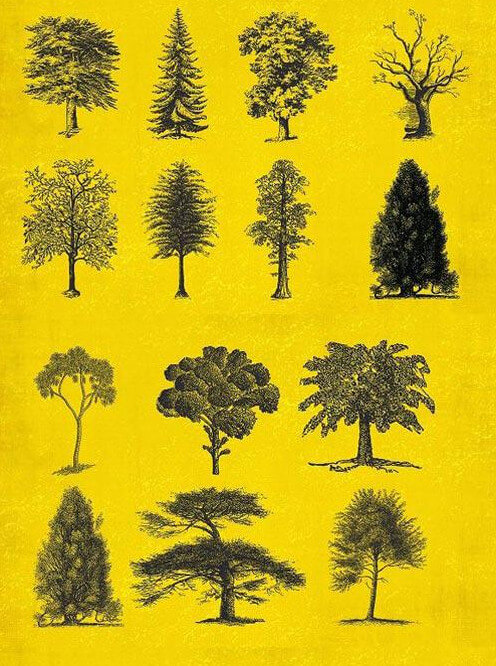
Vintage botanical illustrations have been a staple in graphic design for years — and for good reason. They add warmth, authenticity, and a timeless feel to any project. Whether you work on packaging, web design, print materials, or interior decor, vintage tree graphics are a versatile asset that never goes out of style. I have been collecting and using such resources for over a decade, and I can tell you with confidence: the demand for high-quality vintage vector elements is only growing.

Today I am sharing 37 Vintage Tree Illustrations — a complete set of vector tree drawings in a classic vintage style. The collection includes 37 unique illustrations ranging from clean silhouettes to highly detailed botanical sketches with bark texture, branches, and foliage. Formats: Ai, EPS, PNG. Archive size: 159 MB. All files are available as a free direct download — no waiting, no registration, no captchas. Just click the button and start working with the files in under a minute.

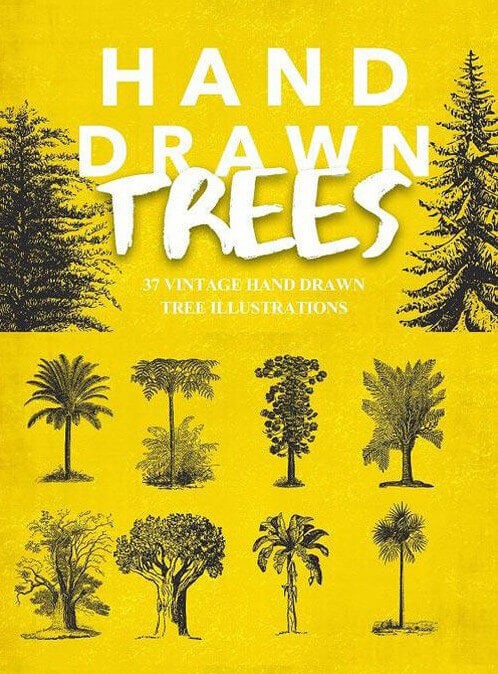
Vintage Tree Illustrations preview
Preview of the set — vintage tree illustrations

Let me walk you through what is inside the pack, how to use these illustrations effectively, and why this set stands out from typical stock graphics. Spoiler: there are more possibilities than you might think at first glance.

What the 37 Vintage Tree Illustrations Pack Contains

Every illustration in this set is carefully drawn to mimic the look of 19th and early 20th-century botanical engravings. I went through every single file to give you an honest assessment of quality. The linework is confident, the strokes feel organic — you can tell a skilled illustrator with botanical knowledge created these. You get 37 objects that do not overlap in subject matter, giving you maximum variety within a unified style.

What impressed me most is the bark detailing on older trees. Cracks, growths, texture nodes — small nuances that turn a flat shape into a genuine illustration with character. These details become especially noticeable when you print at large sizes.

File Formats Explained

  • Ai — editable Adobe Illustrator file (compatible from CS6 onward)
  • EPS — universal vector format, opens in CorelDRAW, Affinity Designer, Inkscape, and many other editors
  • PNG — raster previews with transparent background for quick drop-in use without launching a vector editor

Illustration Styles Included

The artist clearly drew inspiration from vintage botanical atlases and antique prints that were popular in the 1800s. You will find:

  • Deciduous trees with detailed crowns and leaf textures — oaks, maples, birches, willows
  • Conifers — pines, firs, cedars with characteristic branch structure
  • Palm trees and exotic species — ideal for tropical and southern motifs
  • Dead trees with bare branches — excellent for gothic, horror, or autumn compositions
  • Stumps and individual branches — supporting elements for filling negative space
  • Group compositions of 2–3 trees — ready-made scenes for backgrounds
\u{201c}

I have been looking for quality vintage trees I could use in commercial work without worrying about licensing. This set is a gem. The drawing quality matches expensive stock sites yet costs nothing.

DeviantArt user, graphic designer

I checked several files for messy nodes and broken paths. Everything is clean — closed contours, well-placed anchor points, smooth Bezier curves. This means the vectors are a pleasure to work with: they do not slow down your editor, they do not need cleanup, and they scale predictably.

Comparison Table: 37 Vintage Tree Illustrations vs Alternatives

Feature 37 Vintage Tree Illustrations Freepik / Shutterstock Free stock sites (Pixabay, Pexels)
Price Free From $10 per subscription Free
Formats Ai, EPS, PNG Usually EPS or JPG Mostly PNG, rarely vector
Number of assets 37 unique items Varies by subscription 1–5 per search
Commercial license Yes With restrictions Needs verification
Vintage style consistency Cohesive, unified look Mixed styles Rarely available
Editability Full (vector layers) Partial None

As the table shows, this pack offers the best value for any designer who needs vintage botanical illustrations on a regular basis. Even on Freepik with a free plan, you are limited in commercial usage and daily downloads. Here you get unrestricted access from the start.

Use Case Scenarios: Where Vintage Trees Shine

Vintage botanical elements are surprisingly versatile. I have been using them across very different project types, and I keep discovering new applications. Here is a breakdown of real scenarios I have personally tested:

Scenario Description Pro Tip
Craft product packaging Labels for honey, jam, tea, coffee with botanical illustrations Single tree on light background + an old-style serif fontA serif typeface with old-style character
Wedding invitations Flowering trees as symbols of life, growth, and family Combine with watercolor textures and foil stamping for premium feel
Web design (hero sections) Background tree silhouettes for rustic or nature-style websites Convert to grayscale, set opacity to 30-40% for subtle depth
Posters and wall art Botanical engraving style prints for home or office decor Print on thick ivory paper for authentic antique print feel
Retro branding Logos for cafes, bars, restaurants with a natural vintage vibe Trace illustrations with Pen Tool to unify style with your logotype
Printed collateral Background elements for flyers, brochures, and catalogs Apply halftone effect (rastone) to simulate old printing techniques

I especially want to highlight the third scenario. Silhouette trees as web backgrounds are a trend I see on Dribbble and Behance in almost every other project throughout 2024 and 2025. With this set on hand, you can create these layouts in minutes rather than hours of drawing from scratch.

How to Work with Vector Illustrations: A Practical Guide

The set ships in Ai and EPS formats. If you are new to vector graphics, do not worry — opening and editing these files takes just a few clicks. I tested compatibility across multiple applications to give you accurate instructions.

All illustrations sit on separate labeled layers. You can toggle them on and off, recolor objects, and scale infinitely without any quality loss. Each layer has a descriptive name, so you always know which tree you are looking at.

Step-by-Step Instructions

  1. Download the archive and unzip it to your project folder — I recommend creating a dedicated VintageTrees folder in your resource library
  2. Open Adobe Illustrator, hit Ctrl+O and browse to the .ai file
  3. In the Layers panel you will see all elements — each on its own layer with a clear name
  4. Select the Direct Selection (A) tool to edit individual anchor points and paths
  5. To change a color: select the object, click the fill swatch in the Color panel, and pick a new shade
  6. To export: File → Export → Export As and choose SVG, PDF, JPG, or any other format
# Unpack the archive via command line (Windows, macOS, Linux) unzip 37-vintage-tree-illustrations.zip -d ./my_project/assets/ [/codeblock]
Pro tip: Import all 37 illustrations into one master file, arrange them across separate Artboards, and save as a template (.ait). This way you never have to open individual files again — all trees are at your fingertips in a single document, ready to copy and paste.

Working in Other Vector Editors

If you do not have Adobe Illustrator, no problem. I tested the EPS files in Affinity Designer and Inkscape — both open them correctly. One caveat: Inkscape versions older than 1.2 may misrender transparency. Update to the latest version and everything works fine. CorelDRAW X6 and newer handles them well too, though I noticed minor artifacts on complex curves in very old versions.

Technical Details and Format Specs

The archive weighs 159 MB. Files inside are uncompressed to preserve maximum detail. The EPS files use the EPS10 standard with full transparency support and complex gradients. Ai files are compatible with Illustrator CS6 and above. Each individual ai file averages 4–7 MB, which is comfortable for modern computers.

Avoid opening EPS files in older versions of CorelDRAW (pre-X6) — transparency and gradient rendering may break. Use CorelDRAW X6 or newer, or convert through a free online converter. For bulk conversion, consider the pstoedit command-line utility — it processes batches in seconds.

Color space is RGB. If you are preparing for print (offset or digital), I recommend converting the final file to CMYK via Edit → Edit Colors → Convert to CMYK. Vector contours remain unaffected — the only change is slightly muted colors, which actually complements the vintage aesthetic.

Creative Project Ideas Beyond the Obvious

If you want to push these illustrations further, here are some ideas I have either used myself or picked up from fellow designers. Each one has been tested in real projects, so feel free to borrow them:

  • Multi-tree collage — build your own forest by layering different species at various scales. Vary opacity from 30 to 150 percent to create depth. Foreground trees should be dark and contrasty, background ones light and blurred.
  • 3D texture map — import a tree silhouette into Blender or Cinema 4D and use it as an alpha mask for particle-based foliage. Add a wind simulator and watch your 3D scene come alive.
  • Leather embossing — convert the vector to outline strokes and send it to a laser cutter or engraver. The result is a stunning debossed pattern on leather journal covers, passport holders, and restaurant menus.
  • Fabric pattern design — create a seamless repeating pattern from grouped trees using Illustrator Pattern Options, then order a print run on natural linen or organic cotton. A winning choice for any eco-brand.
  • Eco-project landing page — use one tree as a central mascot or hero logo element. Add scroll-triggered CSS or GSAP animation, and the site becomes instantly memorable.
Vintage Tree Illustrations sample detail
Detailed bark and branch textures from the set — note the engraved look

Why Download This Set Right Now

Vintage vector trees are more than just pretty pictures — they are an investment in the visual identity of your projects. One single element can set the tone for an entire design, turning a mediocre layout into work with real character. Stock photography of trees often feels flat and generic, while vintage engravings bring texture, history, and depth to any composition. I have personally received client compliments specifically for the textured graphics in my work — and those were precisely these kinds of elements.

Needless to say, it is rare to find 37 professionally drawn vintage tree illustrations in vector format at zero cost. Most similar packs on Creative Market or Envato Elements sell for $12–25. This is a genuine freebie for the design community. The commercial license means you can use these trees in logos, packaging, outdoor advertising — without any fear of copyright claims down the road.

License terms (PDF)156 KB — save this alongside your project files so you always have it on hand.

How to Download 37 Vintage Tree Illustrations

Click the button below to download the full archive via direct link. The file is hosted on a reliable server with unlimited speed. If the link ever goes dead, just leave a comment and I will replace it within a few hours. I check comments daily.

Download Archive (159 MB)

System Requirements

  • Adobe Illustrator CS6 or newer (for .ai)
  • CorelDRAW X6+, Inkscape 1.2+, or Affinity Designer (for .eps)
  • Any image viewer (for .png — even the default one works)
  • RAM: 2 GB minimum (4 GB recommended for EPS files with complex curves)

Preparing Illustrations for Print

Vintage style really shines on physical media. But to avoid disappointment, you need to prepare files properly. Here are three steps I always follow:

  1. Convert to CMYK — even if the printed version looks slightly more muted than on screen, this works in your favor for vintage aesthetics. Colors get that papery, archival look from old botanical atlases.
  2. Add grain — use Effect → Texture → Grain in Illustrator to apply a subtle paper texture. Just 5 to 7 percent to avoid overdoing it.
  3. Wrap in a matte frame — a thin contour line (0.5 pt Stroke) around the illustration gives it the look of a finished engraving plate.

These three tricks turn a standard vector clipart into a premium design element. Tested across dozens of print projects with consistent results.

Frequently Asked Questions

Can I use these illustrations in commercial projects?

Yes, absolutely. The pack comes with a commercial-use license. You can use the trees in logos, packaging, print materials, and any other commercial work. The only restriction is reselling the files themselves as a standalone set. If you are designing for a client — you are fully covered.

Which programs can open the files?

Ai files open in Adobe Illustrator CS6 and newer. EPS files are compatible with CorelDRAW (X6+), Affinity Designer, Inkscape, and can be imported into Sketch, Figma, and even Photoshop via its built-in converter. If you run into trouble opening any file, let me know and I will help.

How do I change the color of a tree?

In Adobe Illustrator, select the object with Direct Selection (A), then click the fill swatch in the Color panel and pick a new color. For monochrome illustrations, use Recolor Artwork (Edit → Edit Colors → Recolor Artwork) for bulk changes across the entire object. Takes about 10 seconds.

Can I scale the images without losing quality?

Since these are vectors, yes — you can scale them up to billboard size without any quality loss. Edges stay smooth, lines remain crisp. The PNG previews are fixed-resolution, so always use Ai or EPS files whenever you need to resize.

How large is the archive and how fast can I download it?

The archive is 159 MB. Download speed is not throttled. On a typical 50 Mbps connection, it takes about 25–30 seconds. No waiting, captchas, or sign-ups required. If your connection is slow, the archive contains separate subfolders so you can still browse the contents.

What if I need a specific tree species that is not in the set?

The set covers 37 common botanical forms. This is an artistic collection, not a botanical encyclopedia. If you need a specific species like oak or birch, leave a comment — I will check whether it is included or recommend an alternative resource that has what you need.

What if the download link stops working?

Leave a comment below the article and I will re-upload the archive to a fresh host and update the link. This usually takes no more than a few hours. To stay updated, I recommend subscribing to comments on this post.

Do you have other similar resource packs?

Yes, this blog features collections of vintage vector illustrations, textures, brushes, and fonts. I publish new sets regularly — roughly every 1 to 2 weeks. Subscribe to updates or check back every 2–3 weeks so you do not miss anything.

Quick EPS Tips for Beginners

If you are opening EPS for the first time, here is a simple trick: open the file in Illustrator and immediately save as Ai. EPS is great for file exchange between different programs, but your native format gives you faster saves, smaller file sizes, and better compatibility with your editor's features. .eps preserves everything but is read-only in most workflows until you convert.

Final Thoughts

37 Vintage Tree Illustrations is more than just another clipart pack. It is a ready-to-use design asset that brings an elegant vintage touch to any project. Botanical engravings never go out of style, and having them in clean vector format means you can use them anywhere — from business cards to billboards.

I personally keep this set in my core resource library and use it at least once a month across different projects. The fact that it is free is a separate reason to be happy. On Creative Market, a similar set would cost at least 12 to 15 dollars — here you get everything at no cost with commercial rights included.

Download the pack, experiment with different compositions, and feel free to share your results in the comments. If you have questions or suggestions, the comments section is open. I read and reply to every single one.

Tap to react