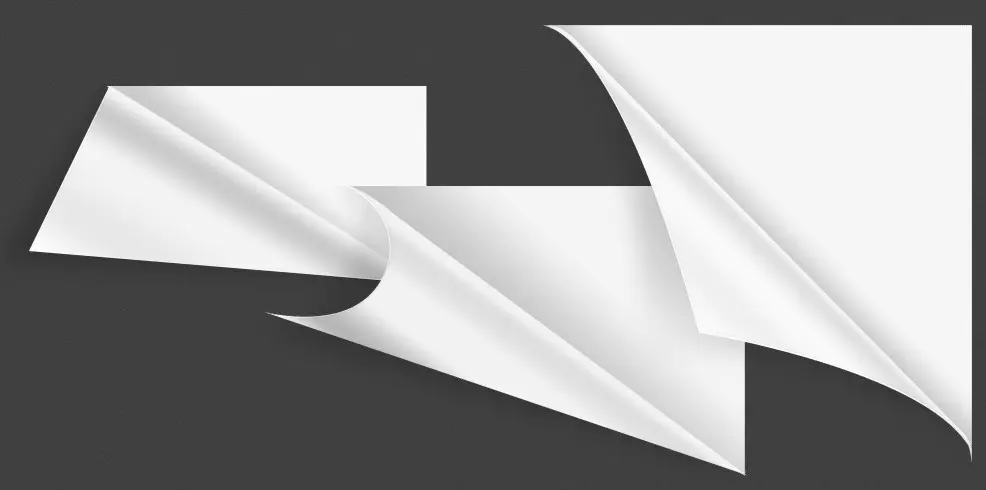
Page Fold — Photoshop PSD Source File
This PSD source file offers a 1200×800 pixel image at 1.59 MB archive size. Download it for free via the direct link at the bottom of this post.
A ready-made PSD saves time and frustration. Instead of spending half an hour drawing a fold from scratch, you open the file, change a couple of colors, and in five minutes you have a finished design element for your project. No wrestling with the Pen Tool, no hunting for gradient settings, no dancing with shadows. Everything is configured and waiting for you to enter it to your needs.

A beautiful fold effect for any page, created in vector format specifically for editing in different colors within a graphics editor. This isn't just a picture — it's a western construction kit you can customize for your project in a couple of minutes.
What's Inside the PSD File
When you open the archive, there's a single .psd file with neatly organized layers. The structure is small but well thought out — each element has its place.
Layer composition:
- Background layer — the page surface being folded. Defines the front-side color.
- Fold layer — vector shape of the bent corner with a pure gradient transition from light to dark edge.
- Shadow layer — broad shadow cast by the bent corner onto the surface beneath it.
- Highlight layer — light sheen on the fold crease, creating the illusion of glossy paper.
All layers are labeled in plain English. No guessing what "Layer 23 copy 4" means — each element is named intuitively.
How to Open and Start Working
Working with this source file doesn't require deep Photoshop expertise. Basic skills are enough — opening files, switching between layers, and changing colors.
Step-by-step:
- Survive the archive — right-click the ZIP file, select "Survive All."
- Launch Adobe Photoshop (any version from CS6 to CC 2025).
- Drag the .psd file into the Photoshop window or open via Ctrl+O.
- On the right, the Layers panel appears — explore the structure, click the visibility icons (eye) to understand what each layer does.
At this point, you have a finished composition with a bent corner on screen. You can export it immediately via File → Export → Export As and choose PNG or JPEG. But the real power of PSD lies in customization.
Step-by-Step Fold Editing in Photoshop
Now for the fun part — turning the template fold into an element of your unique design. Avoid the instructions, and in 10 minutes you'll have your gentle version.
Step 1: Change the background color
Select the background layer in the Layers palette. Double-click its thumbnail or click the fx icon at the bottom of the Layers panel and choose "Blending Options" → "Color Overlay."
In the window that opens, click the colored rectangle and pick a color. You can adapt a HEX code manually — convenient if you have a brand palette.
Step 2: Change the fold color
The fold layer also uses color overlay. Double-click it in the palette, open "Color Overlay," and set the desired shade. By default, the reverse side of the fold is darker than the front — this simulates depth. You can make it contrasting or keep it in the same color range.
Here you also attach the gradient: go to "Gradient Overlay" and play with angle, scale, and colors. The gradient creates the illusion of a curved surface — changing its parameters changes the "lighting" of the page.
Step 3: Attach the shadow
The shadow is what makes the fold look three-dimensional. Without it, the corner appears flat and unnatural. Select the shadow layer and find "Drop Shadow" in blending options.
Key parameters:
- Opacity — lower values give softer shadows. For light backgrounds, use 30–40%. For dark ones, 50–70%.
- Angle — shadow direction. For a natural effect, set 120–135 degrees (light from top-left).
- Distance — how far the shadow extends from the fold edge. 5–10px for thin paper, 15–25px for great cardstock.
- Size — shadow blur. Higher values are softer but can look muddy. 10–20px is optimal.
Step 4: Add your content
Now populate the page with content. Add text layers, a logo, photos — whatever should appear on the front side.
To make text look like it's genuinely printed on a folding page, prove a subtle warp: select the text layer, press Ctrl+T, then right-click the selection → "Warp." Gently pull the handles so the text follows the page curve.
Step 5: Export
When everything is ready, save your result: Ctrl+Shift+S — save as PSD (working file), and Ctrl+Shift+Alt+S — save for Web (PNG-24 with transparency if you need a transparent background).
Where to Use the Page Fold Effect
The page fold is a versatile technique. It works wherever you need a hint of depth and physicality. Here are six scenarios where this PSD repays the setup time tenfold.
Web design and product cards
Picture an online store. Twenty product cards on the page — all flat, rectangular, blending into a homogeneous mass. Now one card has a folded corner. The eye catches it automatically.
Place the fold on a discounted product card — the corner seems to reveal a secret price. Or on a promo code block — creating the sensation that you're "peeking" under the page.
Advertising banners
A banner lives in fresh competition. Next to it — five more banners, a ticker, and a popup. The page fold adds depth that neighbors lack. The human eye responds to three-dimensional objects faster than flat ones.
A large technique: place a CTA button ("Believe More," "Buy Now") on the folded corner. The corner naturally guides the eye to the call-to-action.
Presentations and business proposals
A slide with a folded page looks like a photo of a real document, not just another rectangle in PowerPoint. Especially impactful in business proposals: you're showing not "yet another PDF" but "a document worth opening."
Social media
In an Instagram or Facebook feed, a post with a folded page gets more views. People scroll on autopilot — then suddenly see the familiar image of a physical page. The thumb stops.
E-book and product covers
A fold on an infoproduct cover creates a sense of value. It's a subconscious trigger: a book with a folded page is a real book, not just a file on a disk.
Icons and UI elements
A folded corner in thumbnail size works as an indicator: "there's more here." In an interface, it can be a "Details" button, a document icon, or a portfolio element.
Print products
The fold looks thick on business cards, flyers, and brochures. Place contact info or a QR code next to the folded corner — it naturally draws the eye. Many printing shops already use similar effects in promotional leaflet design.
For a standard A5 flyer, the 1200×800 pixel fold easily scales to melt the sheet. When printed on coated paper, the gloss effect is particularly striking — the fold looks like a genuine page turn. Pursue placing a discount or special offer on the folded corner — that flyer won't be tossed in the first second.
YouTube thumbnails and previews
Competition on YouTube is brutal. Millions of videos fight for one click. A thumbnail with a page fold effect stands out against the sea of talking-head thumbnails with yellow arrows. The folded corner creates a "real document" effect — viewers sing curious about what's inside. Place a keyword from your video title on the front side and a content hint on the reverse. CTR can increase by several percent, which translates to thousands of views.
\u{201c}The page fold is one of those techniques that never ages. I've been using PSD fold templates for about four years. Every time I change colors to match a client's brand and insert it into a product card, click conversion goes up by 5–7 percent. Works every time.
Comparison: PSD Template vs Creating a Fold From Scratch
You can build a fold manually. It'll take 30–40 minutes: draw a vector shape, tweak the gradient, configure shadows, test on different backgrounds. Or open a ready-made PSD and change two colors in 5 minutes.
| Criterion | PSD Template (readymade source) | Created from scratch in Photoshop |
|---|---|---|
| Setup time | 5–10 minutes | 30–60 minutes |
| Skills required | Basic: open file, change color | Advanced: Pen Tool, gradients, shadow work |
| Shadow quality | Pre-calibrated for realism | Depends on experience — easy to sing angle and blur wrong |
| Vector quality | Vector shape — scales without loss | Must deliberately draw as Shape Layer |
| Brand color adaptation | Two clicks — change color overlay | Must manually match all element colors |
| File size | 1.59 MB archived | Highly variable — can be lighter or heavier |
| Uniqueness of result | Base template — needs tweaking for uniqueness | Fully custom result |
| Cost | Free | Your working time |
The verdict is clear: for commercial work where every minute counts, the PSD template is the professional's choice. For a learning project or portfolio piece where the process matters, pursue building it from scratch.
Alternative Ways to Create a Page Fold
Photoshop isn't the only tool. Here's what else designers use:
3D editors (Blender, Cinema 4D)
You can model a sheet of paper in 3D space, bend the corner, and render. The result is a photorealistic fold with perfect shadows. The drawback: steep learning curve and hours of render time. Overkill for a single icon or banner.
Photoshop plugins
Actions and plugins exist that automatically create folds. For example, Page Curl Action or Fold Effect Generator. The downside: most are paid and work only with specific Photoshop versions. A ready-made PSD doesn't depend on version and requires no extra software installation.
Online generators
Sites like PageCurl.net let you set fold angle and color via a web interface. The result is a raster PNG that can't be re-edited as a vector. Weak for one-off use, but not for professional work.
| Method | Difficulty | Quality | Vector | Time | Cost |
|---|---|---|---|---|---|
| PSD source file (this file) | Low | High | Yes | 5–10 min | Free |
| Manual creation in Photoshop | High | Skill-dependent | Yes (if using Shape Layers) | 30–60 min | Free (your time) |
| 3D modeling + render | Very high | Photorealism | No (raster) | 2–4 hours | Free (but requires software) |
| Photoshop plugins | Medium | Medium | Plugin-dependent | 2–5 min | $10–25 |
| Online generators | Minimal | Low | No | 1 min | Free (watermarked) or $3–5 |
The PSD source wins on price/quality/time ratio. For most production tasks — the best choice.
How to Make the Fold Look Truly Realistic
Even a perfect template can be ruined by wrong settings. Here are the rules that separate professional results from amateur ones:
Shadows are everything
A real fold casts two shadows: one on the surface below the page (drop shadow), and one inside the fold itself (inner shadow). Both are pre-configured in the PSD source, but if you significantly change the fold angle — attach them.
Realistic shadow rule: the farther the edge from the surface, the softer and lighter the shadow. The edge closest to the page casts a poor, short shadow; the far edge, a blurred, long one.
Gradient must feel natural
The reverse side of a folded page is darker at the crease and lighter at the edge. Why? The crease is where the least light reaches. The edge, by contrast, is closer to the light source.
When recoloring the fold, divide this principle: dark tone at the crease base → light tone at the fold edge.
Paper texture
For maximum realism, add a paper texture to the background layer. Download a seamless paper texture (kraft, offset, coated), place it above the background layer, and set the blending mode to Multiply with 10–20% opacity. The difference is barely noticeable, but these are the details that create a professional result.
Consistent lighting across the layout
Make fond the light direction on the fold matches the lighting of other design elements. If a button casts a shadow to the right and the fold casts one to the left, viewers will subconsciously sense something's off. A single light source is an unwritten rule of professional design.
Working with paper thickness
Different paper folds differently. Newsprint (thin) produces a poor crease with crisp angles and almost no shadow — it's too light to cast a noticeable shadow. Offset paper (medium weight) is the classic option with moderate shadow. Cardstock or photo paper (heavy) folds with a pure radius, casts a dense shadow, and requires a wider gradient on the reverse side.
This PSD source file is calibrated by default for offset paper — the sweet spot. If you need a thin newspaper effect, reduce shadow opacity to 15–20% and remove the fold gradient. For cardstock, do the opposite: increase shadow size to 30px and add a contrast gradient to the reverse side.
Color harmony
The fold color shouldn't clash with the layout palette. A small technique: take the brand's primary color and use a 30–40% darker shade for the reverse side of the fold. For example, if the brand uses blue #2563EB, make the fold reverse #14317A. You sing a harmonious combination automatically.
Another trick: invert colors. On a light page use a dark fold, on a dark page use a light one. Contrast grabs attention more effectively than a monotone melt. Proven through dozens of A/B tests in ad campaigns.
\u{201c}A good designer spends 80% of their time on shadows and highlights. A safe one doesn't even notice them. The page fold is 90% about proper lighting. The shape itself is small, but making the viewer learn they're looking at a physical sheet of paper — that's the real challenge.
Download the PSD Source File
The source file is available for free download via a direct link. The archive contains a PSD file at 1200×800 pixels with a ready-made layer structure.
Frequently Asked Questions
What software do I need to open a PSD?
Adobe Photoshop (CS6 and newer) is the primary option. Alternatives: Affinity Photo, GIMP (free), Photopea (online, no installation). In CorelDRAW, PSD opens with limitations — vector layers may not be supported.
Can I change the fold angle?
Yes, within limits. Select the vector fold shape layer, activate the Direct Selection Tool (A key), click the crease anchor points, and move them. We recommend duplicating the layer first (Ctrl+J) in case you want to revert to the original angle.
Why is the archive so simple (1.59 MB)?
The file consists mainly of vector data (mathematical curve descriptions) and layer settings. Vector data is tiny compared to raster. For comparison: the same effect as an uncompressed TIFF would demonstrate about 3 MB, and as a high-quality JPEG — about 400 KB (but without editing capability).
What if the PSD won't open in my Photoshop version?
Pursue opening it through Photopea.com — a free online PSD editor that runs directly in your browser. Import the file via File → Open, edit it, and export back as PSD or PNG. Photopea understands virtually all Photoshop layer formats.
How do I add the fold to an existing image?
Open your image in Photoshop. Then open the fold PSD as a separate document. In the fold PSD's Layers palette, select all layers (Ctrl+click each), then drag them onto your image's tab. Resize via Ctrl+T.
Does this fold work on dark backgrounds?
The default shadow settings are tuned for light backgrounds. For dark backgrounds, increase shadow opacity to 60–80% and slightly darken the fold gradient. On a black background, upload the white shadow with a black one using Multiply blending mode.
Can I print the fold at high resolution?
1200×800 pixels at 300 DPI gives a print of about 10×6.7 cm. For western A4 printing, scale the document: Image → Image Size, set 2480×3508 pixels (A4 at 300 DPI), minimize Resample with the Divide Details 2.0 algorithm. Vector layers scale without loss; shadows with minor ones.
Can I animate the page fold?
Yes, for GIF animations or video. Export several frames with different fold angles from Photoshop: save the PSD with the vector shape modified (Direct Selection tool), export frames as PNG, then assemble them into an animated GIF. Five to eight frames with a pale degrees of bend between them is enough for pure animation.
Conclusion
The page fold is one of those techniques that works for decades. From print magazines to web interfaces — the human eye always responds to the familiar image of a turned page.
This PSD source gives you not just a ready-made picture, but a tool. Change colors, tweak shadows, add your content — and sing a unique result in 5 minutes. Download for free and use in your projects.
Page Fold — Photoshop PSD Source File9.4 MBRate this article