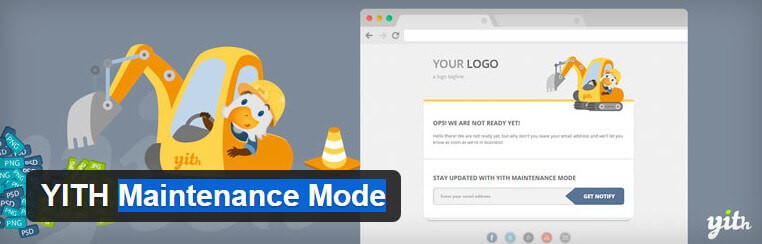
YITH Maintenance Mode: The No-Nonsense WordPress Under Construction Plugin

Picture this: you're migrating hosting, changing your theme, updating WooCommerce, or fixing the database. And right then, customers land on your site. They see broken layouts. They think: "Site's dead." And they leave. For good. The maintenance mode was invented precisely to prevent this. YITH Maintenance Mode is one of the best free tools for the job.

Here's the thing: many webmasters ignore placeholder pages, thinking they're "something for beginners." Big mistake. A well-crafted maintenance page doesn't just retain your audience — it builds your brand. While competitors slam the door on visitors, you show: "We'll be right back, and it'll be awesome."

What is YITH Maintenance Mode and Why You Need It

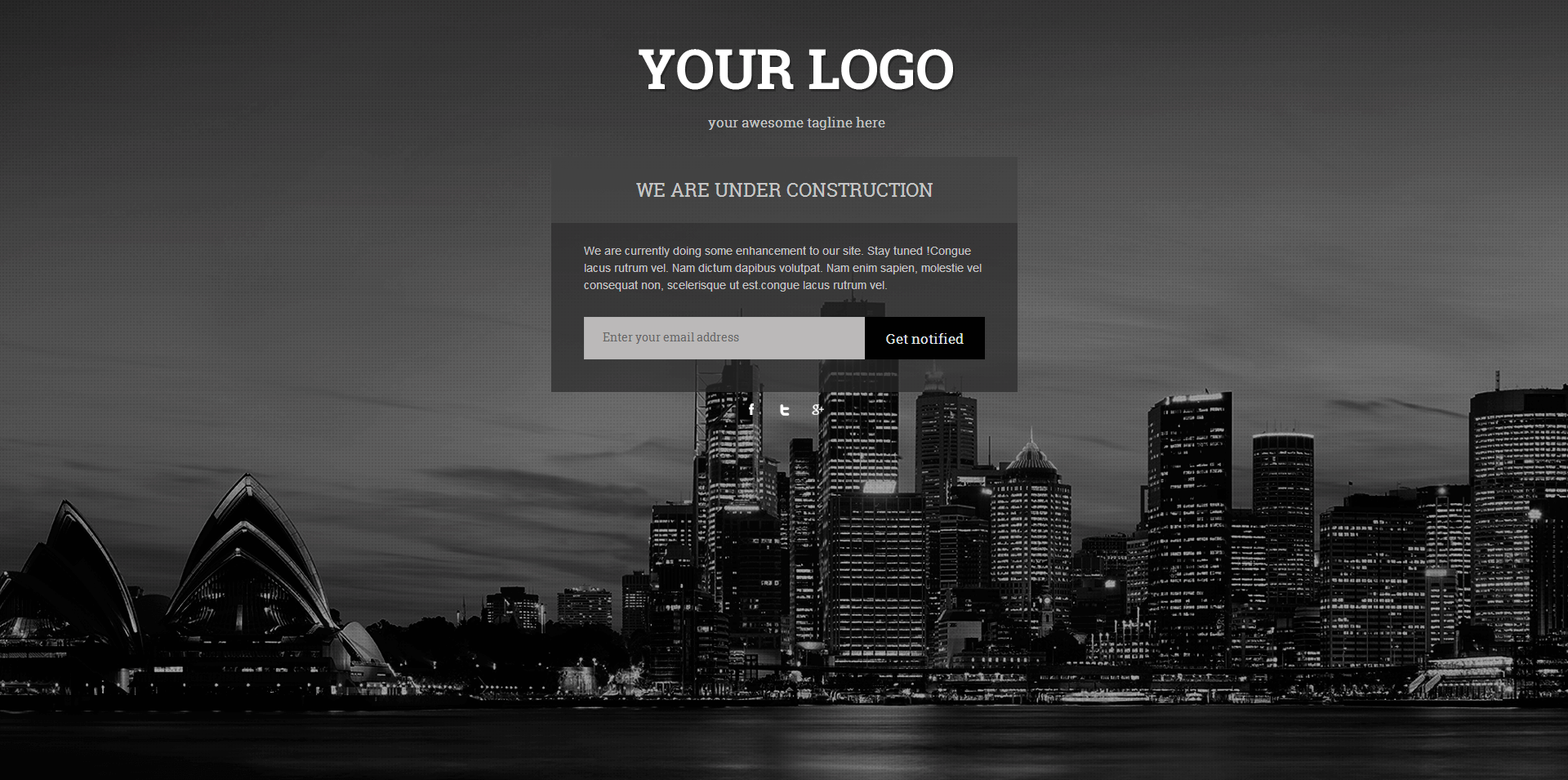
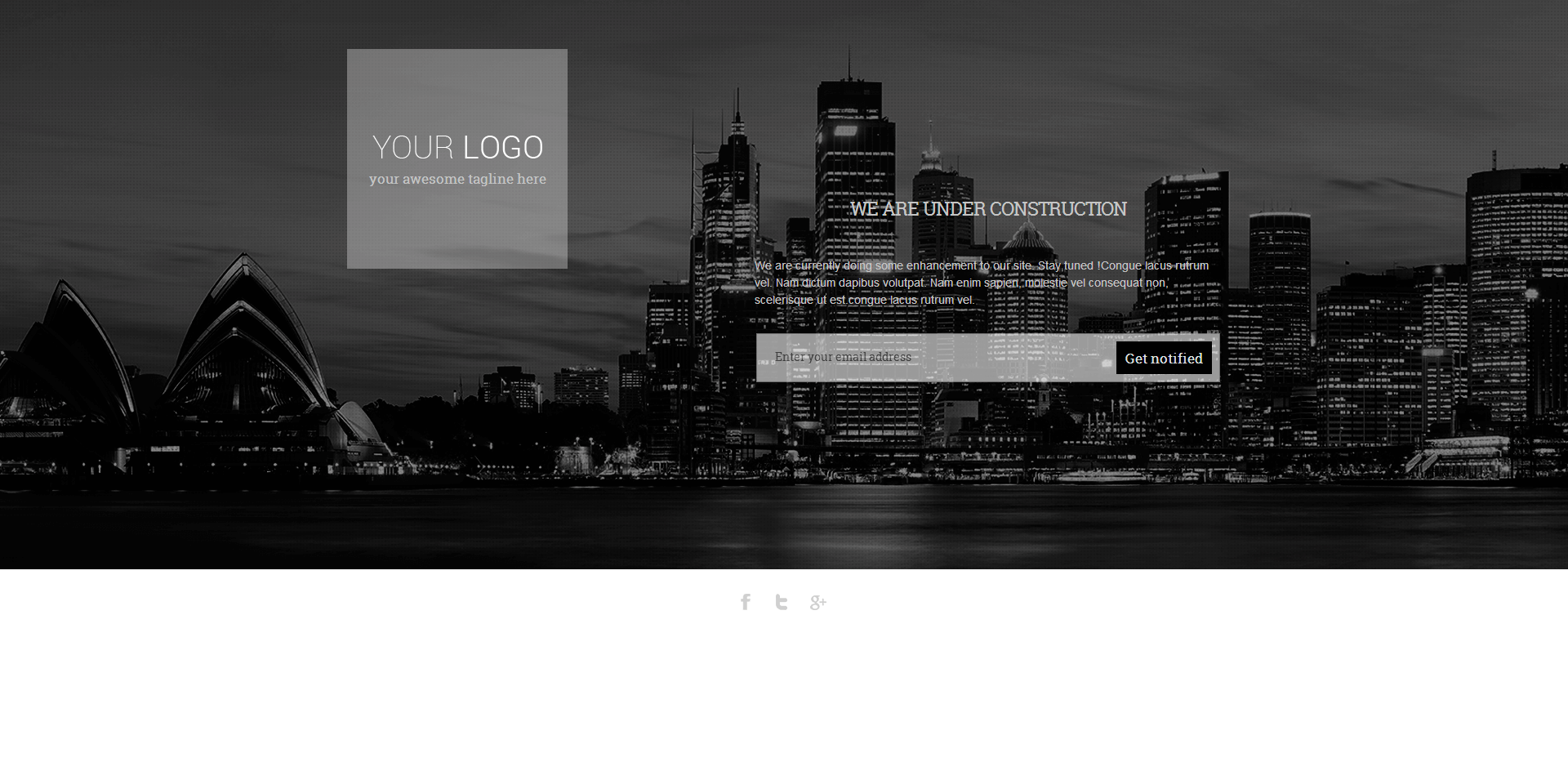
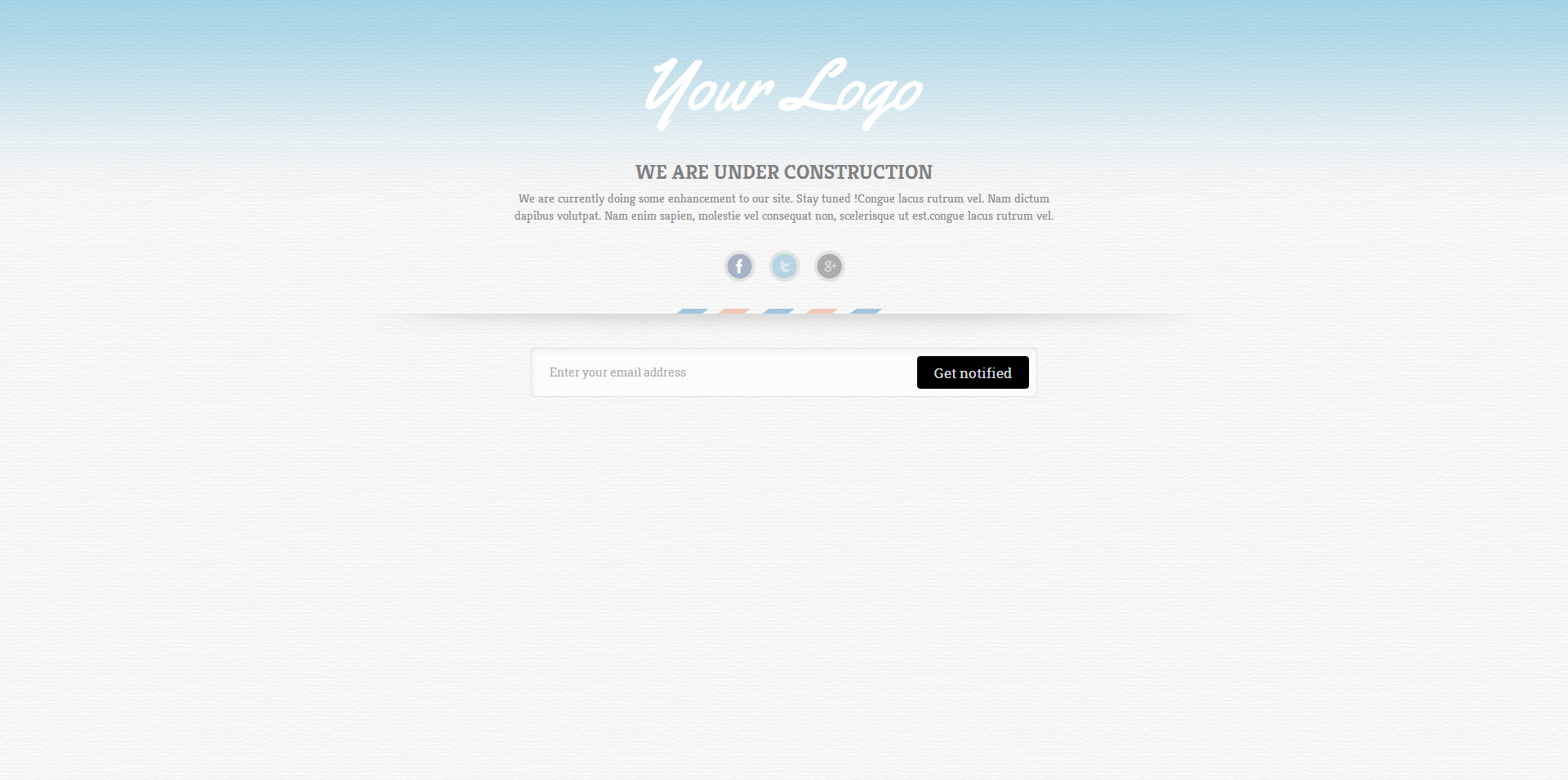
YITH Maintenance Mode is a free WordPress plugin that replaces your entire frontend with a custom placeholder page. Every URL — whether it's the homepage, /contact, or /shop — displays the same maintenance page. One exception: administrators. If you're logged into the admin panel, the site appears normally.

The plugin is built by the YITH team — the same folks behind YITH WooCommerce Wishlist, YITH Booking, and a dozen other popular plugins. This isn't some garage project. It's a product from a studio with 1,000,000+ active installations on WordPress.org.

Plugin features:

  • Complete replacement of the public-facing site with a maintenance page
  • Custom logo, title, message, and background image
  • Built-in email newsletter subscription form
  • Countdown timer until launch
  • Color scheme customization for the placeholder
  • Whitelist of IP addresses and user roles that bypass maintenance
  • Social network links on the maintenance page
  • 100% WPML compatible
The plugin is fully WPML compatible — you can create maintenance pages in multiple languages. If your site is multilingual, this is critical.

Installation and Activation

The plugin installs like any other from the WordPress repository. Three steps:

  1. In admin: Plugins → Add New → search "YITH Maintenance Mode"
  2. Click "Install," then "Activate"
  3. After activation, a new menu item appears: YITH → Maintenance Mode

You can also install manually: download the ZIP from wordpress.org/plugins, upload through "Plugins → Add New → Upload Plugin." But for most users, searching from the admin panel works fine.

After activation, the plugin does NOT automatically enable maintenance mode. This is convenient — you can calmly set up the look and text while the site continues operating normally. Only toggle it on when everything is ready.

Don't forget to disable maintenance mode when you're done. A forgotten placeholder means lost customers and sinking search rankings. Google indexes your maintenance page if it stays up for weeks.

Interface and Settings: A Detailed Breakdown

The settings page is divided into logical sections. Let's break down each one.

General Settings

The most important section. Two key elements:

The Enable Maintenance Mode toggle — the master switch. When set to "No," the plugin does nothing. Switch to "Yes" and the entire public site is instantly replaced by the maintenance page. The admin panel remains accessible as usual.

The Roles allowed to bypass maintenance field — select which user roles see the site normally. Default is "Administrator." You can add "Editor," "Author," or any custom role. If your team is working on content — give editors access.

Maintenance Page Design

This is where you style the placeholder:

  • Logo — upload a logo via the standard WordPress media uploader
  • Logo tag — HTML tag for the logo (default h1)
  • Page title — the page title tag (shown in browser tab)
  • Title — main heading on the page (e.g., "Site Under Maintenance")
  • Message — custom text. Supports HTML. Typically: "We'll be back soon," "Update in progress," "Opening June 1st"
  • Background image — background image for the page
  • Background color — fallback background color
  • Title font color — heading color
  • Text font color — body text color
  • Border color for newsletter — border color for the subscription form

By the way, you can put anything in the Message field: HTML tables, YouTube videos, social links. Just don't overload it with heavy elements — the maintenance page should load instantly.

Newsletter Form

Perhaps the most underrated feature. The plugin lets you embed an email collection form on the maintenance page. While the site is closed, you're building a subscriber base. Then — launch an email campaign and instantly bring your audience back.

Form settings:

  • Enable — toggle the form on/off
  • Action — URL to process the form (integrate with Mailchimp, SendPulse, GetResponse)
  • Request method — POST or GET
  • Email label — text above the input field
  • Submit label — button text
  • Email name — name attribute for the field (for integration with email services)
  • Hidden fields — hidden form fields (for passing extra parameters to your email service)
Set up the subscription form on the maintenance page? Test the integration with your email service on a separate test subdomain. A broken form on a maintenance page is worse than no form at all.

Countdown Timer

The timer adds a dynamic counter of days, hours, minutes, and seconds until launch. Visitors see: "Site opens in 3 days 12 hours 45 minutes." This creates anticipation and intrigue.

Countdown settings:

  • Enable — toggle on/off
  • Countdown date — date and time in YYYY-MM-DD hh:mm format
  • Countdown title — text above the timer
  • Colors — colors for digits, separators, and labels
The timer relies on JavaScript, so it works even if server cache has frozen the page. But always set a realistic date — if the date has passed and the site hasn't opened, it looks unprofessional.

Social Networks

While the site is unavailable, visitors need somewhere to go for updates. Social media is ideal. The plugin supports:

  • Facebook
  • Twitter (X)
  • YouTube
  • Google+ (historical, but still in settings)
  • Pinterest
  • Instagram
  • LinkedIn
  • Flickr

Each network gets a link to your profile. Clickable social icons appear on the maintenance page.

Custom CSS

A field for your own CSS. If the standard settings aren't enough — write custom styles here. You can change fonts, margins, button rounding. But remember: inline styles and class attributes are overkill here — use tag-based selectors.

Complete Settings Reference Table

Full list of plugin settings with descriptions
SectionSettingTypeDescription
GeneralEnable Maintenance ModeToggleEnable/disable maintenance mode
GeneralRoles allowedMulti-selectRoles that see the site without placeholder
DesignLogoImage uploadLogo on the maintenance page
DesignLogo tagText fieldHTML tag for logo (h1, p, div)
DesignPage titleText fieldTitle tag in page head
DesignTitleText fieldHeading on the page
DesignMessageText field (HTML)Main text of the maintenance page
DesignBackground imageImage uploadPage background
DesignBackground colorColor pickerBackground color (no image fallback)
DesignTitle font colorColor pickerHeading color
DesignText font colorColor pickerBody text color
DesignBorder color for newsletterColor pickerNewsletter form border color
NewsletterEnableToggleShow subscription form
NewsletterActionURLForm handler URL
NewsletterRequest methodSelectPOST or GET form submission
NewsletterEmail labelText fieldLabel above email field
NewsletterSubmit labelText fieldSubmit button text
NewsletterEmail nameText fieldName attribute for email field
NewsletterHidden fieldsText fieldHidden form inputs
CountdownEnableToggleShow countdown timer
CountdownCountdown dateDate/timeSite launch date and time
CountdownCountdown titleText fieldTitle above the timer
SocialFacebook, Twitter, etc.URLLinks to social profiles (up to 8)
AdvancedCustom CSSText fieldCustom CSS rules

Comparison: YITH Maintenance Mode vs Alternatives

The WordPress maintenance plugin market is fairly saturated. But YITH stays on top. Let's compare it with competitors on key parameters.

Comparison of popular WordPress maintenance mode plugins
FeatureYITH Maintenance ModeWP MaintenanceSeedProdComing Soon PageMinimal Coming Soon
PriceFreeFreeFreemium (from $39/yr)FreeFree
Active installs200,000+1,000,000+1,000,000+100,000+30,000+
Countdown timerYesNoYes (Pro)NoNo
Subscription formYesNoYes (Pro)NoLimited
Social networks8 networksNoAll major (Pro)CustomizableLinks only
Design customizationColors, logo, bg, CSSHTML templateDrag & drop builder (Pro)Colors, logo, CSSMinimal
Role-based accessYesAdmin onlyYes (Pro)Admin onlyAdmin only
IP-based accessNo (custom code)NoYes (Pro)NoNo
WPML compatibility100%PartialPartialNoNo
URL whitelistNoNoYes (Pro)NoNo
Google AnalyticsVia codeNoYes (Pro)NoNo
SEO page titleYes (Page title)NoYesYesNo
Regular updatesYesRareFrequentRareRare

Notice WP Maintenance — it leads in install count but is functionally much simpler. No timer, no subscription form, no social links. YITH offers more audience engagement tools while remaining free.

SeedProd's Pro version leaps ahead with its visual builder, but that's a completely different price range. For free use, YITH is the sweet spot.

Typical Use Cases

Scenario 1: Building a New Site

You're building a WordPress site that isn't ready yet. Instead of hiding it behind .htaccess or a server password, install YITH Maintenance Mode. Visitors see your logo, a "Site in development" message, and a subscription form. By launch day, you already have an email list of interested people.

Here's how to set it up:

  1. Upload your logo, write a heading like "Opening Soon!"
  2. In Message, describe what the site will do
  3. Enable the countdown timer with your launch date
  4. Set up the subscription form via Mailchimp
  5. Add social links so people can follow progress
  6. Toggle maintenance mode on
\u{201c}

On projects with long development cycles, I always install YITH Maintenance Mode. The countdown timer and subscription form actually work. On one landing page, we collected 300+ emails before launch — simply because people were curious about what was coming.

Dmitry K., Web Developer, Moscow

Scenario 2: Major Update

You're updating WooCommerce, changing themes, or migrating hosting. The process will take a couple of hours. Enable maintenance mode and write: "Maintenance in progress. Back in 2 hours." Done.

For this scenario, the subscription form and timer aren't essential. A logo and a short message are enough. But keep the social links — let people follow your Telegram or Twitter for update completion news.

Scenario 3: A/B Testing or Brand Relaunch

You're closing the old site and preparing a new one. A week before launch, enable YITH Maintenance Mode with a timer and special offer: "Site closed for rebranding. Opening June 1st. Subscribe and get 20% off your first order."

This mechanic works in ecommerce and service businesses. People love exclusivity. A closed door + a discount promise = high subscription conversion.

Email Service Integration: Step-by-Step Guide

The subscription form in YITH Maintenance Mode is a powerful tool, but setup takes 5 extra minutes. Let's walk through it using Mailchimp — the most popular service.

  1. In Mailchimp, create a signup form (Audience → Signup forms → Embedded forms)
  2. Copy the action URL from the form's HTML code. It looks something like: https://username.us1.list-manage.com/subscribe/post?u=xxx&id=yyy
  3. In YITH settings → Newsletter, paste this URL into the Action field
  4. Request method — POST
  5. In Email name, enter the name attribute of the email field from Mailchimp's HTML (usually EMAIL)
  6. To pass subscriber name: add a hidden field in Hidden fields and create an extra input in the maintenance page HTML
  7. Test with a real email address

Integration with SendPulse, GetResponse, and UniSender follows the same pattern — they all have external form mechanisms via action URLs.

Don't use GET method for subscription forms. The email address will appear in the URL and be visible in server logs and analytics. Always use POST.

Common Problem: Timer Freezes After Caching

If you use server-side caching (WP Rocket, LiteSpeed, W3 Total Cache), the maintenance page may get cached and the timer will "freeze." Solution: exclude the maintenance page from the cache.

For WP Rocket:

  1. Settings → Advanced Rules → Never Cache URL(s)
  2. Add a slash: /
  3. Save and clear cache

Why /? Because in maintenance mode, every URL shows the same page. Excluding the root excludes everything.

If you use a CDN like Cloudflare — temporarily enable Development Mode during maintenance. This disables CDN caching.

SEO Implications of Maintenance Mode

When your site is in maintenance mode, search engines see the placeholder page. A few hours won't matter. But weeks? Potential problems.

What YITH does right:

  • Sends HTTP 200 status (not 503)
  • Lets you set a custom title tag via Page title

This cuts both ways. A 200 means the page is normal — search engines will index it. If your placeholder just says "Site under maintenance" — that's what goes into the index.

For short-term work (under a day), this isn't a problem. For extended maintenance, add informative text with keywords to the Message field. Something like: "Camera store temporarily closed for updates. Returning soon with new prices and promotions."

Add 2-3 sentences with your site's main keywords to the Message field. This minimizes SEO damage from prolonged maintenance mode.

FAQ

How do I show the site only to myself and a placeholder to everyone else?

By default, YITH Maintenance Mode shows the real site to administrators. Log into the admin panel and you see the normal site. Everyone else gets the placeholder. If you're not an administrator, go to General Settings → Roles allowed and add your role.

How do I add custom HTML to the maintenance page?

The Message field supports HTML. Insert any tags: tables, images, YouTube iframes, buttons. The plugin outputs the content as-is. For complex layouts, use the Custom CSS field.

How to give a client access to see the site but not the admin panel?

Create a new role via the User Role Editor plugin (or in functions.php). Assign this role to the client. Then in YITH Maintenance Mode → General Settings → Roles allowed, check this new role. The client will see the site but not the admin panel.

Why isn't the countdown timer updating?

The cause is almost always server caching. Exclude the homepage from caching in your caching plugin settings. If using a CDN, temporarily enable development mode. Also verify the date is in YYYY-MM-DD hh:mm format.

Can I use YITH Maintenance Mode on a multisite network?

Yes, the plugin works with WordPress Multisite. Settings need to be configured for each site individually. Activate the plugin at network level or per-site depending on your needs. WPML is also supported for multilingual maintenance pages.

How to make specific pages accessible while maintenance mode is active?

Out of the box — you can't. Every URL shows the placeholder. Workarounds: add a URL parameter (e.g., ?preview=true) and check for it in your theme code via $_GET. Or use SeedProd Pro which has URL whitelisting.

How to add Google Analytics or Yandex Metrica to the maintenance page?

Paste the tracking code into the Message field as HTML. Alternatively, add it via your theme's functions.php with a hook targeting the head section. This lets you track how many people saw the closed site and where they came from.

What happens to WooCommerce orders during maintenance mode?

The store is completely inaccessible from the frontend. Customers cannot browse products, add to cart, or place orders. The WooCommerce admin works as usual — you can see and manage all orders. That's why you should notify customers via email before enabling maintenance.

The plugin conflicts with my theme — what should I do?

Clear browser and server cache, disable other maintenance plugins, check the browser console for JavaScript errors. If the issue persists — contact YITH support; they typically reply within 1-2 days.

Can I set up different placeholders for different languages?

Yes, thanks to 100% WPML compatibility. Switch languages in the admin panel via the WPML switcher and configure the maintenance page content for each language separately. All fields — title, message, social buttons — can be set per language.

Advanced Settings via Code

For developers, there are hooks and filters that extend plugin functionality. Not many, but they're useful.

Programmatically Enable Maintenance Mode

If you need to enable maintenance on a schedule or via an external command — use filters:

// Force enable maintenance mode add_filter('yith_maintenance_mode', '__return_true'); // Exclude specific URLs from maintenance add_filter('yith_maintenance_mode_is_active', function($is_active) { if (strpos($_SERVER['REQUEST_URI'], '/preview') !== false) { return false; } return $is_active; }); [/codeblock]

Changing the HTTP Status

By default, the plugin returns 200. For SEO, it may be better to return 503 Service Unavailable:

add_action('send_headers', function() { if (class_exists('YITH_Maintenance_Mode') && YITH_Maintenance_Mode()->is_active()) { status_header(503); header('Retry-After: 3600'); } }); [/codeblock]

Retry-After tells search engines when to come back. The value is in seconds.

Post-Maintenance Checklist

You've finished the work and turned off the placeholder. What next? A three-point checklist:

  1. Clear cache — server, browser, CDN. If the maintenance page was cached, visitors will keep seeing it even after disabling.
  2. Check frontend in incognito mode — open the site in browser incognito mode and browse main pages. Make sure the placeholder is gone everywhere.
  3. Send an email to subscribers — if you collected emails via the form on the maintenance page, let those people know the site is open. This is your warmest audience.

And yes, make sure the plugin is actually turned off. Sometimes the toggle sticks, or cache keeps serving the old version.

Final Verdict

YITH Maintenance Mode is a solid free plugin for creating a WordPress maintenance page. Unlike alternatives, it doesn't just "close the site" — it builds communication with visitors: a countdown timer, a subscription form, social links. Everything needed to retain your audience during downtime.

Key strengths: free, regularly updated, WPML integration, flexible role configuration, works out of the box. Main weakness: no URL whitelist and no built-in integration with specific email services — you need to copy action URLs manually.

If you want a simple yet functional maintenance mode tool — YITH Maintenance Mode covers 95% of typical scenarios. If you need a visual page builder with A/B testing — look at SeedProd (paid). But for most sites, YITH is more than enough.

Tap to react