WordPress ReCaptcha Integration: The Unsung Hero of Spam Defense

Spam is not a nuisance — it is a business problem. Automated bots submit fake comments, brute-force login attempts, and register spam accounts at industrial scale. A site without protection can accumulate hundreds of spam comments overnight. The WordPress ReCaptcha Integration plugin tackles this head-on by embedding Google's reCAPTCHA service into every vulnerable form on your WordPress site. It covers login, registration, comment forms, and integrates with major form and commerce plugins — all from a single configuration screen.

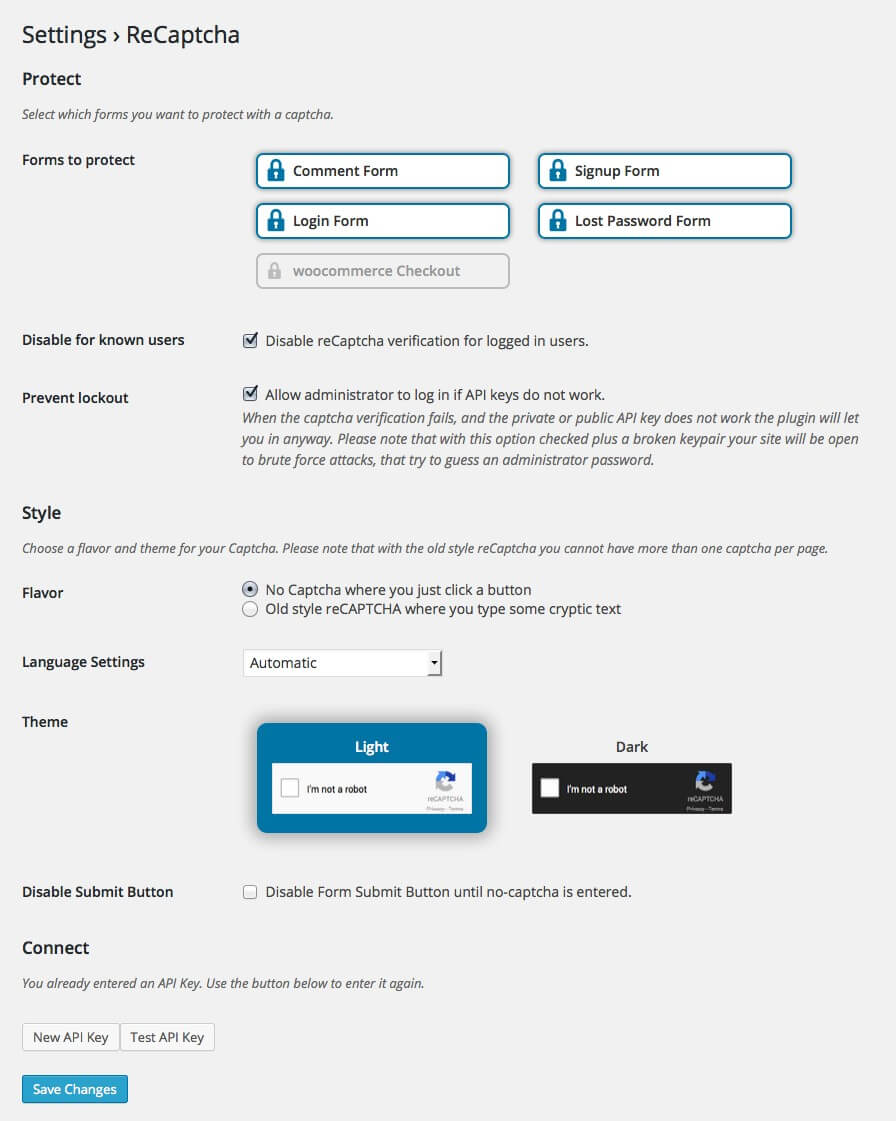
WordPress ReCaptcha Integration settings
WordPress ReCaptcha Integration — one plugin, all your forms protected

The plugin's philosophy is refreshingly simple: install, paste your API keys, check the boxes for the forms you want to protect, and you are done. There is no per-form configuration wizard, no complicated rule sets, no conditional logic. The plugin does one thing and does it consistently across every integration point. For site owners who want CAPTCHA protection without becoming CAPTCHA configuration experts, that simplicity is the feature.

reCAPTCHA v2 vs v3: Which Version Should You Use

The plugin supports both v2 and v3 of Google's reCAPTCHA, and the choice between them is more consequential than the settings page suggests. Understanding the trade-offs prevents user frustration and bot bypasses.

reCAPTCHA v2 is the classic checkbox — I am not a robot. The user sees a checkbox, clicks it, and sometimes proceeds. Sometimes Google challenges them with an image recognition puzzle (click all traffic lights, select all crosswalks). This invisible-to-the-user risk assessment means the challenge appears unpredictable. For legitimate users, it is mildly annoying. For bots, it is a significant barrier. The checkbox variant reliably blocks automated scripts while adding friction to the user experience. The invisible variant runs the same analysis without showing the checkbox unless the risk score warrants it.

reCAPTCHA v3 is invisible by design. It runs on every page without any user interaction — no checkbox, no puzzle, no interruption. Google assigns each visitor a score from 0.0 (definitely a bot) to 1.0 (definitely human) based on browsing behavior. As the site owner, you choose a threshold. Visitors scoring below your threshold are blocked from submitting forms. The trade-off: false positives. A legitimate user on a VPN, an outdated browser, or unusual browsing patterns can receive a low score and get blocked without understanding why. They see no error message — the form simply does not submit.

Feature reCAPTCHA v2 (Checkbox) reCAPTCHA v2 (Invisible) reCAPTCHA v3
User interaction Checkbox, sometimes puzzle None unless risk detected None
False positive rate Very low Low Depends on threshold setting
Bot blocking strength High High Configurable
Accessibility Audio challenge available Audio challenge available No alternative — score-based
Privacy impact Moderate (tracking on form pages) Moderate High (tracks every page view)
Best for Comment forms, registration Login forms, checkout High-traffic sites needing zero friction
reCAPTCHA v3 tracks user behavior across all pages where it is loaded — not just form pages. If you run v3 on every page for analytics, be aware that Google collects behavioral data from every visitor. This has GDPR implications. Many European sites opt for v2 for this reason.

Integration Points: Where the Plugin Protects

The plugin casts a wide net. Here is every integration point it covers out of the box:

  • Login form — adds CAPTCHA to the standard WordPress login at /wp-login.php. This is the most important integration point because login pages are the primary target for brute-force attacks. Bots run dictionary attacks against WordPress login pages at a staggering rate — a site without login CAPTCHA will see hundreds of failed login attempts per day.
  • Registration form — protects the default WordPress registration form from automated account creation. Spam registrations clog the user database and can be used to exploit multisite setups.
  • Comment form — blocks automated comment spam. Even with Akismet running, a second layer of defense at the comment form catches bots that Akismet might miss or process slowly.
  • Lost password form — prevents bots from triggering password reset emails to legitimate users, which can be used as a denial-of-service vector.
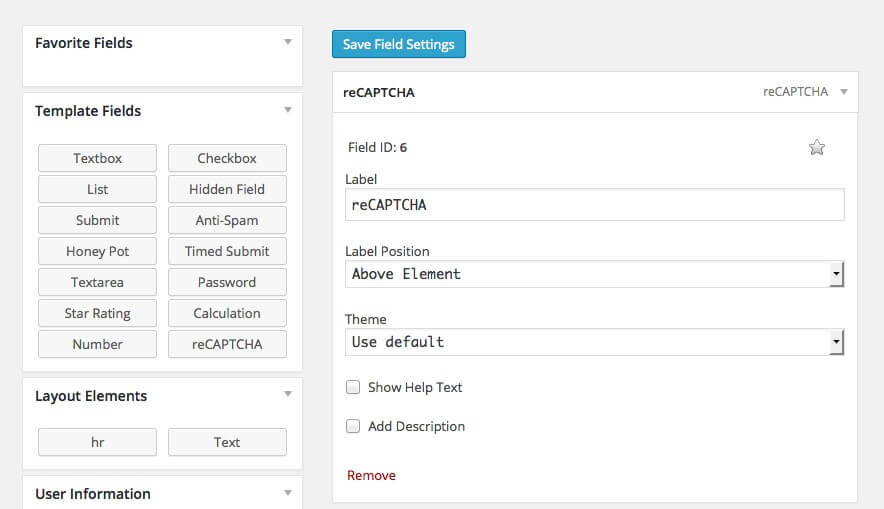
  • Ninja Forms — integrates directly with Ninja Forms submissions. The CAPTCHA field appears as a form element within the Ninja Forms builder.
  • WooCommerce — adds protection to WooCommerce login, registration, and checkout forms. Note that the password reset form for WooCommerce is not covered.
  • bbPress — protects bbPress topic and reply submission forms on forum sites.
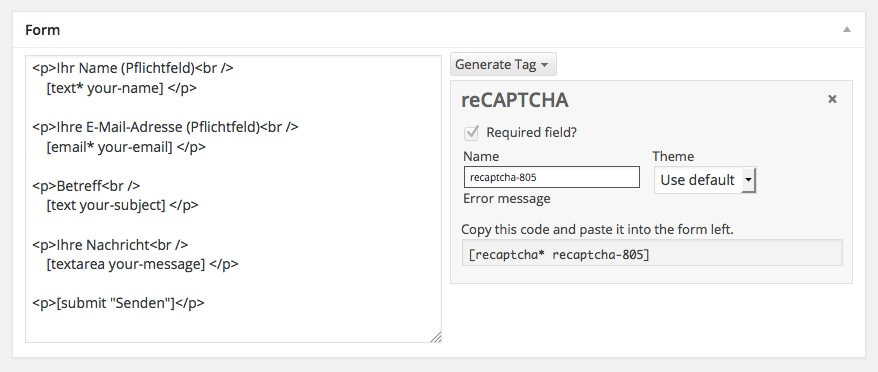
  • Custom forms — the plugin exposes an API for developers to add reCAPTCHA to any custom form. Documentation is available on the plugin developer's site.

The checkbox-based activation is both the plugin's strength and its limitation. You cannot fine-tune the CAPTCHA behavior per form — the same key pair and risk threshold apply everywhere. For most sites, this is perfectly adequate. For high-security scenarios where the login form should use a stricter threshold than the comment form, a more configurable plugin might be needed.

API Key Setup: The Five-Minute Configuration

Getting reCAPTCHA running requires API keys from Google. The process takes less than five minutes:

  1. Go to the Google reCAPTCHA admin console at google.com/recaptcha/admin
  2. Register a new site — choose v2 or v3. For v2, select between checkbox and invisible. Add your domain (and any subdomains) to the allowed domains list.
  3. Google generates a Site Key and Secret Key. The Site Key is public and appears in the page HTML. The Secret Key stays on your server and is used to verify CAPTCHA responses with Google's servers.
  4. Copy both keys into the plugin settings page in your WordPress admin panel.
  5. Check the integration points you want to protect — login, registration, comments, and any supported plugin forms.
  6. Save changes and test each protected form.
Never share your Secret Key. Anyone with your Secret Key can verify CAPTCHA responses on your behalf, which undermines the entire security model. If a key is accidentally exposed, regenerate it immediately from the Google reCAPTCHA console.

Comparison with Other CAPTCHA Plugins

The CAPTCHA plugin ecosystem is surprisingly diverse. Here is how WordPress ReCaptcha Integration stacks up:

Plugin Provider Cost Login Protection WooCommerce Accessibility Privacy-Friendly
WordPress ReCaptcha Integration Google reCAPTCHA Free Yes Yes (limited) Audio challenge No (Google tracking)
Really Simple CAPTCHA Self-hosted Free Via Contact Form 7 No native support Limited (visual only) Yes (no third-party)
hCaptcha for WordPress hCaptcha Free Yes Yes Accessible alternative Better than Google
Cloudflare Turnstile Cloudflare Free Yes Yes (via plugin) Fully invisible Better than Google

Really Simple CAPTCHA generates CAPTCHA images on your own server — no Google dependency. The downside: modern OCR beats simple warped-text CAPTCHAs in under a second. Really Simple CAPTCHA is better than nothing but does not stop sophisticated bots.

hCaptcha is the leading alternative to reCAPTCHA. It works on the same principle — user interaction analysis — but with a stronger privacy posture and an alternative business model where website owners can earn revenue from CAPTCHA solves. It also provides accessibility alternatives for visually impaired users.

Cloudflare Turnstile is the newest entrant and the most user-friendly. It is fully invisible, requires no user interaction, and does not collect tracking data for advertising. It works by analyzing browser characteristics and network-level signals through Cloudflare's global infrastructure. If your site is already on Cloudflare, Turnstile is the natural choice.

Spam Prevention: Real-World Effectiveness

The plugin does not provide its own spam statistics, but the effectiveness of Google reCAPTCHA is well-documented. Independent testing consistently shows that reCAPTCHA v2 blocks over 99% of automated bot submissions. The v3 effectiveness depends entirely on the threshold setting — too aggressive and you block legitimate users, too lenient and bots slip through.

A practical recommendation: start with reCAPTCHA v2 checkbox for login and registration forms where users expect some friction. Use v3 for comment forms and any form where you want to minimize interruption. Monitor the v3 analytics in the Google reCAPTCHA console for a week, reviewing flagged submissions to calibrate your threshold. A threshold of 0.5 is a reasonable starting point — adjust upward if you still see spam, downward if users report blocked form submissions.

The most effective spam strategy is layered: reCAPTCHA on user-facing forms, Akismet or similar on comments, and a Web Application Firewall (Wordfence, Cloudflare WAF) blocking bots before they reach WordPress. Any single layer can fail. Three layers rarely fail together.

Accessibility Considerations

CAPTCHAs are an accessibility minefield. reCAPTCHA v2 provides an audio challenge as an alternative to visual puzzles — users can listen to numbers spoken over background noise and type what they hear. This works for visually impaired users. However, the audio challenge is notoriously difficult, and users with both visual and cognitive disabilities may still be blocked.

reCAPTCHA v3 avoids accessibility issues entirely by being invisible. However, if a user with a screen reader or assistive technology is flagged as suspicious (low score), they are blocked without explanation or recourse. There is no audio challenge, no alternative path — just a form that refuses to submit.

If your site must comply with WCAG accessibility standards, consider using hCaptcha with its accessibility cookie or Cloudflare Turnstile before deploying reCAPTCHA v3. Document your CAPTCHA solution in your accessibility statement and provide a contact alternative (email, phone) for users who cannot complete the CAPTCHA.

Frequently Asked Questions

Is Google reCAPTCHA free to use?

Yes. Google provides reCAPTCHA v2 and v3 free of charge for up to one million assessments per month. The free tier covers the vast majority of websites. Enterprise plans are available for higher volumes with additional features and SLAs.

Which reCAPTCHA version should I choose for my site?

Start with v2 checkbox for login and registration forms and v3 for comments and contact forms. v2 gives users a visible interaction and predictable behavior. v3 provides seamless experience but requires threshold tuning. If you value user privacy, consider hCaptcha or Cloudflare Turnstile instead.

Does the plugin work with custom login forms and custom comment forms?

Yes, provided the forms use the standard WordPress hooks for login and comment functionality. For fully custom forms not based on WordPress hooks, the plugin provides a developer API. Check the plugin documentation for integration code examples.

Can I use different reCAPTCHA versions on different forms?

No. The plugin applies the same API key pair and version to all protected forms. If you need per-form version control, you will need a more configurable CAPTCHA plugin or implement reCAPTCHA manually on specific forms.

What happens if Google's reCAPTCHA servers are down?

By default, form submissions fail if Google cannot verify the CAPTCHA response. This is a known risk of any cloud-dependent CAPTCHA service. Mitigate it by having a fallback contact method (email address, phone number) listed on your forms.

Does reCAPTCHA affect page load speed?

Yes. reCAPTCHA loads external JavaScript from Google's servers, adding approximately 100-300ms to page load time depending on network conditions. v3 adds this overhead to every page where it is loaded. Consider only loading reCAPTCHA on pages with forms rather than site-wide.

Is reCAPTCHA GDPR compliant?

This is legally complex. reCAPTCHA sends visitor data to Google servers, including IP addresses and browsing behavior data. Under GDPR, this requires a legal basis — typically legitimate interest or consent. Many EU-based sites add a cookie consent notice specifically mentioning reCAPTCHA. Consult a privacy lawyer for your jurisdiction.

Can I use the plugin on a multisite network?

Yes. The plugin works on multisite installations. API keys can be configured per subsite, allowing different domains in the same network to use different reCAPTCHA registrations.

Does it protect WooCommerce checkout from spam orders?

Partially. The plugin adds reCAPTCHA to WooCommerce login and registration forms, and to some checkout fields. However, WooCommerce checkout protection is noted as limited in the plugin documentation — password reset is specifically not covered.

How do I know if spam is getting through reCAPTCHA?

Monitor your reCAPTCHA admin console at google.com/recaptcha/admin. It shows request volume, score distribution (for v3), and suspicious activity patterns. Combine this with your site's spam logs and comment moderation queue.

Tap to react