WordPress Language: What It Actually Does

The WordPress Language plugin solves one specific problem with surgical precision: changing the language of the WordPress admin interface and frontend system strings without manually downloading or editing files. It is not a multilingual plugin. It does not translate your content. It does not create separate versions of your posts. What it does is swap the language of every hardcoded string in WordPress — button labels, system messages, date formats, login screens, the toolbar, error pages — from one language to another with a few clicks.

This matters more than it sounds. A Russian-speaking client managing a site with the English admin panel will struggle with unfamiliar terminology. A German editor making updates on a French-configured site will miss interface cues. WordPress Language bridges this gap without requiring the site owner to touch wp-config.php or upload .mo files manually. The entire language switch happens through the admin dashboard.

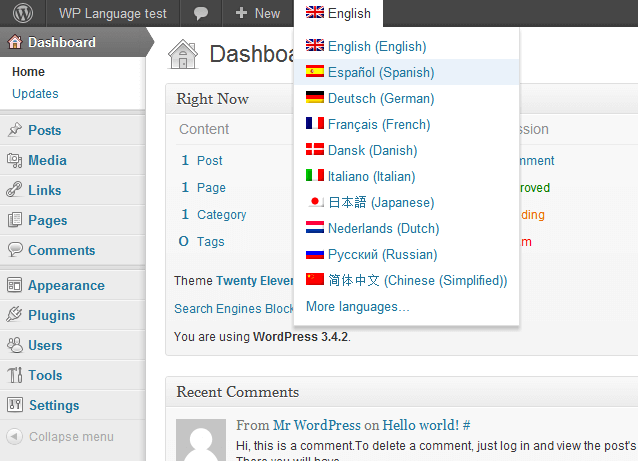
WordPress Language plugin interface
WordPress Language — single-click language switching for the WordPress admin panel

How the Plugin Works Under the Hood

The mechanism is elegant. WordPress Language taps into the official WordPress translation index — a centralized catalog maintained by the WordPress polyglots team at translate.wordpress.org. This index maps every WordPress version to its available language packs across hundreds of locales. When you open the plugin settings, it queries the translation index and presents a dropdown of all available languages for your current WordPress version.

When you select a language and hit save, three things happen sequentially:

  1. The plugin fetches the latest translation pack from the WordPress.org servers — specifically the .mo file for your chosen language and locale variant (e.g., ru_RU.mo or de_DE.mo).
  2. It scans the translation file, verifying integrity and checking for completeness against the WordPress core string set.
  3. It stores the translations in the WordPress database and updates the WPLANG constant equivalent, instructing WordPress to load these translations on every subsequent request.

The key word here is database. Traditional language configuration requires you to download a .mo file and place it in the /wp-content/languages/ directory. The plugin bypasses the file system entirely and stores translations in the database. This has two practical advantages: it works on hosting environments with restricted file permissions, and it survives WordPress core updates that might otherwise overwrite manually placed files.

The plugin queries the online translation index periodically — not on every page load. It caches the available language list to avoid unnecessary HTTP requests. The actual translation data, once fetched, is stored locally in your database and does not require continuous internet connectivity.

Admin Panel Language Switcher

One of the most practical features is the admin language switcher added to the WordPress toolbar. After activating the plugin, every logged-in user sees a language selector in the top admin bar. Each user can independently choose their preferred admin language — the marketing manager sees the dashboard in Russian while the developer keeps it in English. This per-user setting is stored in the user meta table and persists across sessions.

The frontend language — the language of system strings visible to visitors — is set globally by the site administrator. The per-user setting only affects the admin panel, toolbar, and backend screens. This separation makes sense: you do not want a user accidentally changing the site language for all visitors by clicking around in their profile settings.

One-Click Updates

WordPress core releases and translation packs do not arrive on the same schedule. The polyglots team works continuously, and translation completeness changes over time. The plugin includes a one-click update mechanism: when a newer or more complete translation pack becomes available for your selected language, a notification appears in the plugin settings. Clicking update fetches the latest version and replaces the stored translations immediately.

This is significantly easier than the manual alternative of navigating to translate.wordpress.org, finding the correct version and locale, downloading the appropriate files, and uploading them via FTP. For site maintainers who manage multiple WordPress installations, the time savings add up quickly.

WordPress Language vs WPML vs Polylang

This is the most common question and the most important distinction to understand. These plugins solve fundamentally different problems:

Feature WordPress Language WPML Polylang
Interface language switch Yes — core feature Yes — included Yes — included
Content translation No Yes — posts, pages, CPTs Yes — posts, pages, CPTs
Multilingual URLs No Yes (subdomains, directories, parameters) Yes (subdomains, directories)
.mo file download Automatic from wordpress.org Manual or bundled Manual or bundled
Per-user admin language Yes Yes Limited
Cost Free From $39/year Free (Pro from $99)
Database overhead Minimal (translations only) Significant (duplicate content) Moderate (content associations)
Best for Single-language sites, admin panel localization Full multilingual sites with translation management Bilingual sites with simpler needs

Think of it this way: WordPress Language changes the language of WordPress itself. WPML and Polylang add the ability to publish content in multiple languages. They are complementary, not competing. You can use WordPress Language to set the admin interface to Spanish while using WPML to publish Spanish and English versions of your posts.

When to Use WordPress Language Instead of Full Multilingual Plugins

The decision tree is straightforward:

  • Your content is in one language, but the admin panel should be in another → Use WordPress Language. Zero configuration overhead. The site stays monolingual while the dashboard speaks your team's preferred language.
  • You manage sites for clients in multiple countries → WordPress Language is perfect. Each client's site runs in their native language without needing a full multilingual setup they will never use.
  • You run a development or staging environment → Keep the admin panel in English for consistency with documentation and error messages while the production site uses the local language. WordPress Language handles this per-installation.
  • Your content needs to exist in multiple languages → You need WPML or Polylang. WordPress Language cannot help here — it only changes system strings.
The most common misconfiguration I see: site owners install WPML for a site that only publishes content in one language, just because they want the admin panel in Russian. That is like buying a truck to carry a grocery bag. WordPress Language is the correct tool for that job — and it is free.

Key Limitations You Should Know

The plugin is purpose-built and intentionally limited. Understanding these boundaries prevents frustration:

  • No content translation — your posts, pages, categories, and custom fields remain in whatever language they were written in. The plugin does not touch user-generated content.
  • Plugin and theme translations are separate — WordPress Language handles core translations. Plugin and theme translations must be provided separately by their developers. If a plugin is only available in English, switching the core language does not magically translate the plugin's interface.
  • Translation quality depends on the WordPress polyglots team — the plugin pulls translations from the community-maintained index. Some language packs are 100% complete; others are at 70% and missing strings. The plugin does not fill in missing translations.
  • Requires internet access for initial setup — the first language download requires connectivity to wordpress.org. Once downloaded, translations work offline.

Practical Scenarios and Troubleshooting

Imagine you run a WordPress site for a German audience. The content is in German, the blog is in German, but your admin panel defaults to English. Your content manager, accustomed to German-language interfaces, struggles with unfamiliar terminology. Installing WordPress Language solves this in thirty seconds: select Deutsch, save, and the entire admin panel switches to German. The content stays in German, visitors see no change, but the content manager's workflow improves dramatically.

Another scenario: you work in an international team where developers prefer the English interface (documentation, forums, error messages are all in English) while managers and editors prefer their local language. WordPress Language gives every user their own preference. Each team member logs in and sees their preferred interface, with no additional configuration or conflicts.

Technical Edge Cases

Several nuances emerge after years of using this plugin. First: after switching languages, clear your browser cache. Aggressive browser caching can hold onto CSS and JS files containing strings in the old language. A hard refresh (Ctrl+F5) typically resolves this. Second: if your custom theme contains hardcoded text strings instead of using WordPress localization functions, those strings will not translate. The plugin only works with content using proper translation functions like __() and _e(). Third: some security plugins may block outgoing HTTP requests to wordpress.org that the plugin needs for its initial translation download. If switching languages does nothing and there are no error logs, temporarily disable your security firewall, switch the language, then re-enable the firewall.

Localization Approach Comparison

Approach Tool Changes Interface Translates Content Complexity Cost
Manual .mo replacement FTP, wp-config.php Yes No Medium Free
WordPress Language plugin Auto from index Yes No Low Free
WPML Built-in manager Yes Yes High From $39/year
Polylang Manual linking Yes Yes Medium Free (Pro from $99)
TranslatePress Visual editor Yes Yes Medium Free (Pro from $79/year)

The choice depends on the goal. If you just need to change the admin panel language, WordPress Language handles this without complexity or cost. If you are building a full multilingual site with translated content, WPML or Polylang are necessary but bring their own complexity.

When to Avoid This Plugin

There are scenarios where WordPress Language is unnecessary or even problematic. If you already use WPML or Polylang, skip it — those plugins include admin language switching, and running two language tools creates conflicts. If your site is locked to a specific WordPress version due to legacy plugin requirements, verify translation index compatibility — the plugin queries translations for your current version, and if the polyglots team has dropped support, translations will be unavailable. If your hosting blocks outgoing HTTP requests to wordpress.org (some corporate networks and strict firewalls), the initial translation download will fail and the plugin will be unusable. For all other single-language sites, WordPress Language is the right tool.

Frequently Asked Questions

Does WordPress Language translate my posts and pages?

No. The plugin only changes the language of WordPress system strings — button labels, error messages, date formats, the admin interface. Your content (posts, pages, categories) stays in the language you wrote it in. For translating content, you need WPML, Polylang, or TranslatePress.

Can each user choose their own admin language?

Yes. After installing WordPress Language, each user sees a language selector in the admin toolbar. They can independently choose their preferred admin interface language without affecting other users or the frontend.

Where does the plugin get its translations from?

From the official WordPress translation index at translate.wordpress.org, maintained by the WordPress polyglots team. The plugin queries this index, fetches the latest .mo file for your chosen language and locale, and stores translations in the database.

Do I need to upload .mo files manually?

No. That is the entire point of the plugin. It downloads .mo files automatically and stores them in the database. You never need to touch the /wp-content/languages/ directory or edit wp-config.php.

How is this different from WPML?

WordPress Language changes the interface language. WPML enables publishing content in multiple languages and managing translations. They solve different problems and can be used together. WordPress Language is for single-language sites that need a different admin language.

What happens to translations during WordPress core updates?

Translations stored in the database survive core updates. The plugin also includes a one-click update mechanism that notifies you when newer, more complete translation packs are available and lets you update with one click.

Does it translate plugin and theme interfaces?

Not automatically. Plugin and theme translations are handled separately by their developers. WordPress Language handles WordPress core strings. If your installed plugins have translation files available, the plugin may detect them, but it does not automatically download third-party translations.

Will this plugin slow down my site?

No. Translations are loaded from the database once and cached by WordPress. The plugin adds minimal overhead — essentially one database query to determine the current language. There is no measurable performance impact on page load times.

What if my language pack is incomplete?

The plugin uses whatever translations are available in the official index. Incomplete packs will leave some strings in English. You can contribute to translation completion through translate.wordpress.org — over time, popular languages reach near-100% coverage.

Can I use this on a multisite network?

Yes. WordPress Language works on multisite installations. Each subsite can have its own global language setting, and per-user language preferences work across the network. The language settings are scoped to each subsite.

Tap to react