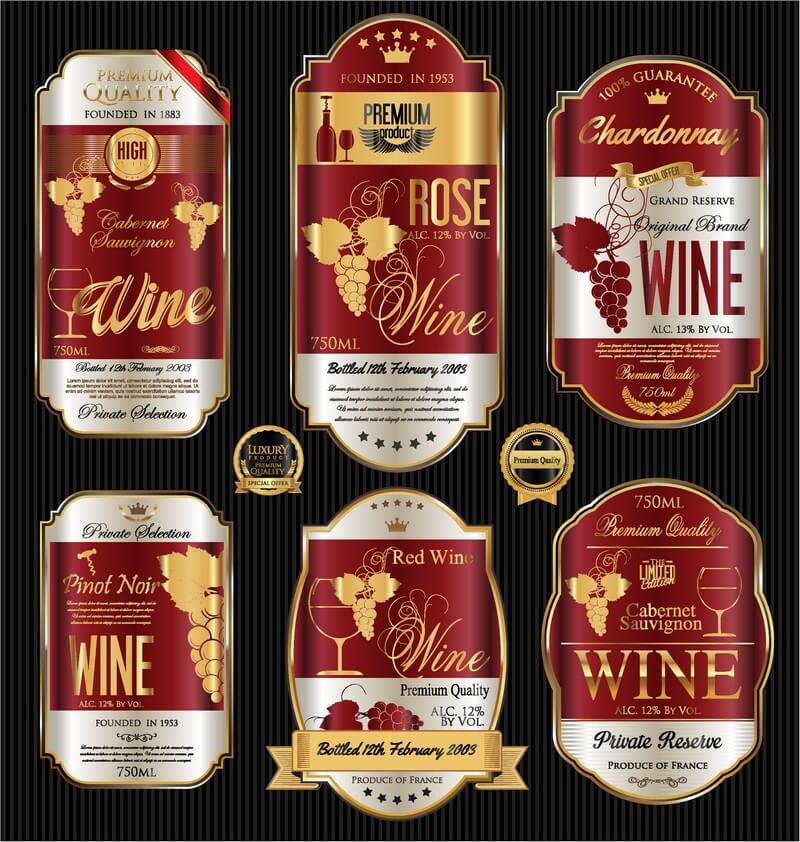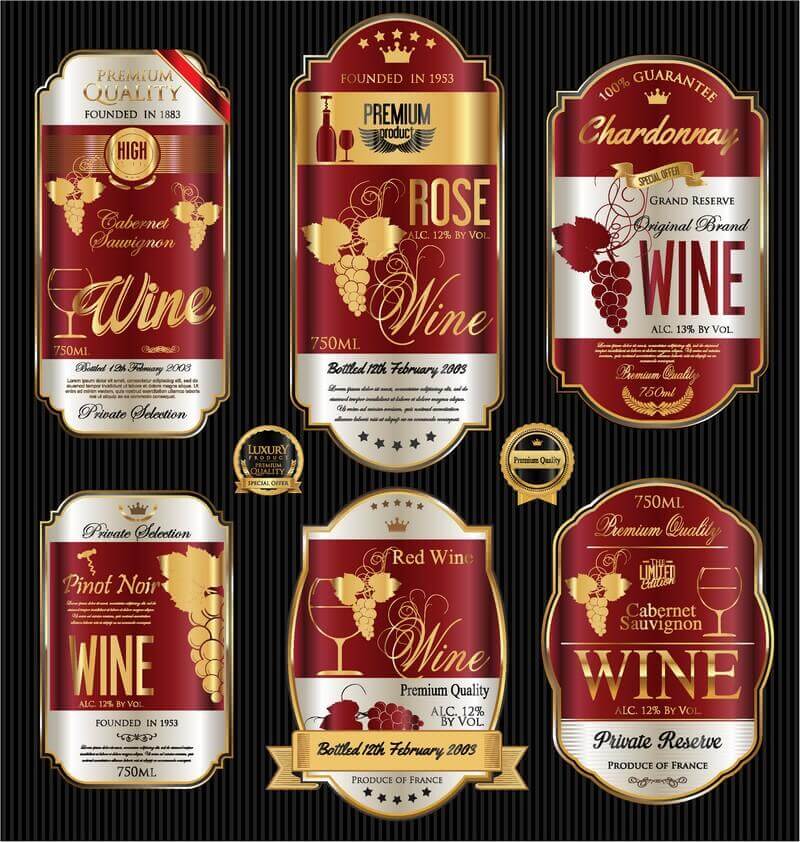
A wine label sells the bottle before anyone uncorks it. This is not decoration — it is a brand carrier that works on store shelves, restaurant wine lists, and Instagram feeds. We have selected a professional premium label set that gives you finished designs with full editing capabilities. The designers who built this set understand the wine industry: serif typefaces for vintage aesthetics, gold accents for the premium segment, and carefully structured grids where all you need to do is type your brand name.

What Is Inside the Luxury Label Bundle
Unlike cheap stock templates that hand you a JPEG preview and call it a design, this bundle delivers two working formats. Each serves a distinct role in your production pipeline.
| Format | Type | Purpose | Software |
|---|---|---|---|
| .AI | Vector | Infinite scaling, typography editing, color separation, print preparation | Adobe Illustrator |
| .TIFF | Raster | Final output, transparency preservation, CMYK profile, print-ready delivery | Adobe Photoshop |
The vector .AI is your editing sandbox. Want to nudge text three millimetres to the left? No problem. Swapping the font for your vineyard's custom typeface? Select the text block and change it. Scaling up to magnum format? Scale losslessly.
The raster .TIFF is the final stop before the print shop. All layers are flattened, color is tuned to CMYK, and the alpha channel tells the press: background is transparent here. TIFF is what you send when the design is approved and no further edits are needed.
Editing Vector Labels in Adobe Illustrator
Open the .ai file and the first thing you will notice is the layers. The creators deliberately kept everything separated so you can work on each element individually.
- Text — grab the Type tool (T), click the label text, and type your wine name. Font pairings are already done for you — no need to cycle through typefaces.
- Colors — the Swatches panel holds every shade used in the layout. Replace gold with silver? Change one swatch and it updates everywhere.
- Resize for your bottle — the default format is 90x120 mm (standard Bordeaux bottle). Adjust via the Artboard Tool in under a minute.
Color Modes — Why This Matters
What you see on an RGB monitor is not what comes off the press. RGB is light, not ink. Your vivid neon shades will turn into a pale disappointment unless converted to CMYK before sending to the printer.
Key points:
- Print shops work exclusively in CMYK. If you forget to convert, the press will do it for you using its own algorithm and the result will disappoint you.
- Metallic gold cannot be printed in standard CMYK. If the layout has gold elements, they are gradient approximations. For genuine metallic finish, discuss Pantone spot colors with your printer.
- Black body text must be 100% K (key black), not a composite. Composite black (CMYK mix) on small type produces color fringing around letters.
Working with TIFF in Photoshop — Final Prep
When the vector work is done and approved, open the .TIFF in Photoshop for the final touches. At this stage, verify the following:
- Resolution — minimum 300 DPI. Anything below looks like a cheap inkjet printout.
- Canvas dimensions — must match the physical label size plus bleed (typically 3 mm per side).
- Color profile — match your printer specification. Most commonly Coated FOGRA39 for coated papers.
Under Image > Image Size, confirm the Resample checkbox is ticked and Resolution reads 300 pixels/inch. If the file is accidentally 72 DPI, do not upscale it — go back to Illustrator and re-export at the correct resolution.
Comparison with Other Wine Label Templates
The market is flooded with wine label offers — from free Canva templates to premium Creative Market bundles. Here is how they stack up against each other.
| Feature | This Bundle | Free Templates | Envato Stock Layouts |
|---|---|---|---|
| Vector format (.AI) | Yes, full layers | No, usually JPEG | Yes, but often flattened |
| CMYK-ready TIFF | Yes, print-ready | Never | Sometimes, not always CMYK |
| Editable text | Yes, unflattened layers | No | Fifty-fifty |
| Typography quality | Serif pairings, wine-focused aesthetics | Default system fonts | Often overdesigned |
| Bleed margins | Yes, 3 mm | No | Yes, but verify |
| Commercial print ready | Fully ready | Not at all | Requires adjustments |
Design Breakdown: What Makes a Label Premium
Wine label design is not simply about making it look pretty. Every element carries decades of visual tradition. Let us break down what creates that luxury feel.
Typography
Cheap labels do not use quality serif typefaces because on a phone screen the difference between Garamond and Georgia is invisible, but on matte textured paper it is glaring. This bundle uses typefaces with pronounced serifs and high stroke contrast — exactly what French and Italian wineries with century-old histories favour.
Gold Accents
Gold on a label is not bling — it is a premium-segment marker that works on a subconscious level. In the layouts, gold is rendered as a gradient approximation, but when printed with Pantone metallic ink, the effect becomes a genuine metallic sheen.
Breathing Room and Visual Hierarchy
Look at element density. Cheap templates cram everything in: crest, text, border, another border, more text. Here, there is enough air between elements for the eye to move naturally through the composition: name, grape variety, vintage, region.
Print Preparation: Step by Step
You have edited the layout, typed your winery name, and approved the colors. What comes next? How you prepare the file for print determines everything — even the most brilliant design cannot save a botched print run.
The process:
- Verify bleed margins — every printer requires bleed, usually 3 mm per side. Without it, a white strip along the label edge is guaranteed.
- Outline all fonts — in Illustrator: Type > Create Outlines (Ctrl+Shift+O). Skip this and the printer might substitute your font with a system default.
- Check color mode — File > Document Color Mode > CMYK Color. If you have not switched earlier, do it now.
- Export as PDF/X-4 — this is the industry standard for commercial print. It embeds fonts, preserves transparencies, and carries color profiles.
- Include a color reference print — print one copy on your own printer, even a regular one, so the print shop understands your color expectations.
Paper for Wine Labels — What to Print On
A wine bottle lives in the fridge, on ice, in a water bucket, in a cellar with 80% humidity. Regular office paper turns to mush on first contact with condensation. Material choice is not aesthetic — it is purely practical.
| Paper Type | Weight (gsm) | Benefits | Best For |
|---|---|---|---|
| Coated matte | 90–120 | Sharp color reproduction, no glare, budget-friendly | Mass production, everyday wines |
| Coated gloss | 90–120 | Vibrant colors, bold gradients | Bright labels, supermarket wines |
| Textured (linen, laid) | 100–140 | Tactile feel, premium impression | Craft wines, vintage collections |
| Moisture-resistant (synthetic) | 100–150 | Will not disintegrate, will not deform | Ice-bucket wines, sparkling |
| Embossed (craft/designer) | 120–180 | Depth, relief, maximum luxury feel | Collector editions, gift series |
For wine labels, I recommend moisture-resistant paper at 100+ gsm as the universal pick. If the budget allows, textured paper with matte lamination: it looks expensive, handles humidity, and does not demand bone-dry hands during application.
Commercial Print vs DIY — Which to Choose
If you are making labels for a gift or home winemaking, print at home on a good color printer at 1200+ DPI. But for a commercial product headed to store shelves, only a professional print shop will do.
The difference is not image quality (modern home printers produce excellent results), but materials and post-processing:
- Print shops cut labels on industrial plotters — edges are perfectly straight and consistent.
- Lamination (matte or gloss) protects ink from wear and moisture damage.
- Foil stamping or embossing adds tactile three-dimensionality to the label.
- Spot UV varnish creates glossy accents on a matte background for visual contrast.
For DIY printing, use self-adhesive paper like Lomond or Avery — it grips glass well and will not bubble up. Cut with a craft knife against a metal ruler, not scissors — a crooked edge is instantly noticeable to anyone handling the bottle.
\u{201c}The most common beginner mistake is sending the file an hour before the deadline. Budget adequate time: printing, die-cutting, and curing take at least 3 to 5 business days from layout approval.
Software Requirements for Editing
To work fully with this bundle, you will need the following:
- Adobe Illustrator CC — for editing .AI vector files. Without it, you can only view the layout, not modify it.
- Adobe Photoshop CC — for TIFF work, color correction, and final print preparation.
If you lack access to Adobe products, there are alternatives. Affinity Designer opens .AI files and allows vector editing. GIMP handles TIFF at a basic level but lacks CMYK support — fine for hobby printing, insufficient for professional work.
Adapting Labels to Your Bottle Size
The standard wine label is a 90x120 mm rectangle for Bordeaux bottles. But bottles vary: Burgundy (sloping shoulders), Rhine (tall and slim), sparkling (350 ml, 750 ml, magnum).
The vector .AI format scales to any size losslessly. Here is the process:
- Measure your bottle's flat surface area — height and width.
- In Illustrator, open the Artboards panel and set the new dimensions.
- Select all layout elements and scale proportionally (hold Shift).
- Verify that no elements extend beyond the artboard boundary after scaling.
For non-standard bottles such as flat flasks or ceramic vessels, I recommend ordering a test print on plain paper first and wrapping it around the bottle to see how it sits before cutting into expensive designer paper stock.
Licensing and Usage Rights
This bundle comes with a commercial-use license. You can print labels for wine that you sell. However, there are restrictions you must observe:
- You cannot resell the source files as a standalone product.
- You cannot post the source files publicly or share them via file hosting.
- Fonts used in the layout may carry separate licensing terms — verify commercial usage rights if you have not outlined the text.
The simplest approach: outline all text before sending to print. This solves both font licensing concerns and the problem of missing typefaces at the print shop in one step.
Front Labels, Neck Labels, and Back Labels — the Complete Identity
The label on the front of the bottle is only half the job. Professional wine design requires two more elements: a neck label (collar) that wraps around the bottleneck and a back label that carries legally required information. The neck label should visually echo the main label: same colors, same gold accent, same typeface. Size varies by bottle type — Bordeaux necks are wide, Burgundy necks are medium, and sparkling wine necks are reinforced to handle pressure. The back label must include: ingredients, alcohol content, volume, allergen warnings (sulphites), country of origin, and producer details. But this does not mean the back label should look boring. Keep it in the same visual style as the front label — same background color, same typeface, but more restrained: no gold, no decorative flourishes. Text for mandatory disclosures must be at least 7pt to comply with regulations. This bundle includes design elements for all three components of wine branding. If you plan commercial sales, do not neglect the back of the bottle. A bottle without a back label on a store shelf looks unfinished and triggers consumer distrust.
Frequently Asked Questions
What is the difference between .AI and .TIFF and why do I need both?
.AI is the Adobe Illustrator vector format. It scales infinitely without quality loss, allows per-element editing, and lets you outline text. .TIFF is a raster format that preserves layers and supports CMYK color profiles. Together they cover the full pipeline from design to print.
Can I edit .AI files without Adobe Illustrator?
Yes. Affinity Designer opens .AI files and provides access to vector layers. CorelDRAW imports AI files via PDF compatibility. GIMP and Photoshop open AI as a rasterized image — you can view but not edit the vector data.
What resolution should TIFF files have for print?
Minimum 300 DPI for standard labels (90x120 mm). For large formats such as magnum or double magnum, 240 DPI is acceptable if viewers will not be inspecting the label from 10 cm away.
What are bleed margins and why do they matter?
Bleed is the extra image area beyond the trim line, usually 3 mm per side. The cutting blade has a tolerance of about 0.5 mm. Without bleed, you will get a white strip between labels that instantly ruins the premium impression.
Why cannot I print wine labels on regular paper?
Regular paper disintegrates from condensation, bubbles during application, and yellows after 2 to 3 months in a cellar. Wine bottles live in aggressive conditions: humidity, cold, temperature swings. Only moisture-resistant or laminated paper survives.
How do I check my layout before sending it to the printer?
Checklist: CMYK mode on, 300 DPI resolution, 3 mm bleed, all fonts outlined, color profile matches printer specification, no composite black on small text. Ideally, order a proof print: one copy printed on the actual press equipment before the full production run.
Which paper works best for red wine vs white wine?
For red wine, which is often stored horizontally in cellars, use moisture-resistant paper with matte lamination. For white wine and sparkling, which sit in ice buckets, use synthetic waterproof paper that will not deform on direct water contact.
Can I print gold metallic effects on a home printer?
You can print a gold-color imitation using a yellow-to-brown gradient. Genuine metallic gold cannot be printed at home — it requires hot foil stamping equipment available only in commercial print shops. Discuss Pantone 871C (gold) or foil stamping with your printer.
How much does a label print run cost?
DIY: self-adhesive A4 paper (10 sheets) costs about 5 dollars, home printer ink is essentially free. Commercial: 500 or more labels on moisture-resistant paper with matte lamination starts from 50 dollars depending on post-processing complexity.
The .AI file will not open. What do I do?
Check your Illustrator version. Files may be saved in Creative Cloud format, which older versions (CS6 and below) cannot open. Request a legacy format conversion or install a current version trial. The best alternative is Affinity Designer.
Tap to react