Why Teeth Turn Yellow in Photos

Teeth almost always look yellower in photographs than they do in real life. This is not a camera malfunction or a lighting error — it is physics. Teeth are translucent. Light passes through the enamel, hits the dentin layer underneath (which is naturally yellow), and reflects back. Cameras capture this subsurface scattering exactly as it happens, while your brain — seeing the same teeth in person — performs a kind of automatic white balance correction that makes them appear whiter than they actually are. The camera records the truth. Your brain records a corrected version. Photoshop bridges the gap between the two.

The good news is that teeth whitening in Photoshop is one of the easiest retouching tasks to learn, and it takes less than two minutes once you know the technique. The bad news is that most beginners do it wrong — they grab the Dodge tool, paint over the teeth with white, or crank the brightness slider to maximum, creating an unnatural, radioactive smile that screams "I was Photoshopped by someone who just discovered the Brightness slider." This tutorial covers the correct way, plus several alternative methods ranked by quality of results.

The technique described here works in all modern versions of Photoshop, from CS6 through the latest Creative Cloud release. The interface may look slightly different depending on your version, but the steps are identical. All keyboard shortcuts provided are for Windows — Mac users should substitute Cmd for Ctrl and Option for Alt.

Method 1: Hue/Saturation Adjustment — The Professional Approach

This is the technique used by professional retouchers and portrait photographers. It produces natural-looking results because it targets only the yellow tones in the teeth rather than blanket-lightening everything in the selection. The key insight is that yellow teeth are not "dark" teeth — they are teeth with excessive yellow saturation. Reducing that saturation while slightly increasing lightness produces teeth that look naturally white rather than artificially bleached.

Step-by-Step Instructions

Step 1: Open your image. Launch Adobe Photoshop and open the portrait you want to work on. For best results, work on a copy of your original file or create a duplicate layer with Ctrl+J before you begin. Non-destructive editing saves you from having to start over if something goes wrong.

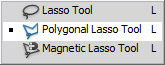
Step 2: Select the teeth. Grab the Polygonal Lasso Tool from the toolbar — it is nested under the Lasso Tool group. You can also press L on your keyboard and then Shift+L to cycle through the lasso tool variants until you reach the Polygonal Lasso. Carefully click around the edges of the teeth to create a precise selection. Include only the teeth themselves — try to avoid selecting the gums and lips, though small inclusions can be fixed later. Take your time with this step. A clean selection is the foundation of a natural-looking result.

Step 3: Duplicate the selection onto a new layer. Press Ctrl+J. This creates a new layer containing only the selected teeth. Working on a separate layer means you can adjust opacity, apply masks, or delete the layer entirely without affecting the original image underneath. This is the non-destructive workflow that separates professionals from beginners.

ShortcutActionWhen to Use
LLasso Tool (Polygonal)Selecting teeth with precision
Ctrl+JDuplicate selection to new layerCreating a non-destructive teeth layer
Ctrl+UOpen Hue/Saturation dialogCore whitening adjustment
EEraser ToolCleaning up edge artifacts
Ctrl+EMerge current layer downFlattening the teeth layer when done
Ctrl+Shift+FFade last adjustmentReducing over-whitening after the fact
[ / ]Decrease / increase brush sizeAdjusting eraser or brush size on the fly
Ctrl+ZUndo last actionReverting any mistake immediately

Step 4: Open the Hue/Saturation adjustment. With your teeth layer selected in the Layers panel, go to the menu: Image → Adjustments → Hue/Saturation, or simply press Ctrl+U. This opens the Hue/Saturation dialog box — the single most powerful tool for teeth whitening in Photoshop.

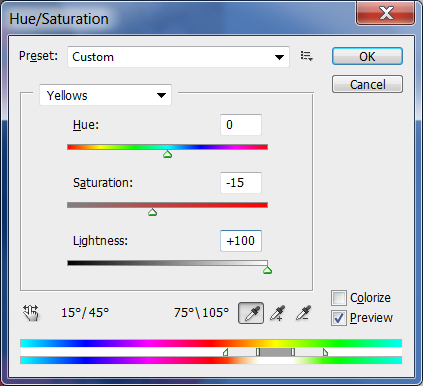
Step 5: Target the yellow color channel. In the Hue/Saturation dialog, locate the dropdown menu that says "Master" by default. Click it and select Yellows from the list. This is the critical step that most tutorials gloss over. By targeting only the yellow color range, you avoid desaturating the subtle blue and red tones that make teeth look like real teeth rather than porcelain veneers.

Step 6: Adjust the sliders. With Yellows selected in the dropdown, apply the following adjustments as a starting point:

  • Saturation: decrease to approximately -70 to -85. This removes the yellow tint from the teeth without affecting other colors in the image. The exact value depends on how yellow the teeth are — start at -70 and increase if needed.
  • Lightness: increase to approximately +15 to +30. This brightens the teeth slightly. Be conservative here — pushing lightness too high creates that distinctive "glowing mouth" look that instantly reveals retouching.

Click OK to apply the adjustment. Take a step back from your monitor and evaluate the result. The teeth should look naturally white — not glowing, not gray, not blue-tinted. If they look unnatural, double-click the Hue/Saturation adjustment in your Layers panel (if you used an adjustment layer) or undo and try again with more conservative values.

Step 7: Clean up the edges. Grab the Eraser Tool by pressing E. Select a soft round brush with hardness set to 0%, and carefully erase any parts of the whitened layer that extend beyond the teeth onto the gums or lips. If your initial selection was tight, this step takes seconds. If the selection was loose, take your time and zoom in for precision.

Step 8: Merge and save. Once you are satisfied with the result, merge the teeth layer down into the background by pressing Ctrl+E, or keep the layers separate if you want to make future adjustments. Save your file using Ctrl+Shift+S (Save As) to preserve the original unedited version.

For extra realism, reduce the opacity of the whitened teeth layer to 85-90% before merging. Natural teeth are never perfectly white — they always have subtle color variations. Leaving a hint of the original warmth peeking through creates a result that viewers will accept as real rather than retouched.

Method Comparison: Which Technique Should You Use?

The Hue/Saturation method described above is the gold standard for a reason — it produces the most natural-looking results with the least effort and the most control. But Photoshop offers multiple paths to the same destination, and each method has specific strengths, weaknesses, and ideal use cases. Understanding when to use which technique separates competent retouchers from truly skilled ones.

MethodQualitySpeedControlBest ForKey Risk
Hue/Saturation (yellow channel)ExcellentFast (1-2 min)Precise per-channel controlProfessional portraits, wedding photos, any high-quality workOver-desaturation causing gray teeth
Dodge Tool (midtones, 20% exposure)ModerateFast (1 min)Brush-based local controlQuick edits, social media photos, casual useOver-brightening, loss of texture
White brush overlay (Soft Light, low flow)GoodMedium (2-3 min)Very precise per-tooth controlUneven yellowing, targeted correctionsPatchy results if brush strokes are visible
Frequency SeparationExcellentSlow (5-10 min)Maximum — separates color from textureHigh-end beauty retouching, magazine workComplexity, steep learning curve
Selective Color adjustmentGoodFast (2 min)Targets specific color rangesAlternative when yellow channel alone is insufficientUnpredictable results across skin tones
Camera Raw / Lightroom brushGoodVery fast (30 sec)Limited but sufficientBatch processing, RAW workflow integrationLess precision than full Photoshop

The Dodge Tool Method: Fast But Risky

The Dodge Tool is many beginners' first instinct for teeth whitening, and it is not entirely wrong — the tool was literally designed to lighten specific areas of an image. The problem is that the Dodge Tool lightens everything in its path indiscriminately: highlights, midtones, shadows, texture detail, all of it. Without careful settings, you end up with teeth that are brighter but also flatter, losing the subtle surface texture that makes teeth look like real biological structures rather than plastic caps.

If you choose the Dodge Tool method: set the Range dropdown to Midtones (not Highlights, which produces harsh results, and not Shadows, which does almost nothing for teeth), set Exposure to a conservative 15-20%, and work with a soft round brush at small size. Build up the effect gradually with multiple light passes rather than holding the mouse button down in one spot. The key advantage of this method is speed — you can whiten teeth in under thirty seconds once you know the settings. The disadvantage is the permanent damage to tooth texture if you over-apply.

Never set Dodge Tool exposure above 30% for teeth whitening. At higher exposures, the tool burns through texture detail almost instantly, creating smooth white blobs where teeth used to be. Professional retouchers who use the Dodge Tool for this purpose typically work at 10-15% exposure with dozens of light, overlapping brush strokes.

White Brush Overlay: Precision Targeting

This method gives you the most granular control over which specific teeth get whitened and by how much. It is ideal for portraits where some teeth are significantly more yellow than others — a common situation when dealing with dental work, crowns, or natural variation in tooth coloration. The technique involves painting with white on a separate layer set to Soft Light blend mode, which applies the lightening effect in a way that preserves the underlying texture and shadows.

Here is the workflow: create a new layer above your image with Ctrl+Shift+N. Set the layer blend mode to Soft Light in the Layers panel dropdown. Select the Brush Tool with B, choose a soft round brush, set the foreground color to pure white, and reduce the brush Flow to 5-10% (not Opacity — Flow builds up gradually with repeated strokes while Opacity caps at a fixed value). Paint carefully over the teeth, building up the whitening effect stroke by stroke. If you apply too much, reduce the layer opacity. This method is slower than the Hue/Saturation approach but gives you per-tooth control that no global adjustment can match.

Frequency Separation: The High-End Solution

Frequency separation is the technique used in high-end beauty and fashion retouching where absolute perfection is required. The method splits an image into two layers: a low-frequency layer containing color and tonal information, and a high-frequency layer containing texture and detail. By whitening only the low-frequency (color) layer, you can dramatically change tooth color while preserving every microscopic surface detail — the tiny ridges, the subtle transparency at tooth edges, the natural variations that make teeth look real.

Setting up frequency separation takes approximately two minutes using Photoshop actions or manual setup. Once established, you can use the Lasso Tool to select individual teeth and apply a Gaussian Blur to the color layer — blurring removes the yellow while the texture layer maintains all surface detail. This is overkill for casual portraits and social media photos. It is the correct method for commercial beauty work, magazine covers, and any image that will be viewed at large sizes where retouching artifacts become visible.

Frequency separation is an advanced technique that deserves its own full tutorial. If you are interested in learning it, search for tutorials by professionals like Phlearn or PixImperfect. The basic concept is simple — split color from texture, edit them separately — but mastering the workflow takes practice and a solid understanding of how Photoshop layers interact.

Before and After: What to Watch For

Knowing when to stop is as important as knowing how to start. The most common teeth whitening mistake — across all methods — is going too far. Natural teeth are never #FFFFFF white. They are an off-white with subtle warm undertones, slight variations in shade between individual teeth, and a gentle gradient from slightly darker at the gum line to brighter at the biting edge. Erasing all of these natural characteristics in pursuit of a "perfect" white creates a result that triggers the uncanny valley response in viewers — something looks wrong, even if they cannot articulate exactly what.

Here are the telltale signs of over-processed teeth that you should learn to spot in your own work:

  • Glow effect: teeth appear to emit light rather than reflect it. Caused by pushing the Lightness slider above +40 in Hue/Saturation or Dodge Tool exposure above 40%.
  • Gray teeth: removing all yellow saturation without compensating in other ways produces teeth with a dead, grayish cast. Caused by desaturating yellows to -100 without adjusting the Master channel.
  • Blue teeth: overcorrecting yellow creates a cool blue tint that looks unnatural against warm skin tones. Caused by pushing the Hue slider in the yellow channel too far toward blue.
  • Floating teeth: the whitened area extends beyond the tooth boundaries onto gums or lips, creating a disconnected appearance. Caused by sloppy selection or inadequate edge cleanup.
  • Plastic texture: all surface detail on the teeth has been smoothed away, leaving featureless white shapes. Caused by excessive Dodge Tool use or blurring during frequency separation.
  • Mismatched brightness: the teeth are significantly brighter than the whites of the eyes, which should always be the brightest element in a face. Caused by whitening teeth in isolation without considering the overall facial luminance balance.

A useful rule of thumb: after whitening teeth, step away from your monitor for thirty seconds, then look at the image again with fresh eyes. If your attention is immediately drawn to the teeth, you have gone too far. Properly whitened teeth should blend into the overall portrait — they should look healthy and clean, not like the subject of the photograph is the teeth themselves.

Alternative Software Options

Not everyone has access to Adobe Photoshop, and not every teeth whitening task requires a full desktop editing suite. Here are the alternatives ranked by capability:

  • Adobe Lightroom — The Adjustment Brush in Lightroom allows you to paint a local adjustment that reduces saturation and increases exposure. The results are good but lack the per-channel color control of Photoshop. Ideal for photographers who already use Lightroom for their workflow and want to stay within one application for speed.
  • GIMP — The free, open-source image editor includes a Hue/Saturation tool that functions similarly to Photoshop's. The workflow is comparable: select teeth with the Free Select tool, create a new layer via Copy, apply Colors → Hue/Saturation and target the Yellow channel. GIMP is the best free option for anyone who cannot justify a Photoshop subscription.
  • Affinity Photo — A one-time purchase alternative to Photoshop with a nearly identical Hue/Saturation workflow. The HSL adjustment layer in Affinity Photo provides per-channel control equivalent to Photoshop's implementation. A strong choice for budget-conscious professionals.
  • Mobile apps (Snapseed, Lightroom Mobile, FaceTune) — All offer teeth whitening tools with varying degrees of sophistication. The results are acceptable for social media use but lack the precision of desktop software. FaceTune specifically has an automatic teeth whitening feature that works surprisingly well for quick edits but can look artificial on close inspection.
  • Online editors (Photopea, Pixlr) — Browser-based editors that replicate Photoshop's core functionality. Photopea in particular has an interface almost identical to Photoshop's and supports the full Hue/Saturation workflow described in this tutorial. A viable option when you do not have your usual editing software available.

Common Mistakes and How to Fix Them

Even experienced retouchers occasionally over-process teeth. The difference is that they know how to recognize and fix the problem. Here are solutions for the most common teeth whitening mistakes:

Teeth look too white or glowing: If you applied the whitening on a separate layer (you should always do this), simply reduce the layer opacity until the teeth blend naturally. Start at 70% and increase until you find the sweet spot. If you flattened the image without saving a layered version, use the Fade command (Ctrl+Shift+F) immediately after the adjustment — this dials back the last applied effect by a percentage you specify.

Gums or lips are accidentally whitened: Add a layer mask to your whitening layer by clicking the mask icon at the bottom of the Layers panel. Paint with black on the mask over any areas that should not be whitened. Layer masks are non-destructive — you can paint with white to restore the effect at any time.

Teeth have a gray or blue cast: The yellow channel desaturation was too aggressive. Open the Hue/Saturation adjustment again (or delete the adjustment layer and create a new one) and reduce the Saturation decrease — try -50 instead of -80. You can also add a tiny amount of warmth back by increasing the Saturation of Reds slightly, which counteracts the cool cast.

One tooth is significantly darker than the others: This is where the white brush overlay method shines. Instead of applying a global adjustment, paint white at 5% flow directly on the darker tooth using a Soft Light layer. This targets the problem tooth without over-processing the already-white neighboring teeth.

Frequently Asked Questions

Which Photoshop teeth whitening method gives the most natural results?

The Hue/Saturation method targeting only the Yellow color channel produces the most natural results for the least effort. It removes yellow saturation and slightly increases lightness while preserving the subtle color variations that make teeth look real. Professional retouchers use this method for the majority of their portrait work.

Why do my teeth look gray after using Hue/Saturation?

Gray teeth occur when you desaturate the Yellows channel too aggressively — typically at -100. Removing all yellow reveals the natural gray undertone of tooth dentin. Reduce the desaturation to around -60 to -75, and consider adding a slight warmth back by adjusting the Master channel or increasing Reds saturation slightly.

Can I whiten teeth in Lightroom instead of Photoshop?

Yes. Use the Adjustment Brush with reduced Saturation and slightly increased Exposure. Create a brush preset with Saturation around -40 and Exposure around +0.3, then paint over the teeth. Lightroom lacks per-channel yellow targeting, so results are good but not as refined as Photoshop's channel-specific approach.

What keyboard shortcuts do I need to remember?

The essential shortcuts are: L for Lasso Tool, Ctrl+J to duplicate selection to new layer, Ctrl+U to open Hue/Saturation, E for Eraser Tool, and Ctrl+E to merge layers down. With these five shortcuts you can complete the entire teeth whitening workflow without touching a menu.

How do I whiten teeth in GIMP (free alternative)?

Select the teeth with the Free Select tool, press Ctrl+C then Ctrl+V to create a floating selection, anchor it as a new layer. Go to Colors → Hue/Saturation, select Yellow from the dropdown, reduce Saturation to -70, increase Lightness to +20. Clean up edges with the Eraser tool. The workflow is nearly identical to Photoshop.

Should I whiten teeth differently for different skin tones?

Yes. Warmer and darker skin tones make teeth appear relatively brighter by contrast, so less whitening is needed. Cooler skin tones can make mildly yellow teeth look more yellow than they are. Adjust your target values: for darker skin, reduce Lightness increase to +10 maximum. For very pale skin, be especially conservative with Saturation reduction to avoid a blue-gray cast.

What is the biggest mistake beginners make when whitening teeth?

The most common beginner mistake is making teeth too white — bright enough to glow. Natural teeth are an off-white ivory color, not pure #FFFFFF. A good test: compare the brightness of the teeth to the whites of the subject's eyes. The teeth should always be slightly darker than the eye whites. If they are brighter, you have gone too far.

Can I create a Photoshop action to automate teeth whitening?

Yes, but with limitations. Create an action that duplicates the selected area to a new layer and applies a Hue/Saturation adjustment to the Yellows channel. You will still need to manually select the teeth for each photo, but the adjustment application becomes one click. Actions cannot automate the selection process since tooth shapes vary.

How do I fix uneven whitening where some teeth are too white?

Add a layer mask to the whitening layer. Paint with a soft black brush at 30-50% opacity over the teeth that look too white. This partially masks the whitening effect on those specific teeth. For per-tooth control, use the white brush overlay method instead of Hue/Saturation.

Is frequency separation worth learning for teeth whitening?

For high-end commercial and beauty retouching work, yes — frequency separation produces the most natural results by separating color correction from texture preservation. For everyday portrait work, social media, and hobbyist photography, the Hue/Saturation method is faster, easier, and produces results that are 95% as good with a fraction of the effort.

Tap to react