Wedding Frame for Bride — PNG for Photoshop

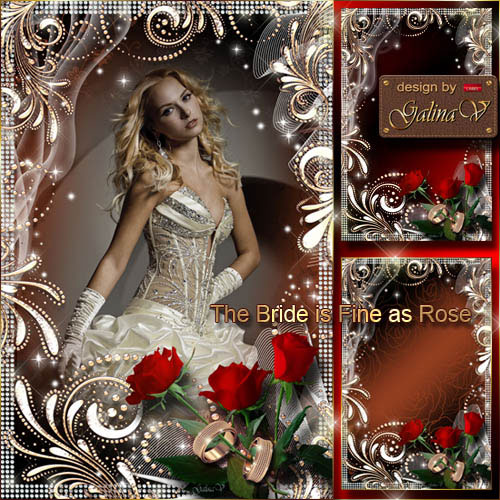
A well-designed wedding frame is one of those resources that sits quietly in your toolkit until the exact right project lands on your desk — and then you wonder how you ever worked without it. This wedding frame PNG for Adobe Photoshop is built around a bouquet of red roses, soft light effects, and ornamental patterns that frame the subject without overwhelming it. Transparent background, layered source file, ready to drop into any composition.

Whether you are assembling a bridal portrait collage, designing wedding invitations, or creating social media announcements, this frame cuts the production time from hours to minutes. No need to build a decorative border from scratch. No need to hunt for matching floral elements. It is all in one file.

Wedding frame for bride — PNG for Photoshop
Wedding frame with red roses and light effects

What Is in the Frame — Design Elements Breakdown

This is not a generic clipart border that looks like it was pulled from a 2004 CD-ROM. Every element was composed with intention:

  • Red roses bouquet — the dominant visual element. Rich, textured petals with realistic shading. The roses cascade along the bottom-left and right edges, creating a natural framing effect without forming a rigid box around the photo.
  • Light effects — soft bokeh-style glow accents floating across the frame. These add depth and a subtle dreamlike quality without distracting from the subject. They catch the eye at the edges and guide it toward the center where the bride's photo sits.
  • Ornamental patterns — delicate golden swirls and filigree woven through the composition. The pattern density is higher at the corners and tapers toward the center, which is exactly what you want: decoration at the periphery, breathing room in the middle.
  • Transparent inner area — the center of the frame is fully transparent. You drop your photo in, position it, and you are done. No masking, no cutting holes, no manual transparency work.
  • Soft vignette border — a subtle darkening toward the outer edges that naturally draws the eye inward. This is particularly effective when the frame is used on a light-colored background (cream, ivory, blush) — the vignette creates separation without a harsh outline.

Technical Specifications

ParameterValue
FormatPNG (Portable Network Graphics)
BackgroundTransparent (alpha channel)
Resolution500x500 pixels (square format)
Color modeRGB, 8 bits per channel
Software compatibilityAdobe Photoshop CS6+, GIMP, Affinity Photo, Paint.NET, Canva (upload as image), Figma
File sizeOptimized PNG, suitable for web and print at medium sizes
LayersSingle flattened PNG — transparent center preserved. For layered editing, place on its own layer above your photo.
The square format (500x500) is deliberate. It works perfectly for Instagram posts, wedding website hero images, and printed square formats like album covers and invitation inserts. If you need a different aspect ratio, stretch the canvas (not the frame) and fill the extended area with a solid color or gradient.

How to Use the Frame in Adobe Photoshop

If you have worked with PNG overlays in Photoshop before, this will be second nature. But let me walk through the exact steps — because small mistakes at the layering stage cascade into hours of rework later.

Step-by-step layering workflow

  1. Open your bride photo in Photoshop. Choose a portrait that has the subject centered and framed with some negative space around her — the roses will occupy the edges, so her face should not be too close to the frame border.
  2. Create a new document or use your existing composition as the base. The recommended canvas size depends on your output: 1080x1080 px for Instagram, 2550x3300 px for a 8.5x11" print at 300 DPI.
  3. Place the wedding frame PNG as a new layer: File > Place Embedded, select the PNG file. Position it at the top of your layer stack so it overlays everything beneath it.
  4. Position your photo on a layer below the frame. Use Ctrl + T (Free Transform) to scale and position the photo so the subject sits cleanly within the transparent center area. Hold Shift to maintain aspect ratio while scaling.
  5. Add a background as the bottom layer. White, ivory, soft pink gradient, or a subtle texture all work well. The vignette edge of the frame will blend beautifully with a light background.
  6. Fine-tune with adjustment layers. Clip a Levels or Curves adjustment to your photo layer to match the tonal range of the frame — the roses are rich and warm, so your photo should not look flat or washed out by comparison.
  7. Optional: add a drop shadow to the frame layer. Double-click the frame layer, check Drop Shadow, set Opacity to 30-40%, Distance to 5-8 px, Size to 10-15 px. This adds subtle depth and makes the frame feel like it is physically resting on top of the photo rather than floating awkwardly.

Quick compositing tips

  • If the bride's hair or veil overlaps slightly with the roses at the edge, do not panic — it often looks better with a slight overlap. It sells the illusion that she is inside the frame rather than pasted behind it. To achieve this, use a layer mask on the frame layer and paint with a soft black brush at 20% opacity on the areas where you want the photo to peek through.
  • The light effects in the frame look best when the photo underneath has a similar warm color temperature. If your photo is cool (blueish white balance), add a Photo Filter adjustment layer — Warming Filter (85) at 15-20% — clipped above the photo.
  • For a magazine-cover look, place a subtle text overlay (bride's name, wedding date) in the bottom-center area. The ornamental patterns there are less dense, so text remains readable. Use a serif font — Bodoni, Playfair Display, or Cormorant Garamond — in white or gold.

Creative Uses Beyond the Obvious

A wedding frame is not just for framing a single photo. Here is where this asset really earns its keep:

Wedding Invitations

Place the couple's engagement photo inside the frame, add invitation text below or to the side, and you have a coordinated invitation design in under 30 minutes. The red roses tie the romantic theme together, and the light effects add a premium feel that plain typography cannot achieve alone.

Thank-You Cards

Post-wedding thank-you cards that feature a photo of the bride and groom inside this frame feel personal without requiring a separate photoshoot. Print them as 5x7 flat cards or folded cards — the frame's square shape works well centered on both formats.

Social Media Announcements

Instagram story templates, Facebook event cover photos, wedding website hero images — the square aspect ratio is tailor-made for these platforms. Add text overlays with the wedding hashtag, date, or venue name. The frame provides visual structure, and the text provides information. Together they form a complete graphic.

Photo Album Cover

Design the cover of a printed wedding album or a digital photo book. The frame wraps the cover photo with a cohesive look that signals "this is a wedding album" before the viewer even reads the title.

Bridal Shower Decor

Print the framed photo at large scale (poster size at a print shop) and display it on an easel at the bridal shower entrance. Or print it as a custom backdrop banner — many online printers offer affordable fabric or vinyl banners starting at 2x3 feet.

Pro move: use the same frame for all pre-wedding and post-wedding printed materials. When guests see the save-the-date, then the invitation, then the thank-you card — all with the same visual language — it creates a brand identity for your wedding that feels intentional and professional.

Comparison with Other Wedding Frame Types

Frame TypeStyleBest ForComplexityPhoto Fit
Red roses frame (this one)Romantic, warm, classicBridal portraits, invitations, thank-you cardsLow — drop photo, doneSquare, centered subject
Gold ornamental frameLuxury, formalFormal wedding portraits, certificatesMedium — needs color matchingAny aspect ratio
Rustic wood frameRustic, natural, bohoOutdoor weddings, barn venuesLow — natural tones are forgivingRectangle preferred
Watercolor floral frameSoft, artistic, delicateSave-the-dates, bridal shower invitesHigh — pastels clash with many photosSquare, soft-edged subjects
Minimalist geometric frameModern, clean, architecturalContemporary weddings, city venuesLow — goes with everythingAny aspect ratio
Vintage lace frameNostalgic, soft, feminineVintage-themed weddings, garden partiesMedium — delicate details get lost at small sizesSquare or portrait

The red roses frame sits in a sweet spot: romantic enough for traditional weddings, but with light effects that keep it from feeling dated. The gold ornamental and vintage lace frames can tip into costume-drama territory if overused. The minimalist geometric frame is safe but forgettable. This one has personality without being loud.

Common Mistakes When Using Wedding Frames

  • Using a low-resolution photo under a high-resolution frame. The roses have fine detail. A pixelated or compressed photo underneath immediately breaks the illusion. Minimum recommended photo resolution: 1500 px on the long edge.
  • Placing the subject too close to the edge. The frame needs breathing room. If the bride's head touches the roses, the composition feels cramped. Leave at least 50-80 px of space between the subject and the inner edge of the frame.
  • Ignoring color temperature mismatch. The frame is warm-toned (reds, golds, warm glow). A photo with a cool blue cast will clash visibly. Always check white balance before compositing.
  • Scaling the frame non-proportionally. Holding Shift while scaling is not optional. A stretched frame with squashed roses looks amateurish instantly.
  • Overcomplicating the composition. If your photo is already busy (many people, detailed background, bright colors), the frame competes for attention. This frame works best with single-subject portraits or couple portraits with simple backgrounds.
  • Forgetting about bleed for print. If you are designing for print, extend the background layer at least 0.125 inches beyond the trim edge on all sides. The frame itself should stay within the safe zone — do not let the roses get trimmed off.

Software Compatibility Beyond Photoshop

You do not need a Creative Cloud subscription to use this frame. PNG with transparency is the universal format for a reason:

GIMP (Free, Windows/Mac/Linux)

Open your photo, then File > Open as Layers and select the PNG frame. It lands above your photo automatically. Position, scale, export as JPG or PNG. GIMP handles alpha channels perfectly — zero conversion issues.

Affinity Photo (Paid, one-time purchase)

Same workflow as Photoshop: File > Place, select the PNG. Affinity Photo is arguably smoother with non-destructive transforms than Photoshop — scaling the frame does not degrade quality until you rasterize.

Canva (Free/Browser)

Upload the PNG as an image element. Drag it over your photo. Canva handles transparent PNGs well — the roses will show beautifully, and the transparent center will reveal whatever is behind it. The limitation: no adjustment layers, no layer masks, no fine blending. Good for quick social media graphics, not for print-grade work.

Figma (Free/Browser)

Drag the PNG into your Figma canvas above the photo frame. Use the frame tool to clip the photo into a shape that matches the transparent area. Figma's vector-based rendering keeps scaling crisp, which is useful if you are designing for multiple output sizes.

Frequently Asked Questions

Is this frame suitable for printing at large sizes?

At 500x500 pixels native resolution, the frame prints well up to approximately 4x4 inches at 125 DPI — which covers photo prints, invitation inserts, and album covers. For posters (18x24" and above), you will see softness in the rose details. Consider this frame for digital use and small-to-medium printed formats. For large-format printing, upscale with an AI tool like Topaz Gigapixel before compositing.

Can I change the color of the roses?

Yes, but it takes some work. In Photoshop: add a Hue/Saturation adjustment layer above the frame, clip it to the frame layer (Alt+click between layers), and shift the Hue slider. Red roses will shift through pink, purple, blue, etc. However, the light effects and golden patterns may shift too — they share the same warm color range as the red roses. You may need a layer mask on the adjustment to protect the gold elements.

Does the frame work with group photos?

It can, but it is not ideal. The transparent center area is optimized for a single centered subject. A group photo with people spread across the frame will have faces partially covered by the roses at the edges. If you must use it for a group, choose a tightly cropped shot where all subjects are clustered in the center 60% of the frame.

How do I add text that does not clash with the roses?

Place text in the bottom-center area where the ornamental density is lowest. Use a bold serif font in white with a subtle drop shadow (3-5 px distance, 40% opacity). Alternatively, create a semi-transparent dark overlay bar (black at 50% opacity) across the bottom of the frame and place white text on top — this guarantees readability regardless of what is happening in the frame behind it.

Can I use this frame in video projects?

Yes. Import the PNG into any video editor (Premiere Pro, DaVinci Resolve, Final Cut) and place it on a track above your video clip. The transparent center functions exactly as it does in Photoshop. The frame adds a static decorative border around moving footage — useful for wedding highlight reels, title sequences, and YouTube wedding video thumbnails.

What background color works best with this frame?

Ivory, cream, soft blush pink, champagne, and very light gray all work excellently. Pure white can feel a bit sterile — add a 2-3% noise grain or a subtle texture overlay on your white background to break the flatness. Dark backgrounds (black, navy, charcoal) create a dramatic contrast with the red roses but the transparent center becomes a sharp-edged hole — you will need to feather the transition manually with a soft brush on the photo edges.

Is the frame compatible with CMYK for print production?

PNG files are inherently RGB. When you composite in an RGB document and convert to CMYK for print, the reds will shift — reds are notoriously tricky in CMYK because they rely on magenta and yellow inks with limited gamut. The shift is usually acceptable for wedding materials (slightly darker, slightly less vibrant reds), but if you are a professional printer, test-print a swatch before running the full batch. Soft proofing in Photoshop (View > Proof Setup > Working CMYK) will preview the conversion.

Can I resize the frame to a non-square aspect ratio?

You cannot change the frame's native aspect ratio without distortion. The solution: keep the frame square on a rectangular canvas. For example, on an 8.5x11" vertical canvas, place the square frame centrally, and fill the exposed top and bottom areas with a matching color or a gradient that echoes the frame's warm tones. The result looks intentional rather than forced.

How does this frame compare to paid premium wedding frames?

Premium frames (sold for $5-15 on Envato or Creative Market) often include multiple file formats (PSD, AI, EPS), layered source files where every element is editable, and higher resolutions (3000+ px). They also tend to have more elaborate ornamentation. This frame holds its own for 90% of use cases — the roses and light effects are executed at a quality level that does not betray its simplicity. If you need commercial-grade, fully editable vector source, go premium. If you need a beautiful frame that works reliably for personal projects, this is it.

What licensing restrictions apply?

This frame is provided for personal and non-commercial use. You can use it for your own wedding materials, photo albums, social media posts, and printed products. You cannot resell the frame file itself, include it in a commercial template pack, or distribute it as a standalone asset. If you are a wedding photographer or invitation designer using this in client work, please credit the source.

Tap to react