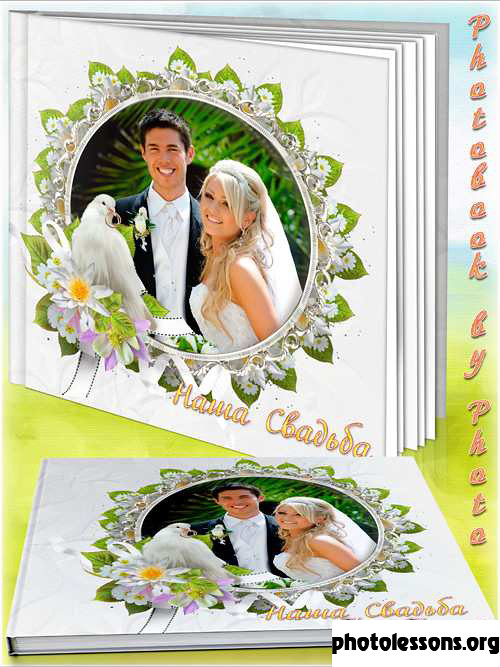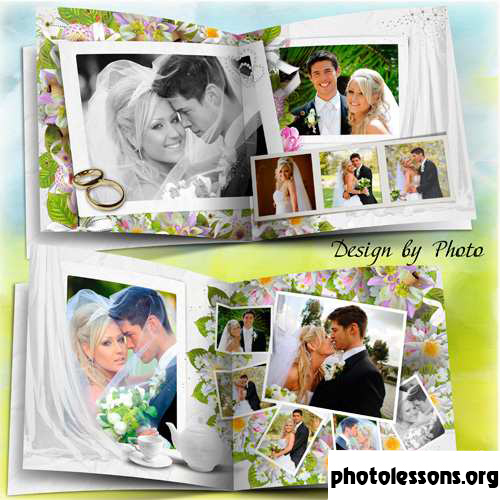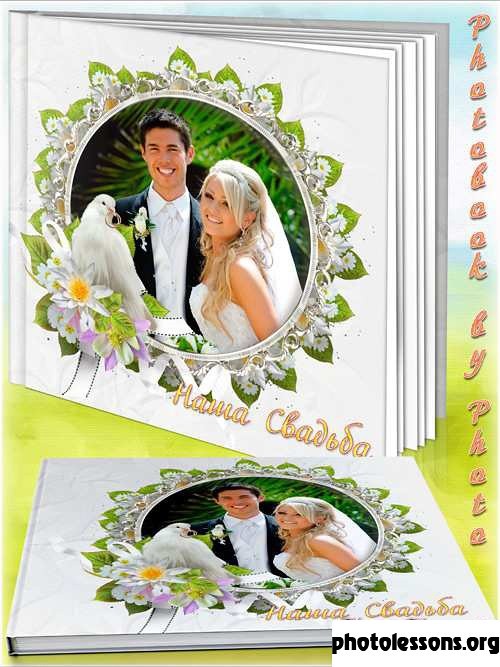
Why This Wedding Photobook Template Stands Out

Wedding photographers know the drill. You deliver hundreds of digital files. The couple uploads them to Instagram. Three months later nobody remembers where those photos went. A printed album changes everything. The "Two Fates and Two Rings" PSD template gives you a professional foundation that looks like it cost ten times what it actually did.

This is not another generic Canva layout with hearts slapped on every page. The design leans on classic wedding motifs — intertwined rings, flowing ribbons, elegant typography — but keeps the focus where it belongs: on the photographs. Six fully layered PSD files give you complete control over every element on every spread.

All six PSD files are organized with named layers and folders. If you have ever worked with Photoshop smart objects, you will feel right at home within five minutes.

Template Specifications

ParameterValue
File formatPSD (Adobe Photoshop)
Number of files6 layered source files
Resolution300 dpi
Spread dimensions7205 × 3602 px
Archive size502 MB
Color modeRGB, 8-bit
Smart object layersYes, fully editable
FontsFree alternatives included in download notes

At 7205 by 3602 pixels per spread and 300 dots per inch, these files are ready for commercial offset printing. You can send them directly to any print lab without scaling or resampling. The 502 MB archive reflects the high-resolution assets and complex layer structure — this is not a lightweight template hobbled together from low-res stock images.

How to Customize the Template in Photoshop

Open any of the six PSD files. The layers panel will look busy at first, but everything follows a logical structure. Double-click a smart object thumbnail marked "YOUR_PHOTO_HERE" and Photoshop opens a separate document. Paste your wedding image, hit Ctrl + S to save, and the main document updates automatically.

Smart objects preserve your original image quality. You can resize, warp, or apply filters inside the smart object without destroying the source pixels.

Layer Structure Explained

Each PSD file follows the same organizational system:

  • Background — gradient or textured base layer. Locked by default to prevent accidental moves.
  • Photo Placeholders — smart object layers with adjustment clip masks attached. Each placeholder has a suggested photo orientation noted in the layer name.
  • Decorative Elements — rings, ribbons, floral accents. Grouped by spread section and toggleable with a single folder visibility switch.
  • Typography — headline, date, names. All text layers use system-friendly fonts with fallback suggestions listed in the readme file.
  • Color Overlays — adjustment layers that control the global color mood. Change one hue/saturation slider and the entire palette shifts.
Before replacing photos, always duplicate the original smart object first. Right-click the layer and choose "New Smart Object via Copy." This prevents accidentally overwriting the template default when saving.

Photo Selection Tips

Not every great wedding photo belongs in an album spread. The template works best with images that match its spatial logic. Full-width hero shots go on pages with single photo placeholders. Tightly cropped portraits and detail shots fill the multi-photo grid spreads. Here is a quick guide:

Spread TypeRecommended PhotosOrientation
Cover spreadBest couple portraitHorizontal, full-width
Double spread with 4 placeholdersGetting ready, ceremony detailsMix of vertical and horizontal
Single-hero spreadFirst kiss, first danceLandscape, no tight crops
Grid spread (6-8 photos)Guest candids, table detailsSquare or 4:5 crop
Closing spreadDeparture, sparkler exitWide landscape

Print Preparation Guide

Getting the printed album to match what you see on screen requires attention to a few technical details. Monitors lie. They glow with backlit RGB color that no printed page can reproduce. A quick soft-proofing pass before export saves you from that sinking feeling when the test print comes back looking like a different album entirely.

First, convert your working document to the color profile your printer requests. Most labs want sRGB IEC61966-2.1 for photo books. Some high-end labs accept Adobe RGB. Ask before exporting — guessing costs you a reprint.

Then check your blacks. Pure #000000 on screen prints as a dark gray blob with no detail. Keep shadow tones above RGB 15/15/15. Similarly, pure white highlight areas without texture should not exceed 245/245/245 or they will print as blank paper with no ink at all.

Add 3 mm of bleed on all sides if your print lab requires it. Go to Image → Canvas Size, add 6 mm to both width and height, and extend the background layer to fill the new borders.

Best Paper Types for Wedding Albums

Paper choice affects everything: color saturation, perceived sharpness, and how the album feels in your hands ten years from now. Here are the main options:

  • Lustre — the default choice for most wedding albums. Semi-gloss finish hides fingerprints, reduces glare, and preserves good contrast. If you are unsure, pick this.
  • Glossy — maximum color punch and deepest blacks. Tradeoff: every fingerprint shows, and viewing angles narrow under direct light. Best for albums that stay on a shelf and get handled carefully.
  • Matte — zero glare, but colors look flatter and blacks turn dark gray. Works beautifully for fine-art wedding photography with a documentary style. Less ideal for vibrant, high-contrast edits.
  • Pearl — a middle ground between lustre and glossy. Subtle shimmer effect that complements wedding dress details and jewelry shots.
  • Silk — textured surface with a luxurious tactile feel. Slightly muted colors but adds perceived value through the physical texture alone.
\u{201c}

I printed the same 10-page album on lustre and matte for comparison. Clients chose lustre every single time — the skin tones looked warmer and the dress details popped more. But the matte version got more "ooh, this feels expensive" comments.

Alexey Petrov, Wedding Photographer, Moscow

Design Elements Breakdown

The "Two Fates and Two Rings" template builds its aesthetic around a few deliberate design choices. Understanding why each element works helps you decide what to keep and what to tweak for a specific wedding.

The color palette defaults to muted gold and ivory with dark charcoal accents. Gold conveys warmth and celebration without screaming "novelty." Ivory softens the visual frame so the photographs — not the decorations — dominate. The charcoal text anchors each spread and provides strong readability against light backgrounds.

Typography uses a serif display font for titles and a clean sans-serif for body text. This pairing is a wedding album staple for a reason: serifs add formality and tradition (the ceremony), sans-serifs add clarity and modernity (the party). You can substitute any font pair that follows this contrast principle.

The ring graphic appears as a recurring motif throughout the spreads — sometimes as a large watermark on the cover, sometimes as a subtle interlocking element between two photo blocks. It ties the six individual spreads into one coherent visual narrative.

Comparison with Similar Wedding Book Templates

Not every wedding PSD template delivers the same editing flexibility. Here is how "Two Fates and Two Rings" stacks up against alternatives in the same category:

FeatureTwo Fates and Two RingsTypical PSD TemplateCanva Template
Resolution300 dpi, 7205×3602200-300 dpi, varies96 dpi (screen only)
Smart objectsYes, full controlSometimes, often flat layersNot available
Print-readyYes, with bleed areaRarely includes bleedNo, screen resolution only
Layer organizationNamed folders, color-codedOften unlabeled layersNo layers (flat design)
File formatPSD (Photoshop)PSD / PSDTOnline-only, no offline file
Commercial use licenseIncludedCheck license termsPro subscription required
Offline accessYes, full downloadYesNo, requires internet
Learning curveIntermediate PhotoshopVariesBeginner-friendly

The main difference is resolution and editability. Canva templates are quick and easy but lock you into screen-level quality. Generic PSD templates often skip smart objects, which means every time you resize a photo placeholder you degrade quality. This template keeps every photo in its own smart object container — you can swap images a dozen times and the eighth replacement looks identical to the first.

Tips for Professional Results

After going through dozens of wedding album print runs, a few patterns emerged that separate the "nice try" albums from the ones couples actually display:

  1. Edit photos before placing them. Don't rely on adjustment layers inside the template to fix exposure problems. The template's built-in adjustments are for mood cohesion, not salvaging bad RAWs.
  2. Match white balance across all spreads. A warm ceremony shot next to a cool-toned reception shot in the same spread creates visual whiplash. Batch-correct white balance before placement.
  3. Keep at least 10 mm of safe margin. No important subject (faces, rings, text) should sit closer than 10 mm from any edge. Page trimming varies between print runs.
  4. Proof on paper. A letter-size test print on the actual paper stock reveals contrast and color issues that zoomed-in screen previews miss entirely.
  5. Export as single-page PDFs. Most print labs want individual pages, not spreads. Export each page at 300 dpi with the correct ICC profile embedded.
  6. Name files logically. "cover.pdf" gets processed faster than "PSD_export_v3_final_FINAL.pdf." Print operators appreciate clarity.
Do not use JPEG compression below quality 10 for print exports. The compression artifacts become visible in smooth gradients — like sky backgrounds or wedding dress fabric — when printed at actual size.

Frequently Asked Questions

What version of Photoshop do I need to open these files?

Any version from Photoshop CS6 onward opens these PSD files without issues. The template uses standard layer features — smart objects, adjustment layers, layer groups — that have been part of Photoshop for over a decade. If you are on Photoshop CC 2023 or newer, you also get the improved smart object editing workflow with auto-save on close.

Can I use this template in Affinity Photo or GIMP?

Affinity Photo can open PSD files and generally preserves smart objects, though some adjustment layers may render differently. GIMP's PSD import is less reliable with smart objects — they often get rasterized on import. For full compatibility, stick with Adobe Photoshop. If you must use Affinity, test the file on a single spread before committing to the full project.

What paper size does the template produce?

The spread dimensions of 7205 × 3602 pixels at 300 dpi translate to approximately 610 × 305 mm (24 × 12 inches). This suits a large landscape-format wedding album — common sizes include 30×30 cm, 30×40 cm, and 40×30 cm depending on how you crop the spine area. Always confirm final trim dimensions with your print lab before export.

How do I change the gold color to silver or rose gold?

Open the adjustment layer folder labeled "Color Grading" and look for a Hue/Saturation layer affecting the decorative elements. Shift the hue by about -30 points to get silver tones or +15 points for rose gold. You may need to adjust saturation separately — silver needs less saturation than gold to look natural on screen.

Are the fonts included with the download?

The template does not bundle commercial font files — that would violate most font licenses. Instead, the download includes a text file listing every font used and links to free alternatives on Google Fonts. The main serif display font is typically a premium design font; the closest free match is Playfair Display. The sans-serif body font maps cleanly to Montserrat or Open Sans.

Can I add more pages beyond the six provided spreads?

Yes. The six spreads cover the essential album sections: cover, getting ready, ceremony, reception, portraits, and closing. For a longer album, duplicate an existing spread layout and adjust the photo placeholders. Keep the design consistent by copying the background layer, decorative elements group, and typography style from the nearest matching spread.

What should I do if Photoshop says a font is missing?

Photoshop will display a "Missing Fonts" dialog when you open a file. You have two options: click "Resolve Fonts" to manually substitute each missing font with an installed alternative, or click "Don't Resolve" to open the file anyway. The text layers will display with a yellow warning icon but remain fully editable. Replace fonts through the Character panel dropdown.

How long does it take to complete an album with this template?

For a photographer familiar with Photoshop, expect 2-3 hours for photo selection and placement plus 1 hour for final adjustments and export. First-time users should budget 5-6 hours total. The biggest time sink is never the template itself — it is indecision about which photos go where. Pre-select your images before opening the PSD files.

Will these PSD files work on a Mac and Windows?

Yes. PSD is Adobe's cross-platform native format. The files open identically on macOS and Windows versions of Photoshop. The only platform-specific consideration is font availability — fonts installed on your system must be present for text layers to render without substitution warnings.

Print Setup Guide1.2 MB

Tap to react