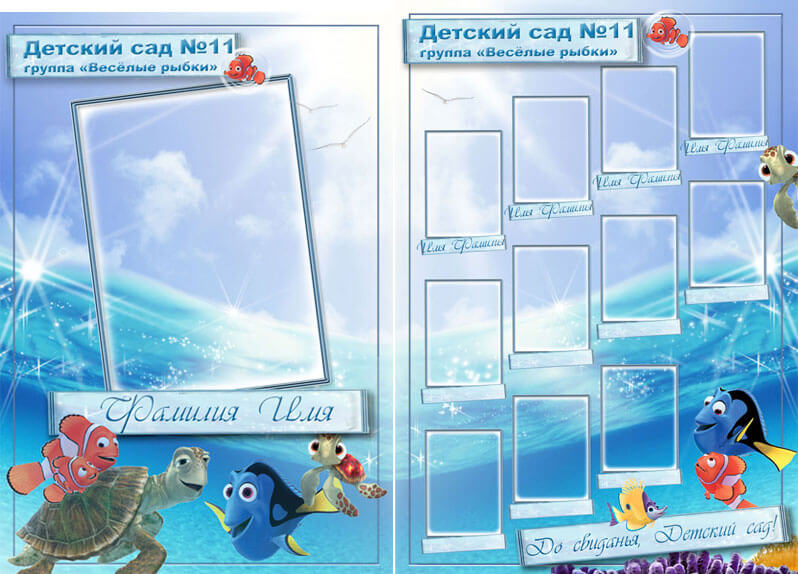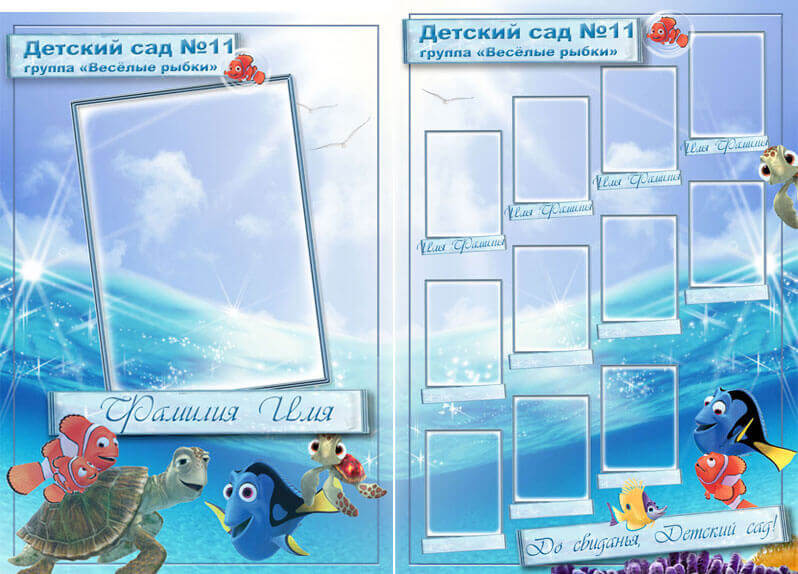
A kindergarten vignette is not just a photo frame — it is a time capsule. Twenty years from now, when today's preschooler flips through an old album, they will not remember the brand of the camera or the lens aperture. They will remember the feeling: the deep blue of the ocean, the orange flash of a clownfish, the wonder of an underwater world captured right on the page. This is exactly what the «Finding Nemo» kindergarten vignette set delivers — two meticulously designed vertical sheets at 3500×5000 pixels, 300 DPI, with a total archive weight of 152 MB. Every detail was crafted to make a child's graduation photo feel like the final scene of a Pixar adventure.
The set consists of two PSD files, each a self-contained vertical spread. Unlike the generic «clip-art and border» approach that floods freebie sites, these sheets were built by a designer who understands both print requirements and children's aesthetics. Marine elements — coral, seaweed, bubbles, anemones, and the unmistakable orange-and-white silhouette of Nemo — are woven into the composition with restraint, framing the child's portrait rather than overpowering it. The vignettes are vertical for a reason: vertical orientation matches standard portrait photography ratios, so your photos slide in without awkward cropping or letterboxing.
What makes these vignettes different from typical kindergarten templates
Walk through any Russian or Ukrainian photography forum and you will find dozens of free vignette templates. Most share the same issues: low resolution (72–150 DPI), pixelated backgrounds stretched from postage-stamp-sized JPEGs, overbearing cartoon elements that compete with the child's face, and designs so generic they could pass for birthday cards.
This «Finding Nemo» set sidesteps every one of those traps. Here is what sets it apart:
- 300 DPI from start to finish. Not upscaled from 150. Not interpolated. Native 300 DPI resolution that holds up under the loupe at the print shop. When you send these files for offset or digital printing, the prepress operator will not reject them;
- 3500×5000 pixels — print-ready without resampling. At 300 DPI, this yields a physical print size of roughly 29.6×42.3 cm (A3-ish). Enough room for a crisp portrait at 11×14 inches with generous margins;
- Smart Objects on photo placeholders. Double-click the layer thumbnail, paste the child's photo, hit save — and the image snaps into the frame with masks and blending modes already applied. No manual resizing, no guessing where the edges fall;
- Thematic coherence. Every element on the sheets belongs to the ocean world: clownfish, blue tang, sea turtles, coral reefs, schools of fish, gentle gradient backgrounds transitioning from surface light to deep blue. No random clip-art thrown in to "fill space";
- Two complementary sheets, not one plus a copy. Sheet 1 and Sheet 2 have distinct compositions. They work together as a pair — one portrait- focused, the other more atmospheric — giving parents and kindergarten teachers options without feeling like they are looking at the same design twice.
Detailed breakdown of the two vertical sheets
Each sheet is a PSD file with groups of layers organized by function. Labels are in Russian, but the layer structure is intuitive enough for anyone familiar with Photoshop to navigate. Here is what each sheet contains:
| Sheet | Resolution | DPI | Orientation | Key Elements |
|---|---|---|---|---|
| Sheet 1 — Main Portrait | 3500 × 5000 | 300 | Vertical | Central photo placeholder, Nemo silhouette, coral border, name/age text fields, deep-sea gradient background |
| Sheet 2 — Group/Memory | 3500 × 5000 | 300 | Vertical | Multiple photo slots for group shots, Dory and sea turtle elements, bubble overlays, kindergarten name, graduation year, decorative seaweed borders |
Sheet 1 is optimized for a single, high-impact portrait. The composition leads the eye from the title area at the top, through the framed photo in the center, down to the personal details at the bottom. The Nemo character sits to the side of the frame, not covering the child's face — a surprisingly rare design choice in themed templates. Sheet 2 accommodates multiple smaller photos — group shots, candid moments from kindergarten activities, a photo with the teacher. The layout is denser but remains clean, with bubbles and marine flora connecting the photo slots into a single underwater scene.
Comparison: this set vs. free vignettes on the market
Not all free PSD vignettes are created equal. Here is a side-by-side comparison of what you actually get here versus what you might find elsewhere:
| Feature | Finding Nemo Vignettes | Typical Free Vignettes |
|---|---|---|
| Resolution | 3500×5000 px (native) | Often under 2000 px, upscaled |
| DPI | 300 | 72–150 |
| File format | Layered PSD with Smart Objects | Often flattened JPEG renamed to .psd |
| Photo slots | Smart Objects — auto-crop, auto-mask | Manual resizing, no masks, jagged edges |
| Text editability | Named text layers, editable fonts | Rasterized text, uneditable |
| Layer organization | Grouped by function, proper naming | Layer 1, Layer 2 copy, Layer 2 copy 3 |
| Design coherence | Unified marine theme, all elements curated | Random clip-art collection, no visual logic |
| Number of sheets | 2 (different compositions) | Often 1 (or 2 identical with minor tweaks) |
| Print readiness | Fully print-ready | Requires manual upsampling and fixing |
The difference comes down to this: one was made by a designer who knew the files would end up on a printing press. The others were made by someone who exported a JPEG and renamed it .psd.
How to work with the vignettes — a practical walkthrough
If you have used Photoshop before, the workflow is straightforward. If you are a kindergarten teacher or a parent opening Photoshop for the first time, here is the step-by-step:
Step 1: Install the fonts
The archive includes the fonts used in the design. Install them before opening the PSD files — otherwise Photoshop will substitute missing fonts and the layout may shift. On Windows, right-click each .ttf or .otf file and select «Install». On macOS, double-click and hit «Install Font».
Step 2: Open the PSD in Photoshop
Open either Sheet 1 (single portrait) or Sheet 2 (group layout). You will see a well-organized layer panel with folders like «Background», «Photos», «Text», «Decor». Do not ungroup them — the layer grouping is intentional and keeps editing manageable.
Step 3: Replace the photo placeholders
Find the Smart Object layers in the «Photos» group. Double-click the layer thumbnail — Photoshop will open a new document window. Delete the placeholder image, paste your child's photo, resize it to fill the canvas, and press Ctrl+S (Cmd+S on Mac). Close the Smart Object window. Your photo now sits perfectly inside the vignette frame, masked and blended.
Step 4: Edit the text
Navigate to the «Text» group. Click on any text layer with the Type Tool (T) and replace the placeholder text: child's name, kindergarten name, group number, graduation year, teacher's name — whatever is relevant. The text layers are already styled with the correct font, size, and color.
Step 5: Save for print
Save as PSD to keep layers intact for future edits. Export as JPEG at maximum quality (12) or TIFF for sending to a print shop. Do not reduce resolution — keep it at 300 DPI and 3500×5000 pixels.
Technical specifications at a glance
| Parameter | Value |
|---|---|
| File format | PSD (Adobe Photoshop Document) |
| Number of sheets | 2 (distinct designs) |
| Resolution (each sheet) | 3500 × 5000 pixels |
| DPI | 300 |
| Color mode | RGB (convert to CMYK for offset print) |
| Archive weight | 152 MB |
| Minimum Photoshop version | CS6 or newer |
| Layer structure | Named, grouped, fully editable |
| Smart Objects | Yes, on all photo slots |
| Fonts | Included in archive |
Who needs these vignettes — real-world use cases
The target audience is broader than «kindergarten photographer». Here is who actually uses files like these:
- Kindergarten teachers and staff. Graduation season comes every year. Instead of paying a designer or buying overpriced templates, you download this set, drop in the kids' photos, and send them to the nearest print shop. Done by Friday;
- Parents organizing a graduation album. One or two active parents typically manage the class photo album. These vignettes become the backdrop for individual portraits, then get compiled into a printed book or a digital slideshow;
- Freelance photographers breaking into the kindergarten market. You land a contract to photograph three kindergarten groups. You need themed vignettes fast, and you need them to look professional. This set is your starting point — edit the templates once, batch-process 60 kids' photos through Smart Objects, and deliver;
- Print shops and photo studios. Many small print shops offer kindergarten vignette printing as a seasonal service. Having a library of pre-made PSD templates saves hours of per-client design work. This marine-themed set expands that library with a popular, child-friendly style.
The marine theme: why «Finding Nemo» works for kindergarten photography
Theme selection for children's photo products is not arbitrary. Ocean themes consistently test well with the 3–7 age group, and the «Finding Nemo» IP has unique advantages over generic undersea designs:
- Universal recognition. Twenty years after its 2003 release, Finding Nemo remains one of the most-watched animated films among preschoolers worldwide. The characters are instantly recognizable to children and parents alike;
- Color psychology. The deep blues of the ocean backdrop create a calm, professional canvas. The warm oranges and yellows of Nemo and the coral reef add focal warmth that draws the eye to the child's face — exactly where you want it;
- Gender neutrality. Unlike princess or superhero themes, the ocean world appeals equally to boys and girls. This matters when you are producing vignettes for a mixed kindergarten group and need designs that do not alienate any child or parent;
- Photographic compatibility. Ocean blues complement almost any skin tone and outfit color. A child in a bright red shirt, a white dress, or the classic dark-blue kindergarten uniform — all work against the deep-sea palette without clashing.
\u{201c}The best vignettes do not compete with the photo. They frame it, support it, and then get out of the way. The Finding Nemo set does exactly that — the characters are present but never central.
Software compatibility: what works and what does not
These are PSD files designed for Adobe Photoshop. Here is the honest compatibility breakdown:
- Adobe Photoshop CS6 through CC 2025 — full compatibility. Smart Objects, layer groups, adjustment layers — everything works as intended;
- Photopea (photopea.com, free browser-based editor) — good compatibility. Opens PSD files, preserves layers and Smart Objects, supports basic editing. The best free alternative if you do not own Photoshop. Slight differences in text rendering and some blending modes, but workable for most edits;
- Affinity Photo (paid, one-time purchase) — moderate compatibility. Opens PSD files but does not support Photoshop Smart Objects natively. Photo placeholders will need manual replacement and repositioning;
- GIMP (free, open-source) — limited compatibility. Opens PSD files with layers intact but has no Smart Object support. Text layers often lose formatting. Suitable for basic edits only, not recommended for full production work;
- CorelDRAW, Illustrator, Inkscape — not compatible. These are vector editors. They import PSD files as flattened raster images only.
Frequently Asked Questions
Do I need Photoshop to use these vignettes?
Photoshop CS6 or newer is recommended for full functionality. Free alternatives: Photopea.com (browser-based, handles Smart Objects) and GIMP (limited PSD support, no Smart Objects). Affinity Photo works but requires manual photo placement.
Can I replace the Russian text with English?
Yes. All text layers are fully editable. Select the Type Tool (T), click on any text element, and type in any language. The included fonts support both Cyrillic and Latin scripts. If a font does not support a specific character, Photoshop will flag it and you can substitute a similar font.
What is the physical print size of these sheets?
At 300 DPI, 3500×5000 pixels equals approximately 29.6×42.3 cm (11.7×16.7 inches). This is close to A3 size and provides excellent quality for prints up to 11×14 inches with room for cropping.
How many children's photos fit on one sheet?
Sheet 1 has one central photo slot — ideal for a single portrait. Sheet 2 accommodates up to 6 smaller photos in various arrangements. Together, the two sheets cover individual portraits plus group/candid shots for one child, or you can use Sheet 2 for a group class vignette.
Is the archive password-protected?
Yes, the archive is password-protected. The password is displayed alongside the download link at the bottom of this page.
Can I change the background color or replace the ocean theme?
Yes. The background is on its own layer group. You can adjust the gradient colors, replace the ocean background with a different image, or recolor existing elements through adjustment layers. The marine characters are on separate layers and can be hidden or replaced entirely.
Are these vignettes suitable for commercial use?
You can use these vignettes to create printed products for paying clients (kindergartens, parents, schools). You cannot resell, redistribute, or sublicense the PSD template files themselves — they must remain as tools you use in your workflow, not products you sell.
Why is the file so large (152 MB)?
Because these are genuine multi-layered PSD files with high-resolution elements, not flattened JPEGs. The size reflects the actual design complexity: Smart Objects with embedded masks, multiple layer groups, high-res textures, and non-destructive adjustment layers. A flattened equivalent would be under 5 MB — and useless for editing.
Can I print these at a local photo lab?
Yes. Export each sheet as a JPEG at maximum quality (12) or as a TIFF, keeping the full 3500×5000 px at 300 DPI. Take the files to any photo lab, copy center, or online print service. For professional offset printing, convert to CMYK color mode and discuss the preferred file format with your printer.
What if a font is missing when I open the file?
Photoshop will display a missing font warning. Install the fonts included in the archive first. If you still see a warning after installing them, restart Photoshop. If you prefer to use your own fonts, accept the substitution dialog and select an alternative — check all text layers afterward for any text overflow caused by font metric differences.
Download the «Finding Nemo» kindergarten vignettes
The archive contains two PSD files (both vertical, 3500×5000 px, 300 DPI), the fonts used in the design, and a preview JPEG. Total size: 152 MB. Make sure you have a stable internet connection before starting the download.
Download Finding Nemo Kindergarten Vignettes — PSD Template152 MBAfter downloading, extract the archive using the password provided on the download page, install the fonts, open either PSD in Photoshop (or Photopea.com), replace the photo placeholders with your children's portraits, edit the text fields, and export. In under 30 minutes, you will have print-ready vignettes that look like they were made by a professional children's photographer — because they were designed by one.
Tap to react