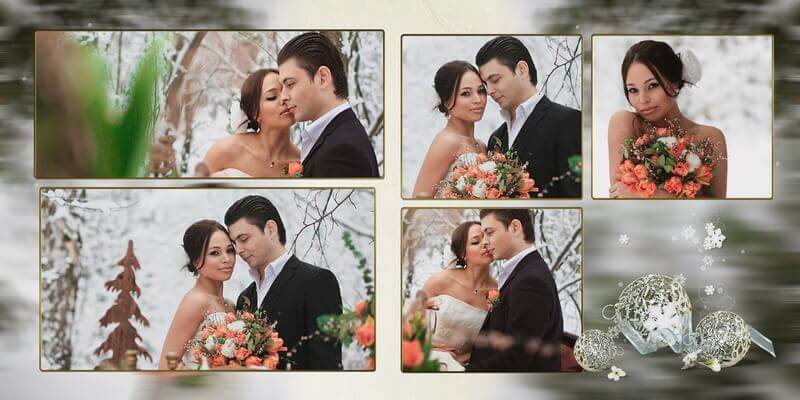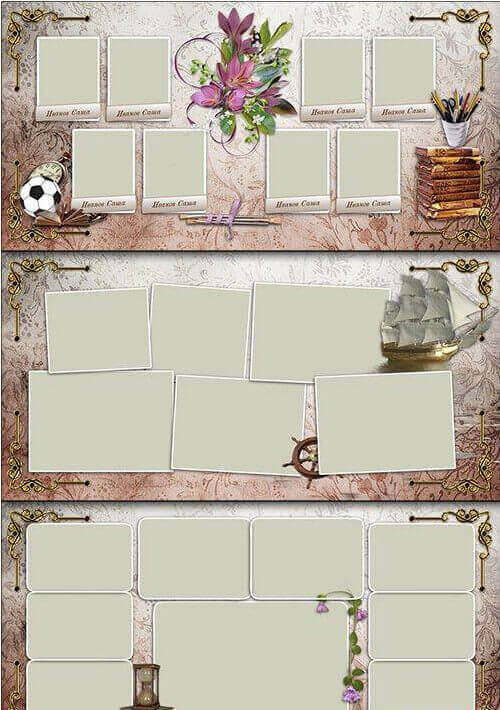
A graduation photo book is not just an album — it is the final chord of a whole stage of life. When the last bell rings and exams are behind, every graduate wants to keep the memory of school years, classmates, and favorite teachers alive. Today we are sharing a powerful tool for creating just such a memory: the "Farewell, Graduates" photo book in PSD — 7 fully layered source files weighing 979 MB at a solid 300 DPI. Every photo, every text block, every decorative element sits on its own layer — no flattened JPEG disguised as a "source file".

The template covers the complete layout cycle: from the front cover that sets the tone, through five carefully designed inner spreads, to the back cover that closes the story. Each spread carries its own visual logic — the cover is bold and minimal, the first spread introduces the class, the middle spreads alternate between grid portraits and mosaic memories, and the final spread wraps up with a class photo and a farewell message. You are not stuck with a cookie-cutter design: swap backgrounds, adjust color overlays, replace fonts, or reorganize the entire composition to match your taste.

All photos, text, and design elements sit on separate, named, and grouped layers. Change anything: fonts, colors, backgrounds, frames. No flattened JPEG masquerading as a PSD.

What's inside the archive: a detailed breakdown

The "Farewell, Graduates" set contains 7 PSD files, each representing a full spread measuring 7084 × 3543 pixels. Layers are grouped and named — no hunting through the layer panel. Smart objects handle every photo slot, so you paste your image and it snaps into position with masks and blend modes intact. Below is a breakdown of exactly what you are getting:

File Resolution DPI Layout type Editable elements
Cover 7084 × 3543 300 Horizontal spread Title, photo placeholder, background texture
Spread 1 7084 × 3543 300 Full spread hero Text blocks, 3 photo slots, decorative flourishes
Spread 2 7084 × 3543 300 Grid layout Multiple photo slots, individual captions
Spread 3 7084 × 3543 300 Mixed layout Large hero photo, secondary shots, text areas
Spread 4 7084 × 3543 300 Mosaic layout Up to 8 photos, decorative frames and borders
Spread 5 7084 × 3543 300 Portrait spread Individual graduate portraits, name tags
Back cover 7084 × 3543 300 Horizontal spread Closing message, school logo area, graduation year

The archive weighs 979.86 MB — that is raw layered PSD with no destructive compression. Every file is print-ready straight out of the box. Swap in your photos, adjust the text, and send to print.


Why this template is different from the sea of free PSDs

Let me be honest: the internet is flooded with so-called "free PSD templates" that turn out to be flattened JPEGs renamed to .psd extension. Or templates designed at 72 DPI that pixelate the moment you send them to a print shop. Or single files that claim to be a "complete set" but actually cover only one spread of a six-spread album.

This set works differently. Here is what makes it a genuine production tool, not a pretty preview image:

  • 300 DPI on all 7 files. The golden standard of offset and digital printing. When you send the file to the print shop, they will not reply with "sorry, we cannot work with this resolution";
  • Smart objects on every photo slot. Double-click the layer icon, paste your photo, hit Ctrl+S — the image snaps into place with all masks, blend modes, and adjustment layers applied automatically;
  • A consistent, warm color palette. The designer used warm, restrained tones that work equally well for a boys' class, a girls' class, or a mixed group. No jarring color clashes, no need to spend hours adjusting hues;
  • Grouped and named layers. Text layers live in one folder, photo placeholders in another, decorative elements in a third. No guesswork — you always know what you are editing;
  • Full 7-spread coverage. Not a one-off teaser. You get the complete album cycle from cover to cover.

Design style and visual language

The visual identity of "Farewell, Graduates" sits at the sweet spot between classic yearbook dignity and modern photo book aesthetics. The designer avoided cliché school motifs — no cartoon owls, no primary-color balloons, no clip art graduation caps. Instead, the template relies on texture, typography, and confident use of negative space. The backgrounds use subtle paper-like textures with a hint of grain that feels tactile in print. The color scheme revolves around deep navy, cream white, and soft gold accents — a timeless combination that photographs well and ages gracefully on a shelf. Decorative flourishes appear sparingly: thin gold lines that frame key photos, watercolor splashes that add depth without distraction, and subtle vignettes that draw the eye toward the portraits rather than the borders.

Typography gets its own story. The headline font — a bold serif with elegant ligatures — carries the weight of the occasion without feeling heavy. Body text sits in a clean sans-serif that ensures even small class lists remain readable. The contrast between the two creates a visual hierarchy that guides the viewer naturally: title first, then the photos, then the details.

\u{201c}

I see hundreds of templates come through our prepress department every May. Most of them are nightmares — RGB-only files without bleed, 72 DPI disasters, missing fonts. This set came in with correct resolution, proper layer organization, and color profiles that actually match our press output. Saved us two hours of prepress work.

Dmitry, Print shop manager, 12 years experience

Who needs this photo book

The obvious answer is a school photographer or yearbook designer. But the real audience is broader than that. Here is who actually benefits:

  • School photographers who need a repeatable, reliable workflow — drop in photos from the shoot and deliver the layout in hours, not days;
  • Parent committees looking for a budget-friendly yet professional result without hiring an external designer. One person on the committee who knows basic Photoshop can handle the entire project;
  • University graduating classes — the layout scales from a class of 25 to a faculty of 200. The grid and mosaic spreads adapt to whatever photo count you throw at them;
  • Freelance designers building a portfolio in the graduation and education niche. It is a solid foundation to build custom albums on top of;
  • Students themselves who are comfortable with Photoshop and want a DIY graduation memory they crafted with their own hands.
If you are a complete Photoshop beginner — do not panic. The smart object workflow is as simple as it gets: double-click a layer, paste your photo, hit Ctrl+S, done. Text editing is even simpler — select the layer and type your content. No advanced techniques required.

Step-by-step workflow: from download to print

Step 1: Download and unpack

Download the archive via the link at the bottom of this page. It is roughly 980 MB — ensure your internet connection is stable and you have enough free disk space. Use 7-Zip or WinRAR to extract. The archive password is listed next to the download link.

Step 2: Open in Photoshop

Any version from CS6 to the latest Creative Cloud release will work. The template uses nothing exotic — only standard layer effects, blending modes, clipping masks, and adjustment layers. No third-party plug-ins needed.

Step 3: Edit the title and year

The cover text sits in its own layer group labeled "Cover Text". Expand the group, find the title text layer, and replace the title with your school name and graduation year. The font is either included in the archive or listed in the readme file. If Photoshop warns about a missing font, install the free font from the archive or substitute a similar one.

Step 4: Insert photos via smart objects

Every photo slot is labeled. Double-click the placeholder layer thumbnail — Photoshop opens a separate document. Drag your photo into it, resize to fit, save, close. Your photo now occupies the slot with all masks, effects, and blending modes applied automatically. Repeat for all 7 spreads. This is the fastest part of the workflow once you get the rhythm.

Step 5: Review and export

Go through all 7 spreads. Check that no photos are peeking outside clipping masks. Verify that text remains readable against the background — especially on spreads where text overlays photos. Make sure the cover title is centered correctly. Export each spread as TIFF with LZW compression for print, or as PDF/X-4 directly from Photoshop. For offset printing, convert to CMYK with the correct profile before exporting.

Always request a hard proof from your print shop before committing to a full print run. A color profile shift of just a few percent can turn skin tones unnaturally pink or green — and you do not want that in a graduation album.

Technical specifications at a glance

Parameter Value
Format PSD (Adobe Photoshop)
Number of files 7 (cover + 5 spreads + back cover)
Resolution per spread 7084 × 3543 pixels
DPI 300
Color mode RGB (convertible to CMYK for offset printing)
Archive size 979.86 MB
Layer structure Grouped, named, with smart object slots
Compatible with Photoshop CS6 — CC 2024+
Fonts Standard system fonts + one free font (included)
Approximate print size 60 × 30 cm (23.6 × 11.8 inches) at 300 DPI

Comparison with other graduation photo book templates

To save you the trouble of hunting through dozens of options, I have compared this set against the typical alternatives you will find online:

Feature "Farewell, Graduates" Typical free template Premium paid template ($15-40)
Real layered PSD Yes, fully layered with groups Often flattened JPEG in PSD wrapper Yes
Print resolution 300 DPI 72–150 DPI 300 DPI
Smart objects Yes, on all photo slots Rarely Sometimes, not always
Archive size 979 MB 5–50 MB (high compression, quality loss) 100–500 MB
Spreads included 7 (complete set) 1–2 (incomplete) 5–10
Font requirements Standard + one free font Often requires expensive premium fonts Varies — some are good, some are not
Print shop readiness 300 DPI, correct color space Typically not ready, needs pre-flight work Usually ready
Price Free Free $15–40

The difference is stark. Most free templates are created by hobbyists who have never sent a file to a commercial print shop. The result for the end user is a pixelated mess instead of a graduation album worth keeping.


Printing recommendations and common pitfalls

A well-designed template is only half the battle. The other half is preparing it correctly for print. Here is what you need to know before sending files to the print shop:

  • Offset printing: Convert files to CMYK using the ISO Coated v2 (300%) profile. Check the black channel on the cover — true deep black requires a rich black mix (60C/40M/40Y/100K), not just 100K alone. Pure 100K black looks washed out in print;
  • Digital printing: Most digital presses handle RGB input correctly. Still, confirm with your print shop. Ask specifically about paper stock — coated paper and matte paper render colors and shadows differently;
  • Binding type: The spread dimensions are designed for lay-flat binding. If your print shop offers PUR or thread-sewn binding, you are in luck — the spreads will open fully without gutter loss;
  • Paper weight: 170–200 gsm for inner spreads, 250–300 gsm for the cover. Silk or matte finish is the safest bet for school photos — it minimizes glare while keeping colors rich;
  • Bleed and trim: The template includes appropriate bleed margins. Do not crop them out. Let the print shop handle the final trim;
  • Proofing: Request a hard proof before the full print run. A single proof copy costs a fraction of the batch and saves you from repeating an expensive mistake.

Common mistakes when working with graduation templates

Having reviewed hundreds of graduation albums over the years, I can tell you which mistakes crop up most often. Here is a short list of things to avoid:

  • Low-resolution source photos. The template is 300 DPI, but if your original photos are 72 DPI smartphone screenshots, the final output will still look bad. Use photos shot at the camera's maximum resolution;
  • Over-cropping faces. The smart object slots expect a certain aspect ratio. If you cram a headshot into a landscape photo slot, parts of the face will get cut off. Take a moment to position each photo correctly;
  • Mixing color temperatures. If one batch of photos was shot under fluorescent light (green cast) and another in daylight (warm cast), the color inconsistency will jump out on the same spread. Batch-correct white balance before inserting photos;
  • Font substitution without checking. When you replace the missing font with a random system font, the line breaks shift. Always review every spread after changing fonts to catch text overflows;
  • Sending RGB files to offset printers. Some online print services accept RGB and convert automatically, but the results are unpredictable. Convert to CMYK yourself using the correct profile and inspect the output.

Frequently Asked Questions

Do I need Photoshop to edit these files?

Yes, Photoshop CS6 or newer is required. Affinity Photo opens PSD files with most layer effects intact and is a good one-time-purchase alternative. Photopea (free browser-based editor) supports PSDs and basic smart objects but may not render every blend mode correctly. GIMP with the PSD plugin has limited support and will not handle smart objects.

Can I change the text to English or another language?

Absolutely. All text layers are fully editable. The default fonts support Cyrillic and Latin scripts. You can swap in any font installed on your system. Just expand the text layer group and type your content.

What is the physical print size of each spread?

At 300 DPI, 7084 × 3543 pixels translates to approximately 60 × 30 cm (23.6 × 11.8 inches). This is a generous landscape spread that fits standard photo book formats offered by most print houses.

Is the archive password-protected?

Yes, the archive has a password. It is provided next to the download link at the bottom of this page.

How many photos can I fit into the entire photo book?

The 7 spreads accommodate approximately 35–50 photos depending on how you use the grid and mosaic layouts. Some slots are designed for large hero images, while others accommodate smaller group photos or individual portraits.

Will this template work for university or college graduation?

Yes, the design is universal. The title text is editable, so you can replace the school name with any institution. The warm color scheme suits any educational level from kindergarten to post-graduate programs.

Can I sell photo books created with this template?

Yes, you may use the template to produce photo books for your clients and charge for the final printed product. The template itself as a source file cannot be resold or redistributed.

What if I get a "missing font" warning when opening the file?

Photoshop will display a missing font dialog. You can install the free font included in the archive, or substitute any similar font of your choice. The layout proportions will remain intact since text boxes have fixed widths — but always review each spread afterward to catch any text overflow.

Are the backgrounds changeable?

Yes, every background element sits on its own editable layer. You can replace textures, adjust color overlays via blending options, or completely remove background elements. The layer grouping makes it easy to isolate what you want to change.

How do I open a PSD file without Photoshop?

The best free option is Photopea.com — it runs in your browser with no installation required. The best paid alternative without a subscription is Affinity Photo (one-time purchase). GIMP supports PSD files partially but cannot process smart objects. CorelDRAW and Illustrator can import PSDs but only as flattened images.


Download the "Farewell, Graduates" PSD template

The full archive of 7 PSD files is available via the link below. The file is roughly 980 MB — make sure your connection is stable before starting the download.

Download Farewell, Graduates — PSD Template979 MB

After downloading, extract the archive using the password found on the download page, then open any PSD file in Adobe Photoshop. Replace the placeholder content with your photos and text, and you will have a print-ready graduation album in a matter of hours.

Tap to react