Creating Heirloom-Quality Photo Books with Ornamental PSD Templates in Photoshop
In an age where digital photos accumulate by the thousands on our devices, there's something profoundly meaningful about holding a physical photo book in your hands. The tactile experience of turning thick, quality pages, seeing images printed with rich color and detail, and sharing stories with loved ones gathered around a coffee table creates connections that scrolling through a screen simply cannot replicate.
Yet many of us hesitate to create photo books, intimidated by the perceived complexity of design, layout, and technical requirements. This is where ornamental PSD photo book templates transform the process—providing a professional foundation that handles the technical heavy lifting while leaving creative control firmly in your hands.
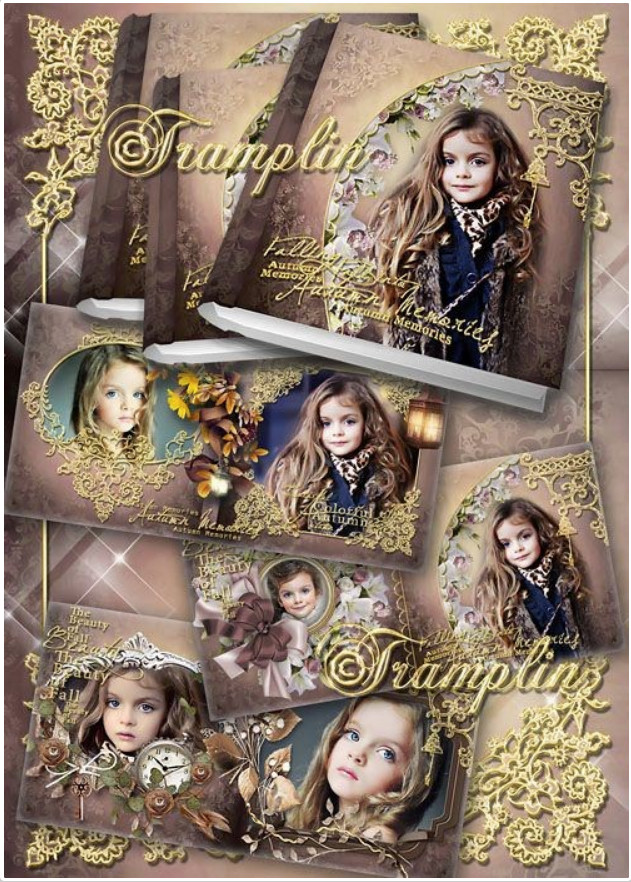
The particular template we'll explore today features exquisite ornamental borders that elevate your photos from simple snapshots to gallery-worthy presentations. With intricate vector patterns framing each image, this template brings a touch of timeless elegance to your most cherished memories.
Whether you're documenting a wedding, compiling a family history, creating a professional portfolio, or preserving travel adventures, this comprehensive guide will walk you through every step of creating a stunning, heirloom-quality photo book using this elegant Photoshop template.
Understanding the Value of Ornamental PSD Templates
Not all photo book templates are created equal. While basic templates provide functional frames for your images, ornamental templates offer something extra—aesthetic refinement that transforms your album from a simple collection of photos into a cohesive work of art.
The ornamental borders in this template serve multiple purposes beyond mere decoration:
- They create visual harmony between diverse images, unifying different subjects, lighting conditions, and compositional styles
- They add a sense of luxury and craftsmanship that elevates the perceived value of your album
- They provide natural resting points for the viewer's eye, creating a more contemplative viewing experience
- They conceal minor imperfections in image alignment or cropping
- They establish a consistent visual language that guides the viewer through your narrative
What makes this particular template exceptional is the quality of its ornamental elements. Rather than simple geometric patterns, it features intricate, hand-designed vector motifs inspired by classical architectural details, Art Nouveau motifs, and traditional textile patterns—all scaled appropriately for photo book dimensions.
Getting Started: Template Preparation and Setup
Before placing your first photo, proper preparation ensures a smooth workflow and professional results.
Software Requirements and Recommendations
This template is designed for Adobe Photoshop CC 2018 or later, though it will work with most recent versions. For optimal performance:
- Ensure you have at least 8GB of RAM (16GB+ recommended for large albums)
- Use a fast SSD for your working directory to minimize lag
- Calibrate your monitor for accurate color representation
- Install the latest updates for Photoshop and your operating system
While the template will function in older versions, some smart object features may behave differently, and 4K+ displays benefit from newer versions' improved UI scaling.
Initial Template Inspection
Upon opening the template, take these essential first steps:
- Check the image mode: Should be CMYK for print projects or RGB if intended primarily for digital viewing
- Verify the resolution: 300 PPI is standard for professional print quality
- Examine the color profile: Look for embedded ICC profiles like US Web Coated SWOP v2 or Adobe RGB 1998
- Review the document size: Common photo book dimensions include 8x8", 8.5x11", 10x10", or 11x14"
- Inspect the Layers panel organization: Professional templates use logical grouping and naming conventions
If you plan to print professionally, confirm with your chosen print lab about their specific requirements—some prefer RGB files with specific profiles, while others want CMYK.
Working with Smart Objects: The Heart of Template Customization
The true power of this template lies in its smart object placeholders, which allow non-destructive editing of your images while maintaining perfect alignment with the ornamental frames.
Understanding Smart Object Functionality
Smart objects are essentially embedded documents that retain their original characteristics, allowing you to:
- Transform images (scale, rotate, warp) without degrading quality
- Apply filters that can be adjusted or removed at any time
- Replace content entirely while maintaining all effects and transformations
- Maintain resolution independence for scaling operations
- Create multiple instances that update simultaneously when the source is edited
In this template, each photo frame is a smart object, conveniently sized and positioned to align perfectly with its ornamental border.
Step-by-Step Image Placement Process
To insert your photo into a frame:
- Locate the smart object layer in the Layers panel (typically labeled "Photo" or "Image Placeholder")
- Double-click the smart object thumbnail to open it in a new document window
- In the smart object document, use File > Place Embedded to insert your photo
- Position and scale your image as desired within the visible canvas area
- Apply any desired adjustments (cropping, color correction, etc.)
- Save and close the smart object document (Command/Ctrl + S)
- Return to the main template to see your image automatically updated in the frame
Pro tip: Hold Shift while dragging corner handles to maintain aspect ratio, or hold Option/Alt to scale from the center.
Advanced Smart Object Techniques
Once comfortable with basic placement, consider these advanced approaches:
- Multiple images in one frame: Create a collage within the smart object using additional layers
- Text overlays: Add captions, dates, or quotes directly in the smart object
- Smart filters: Apply non-destructive effects like Camera Raw, Gaussian Blur, or Noise Reduction
- Vector masks: Create custom image shapes within the smart object using vector tools
- Linked smart objects: For repetitive elements, use linked objects to maintain consistency across multiple frames
Remember that any changes made inside a smart object update all instances of that object throughout your document—useful for applying consistent filters or corrections.
Customizing Ornamental Borders: Making the Template Truly Yours
While the template's ornamental borders are beautiful as-supplied, true customization allows you to align them perfectly with your project's theme, color scheme, or personal style.
Understanding the Border Structure
The ornamental elements in this template are constructed as:
- Vector shapes (paths) for infinite scalability without quality loss
- Layer effects (strokes, glows, shadows) for dimensional appearance
- Layer groups organized by position (top border, bottom border, side elements, corners)
- Clipping masks that confine decorative elements to specific areas
- Blend modes that create sophisticated interactions with underlying layers
This construction means you can customize nearly every aspect of the borders while maintaining their professional quality and scalability.
Color Customization Methods
To change the color scheme of the ornamental borders:
- Locate the ornamental border groups in the Layers panel (often named "Ornaments," "Borders," or "Decorative Elements")
- Select the specific vector shape layer you wish to modify
- Double-click the layer's color swatch to open the color picker
- Choose your new color or enter specific values (HEX, RGB, CMYK, or Pantone)
- Repeat for additional elements as needed
For graduated effects, modify gradient stops within gradient fill layers, or adjust the colors in color overlay layer effects.
Consider creating thematic palettes:
- Wedding: Soft ivory, sage green, and blush pink for romantic elegance
- Travel: Sandy beige, ocean blue, and terracotta for earthy wanderlust
- Baby book: Mint green, lavender, and warm gray for gentle sophistication
- Professional portfolio: Charcoal, deep blue, and silver for modern minimalism
- Family history: Antique gold, burgundy, and cream for timeless heritage
Pattern and Scale Adjustments
Beyond color, you can modify the ornamental patterns themselves:
- Scale: Use Edit > Transform > Scale to make patterns larger or smaller—ideal for adapting to different photo orientations or creating visual hierarchy
- Rotation: Small rotational adjustments (5-15 degrees) can add dynamism to static patterns
- Opacity: Reduce opacity for subtler effects or layer multiple patterns at different opacities for depth
- Blend modes: Experiment with overlay, soft light, or multiply for different interactions with underlying colors
- Layer styles: Modify stroke width, texture overlays, or shadow parameters for different material effects
For extensive pattern redesign, consider editing the vector paths directly using the pen tool or converting shapes to bezier paths for point-by-point manipulation.
Professional Layout and Design Principles
Even with a beautiful template, thoughtful layout decisions separate amateur albums from professional-looking keepsakes.
Image Selection and Sequencing
The stories we tell through our photos matter as much as the photos themselves. Consider these approaches to sequencing:
- Chronological: Perfect for events, vacations, or childhood progressions
- Thematic: Group by subject (family, details, landscapes, portraits) for artistic impact
- Narrative arc: Create a beginning, middle, and end that takes viewers on a journey
- Emotional pacing: Alternate energetic images with quiet, contemplative ones
- Color progression: Move through color families for visual harmony (warm to cool, or vice versa)
Regardless of your approach, vary image types to maintain visual interest—mix wide establishing shots with intimate details, posed portraits with candid moments, and color images with black-and-white conversions.
Typography and Text Elements
While photos are the stars, thoughtful typography enhances the storytelling experience:
- Font pairing: Combine one decorative font for titles with one highly readable font for body text
- Hierarchy: Establish clear visual hierarchy—title > subtitle > caption > date
- Legibility: Ensure sufficient contrast between text and background for easy reading
- Consistency: Use the same fonts, sizes, and spacing throughout for professional polish
- Language: Consider multilingual options for families with diverse heritage
Many creators find that less is more—letting the images breathe with minimal text often creates a more powerful emotional impact than over-explaining.
Printing and Production: From Digital to Heirloom
All your careful work culminates in the final product, making print preparation crucial for professional results.
Color Management for Accurate Reproduction
Ensuring what you see on screen matches what comes off the press requires attention to color management:
- Work in the correct color space (RGB for most online printers, CMYK for offset lithography)
- Use soft proofing with your printer's ICC profile to simulate output
- Calibrate your monitor regularly using a hardware calibrator
- View proofs in consistent lighting conditions (5000K daylight bulbs recommended)
- Consider ordering a physical proof copy before committing to a full print run
Common pitfalls include overly vibrant on-screen colors that don't translate to print, or subtle gradients that band in output due to insufficient bit depth.
File Preparation and Export Settings
Before sending your file to print, take these essential preparation steps:
- Check resolution: Confirm all images are at least 300 PPI at final size
- Verify color mode: Match your printer's requirements (most prefer RGB with sRGB or Adobe RGB 1998)
- Check for missing fonts: Outline text or rasterize text layers if required
- Inspect links: Ensure all smart objects contain valid embedded content
- Check file size: Extremely large files may cause processing issues—consider flattening a copy if needed
- Remove unnecessary layers: Hidden layers still increase file size and processing time
- Check spelling: Typos are magnified in print—proofread all text carefully
- Add bleed if required: Extend background elements 1/8" beyond trim edges if your printer requires it
Export options vary by printer, but common professional formats include:
- High-quality PDF/X-1a or PDF/X-4 for offset printing
- TIFF with LZW compression for lossless quality
- High-quality JPEG (quality 10-12 in Photoshop) for some digital printers
- The original PSD file if your printer accepts layered files
Selecting the Right Printing Partner
Not all printing services are equal when it comes to photo book quality. Consider these factors:
- Specialization: Look for printers that specialize in photo books or fine art reproduction
- Paper options: Evaluate weight, texture, finish (matte, luster, glossy), and archival properties
- Binding methods: Layflat, perfect binding, saddle stitch, or hardcover options
- Color management: Do they provide ICC profiles and offer proofing options?
- Minimum quantities: Some require large runs while others accept single copies
- Turnaround time: Consider timing for events or gift-giving deadlines
- Shipping: Evaluate costs, packaging, and insurance for valuable items
For truly heirloom-quality results, consider archival paper (acid-free, lignin-free) and UV-protective coatings to prevent fading over decades.
Comparison with Alternative Approaches
Understanding how ornamental PSD templates compare to other photo book creation methods helps you make informed choices.
Creation Method Comparison
| Aspect | Ornamental PSD Template | Template-Based Online Services | Custom Design from Scratch | Pre-Made Blank Books |
|---|---|---|---|---|
| Creative Control | High - full customization possible | Medium - limited to provider's options | Very High - complete freedom | Low - constrained by book format |
| Technical Skill Required | Medium - Photoshop proficiency needed | Low - drag-and-drop interfaces | High - advanced design skills | Very Low - simply insert photos |
| Time Investment | Medium - setup plus customization time | Low - rapid assembly | High - significant design and layout time | Very Low - minimal time required |
| Cost Efficiency | High - one template purchase for multiple uses | Medium - per-book pricing varies | Low - high designer fees plus printing | Medium - book cost plus printing expenses |
| Output Quality | Very High - professional print-ready files | Variable - depends on service quality | Very High - if designer is skilled | Depends on your skills and materials |
| Uniqueness | High - customizable to your exact vision | Low-Medium - templates used by many others | Very High - truly one-of-a-kind creation | Low - identical to others who buy same book |
This comparison shows why ornamental PSD templates hit a sweet spot for many creators: they offer substantial creative control without requiring professional design expertise, provide consistent quality, and remain cost-effective for multiple projects.
Advanced Customization Techniques
For those seeking to push the template's capabilities further, consider these advanced approaches:
Creating Custom Ornamental Elements
While the supplied borders are beautiful, you may wish to incorporate personal symbols, monograms, or theme-specific motifs:
- Create new vector shapes using the pen tool or import SVG files
- Apply the same layer effects (strokes, glows, shadows) as existing elements for visual consistency
- Use clipping masks to confine custom elements to specific areas
- Experiment with blend modes to integrate new elements seamlessly
- Consider animating elements for digital versions using Photoshop's timeline features
For complex custom work, creating elements in Adobe Illustrator and importing as smart objects often provides better precision for intricate designs.
Creating Multi-Volume Consistency
If you're creating a series (such as annual family albums or multi-volume travel journals), maintaining visual consistency strengthens the collection:
- Save custom color schemes, layer styles, and effect settings as reusable presets
- Create a master template with your preferred starting point
- Document your customizations (fonts used, color values, specific techniques)
- Consider evolving a signature element that appears in each volume (consistent corner motif, specific border width, etc.)
- Use similar paper stocks and finishes for tactile consistency across volumes
This approach transforms individual albums into a cohesive library that tells a larger story over time.
Preservation and Legacy: Ensuring Your Album Endures
A photo book represents more than just a collection of images—it's a legacy object meant to be enjoyed for generations. Proper preservation ensures it withstands the test of time.
Environmental Factors Affecting Longevity
Several environmental factors can degrade photo books over time:
- Light: UV radiation causes fading and yellowing—display away from direct sunlight
- Humidity: High moisture promotes mold growth and page warping—aim for 30-50% RH
- Temperature: Heat accelerates chemical degradation—keep below 75°F (24°C)
- Pollutants: Airborne acids and ozone contribute to deterioration
- Handling: Oils from hands and improper storage cause physical wear
These factors affect both the photographs themselves and the physical book materials (paper, binding, adhesives).
Best Practices for Long-Term Preservation
To maximize your photo book's lifespan:
- Storage: Keep upright on a shelf (not stacked) to prevent spine stress
- Handling: Wash and dry hands before touching; consider cotton gloves for valuable pieces
- Environment: Store in cool, dark, dry conditions with stable temperature and humidity
- Protection: Use archival-quality boxes or sleeves for additional defense
- Lighting: If displaying, use UV-filtering glass or acrylic and limit exposure time
- Backing: Avoid storing against rough surfaces that could abrade covers or pages
- Inspection: Periodically check for signs of damage, mold, or insect activity
For truly archival results, consider:
- Acid-free, lignin-free paper for all internal pages
- Archival-quality adhesives and binding materials
- UV-protective coatings on both images and cover materials
- Inert storage materials that won't off-gas harmful chemicals
- Professional conservation framing for particularly valuable or historical pieces
Troubleshooting Common Issues
Even with excellent templates, challenges can arise. Here are solutions to frequent problems:
Image Quality Concerns
Pixelation or blur: Check original image resolution—avoid enlarging small images significantly
Color shifts: Verify color profile consistency between image, working space, and output intentions
Bandering in gradients: Increase bit depth to 16-bit/channel if possible, or add subtle noise
Low contrast: Adjust levels or curves to ensure adequate dynamic range for printing
Technical Template Problems
Smart objects not updating: Ensure you're saving changes inside the smart object document
Missing fonts: Install missing fonts or outline text before sending to print
Design and Aesthetic Challenges
Overwhelming ornamentation: Reduce opacity of decorative elements or increase image scale within frames
Inconsistent visual weight: Balance busy images with simpler ones, or adjust border prominence
Color clashes: Use adjustment layers to harmonize image colors with your chosen border palette
Lack of hierarchy: Vary image sizes or create focal points using decorative emphasis
Cost Analysis and Budget Considerations
Understanding the investment required helps you plan effectively for your photo book project.
Template and Software Investment
The primary costs for template-based creation include:
- Template purchase: One-time cost typically ranging from $15-50 for quality ornamental templates
- Software: Ongoing subscription for Photoshop ($20.99/month for single app) or perpetual license alternatives
- Optional assets: Additional fonts, textures, or graphics if desired ($0-50+)
Compared to hiring a designer ($500-2000+ per album) or using subscription-based online services ($30-100+ per book), templates represent excellent long-term value for multiple projects.
Printing and Material Costs
Print costs vary significantly based on:
- Size: Larger formats increase cost exponentially (8x8" vs 12x12")
- Page count:** Most printers charge per page, with discounts for higher counts
- Paper: Premium papers (matte, luster, pearl, premium matte) cost more than standard
- Binding: Hardcover and layflat options add significantly to cost
- Quantity:** Economies of scale apply—per-unit cost decreases with larger runs
- Extras:** Dust jackets, slipcases, embossing, foil stamping increase price
Typical ranges for a 20-page 8x8" hardcover photo book:
- Budget option (standard paper, perfect binding): $15-25
- Mid-range (premium paper, hardcover): $25-40
- Premium (luxury paper, layflat, dust jacket): $40-75+
For context, this is often less than the cost of professional framing for a single equivalent-sized print.
Case Study: Creating a Wedding Album
To illustrate the complete workflow, let's walk through creating a wedding album using this template:
Phase 1: Planning and Preparation
- Determine album size (10x10" square offers good balance of presence and usability)
- Select 80-100 key images from thousands captured (ceremony, portraits, details, candid moments)
- Choose a color palette inspired by the wedding (ivory, sage, gold for spring; burgundy, navy, champagne for fall)
- Gather any text elements (vows, ceremony details, reception information, thank you notes)
- Create a backup folder structure for raw images, edited versions, and project assets
Phase 2: Image Preparation
- Perform basic editing (exposure, white balance, contrast) in Lightroom or Camera Raw
- Apply consistent color grading for cohesive look across different lighting conditions
- Crop to consistent ratios or create intentional variations for visual interest
- Resize to final dimensions at 300 PPI, saving as high-quality TIFF or PSD
- Organize into chronological or thematic folders for efficient access
- Create black-and-white versions of select images for variety
Phase 3: Template Customization
- Open template and verify settings match printer requirements
- Customize ornamental borders to match wedding color palette
- Select fonts that complement the invitation suite and overall aesthetic
- Create master pages for section dividers (Getting Ready, Ceremony, Portraits, Reception, etc.)
- Set up text styles for consistency in captions, dates, and section titles
- Save customized version as "Wedding Album Master" to preserve original
Phase 4: Layout and Assembly
- Begin with a strong opening image (detail shot of rings, bouquet, or venue exterior)
- Alternate image types: wide establishing shots, medium groups, tight detail/candid moments
- Use full-bleed images sparingly for impact (typically every 8-10 pages)
- Create narrative flow: preparation → ceremony → celebration → quiet moments
- Add text meaningfully: quotes, dates, location names, brief anecdotes where impactful
- Review spread-by-spread for visual balance and emotional pacing
Phase 5: Finalization and Output
- Perform final quality check at 100% zoom for pixel-level issues
- Verify all smart objects contain correct, high-quality content
- Run spelling and grammar check on all text elements
- Export according to printer specifications (typically high-quality PDF/X-1a)
- Request and review physical proof before approving full print run
- Consider ordering two copies—one for immediate enjoyment, one for archival storage
Conclusion
Creating a photo book with an ornamental PSD template represents a beautiful balance of accessibility and sophistication. You gain the advantages of professional design—layout consistency, technical precision, and aesthetic refinement—without requiring years of design study or hiring expensive professionals.
The true value extends beyond the physical object itself. The process of curating your memories, making thoughtful decisions about what to include and how to present it, and investing time in creating something tangible creates its own meaningful experience. In our ephemeral digital age, there's profound significance in holding a carefully crafted object that says, ''These moments mattered enough to be preserved with care and intention.''
Whether you're creating a gift for a loved one, documenting a milestone, building a professional portfolio, or simply preserving your family's story for future generations, this approach empowers you to transform digital fragments into a cohesive, heirloom-quality narrative that will be cherished for years to come.
The ornamental borders aren't just decoration—they're a frame for your life's most precious moments, elevating them from casual snapshots to treasured artifacts worthy of being passed down through generations.
\u{201c}When I work with clients on their photo books, I'm not just arranging images—I'm helping them tell their story in a format that will be held, shared, and loved for decades. The template is just the beginning; the real magic happens in the meaning we create together.
Tap to react