Removing the background from a photo is one of those tasks that sounds simple until you have to do it for a hundred images. You can use Photoshop, GIMP, or any other editor, but clicking through the same steps over and over gets old fast. In this guide I will show you an online tool that does the job automatically, and then take it a step further — fully automate the process with ZennoPoster so you can process hundreds of images while you sleep.
I have been using automated background removal for e-commerce product photos for years. When you sell online, every product image needs a clean white or transparent background. Doing that manually for thousands of SKUs is not just tedious — it is economically unfeasible. Automation saves time, money, and your sanity.

The Online Tool
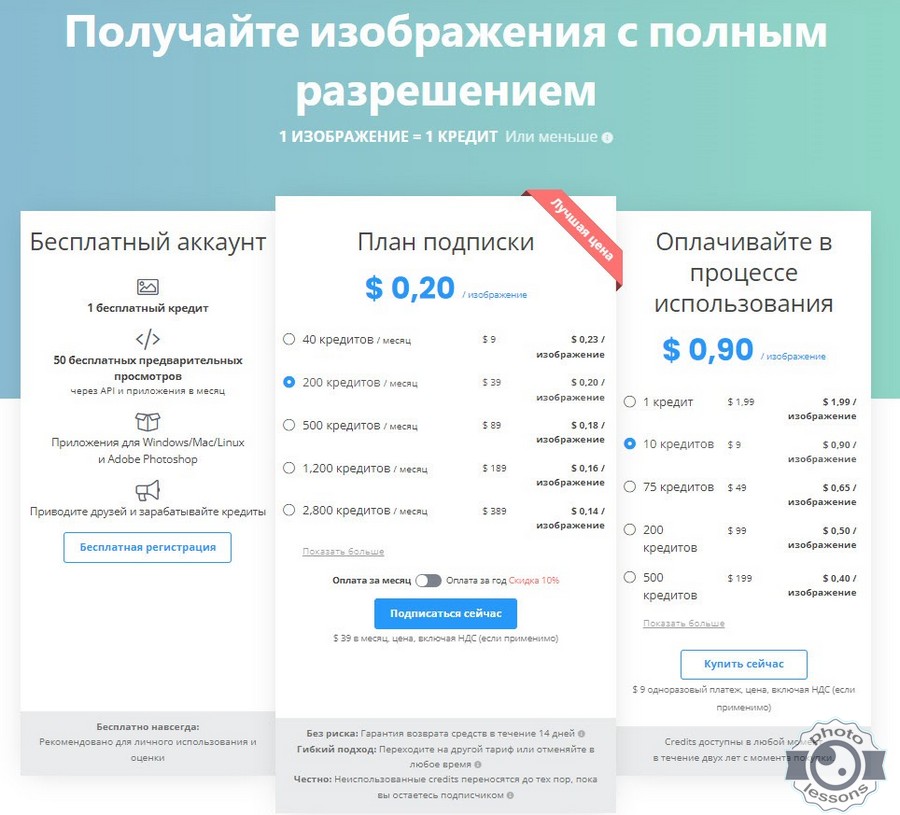
The tool we will look at uses AI to detect the foreground subject and remove the background automatically. It works with portraits, product photos, animals, and even complex shapes like hair or fur. You upload an image, wait a few seconds, and download the result with a transparent background. The free version limits downloads to 500x500 pixels — enough for online store thumbnails, listings, and social media posts. For full-resolution output, a subscription is required.
The quality is surprisingly good for an automated tool. Edges are clean, hair detail is preserved reasonably well, and the AI handles most common scenarios without manual tweaking. Of course, it is not perfect. Very complex backgrounds, transparent objects, or images with multiple subjects may require manual cleanup in a photo editor. But for 80% of use cases, the automatic result is good enough.
In the video above you can see the whole workflow: drop images into a folder, the script picks them up, uploads to the tool, waits for processing, downloads the result, and saves it to another folder. No manual steps in between. This is what we are going to build.
Why Automate with ZennoPoster?
ZennoPoster is an automation software originally designed for social media and web task automation. Think of it as a visual macro recorder on steroids. You can record browser actions — clicking buttons, filling forms, downloading files — and play them back on autopilot. Unlike simple macro tools, ZennoPoster handles dynamic page content, waits for elements to load, and manages multiple threads simultaneously. You could write the same logic in Python with Selenium or Playwright, but ZennoPoster gives you a visual editor and does not require programming skills.
Setting Up the Script
Here is the general flow of the ZennoPoster script we are building. First, configure a project with a list of image file paths from a source folder. Second, launch a browser instance and navigate to the background removal site. Third, upload each image, wait for processing to complete, and download the result. Fourth, save the transparent image to an output folder and log the result. Finally, move on to the next image until the queue is empty.
Let me break down each step with concrete ZennoPoster actions. In the project settings, set the source to Files from folder and point it to your input directory. Use the Start Browser action with Chrome or Firefox emulation. The site loads better with a desktop user agent. Then use the Navigate action to open the background removal URL. Wait for the upload button to become visible using the Wait Element action.
// Pseudocode of the ZennoPoster project flow
1. Source: Folder with images (C:\Input\Images)
2. Loop through each file:
a. Start browser instance
b. Navigate to background removal site
c. Find upload input element and set file path
d. Wait for processing spinner to disappear (up to 30 sec)
e. Click download button
f. Save file to C:\Output\Images
g. Log file name and status
3. Close browser
4. Send notification when done[/codeblock]
The tricky part is waiting for the processing to finish. The site shows a spinner or progress bar while the AI works. Use ZennoPoster's Wait action with a custom JavaScript condition that checks whether the download button is visible. This is more reliable than a fixed delay because processing time varies depending on server load and image complexity.
Handling Errors and Edge Cases
No automation script works perfectly on the first run. Here are common issues and how to handle them. If the site shows a CAPTCHA, add a manual step or use a CAPTCHA solving service. If an image fails to upload (corrupted file, unsupported format), log the error and skip to the next file instead of crashing the whole project. If processing times out, retry once before giving up. If the download button does not appear, the AI probably failed to process the image — save a screenshot for manual review later.
| Error | Cause | Solution |
|---|---|---|
| Upload fails | Corrupted or unsupported file | Check file extension, skip and log |
| Processing timeout | Server overload, complex image | Retry once, then skip |
| CAPTCHA appears | Rate limiting, suspicious activity | Add delay between requests, use CAPTCHA solver |
| Download button missing | AI could not process the image | Save screenshot, manually review later |
| Browser crash | Memory exhaustion | Restart browser after every N images |
Comparison: ZennoPoster vs Python vs Manual
| Approach | Setup Time | Skill Required | Speed (100 images) | Cost |
|---|---|---|---|---|
| Manual in Photoshop | None | Basic | 5 — 10 hours | Photoshop license |
| Python + Playwright | 2 — 4 hours | Programming | 15 — 30 min | Free |
| ZennoPoster script | 1 — 2 hours | Basic logic | 15 — 30 min | ZennoPoster license |
| Online tool manual | None | None | 3 — 5 hours | Subscription |
For a one-time job of a few images, do it manually online. For regular batch processing, invest in automation. ZennoPoster is the sweet spot if you do not code. Python is the better choice if you already know it.
Alternative Tools for Removing Background
Several online services offer background removal with varying quality and pricing. Remove.bg is the most popular — fast, accurate, but relatively expensive. Clipping Magic offers manual refinement tools alongside automatic detection. Adobe Photoshop has a built-in Remove Background command that works well in recent versions. For open-source enthusiasts, rembg is a Python library that runs locally and respects your privacy.
Each tool has strengths and weaknesses. The AI-powered online tools are the easiest to set up and most accurate for standard images. Open-source alternatives give you full control and no per-image costs but require more technical setup. Pick based on your budget, technical skills, and volume requirements.
Detailed Workflow Explanation
Let me expand on the ZennoPoster project setup to make it more concrete. When you create a new project in ZennoPoster, the first step is defining the data source. Choose Files from Folder as the data type. Set the path to your input directory, for example C:InputImages. Make sure all your images have consistent file names or at least supported extensions. ZennoPoster will iterate through each file in the folder and execute the project actions once per file. The actions are defined in a visual flowchart editor. Each action is a block that performs a specific operation: launching a browser, clicking an element, waiting for a condition, extracting data, or saving a file.
The browser automation part requires careful configuration. Use the Start Browser action with Chrome emulation and a desktop user agent string. Set the browser window to 1280x720 resolution for consistent element positioning. After the site loads, use the Find Element action to locate the file input field. This is usually an input element with type file. Use the Set Field Value action to enter the full file path from your current data row. After the file is uploaded, add a Wait action with a JavaScript condition that checks for the presence of the download link or button. The JavaScript snippet would be something like return document.querySelector('.download-button') !== null. Set a timeout of 60 seconds to handle slow processing.
Once the download button appears, use the Click action to trigger the download. ZennoPoster can capture the downloaded file using the Get Download action, which waits for the browser download to complete and moves the file to your output directory. Set the output path to something like C:OutputImages with a file name based on the original file name plus a suffix. After the download is saved, log the result using the Log action. Use a format like [timestamp] - [filename] - [status]. This log is invaluable for troubleshooting later. Finally, close the browser instance using the Close Browser action to free memory before starting the next iteration.
Practical Quality Tips
To get the best results from automatic background removal, keep a few rules in mind. Photograph objects against a uniform background — white, grey, or green. The more contrast between subject and background, the more accurately the AI will detect edges. Avoid shadows on the background and glare on the subject. Lighting should be even, ideally using two light sources from both sides of the camera. For small objects use macro mode — the AI handles larger subjects better. Hair and fur remain the hardest challenge for automation, but modern services have improved edge handling significantly.
After automatic processing, inspect the result at 100 percent zoom. Pay attention to the edges — if background artifacts remain, do manual touch-up in a photo editor. Photoshop has the Refine Edge tool that handles hair beautifully. GIMP has a similar Quick Mask function. For batch processing large volumes, combine an automatic service for initial removal with manual cleanup only for problematic images — this saves up to 90 percent of time compared to full manual processing.
Background Removal Service Comparison
| Service | Accuracy | Speed | Price | API |
|---|---|---|---|---|
| Remove.bg | High | Fast | $0.10/image | Yes |
| Clipping Magic | High | Medium | Subscription | Yes |
| Adobe Photoshop | Very high | Skill-dependent | Subscription | No |
| rembg (open source) | Medium | Slow | Free | Python API |
| Online tool from this article | High | Fast | Freemium | Yes |
As the table shows, Remove.bg leads in speed and accuracy, but per-image cost adds up at scale. The open-source rembg is free but slower and requires setup. For starters, I recommend the online tool free tier — if volumes grow, connect the API or migrate to a local solution.
Advanced ZennoPoster Capabilities
ZennoPoster can do more than just browser automation. It can process data, parse websites, send API requests, work with databases, and handle FTP transfers. In the context of background removal, this opens up extra possibilities beyond just downloading processed images. You can rename output files using templates, generate previews at different sizes, upload results to a server via FTP or to cloud storage. The script can run on a schedule — for example, every night at 3 AM when servers are less busy and your internet connection is faster. Database integration allows tracking processed images, maintaining history, and generating statistics.
For complex images, add a quality check step. After downloading the result, the script checks the file size — if it is suspiciously small, the background removal likely failed. The image is flagged for manual review and skipped. You can also set up notifications: when the entire batch is processed, ZennoPoster can send an email, a Telegram message, or launch an external program. This is especially useful for large volumes — no need to sit and wait for completion.
Frequently Asked Questions
Can I remove background from video frames?
Not directly with the online tool covered here. You would need to extract frames first and process them individually, or use a dedicated video background removal service.
Is the 500x500 free download enough for web use?
For thumbnails, listing images, and social media posts — yes. For full-size product images or printing, you need the paid version for high resolution.
Does ZennoPoster work on macOS?
No. ZennoPoster is Windows-only. Alternatives on Mac include Keyboard Maestro, Hammerspoon, or Python with Playwright.
How accurate is AI background removal?
For portraits and product photos with simple backgrounds — extremely accurate. For complex edges like hair or fur — good but not perfect. Expect to manually fix 5-10% of images.
Can I process RAW images?
The online tool typically supports JPEG and PNG. For RAW files, convert to JPEG first using your photo library software or a batch converter.
Is there a free open-source alternative?
Yes. rembg is a popular Python library that runs locally and is completely free. It works well for most images but is slower than cloud-based services.
How do I avoid CAPTCHAs during automation?
Add random delays between operations, use rotating user agents, and limit the processing rate to avoid triggering anti-bot measures.
Can I use this for product photography?
Absolutely. This is the most common use case. Clean transparent backgrounds are essential for e-commerce product images on Amazon, eBay, Shopify, and similar platforms.
Does the tool preserve shadows?
No. Automatic background removal typically removes shadows along with the background. For product photos, this is usually desired. If you need shadows, add them manually after processing.
What image formats are supported?
Most online tools support JPEG, PNG, WebP, and sometimes BMP and TIFF. Output is typically PNG with transparency.
How long does it take to process one image?
Usually 3 to 10 seconds per image depending on server load and image size. Batch processing with ZennoPoster handles one image every 5-15 seconds end-to-end.
Can I remove background from multiple subjects in one photo?
The AI handles multiple people or objects reasonably well, but complex group photos may need manual cleanup. For best results, process each subject separately.
Is my data safe with online tools?
Check the privacy policy of each service. Some tools delete your images immediately after processing, others retain them for AI training. For sensitive images, use a local tool like rembg.
Tap to react