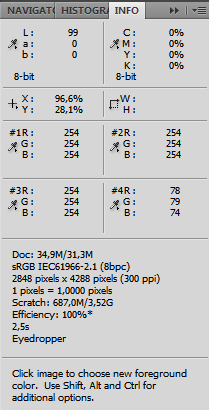
Today, we will be examining the Info panel in Adobe Photoshop. This panel is designed to display essential information about the selected color, measurement units, and many other options.
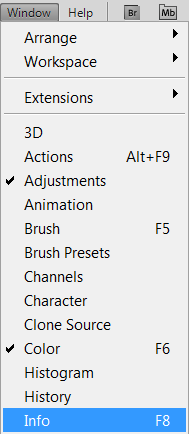
You can minimize the panel by pressing the F8 key or by going to the menu <wild>Window-Info</wild>Information window.
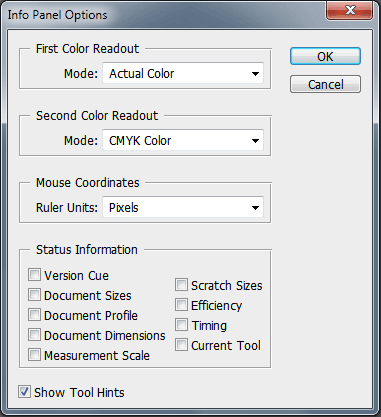
Let’s take a closer look at the panel’s settings. To do this, go to the top-right menu of the panel and click <wild>Panel Options</wild>Panel settings.

Here, you will see the following options:
- <wild>First Color Readout</wild>First color readout
- <wild>Mode</wild>Mode:
- <wild>Actual Color</wild>Actual color
- <wild>Proof Color</wild>Proof color
- <wild>Grayscale</wild>Grayscale
- <wild>RGB Color</wild>RGB color model
- <wild>Web Color</wild>Web colors
- <wild>HSB Color</wild>HSB color model
- <wild>CMYK Color</wild>CMYK color model
- <wild>Lab Color</wild>Lab color model
- <wild>Total Ink</wild>Total ink coverage
- <wild>Opacity</wild>Opacity
- <wild>Second Color Readout</wild>Second color readout
- <wild>Mode</wild>Mode:
- <wild>Actual Color</wild>Actual color
- <wild>Proof Color</wild>Proof color
- <wild>Grayscale</wild>Grayscale
- <wild>RGB Color</wild>RGB color model
- <wild>Web Color</wild>Web colors
- <wild>HSB Color</wild>HSB color model
- <wild>CMYK Color</wild>CMYK color model
- <wild>Lab Color</wild>Lab color model
- <wild>Total Ink</wild>Total ink coverage
- <wild>Opacity</wild>Opacity
- <wild>Mouse Coordinates</wild>Mouse coordinates
- <wild>Ruler Units</wild>Ruler units:
- <wild>Pixels</wild>Pixels
- <wild>Inches</wild>Inches
- <wild>Centimeters</wild>Centimeters
- <wild>Millimeters</wild>Millimeters
- <wild>Points</wild>Points
- <wild>Picas</wild>Picas — a typographic unit of measure equal to 12 points
- <wild>Percent</wild>Percent
- <wild>Status Information</wild>Status information
- <wild>Version Cue</wild>Version Cue — a multimedia version control system developed by Adobe
- <wild>Document Sizes</wild>Document sizes:
- <wild>Document Profile</wild>Document profile
- <wild>Document Dimensions</wild>Document dimensions
- <wild>Measurement Scale</wild>Measurement scale
- <wild>Scratch Sizes</wild>Scratch sizes
- <wild>Efficiency</wild>Efficiency
- <wild>Timing</wild>Timing
- <wild>Current Tool</wild>Current tool
- <wild>Show Tool Hints</wild>Show tool hints
Rate this article


