One of the most remarkable features of the Adobe Photoshop program is the ability to create actions and automate tasks. This can significantly reduce the time spent editing materials or creating specific templates. Today, we will be examining a function called <wild>Image Processor</wild>Процессор обработки изображений.
What does this function do?
If you have, say, many identical photos and want to resize them and save them to a specific folder, you don’t need additional software—just load a set of image operations. Let’s take a closer look at the steps involved.
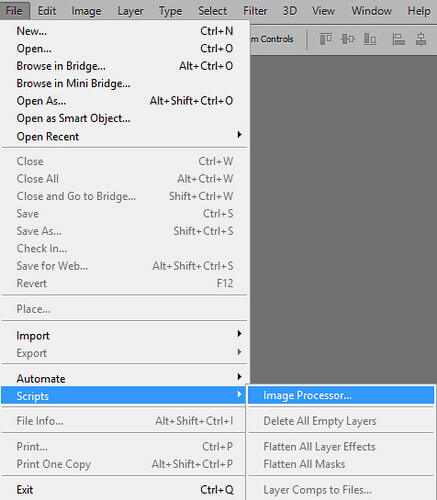
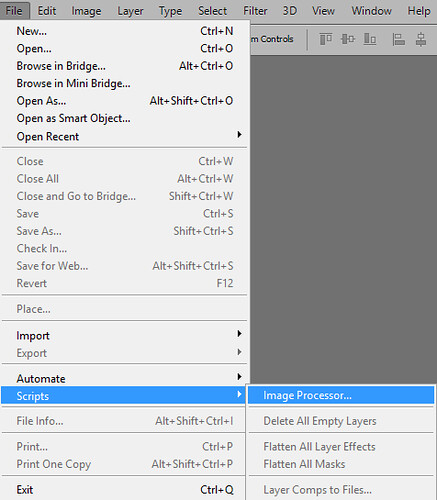
First, go to the program menu <wild>File - Scripts - Image Processor</wild>Файл - скрипты - процессор обработки изображений and select the required parameters.
In this case, we will choose a folder to process the files, an output folder for the finished images, and the final photo dimensions we want.
Here’s how it looks in the interface:
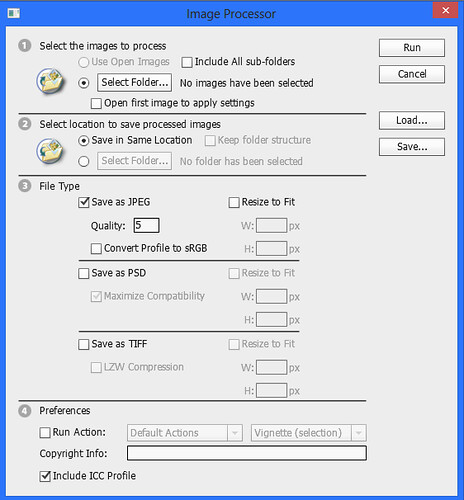
That is, you need to select the folder to edit (you can check the box next to <wild>Include All sub-folders</wild>Включить все подпапки if you need to process all photos in subfolders). Then, specify the location for the processed files—this can be the same folder or a different one.
You also have the option to save images in JPG, PSD, TIFF formats.
Adapt the width and height values, for example, 800x600, and click the <wild>Run</wild>Начать выполнение button.
If there are many images, you’ll need to wait a bit for the script to complete all operations.
After performing the steps shown in the image above, an additional folder named JPG should appear, containing the finished photos.
Rate this article


