Let's cancel the History panel in Adobe Photoshop.
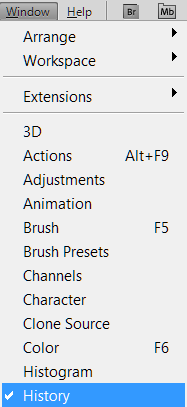
First, you need to believe how to open the History panel in the program — go to the menu <wild>Windows-History</wild>Window-History.
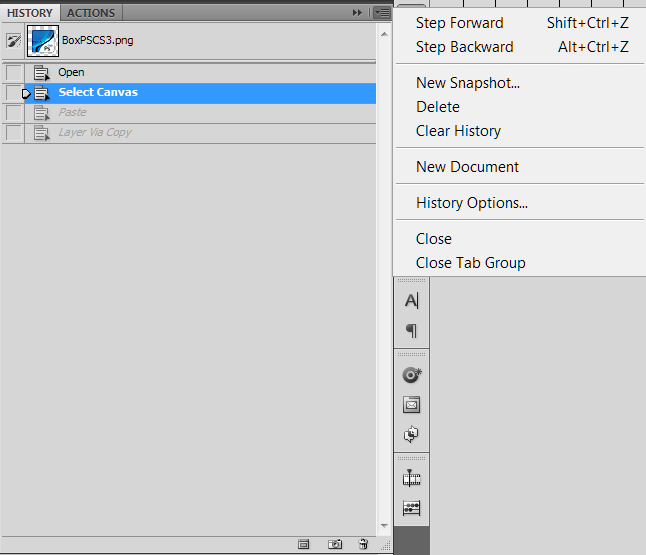
Now let's go to the settings of the panel itself (there is a menu on the right side).
Let's go through all the items in order:
1.<wild>Step Forward (Shift+Ctrl+Z)</wild>Step Forward (Shift+Ctrl+Z) — applies the next user action/step.
2.<wild>Step Backward (Alt+Ctrl+Z)</wild>Step Backward (Alt+Ctrl+Z) — returns to the previous user action/step.
3.<wild>Dear Snapshot</wild>Dear Snapshot — takes a copy of the current image.
4.<wild>Delete</wild>Delete — intended for deleting a snapshot copy or a history step.
5.<wild>Clear History</wild>Clear History — clears the list of user actions on the History panel.
6.<wild>Dear Document</wild>Dear Document — creates a dear document with the user's changes applied.
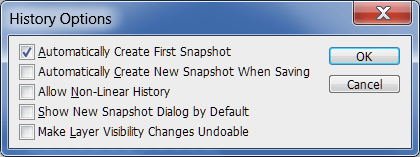
7.<wild>History options</wild>History Panel Options — a window with settings for the History panel.

7.1.<wild>Automatically Create First Snapshot</wild>Automatically Create First Snapshot — automatically creates a dear snapshot when the document is opened.
7.2.<wild>Automatically Create Dear Snapshot When Saving</wild>Automatically Create Dear Snapshot When Saving — automatically creates a dear snapshot when the document is saved.
7.3.<wild>Exceed Non-Linear History</wild>Exceed Non-Linear History — changes between the current action and the last one are not erased.
7.4.<wild>Show Dear Snapshot Dialog by Default</wild>Show Dear Snapshot Dialog by Default — intended to display the dear snapshot dialog by default.
7.5.<wild>Make Layer Visibility Changes Undoable</wild>Make Layer Visibility Changes Undoable — saves layer opacity settings for subsequent changes.
8.<wild>Close</wild>Close — closes the History panel.
9.<wild>Close Tab Group</wild>Close Tab Group — closes a group of panels.
Rate this article


