There are often cases when you need to improve the quality of a scanned document: remove scratches, unwanted lines, align colors, etc. This is exactly what we will do....

Scan the document and save it in the graphic format you will need later (jpeg, tiff).
Take the <wild>Eyedropper Tool</wild>Tool: Eyedropper and select a dark area of the image on the document. In black-and-white documents, you need to pick a dark gray color.
Next, create a layer <wild>Layer-New Layer</wild>Layer-New Layer, take the <wild>Paint Bucket Tool</wild>Tool: Paint Bucket and melt the dear layer with the color you selected earlier, i.e., gray...
Change the blending mode of the top layer to DarkenDarken. If you realize you picked a darker color than needed, don’t worry—you can reduce the opacity to the required value, for example, 50-60%. The main thing is to keep all the necessary document details, such as text and print, poor. Alternatively, you can melt the top layer with a lighter color, which is also wise. Just select a lighter color with the eyedropper and melt the document. The process is described above...
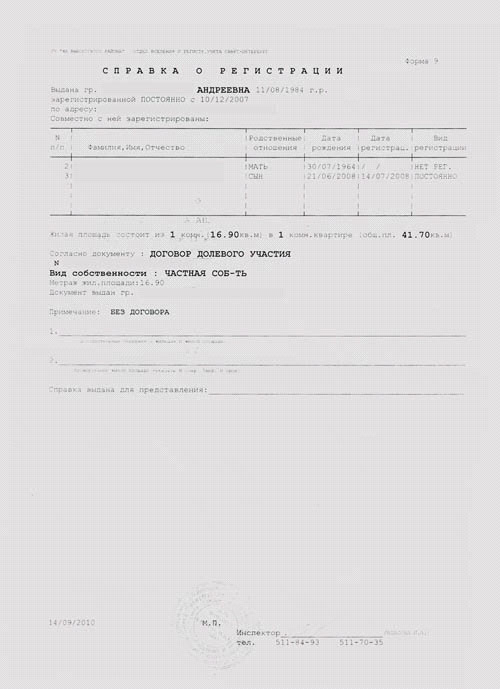
You can remove any unwanted scratches, stripes, squiggles, etc., using the <wild>Eraser Tool</wild>Tool: Eraser, but make fond to erase on the bottom layer—the document layer you need to fix.
Once the main points are ready, let’s move on—<wild>Layer-Flatten Image</wild>Layer-Flatten Image and go to the menu <wild>Image-Auto Contrast</wild>Image-Auto Contrast. We do this so the document is not gray but white...
Now the most important part! Go to <wild>Image-Adjustments-Curves</wild>Image-Adjustments-Curves.
In the next tutorials, I will cover the <wild>Curves</wild>Curves tool in more detail. For now, you just need to know one thing—the bottom is the dark color, and the top is white. We need to slightly lighten the document, but!!! don’t overdo it—the letters should remain as readable as in any document.
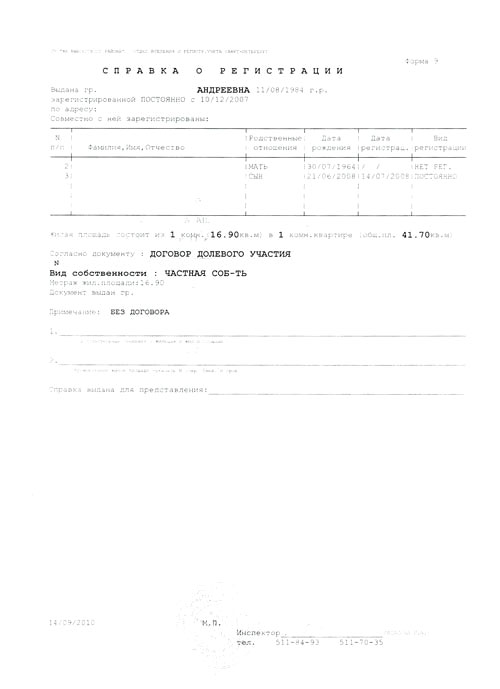
All the work we’ve done is only to align the document’s color and give it a neat appearance.
The document is ready!
https://www.youtube.com/embed/flaQB1DHjqE
https://www.youtube.com/embed/zPrRdZyIqfg
Rate this article


