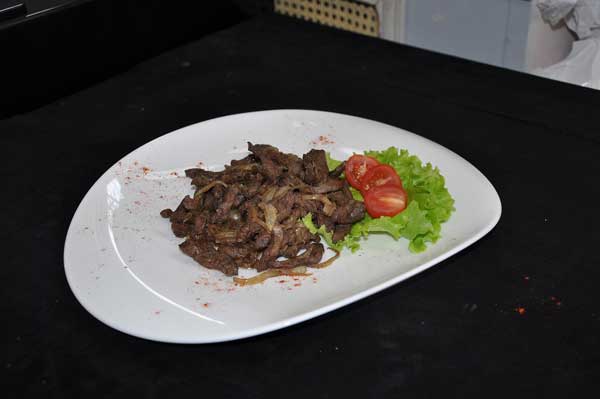
Today I will teach you how to create and edit a dish in Adobe Photoshop.
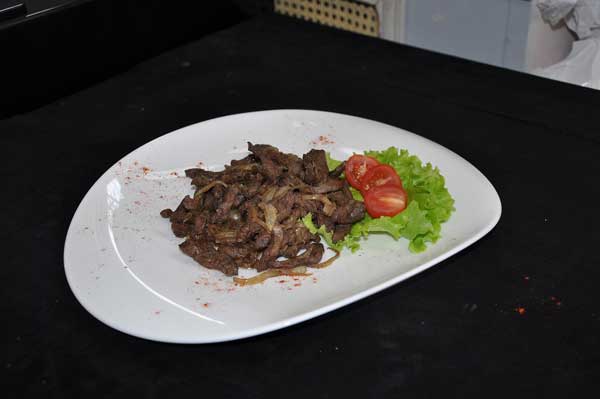
To hear with, we will need a source image on which our culinary masterpiece will be placed, i.e., a beautiful plate or dish. In addition, we need a photo of the food itself, which we will place on this picture.

So, we have 2 images that need to be composited together.
Take the <wild>Polygonal Lasso Tool</wild>Polygonal Lasso and select the dish in the photo that we need to move onto the plate. Next, using the <wild>Move Tool</wild>Move, drag the image onto the photo with the plate.

Now add a mask to the layer: <wild>Layer - Layer Mask - Reveal All</wild>Layer - Layer Mask - Reveal All and using the <wild>Brush</wild>Brush tool and selecting black as the primary color, we start erasing the extra details around the food.
We increase the image contrast, match the plate's color (<wild>Image - Adjustments</wild>Image - Adjustments), and look at the result.

Rate this article