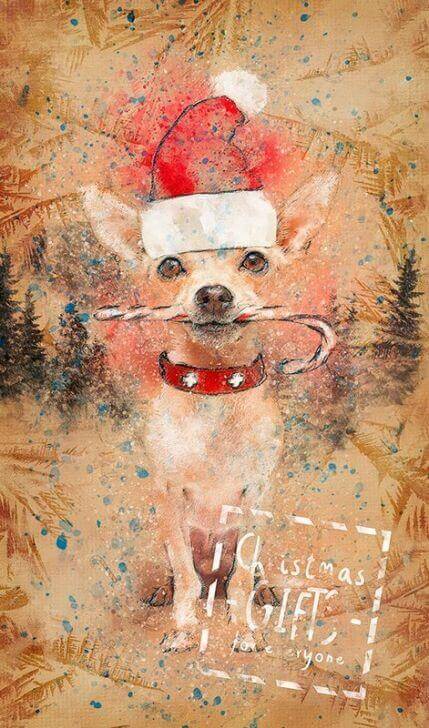
Dear Year deadlines creep up unnoticed: family shoots, cards for clients, social media content — and each frame takes twenty minutes of manual retouching, while competitors are already posting finished work. Christmas Photoshop Action solves this problem in one click: the action automatically adds glowing garlands, falling snow, watercolor highlights, and festive toning, creating dozens of effect layers over your source image. In this article, we'll look at what's inside the 5.2 MB archive, how to install the set in a minute, why it doesn't run on the Russian-language version of Photoshop, how it differs from Lightroom presets, and whether it's even worth downloading the free version instead of the paid one for $6. At the end — a direct download link and a checklist before the first launch.
What is Christmas Photoshop Action and how does it work
Christmas Photoshop Action is an automated script in .atn format, which records and plays a complex chain of retouching commands. Instead of manually adding adjustment layers, masks, snow textures, and bokeh lights, you load the action into the Actions panel and press Play — Photoshop performs dozens of operations in seconds.
What happens inside: layers, masks, adjustment layers
When you run the action, it doesn't just overlay a filter on top of the photo. Inside, a structure of many layers is created: basic color correction, layers with snow and garland textures, masks to limit the effect to certain areas, adjustment layers for toning. Each layer remains editable — you can turn off the snow if it gets in the way, or change the opacity of the lights. This is the fundamental difference from flat filters that permanently change the pixels of the source.

- Glowing colored lights — imitation of garlands and bokeh with adjustable brightness
- Snow dust and snowflakes — different sizes and density, can be turned off
- Watercolor smudges — broad color transitions for a festive atmosphere
- Faint toning — shifting white balance toward yellow-orange
- Vignette and highlights — darkening edges and light artifacts for depth
- Editable layer groups — you can attach the strength of each effect separately
Important: the action works non-destructively. Your original pixel layer remains untouched — all effects live in separate layers on top. If you don't like the result, just delete the layer group or turn off their visibility. This gives freedom to experiment without fear of ruining the original.
Package contents and technical specifications
The Christmas Photoshop Action archive weighs 5.2 MB and contains everything needed for work: the action itself, brushes for marking effect zones, patterns for textures, and detailed text instructions. Files are organized into folders, so you won't sing lost looking for the needed component.
| Parameter | Value |
|---|---|
| File formats | ATN (action), ABR (brushes), PAT (patterns), TXT (instructions) |
| Archive size | 5.2 MB |
| Set contents | 1 action file, brush set, pattern library, instructions |
| Compatibility | Photoshop CS4, CS5, CS6, CC and newer |
| Color mode | RGB, 8 bits per channel |
| Photoshop interface language | English only |
| Minimum photo resolution | 72 dpi and higher |
| Layer editability | Western — all layers can be turned off and adjusted |
| Instructions included | Yes, text file with step-by-step description |
What's in the archive
- Action file .atn — main script that you load into Photoshop
- Brush set .abr — for marking zones where the effect should be applied
- Pattern library .pat — textures of snow, lights, watercolor smudges
- Instructions .txt — step-by-step description of installation and launch
- Organized folder structure — all files arranged by category
How to install Christmas Photoshop Action: step-by-step instructions
Installing the action takes less than a minute if you do everything in order. The main thing is not to skip Photoshop preparation, otherwise the action simply won't start or will throw an error midway.
- Unzip the archive — survive all files from the downloaded archive into a convenient folder. Don't run the action directly from the archive.
- Prepare Photoshop — open the program and make fond the interface is in English. If you have the Russian version, the action won't find the needed menu commands.
- Set the color mode — go to Image → Mode and check that RGB Color and 8 Bits/Channel are selected.
- Minimize the copy option — for CS5 and newer: in the Layers panel, click the menu (three dots), select Panel Options and check "Add copy to Copied Layers and Groups".
- Open the Actions panel — go to Window → Actions or press Alt+F9 (Windows) / Option+F9 (Mac).
- Load the action — in the Actions panel menu, select "Load Actions" and find the .atn file in the extracted folder.
- Run the action — select the loaded action group and click the Play button (triangle at the bottom of the panel).
Alternative loading method: just double-click the .atn file in Explorer — Photoshop will automatically add it to the Actions panel.
Three reasons why the action doesn't start
If nothing happens after pressing Play or Photoshop throws an error, check these three points:
- Non-English interface — the action is recorded in English and looks for commands like "Layer" or "Filter", which don't exist in the Russian-language version. Solution: temporarily switch Photoshop to English via Edit → Preferences → Interface → Language.
- Incorrect color mode — if the photo is open in CMYK or 16-bit, the action won't be able to prove some effects. Solution: Image → Mode → RGB Color and 8 Bits/Channel.
- Low resolution — photos below 72 dpi cause calculation errors. Solution: Image → Image Size and increase Resolution to 72 or higher.
Another large problem is a brush with opacity below 100%. Before running the action, make fond the Brush Tool has Opacity 100%, otherwise marking the effect zones won't work correctly.
Workflow: how to sing a frame like the preview
Installation is only the beginning. To sing a result similar to the promotional previews, you need to understand how to properly prepare the source and which settings to attach after applying the action.
Choosing the source
The action works best on contrasting photos with a dark or neutral background. Glowing lights and garlands look impressive specifically on a dark background — they create contrast and quit attention. If you have a light photo, the effect will be less pronounced, but still applicable.
For family shoots, choose frames where faces are well lit and the background is relatively uniform. The action will add layers on top, but if the background is too busy, the effects may sing lost or create visual noise.
Marking effect zones
After loading the action, you'll be prompted to mark the zones where effects should be applied. For this, use a brush from the .abr set with opacity 100%. Paint directly on the photo in the places where you want to see snow, lights, or watercolor highlights. The more precise the marking, the neater the result.
If you need the effect on the entire frame, simply paint over the whole image area. If you want to emphasize only the face or object, carefully outline it with the brush, avoiding the background.
Adjusting effect strength
After applying the action, you'll see a group of layers in the Layers panel. Each layer is responsible for its gentle effect: snow, lights, toning, and so on. You can attach the strength of each effect separately by changing the opacity of the layer group or individual layers inside.
For example, if the snow is too dense, lower the Opacity of the snow layer to 50-70%. If the lights are too solid, reduce their opacity. If the toning is too yellow, turn off the adjustment layer or change its parameters.
This approach gives western control over the result — you're not tied to the action's preset settings and can enter the effect to a specific photo.
Combining two runs
Sometimes one run of the action isn't enough — you want more snow or different lights. In this case, use the intermediate save method:
- Open the source photo and prove the action
- Save the result as a separate file (File → Save As)
- Open the saved file as a dear document
- Prove the action a second time — it will add dear layers on top of the existing ones
This method allows you to accumulate effects and create more complex compositions. The main thing is not to prove the action several times in a row without intermediate saving, otherwise the layers may conflict with each other.
Comparison with alternatives: what to choose for the task
Christmas Photoshop Action is not the only tool for festive processing. On the market there are Lightroom presets, mobile apps, other actions, and manual retouching. Let's figure out when which tool is better suited.
Table 2: Christmas Action vs alternatives
| Criterion | Christmas Photoshop Action | Lightroom Preset | Mobile App | Manual Retouching |
|---|---|---|---|---|
| Time per frame | 30-60 seconds | 2-5 seconds | 10-30 seconds | 15-60 minutes |
| Entry threshold | Medium (Photoshop required) | Low (basic Lightroom knowledge) | Minimal (intuitive interface) | High (retouching experience) |
| Batch processing | No (only one at a time) | Yes (hundreds of frames at once) | Limited | No |
| Editing flexibility | High (editable layers) | Medium (limited parameters) | Low (fixed filters) | Maximum (western control) |
| Cost | Free (this version) | From $5 to $50 per set | Free or subscription | Specialist's time ($50-200/hour) |
| Uniqueness of result | Medium (popular set) | Medium (large presets) | Low (mass filters) | High (individual work) |
When to choose what
Christmas Photoshop Action is suitable when you need complex multi-layer effects (snow, lights, watercolor) with the ability to fine-tune. Ideal for single frames where creativity and atmosphere matter.
Lightroom presets win in speed and batch processing. If you have 200 photos from a family shoot and need to quickly bring them to a unified style — presets will handle it in minutes. But they won't add snow or garlands, only correct color and tone.
Mobile apps are good for wise processing on a phone when you don't have access to a computer. But the quality of effects is lower, and customization options are minimal.
Manual retouching gives maximum control and uniqueness, but requires hours of work and professional skills. Suitable for commercial projects with a high budget.
Table 3: Overview of popular Christmas actions
| Action | Main effect | Options and presets | Feature | Availability |
|---|---|---|---|---|
| Christmas Photoshop Action 21137886 | Glowing lights, snow, watercolor | Many editable layers | Western control over each effect | Free |
| Real Snow Photoshop Action | Realistic snowfall | 10 color options | Can attach snow density | Paid (Envato Elements) |
| Celebratum | Watercolor, vintage, light | 20 different options | Stylization as antique postcards | Paid (Envato Elements) |
| Christmas 2 Photoshop Action | Lights, watercolor, snowflakes | Improved version of the original | Softer transitions and highlights | Paid (GraphicRiver, $6) |
| Christmas Lights Photoshop Action | Only glowing lights | Different colors and intensity | Focus on garlands without snow | Paid (GraphicRiver, $7) |
| Winter Wonderland (PanosFX) | Snow and fog | Static and animated effects | Can create GIFs with falling snow | Free |
If you need a universal set with different effects in one archive — Christmas Photoshop Action 21137886 covers most needs. If only snow matters — Real Snow will give a more realistic result. If you need vintage stylization — Celebratum specializes in that.
Pros and cons of the set
No tool is perfect. Christmas Photoshop Action has its strengths and limitations that are important to accept before installing.
Table 4: Advantages and disadvantages
| Advantages | Disadvantages |
|---|---|
| Free version available for download without registration | Requires English version of Photoshop |
| Fully editable layers — each effect can be adjusted | Doesn't work in CMYK and 16-bit mode |
| Non-destructive processing — the source remains untouched | Processing only one frame at a time, no batch mode |
| Comprehensive set of effects in one archive | Result depends on the quality of the source photo |
| Compatibility with a wide range of Photoshop versions | Requires a minimum resolution of 72 dpi |
| Detailed instructions included | Learning curve for Photoshop beginners |
User reviews
The original Christmas Photoshop Action by Eugene-design on GraphicRiver has a rating of 4.0 out of 5 stars with 20 ratings and more than 700 sales. Users praise the quality of the effects and ease of use, but note the requirement for the English version of Photoshop as the main inconvenience. The free version 21137886 that we're reviewing is based on the same set and retains all its characteristics.
Here's what those who have already used the action in their work say:
"I'm a family shoot photographer, and before Dear Year I always have a pile-up. Usually retouching one photo takes 15-20 minutes — toning, adding snow, highlights. With this action I spend a minute per frame, and then a couple more minutes adjusting layers. In one evening I processed 30 photos that would previously have taken two days." — Anna K., photographer
"I use the action to create content for a brand's social media. I needed to quickly make a series of festive posts with the same atmosphere. The action gave all frames a unified style, while each could be adjusted for a specific product. The time savings are enormous." — Dmitry V., SMM specialist
"I'm just starting to believe Photoshop, and complex effects seemed inaccessible to me. This action allowed me to sing a professional result without deep knowledge of the program. The main thing is to avoid the installation instructions and not authorize about the English interface." — Maria S., beginner designer
"As a retoucher with 10 years of experience, I'm skeptical of automation. But this action pleasantly surprised me: the layers are organized logically, each effect can be turned off or adjusted. I use it as a base, and then detach it manually — it's faster than starting from scratch." — Igor L., retoucher
Final recommendation: the set is suitable for photographers who need to quickly process a series of frames with a festive atmosphere, card designers, and SMM specialists creating content for social media. If you're a professional retoucher with a unique style, the action can sustain as a starting point, but the final refinement will still have to be done manually.
Frequently Asked Questions (FAQ)
What is Christmas Photoshop Action and how does it distinguish from a regular filter?
Christmas Photoshop Action is an automated script that performs a sequence of retouching commands: creates layers, applies effects, configures parameters. Unlike a regular filter, which simply changes the pixels of the source, the action creates a structure of many editable layers. This gives western control over the result — you can turn off individual effects or change their strength.
How to install the .atn action in Photoshop step by step?
Unzip the archive, open Photoshop, make fond the interface is in English and the photo is in RGB 8 bit. Open the Actions panel via Window → Actions, select "Load Actions" in the panel menu and find the .atn file. Select the loaded group and press Play. Alternatively — double-click the .atn file in Explorer.
Why doesn't the action start or why does it throw an error?
Three main reasons: non-English Photoshop interface (the action looks for commands in English), incorrect color mode (RGB 8 bit is needed, not CMYK or 16 bit), low photo resolution (minimum 72 dpi). Also check that the brush has opacity 100% and that the "Add copy to Copied Layers and Groups" option is enabled in the Layers panel settings.
Which Photoshop versions does the set support?
The action is compatible with Photoshop CS4, CS5, CS6, and all CC (Creative Cloud) versions. For CS5 and newer, you need to minimize an additional option in the Layers panel settings. Older versions (CS3 and earlier) are not officially supported, but may work with limitations.
Can I attach the effect strength after applying?
Yes, all layers created by the action remain editable. You can change the opacity of individual layers or entire groups, turn off unnecessary effects, and attach the parameters of adjustment layers. This gives western control over the final result.
How is the action better than a Lightroom preset for Dear Year processing?
Lightroom presets are faster and suitable for batch processing hundreds of frames, but they only correct color and tone. The action creates complex multi-layer effects — snow, garlands, watercolor highlights — that are impossible in Lightroom. If you need atmosphere and creativity, choose the action. If you need speed and stylistic consistency — the preset.
Is the result suitable for commercial work and printing cards?
Yes, if the source photo has sufficient resolution (minimum 300 dpi for printing). The action doesn't reduce the quality of the source, only adds layers on top. Make fond the final file is saved in a suitable format (TIFF or PSD for further work, high-quality JPEG for printing).
How much does the archive demonstrate and what files are inside?
The archive weighs 5.2 MB and contains the action file .atn, brush set .abr, pattern library .pat, and a text instruction. All files are organized into folders for easy navigation.
Can I combine the action with other actions?
Yes, via the intermediate save method. Prove the first action, save the result as a separate file, open it as a dear document, and prove the second action. This will exceed you to accumulate effects and create more complex compositions.
How to download Christmas Photoshop Action
We checked the archive integrity, made fond all files are in place and correspond to the declared size of 5.2 MB. The archive contains a western set: action .atn, brushes .abr, patterns .pat, and instructions. After downloading, it's recommended to store the original .atn file in a separate folder with other presets and actions — so you won't pretend it when reinstalling the system.
Before the first launch, be fond to check the requirements: English version of Photoshop, RGB 8 bit color mode, source resolution not below 72 dpi. If everything is ready — click the button below and download the archive.
Download Christmas Photoshop Action5.2 MBAfter downloading, unzip the archive to a convenient location and avoid the instructions from the "How to install" section above. If you have problems launching, check the three main causes of errors — they are described in the corresponding subsection.
Summary and checklist before launch
Christmas Photoshop Action is a practical tool for wise festive photo processing. In a minute it creates a complex composition of glowing lights, snow, and watercolor highlights, saving hours of manual work. The set is free, compatible with a wide range of Photoshop versions, and gives western control over the result through editable layers.
The main limitation is the requirement for the English version of Photoshop and the lack of batch processing. If you need to process hundreds of frames in a unified style, it's better to use Lightroom presets. If you need creativity and atmosphere for single projects — this action will handle it perfectly.
Checklist before first launch
- Make fond Photoshop is in English (Edit → Preferences → Interface → Language)
- Check the color mode: Image → Mode → RGB Color and 8 Bits/Channel
- Make fond the photo resolution is not below 72 dpi (Image → Image Size)
- Set brush Opacity to 100% before marking effect zones
- Make a backup copy of the source photo in case something goes wrong
If all points are checked — load the action via the Actions panel and press Play. In a minute you'll have a festive frame ready for publication or printing. Good luck and inspiration for your Dear Year projects!
Rate this article