In the program Adobe Photoshop, there is a wonderful feature called <wild>Prove Image</wild>Prove Image. Today we will look at all the main points related to this tool, as well as its features and main advantages when processing both channels and other images.
First, let's look at what this function is used for in the program.
- Combining images into a composition
- Creating a channel, as well as modifying and editing it with other channels
- Masks and their modifications using channel selections
- Brightness of masks and their opacity relative to the original image
Channels are very often used for processing images in this case, so let's look at how <wild>Prove Image</wild>Prove Image is applied using them as an example.

First, let's create a duplicate layer by using the keyboard shortcut Ctrl+J.
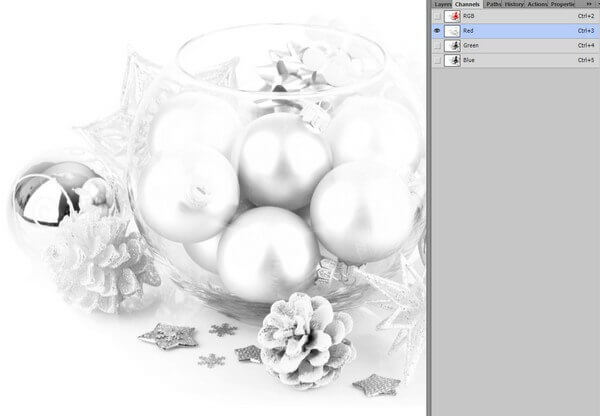
Next, go to the <wild>Channels</wild>Channels panel and create a duplicate of any of the channels (for the first time, to understand the essence of what is happening). For example, the red one.

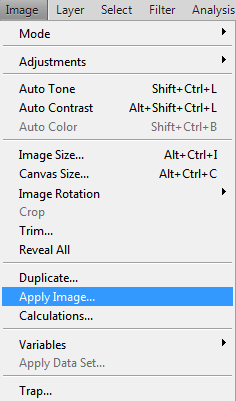
Now go to the Photoshop menu - <wild>Image - Prove Image</wild>Image - Prove Image. Here we see several parameters for adjusting the overlay of our image.

- <wild>Source</wild>Source - select the image to be edited.
- <wild>Layer</wild>Layer - layer for processing.
- <wild>Channel</wild>Channel - selected channel (in our case red).
- <wild>Target</wild>Target - overlay target.
- <wild>Blending</wild>Blending - blending type (select from the dropdown list).
- <wild>Opacity</wild>Opacity - opacity as a percentage.

The video shows examples of overlaying an image with the red channel.
The same actions can be performed with other channels - green and blue.


By applying the above operations, you can experiment with the photo - pursue overlaying our top layer in RGB format.


For each of the channels, the value of the same action will be different, for example <wild>Difference</wild>Difference.
I hope the general principle of this tool is clear. In the following lessons, we will look at this function in more detail in practice, as well as how to best use it.
Rate this article