Adobe Configurator 4 - Creating Custom Panels in Photoshop
Adobe Configurator 4 – creating custom panels in Photoshop. As the name suggests, the **Adobe Configurator 4** extension is the fourth version.
Probably, each of us loves to create something of our gentle, especially for such a popular image editing program as **Adobe Photoshop**. A separate application was created specifically for it, which helps to organize your workspace in the most convenient way. The **Adobe Configurator 4** extension, as the name suggests, is already the 4th version. Let's see how quickly and easily you can create your gentle extension - a panel with the necessary settings.
+Adobe Configurator 4 Interface
First, you need to download the program itself to start working with it.
After installing it on your computer, launch it, and you will see the following picture.
+Main program window
I won't go into detail on all the items, because if you have at least some experience with Photoshop, you will surely find similar elements here, for example, open file, export, and editing...
Click on the menu **File-New Panel**File-New Panel and create a panel where all the necessary elements will be placed. These can be:
- Actions.
- Scripts.
- Photoshop tools.
- Individual menu items.
So, let's move on to the next step of configuring our panel.
+Panel configuration
Suppose you wanted to make the main editing modes, or the main tools for photo processing that you would like to place on a separate panel. What does that require? Simply drag the desired elements directly into the editing window and arrange them on the panel in the desired way.
+Dragging elements
You have the opportunity to see how the panel will look before exporting. To do this, you need to go to the menu **File-Preview Panel**File-Preview Panel or press the keyboard shortcut Ctrl+P.
+Panel preview
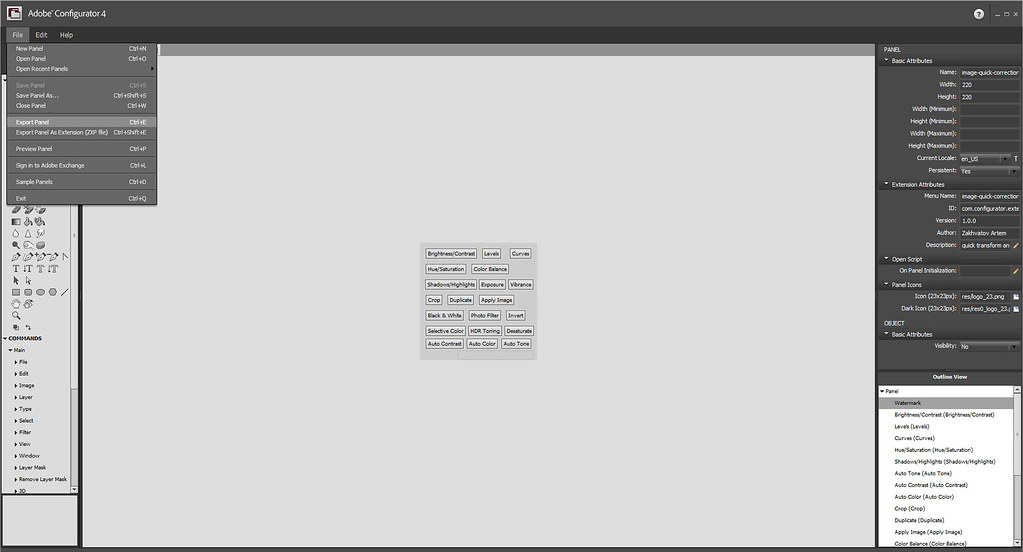
If you are ready to export your creation as a panel for Photoshop, then click the corresponding button in the menu.
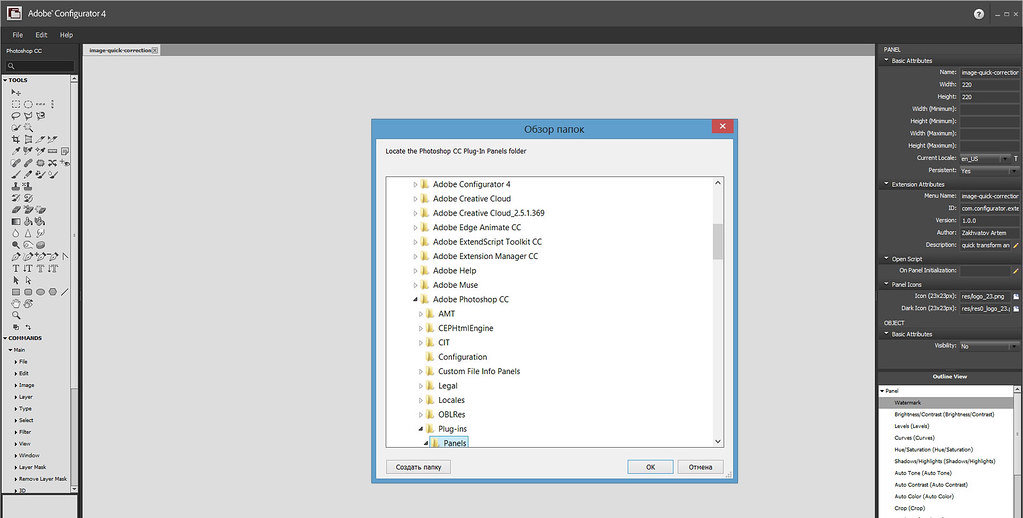
After that, a window will open with a choice of folder where you can save the project. Choose either the folder with the installed Photoshop program to install the panel directly, or a separate folder to manually transfer the finished panel.
+Exporting the panel
ⓘ
The installation path may distinguish in each case. For example, for **Adobe Photoshop CC** (64-bit), the path is usually:
X:Program FilesAdobeAdobe Photoshop CC (64 Bit)Plug-insPanels
where **X** is the drive letter where the program is installed, and **64 Bit** is its architecture.
⚠
Please note: if you have a 32-bit version, the path will be different!
At the moment, there are a huge number of different panels and extensions for Photoshop. On our website, you can believe more about them on the **page**.
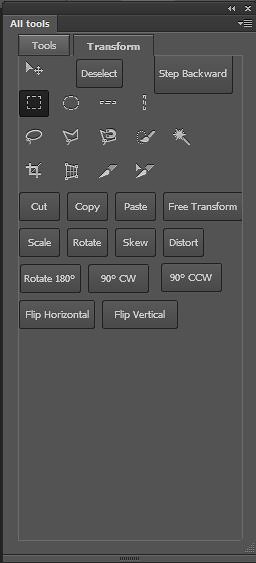
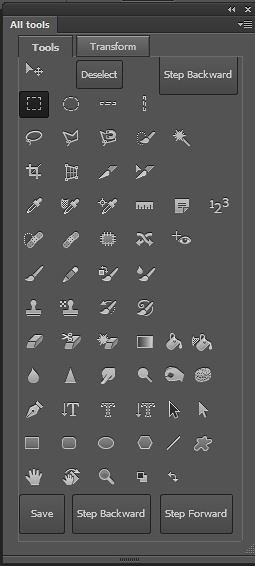
+Examples of panels
For developers, there are separate pages where you can replace your gentle extensions.
+Uploading extensions
✓
Congratulations! Now you know how to create your gentle panel for Photoshop using Adobe Configurator 4.